How to Edit PDF in Google Docs: Practical Step-by-Step Guide
Learn how to edit PDFs in Google Docs, including converting, editing text and images, and preserving layout. A practical guide for professionals and students who need quick, on-the-fly updates without specialized software.


You can edit a PDF in Google Docs by converting it to a Google Docs format, editing the text and images, and re-exporting as PDF when finished. Expect some formatting shifts, especially with complex layouts. Use this approach for light edits, quick annotations, or simple content updates rather than full design work.
Why editing PDFs in Google Docs can be useful
For many professionals and students, Google Docs provides a convenient, accessible way to make quick edits to a PDF without specialized software. This workflow is particularly valuable when you need to add notes, correct typos, or insert small blocks of text into a document that will be shared or reviewed collaboratively. According to PDF File Guide, relying on cloud-based tools can streamline collaboration and reduce setup time for teams working across different devices. The benefit isn't just convenience; it also enables rapid iteration during reviews, edits, and approvals, all while keeping the file accessible through a familiar interface. However, the trade-off is potential formatting shifts, especially with non-text elements or complex layouts, so this method is best for lighter edits rather than heavy design work.
Prerequisites and limitations you should know
Before you start, ensure you have a Google account with Google Drive access and a stable internet connection. Google Docs can convert PDFs to an editable format, but some fonts, images, and layout features may not transfer perfectly. This is why many professionals use this approach for simple edits and then compare the output to the original. PDF File Guide analysis shows that the workflow is fast and tends to preserve readability, but expect manual tweaks after conversion, particularly for multi-column layouts or scanned documents.
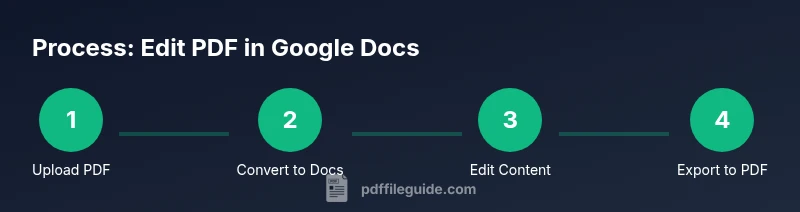
Step-by-step workflow: convert, edit, and export
The following steps outline a practical workflow to edit PDFs in Google Docs. Each step is focused on a single action to keep the process clear and repeatable. After completing all steps, you will have a usable edited PDF ready for distribution, with the caveat that formatting may require fine-tuning on export.
Working with text: editing, fonts, and alignment
Text editing in Google Docs is straightforward once the PDF is converted, but you may encounter font substitutions or alignment shifts. Focus on adjusting paragraphs, headings, and lists first, then verify that bullets and numbering retain their structure. For headers and footers, you might need to re-create them in Google Docs rather than attempting a direct edit of the PDF layer, which helps maintain consistency when exporting back to PDF.
Edits to images and objects: replacements and repositioning
Images and graphics in a converted PDF can be replaced or resized as needed. Click the image to select it, then use the built-in image tools to replace, crop, or reflow the image. If a scanned image contains embedded text, consider running OCR again in a separate step or using an external tool to preserve legibility after export. Keep image dimensions in mind to maintain overall layout.
Annotations, comments, and collaboration
Google Docs supports comments and suggestions, which are ideal for collaborative editing. Use comments to flag ambiguous sections, request approvals, or assign tasks. If you’re working with others, enable share settings and set appropriate permissions to prevent unintended edits. Annotations are especially useful for marking changes in a review cycle without permanently altering the content.
Final review: export options and preserving layout
After edits, review the document layout page by page to check for orphaned headers, misaligned text, or shifted margins. When you’re satisfied, export the document back to PDF. Compare the new PDF with the original to ensure readability and accuracy. If formatting is inconsistent, consider adjusting margins or re-exporting with different font embedding options to preserve fidelity.
When Google Docs editing is the right tool, and when to use alternatives
Google Docs excels at lightweight edits, simple text changes, and quick collaborations. For heavy formatting, complex typography, or high-fidelity layouts, a dedicated PDF editor or desktop publishing tool may be more reliable. In those cases, convert to a PDF-friendly format only for review, or use the PDF editor to preserve exact layout before sharing with stakeholders.
Tools & Materials
- Google account with Google Drive access(Needed to access Google Docs and perform the conversion)
- Source PDF file(Original document to edit or annotate)
- Stable internet connection(Ensures reliable conversion and saving to Drive)
- Web browser (Chrome recommended)(Best compatibility for Google Docs features)
- Optional: screenshots or notes for edits(Helps capture exact changes and references)
Steps
Estimated time: 45-60 minutes
- 1
Upload the PDF to Google Drive
Open Google Drive and upload your PDF file. This creates a cloud-based copy that Google Docs can convert into an editable format. Ensure the upload completes before proceeding to the next step.
Tip: If the PDF is large, consider uploading during a time with stable bandwidth to avoid interruptions. - 2
Open the PDF with Google Docs to trigger conversion
Right-click the uploaded PDF and select Open with > Google Docs. Google Docs will convert the PDF into a Google Docs document, making text editable. Review the converted document for any obvious errors introduced during the conversion.
Tip: Do not close the original PDF; keep it as a reference in case you need to revert changes. - 3
Edit text blocks and headings
Click text to edit; adjust headings, paragraphs, and lists as needed. If fonts look off, replace them with more common Google Docs fonts to preserve readability. Avoid changing core layout elements until you verify export fidelity.
Tip: Use the Styles menu to maintain consistent heading levels across the document. - 4
Replace or adjust images and objects
Select an image to replace or resize, and reposition as necessary. If images contain text, consider re-importing higher-res versions or retyping captions to ensure legibility after export.
Tip: Keep a mental note of where images originally appeared to minimize layout drift. - 5
Add annotations and comments for collaboration
Use the Comment feature to add suggestions or questions for teammates. This keeps edits non-destructive and easy to track during reviews.
Tip: Assign comments to specific collaborators by tagging them in the comment. - 6
Run a quick formatting check and adjust margins
Navigate through pages to ensure margins and alignment look consistent. Make small margin adjustments if lines wrap awkwardly or headers clash with body text.
Tip: Use the Print Layout view to preview page breaks as they will appear in the final PDF. - 7
Export back to PDF
Go to File > Download > PDF Document (.pdf) to export. This creates a new PDF that reflects your edits in Google Docs. Check the resulting file for fidelity to the original layout.
Tip: If fonts or images appear differently, try embedding fonts or adjusting image quality in the export settings. - 8
Share or store the edited PDF
Store the new PDF in Drive or share directly with teammates. Set permissions to view or comment if you want others to review without editing the file.
Tip: Create a versioned filename (e.g., StudyGuide_v2) to track iterations easily.
Questions & Answers
Can I edit any PDF in Google Docs, and will it preserve all formatting?
Editing is possible for many PDFs, but complex layouts, fonts, and forms may not transfer perfectly. You may need additional tweaks after conversion or use a dedicated PDF editor for heavy edits.
Yes, you can edit many PDFs, but expect some formatting changes and potential issues with complex layouts.
Will scanned PDFs become editable text after conversion?
Scanned PDFs are images and won’t be editable as text unless OCR is applied. If you need editable text, run OCR on the scanned pages before importing to Google Docs.
Only if you OCR the document first; otherwise it remains non-editable image text.
How do I export the edited file back to PDF from Google Docs?
In Google Docs, use File > Download > PDF Document (.pdf). This creates a new PDF reflecting your edits, which you can share or store.
Go to File, choose Download, then PDF Document to save your edits as a PDF.
Is it secure to edit PDFs in the cloud?
Cloud-based editing is generally secure for everyday documents if you use strong account security and share settings. For sensitive materials, consider local editing with offline tools.
Cloud editing is usually secure, but protect sensitive files with strong access controls or offline options.
What should I use if my PDF edits are extensive or design-heavy?
For extensive edits, visuals, or typography-heavy layouts, a dedicated PDF editor or desktop publishing tool provides tighter control and fidelity than Google Docs.
For big edits, use a specialized PDF editor to preserve layout and quality.
Can I annotate PDFs without editing the text in Google Docs?
Yes. Use the built-in comments, highlights, and drawing tools in Google Docs to annotate before exporting, which is useful for review cycles.
You can add comments and highlights for review without changing the core text.
Watch Video
Key Takeaways
- Convert PDFs to Google Docs for quick edits.
- Expect occasional formatting shifts after conversion.
- Use comments to manage collaborative edits efficiently.
- Export back to PDF to finalize changes.