Can You Insert a PDF into Google Docs? A Practical Guide
Discover step-by-step methods to insert PDF content into Google Docs, including converting PDFs for editing, embedding pages as images, or linking to the original file via Google Drive. PDF File Guide explains best practices for editors and professionals.


You can't attach a PDF file directly into a Google Doc, but you can incorporate PDF content by converting the PDF to Google Docs, inserting scanned pages as images, or linking to the PDF in Drive. This guide shows the step-by-step methods and best practices to choose the right approach for your workflow.
Can you insert a PDF into Google Docs? Quick reality check
If you’re asking whether a PDF can be embedded as a live object inside a Google Doc, the short answer is no. Google Docs doesn’t support embedding PDFs the way you might embed an Excel sheet in a Word document. However, there are reliable ways to incorporate PDF content so your readers can access, view, or edit what you need. The most common strategies are to convert the PDF into an editable Google Docs format, insert individual PDF pages as images to preserve layout, or simply link to the original PDF stored in Google Drive. Each approach has trade-offs related to editability, fidelity, and document size. For professionals who frequently edit and share documents, knowing when to convert, when to image, and when to link can save time and avoid frustration. The PDF File Guide team notes that choosing the right method depends on your goals for accessibility, collaboration, and long-term archiving.
Why this matters for PDFs in Google Docs
Working with PDFs inside Google Docs matters because many workflows hinge on collaboration and version control. If you need to extract editable text for a report, a quick conversion to Google Docs can speed up the drafting process. If maintaining precise page layout is critical—for example, marketing one-pagers, product sheets, or technical diagrams—embedding as images ensures the visuals remain faithful to the source. Finally, when you want readers to access the original document without duplicating content, linking to the PDF in Drive keeps your workspace lean and up-to-date. PDF File Guide emphasizes choosing a method that reduces back-and-forth edits while preserving readability and accessibility across devices.
The three practical approaches to incorporating PDFs
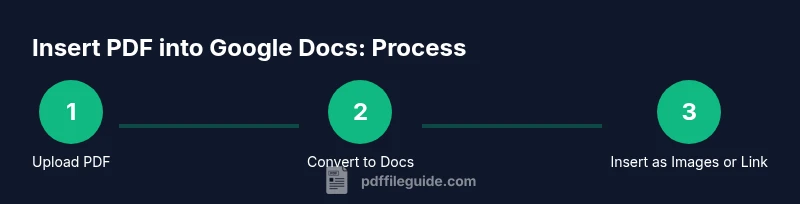
There isn’t a single one-size-fits-all method for can you insert pdf into google doc. The three practical approaches below cover the most common needs:
- Convert PDF to Google Docs for editing: suitable when you want editable text, headings, and lists. This method creates a living document you can revise collaboratively.
- Insert PDF pages as images: best when fidelity to layout is essential, such as multi-column designs or embedded charts that don’t translate well to plain text.
- Link to the PDF in Drive: ideal for reference copies, large documents, or when you want to keep the original PDF intact and centralized.
Method 1 overview: Convert PDF to Google Docs for editing
Converting a PDF to Google Docs is a practical first step if your goal is to rework the content. When you upload the PDF to Google Drive and open it with Google Docs, the platform performs an OCR-like transformation that extracts text and basic formatting. The result is a new Google Doc containing editable text. Be aware that complex layouts, tables, and image-heavy pages may not convert perfectly, and you’ll likely need to reapply styles. In many cases, you’ll perform a careful post-conversion cleanup to correct headings, typography, and lists. PDF File Guide notes that this approach is especially useful for draft documents, meeting notes, or transcriptions where editability matters more than preserving exact appearance.
Method 2 overview: Insert PDF pages as images for fidelity
If you must preserve exact page composition—columns, graphics, headers, and footers—embedding the PDF as images is the most reliable option. You export or print each page as an image (PNG or JPEG) and insert those images into your Google Doc in the correct order. This keeps layout intact but makes text non-editable in that view. For long PDFs, consider inserting a few representative pages and providing a separate link to the full document. PDF File Guide suggests batching image exports to maintain consistency in resolution and aspect ratio across pages.
Method 3 overview: Link to the original PDF in Drive for reference
Sometimes the simplest approach is to link to the original PDF in Drive. This keeps your Google Doc lightweight while giving readers direct access to the source file. You can insert a hyperlink on a callout text such as “View original PDF” or place a small note in a footer. This method is particularly useful for large manuals, legal documents, or reference catalogs where ongoing updates occur. PDF File Guide recommends using descriptive link text and setting sharing permissions so recipients can access the file without friction.
How to choose the right method for your document
Selection depends on your goals. If you require ongoing edits and collaboration, conversion to Google Docs is usually best. If the exact layout matters for print or slide-deck fidelity, embedding as images is preferable. If the goal is to minimize edits and provide centralized access to the source, linking is the cleanest option. Consider the audience, device variety, and whether searchability matters. A hybrid approach is common: convert essential sections for editing, attach images for complex pages, and link to the full PDF for reference.
Formatting and accessibility considerations when embedding PDFs
When mixing PDFs with Google Docs, be mindful of searchability, reflow, and accessibility. Converted text becomes searchable within the Google Doc, aiding discoverability. Images do not carry text searchability unless you add alt text or OCR-aware captions. If accessibility is a priority, provide alt text for inserted images, ensure heading structure is logical after conversion, and consider providing an accessible text version alongside the PDF image pages. PDF File Guide reminds editors to balance fidelity with usability, especially for readers using assistive technologies.
Workflow example: editing a product brief vs a technical datasheet
A product brief often benefits from quick edits and collaboration. Convert the PDF to Google Docs for an editable base, then reformat headings and bullets to match your brand style. For a datasheet with precise diagrams, export pages as images and insert them to preserve layout. Always include a direct link to the original PDF in Drive for reference. This hybrid approach ensures both editability and fidelity where required, while avoiding unnecessary duplication of content across files.
Troubleshooting common issues when embedding PDFs
If conversion yields garbled text or missing images, try re-uploading the PDF with higher resolution or cleaner source files. Inconsistent margins or column widths after conversion can be addressed by reapplying Google Docs styles and checking page setup. When inserting images, verify that image compression settings don’t degrade readability. If linking to Drive fails for some users, confirm the PDF’s sharing permissions and ensure recipients have access. The key is to test on multiple devices and adjust accordingly.
Authority sources and best practices
For further guidance on PDF handling and document workflows, consult trusted sources in the field. The following references provide complementary perspectives on PDF formats, accessibility, and best practices:
- https://www.nist.gov
- https://www.iso.org
- https://www.pdfa.org
Next steps: creating your own embedding plan
Create a short plan outlining when to convert, image-embed, or link for typical documents you work with. List the type of PDF content you handle (text-heavy vs. image-heavy), the expected audience, and your collaboration needs. Then test a sample document using all three approaches to measure time, fidelity, and ease of sharing. Use the results to standardize a repeatable workflow that saves time and preserves quality.
Tools & Materials
- Google account(Needed to access Google Docs and Drive for uploads, conversions, and sharing.)
- Stable internet connection(Essential for cloud-based workflows and real-time collaboration.)
- PDF file(s)(Source documents to insert, convert, or reference.)
- Web browser or Google Docs app(Use a modern browser (Chrome recommended) for best compatibility.)
- Google Drive access(Central hub for uploading PDFs and sharing links.)
- Optional: PDF editing/conversion software(Useful for pre-processing or optimizing PDFs before import.)
- Image export tool (PNG/JPEG)(Helpful when exporting PDF pages as images for fidelity.)
Steps
Estimated time: 25-40 minutes
- 1
Upload the PDF to Google Drive
Open Drive, click New, and upload your PDF file. Organize it in a dedicated folder to keep related PDFs together for easy retrieval.
Tip: Use descriptive file naming and a consistent folder structure to simplify later steps. - 2
Open the PDF with Google Docs to convert
Right-click the PDF in Drive and choose Open with > Google Docs. The document will render as an editable Google Doc, suitable for minor edits and reformatting.
Tip: Expect some formatting changes; plan to reapply headings and lists after conversion. - 3
Review and adjust formatting after conversion
Survey the converted document for garbled text, misaligned tables, and image placement. Reapply headings, fonts, and spacing to restore readability.
Tip: Use Format > Clear formatting to remove inconsistent styles before reapplying your preferred designer style. - 4
Insert converted content into your main Doc
Copy the edited content from the converted document and paste into your primary Google Doc. Remove duplicates and ensure a logical flow.
Tip: Paste without formatting when transferring to preserve your target document’s style. - 5
Add PDF pages as images when layout matters
If exact page layout is critical, export PDF pages as images and insert them in order using Insert > Image > Drive (or Upload).
Tip: Keep a consistent image resolution (150–300 dpi) to balance clarity and file size. - 6
Link to the original PDF in Drive for reference
In your Google Doc, select anchor text and insert a link to the original PDF on Drive. This preserves access to the source without duplicating content.
Tip: Set sharing permissions to ensure readers can access the PDF without signing in. - 7
Save, review, and share
Review the final Doc, run a quick search for keywords, and share with teammates. Consider exporting a PDF version of the final document if needed.
Tip: Enable version history to track edits over time.
Questions & Answers
Can you embed a PDF directly into Google Docs?
No direct embedding is supported. Use conversion, image embedding, or a Drive link depending on your needs.
Direct embedding isn’t supported; choose conversion, images, or a Drive link for access.
Will converting preserve all formatting?
Most text converts well, but complex layouts, tables, and image-heavy pages may require post-conversion adjustments.
Conversion preserves most text; complex layouts may require tweaks.
How large PDFs can I convert or embed?
There is no fixed size limit, but very large PDFs can slow down processing or affect performance. Use linking for very large documents when possible.
There’s no strict size limit, but performance may vary with large PDFs.
Can I edit the content after conversion?
Yes. After conversion, the content becomes editable like any Google Doc, though you may need to clean up formatting.
Yes, you can edit after conversion; some cleanup may be needed.
Is it possible to insert multiple PDFs into one Doc?
Yes, you can repeat the process for additional PDFs, using either conversions, images, or links as needed. Monitor document size.
Yes, you can add more PDFs, but watch document size.
What about accessibility after embedding PDFs?
Converted text is searchable, but images should have alt text. Ensure headings are logical and provide text alternatives where necessary.
Text is searchable after conversion; add alt text to images for accessibility.
Watch Video
Key Takeaways
- Convert when you need editable text.
- Embed images for exact page fidelity.
- Link to the original PDF for reference and size savings.
- Check accessibility: alt text for images and logical headings.
- Test across devices to ensure consistent rendering.