How to Download and Edit PDFs for Free: A Step-by-Step Guide
Learn how to safely download editable PDFs for free and edit them with no-cost tools. This educational guide covers legality, source selection, safe workflows, and best practices for professionals and beginners alike.


By the end of this guide you will learn how to download edit pdf for free from trusted sources and edit them using no-cost tools. You’ll verify the file’s safety, choose appropriate open-source or web-based editors, and save editable outputs without compromising formatting or accessibility. The process covers legal considerations and practical workflows for professionals and hobbyists alike.
Understanding the landscape: why people search for free editable PDFs
In today's digital workspace, many people look for 'download edit pdf for free' resources to speed up forms, contracts, and educational documents. An editable PDF is a document that preserves its layout while allowing you to modify text, fill in fields, or insert annotations without recreating the file from scratch. When you search for free options, you should balance convenience with legality and safety. According to PDF File Guide, the most reliable outcome comes from sources that clearly publish licensing terms or provide templates that are free to use for personal or professional purposes. This mindset helps you avoid corrupted files that could contain malware or lead to license violations. In practice, you will see a mix of fillable forms, editable templates, and documents that require you to edit content using compatible software. The goal is not to obtain opaque files, but to work with well-supported formats that preserve accessibility and structure. As you proceed, you’ll learn how to evaluate sources, choose editors that fit your needs, and respect any copyrights attached to the material.
Legal and ethical considerations when downloading editable PDFs
Downloading editable PDFs is legitimate when you stay within the bounds of copyright and licensing terms. Many government portals and educational sites provide forms and templates for free, which you can download and modify for legitimate uses. Always check the license attached to a document; some PDFs are available under open licenses, some are templates that require attribution, and others are restricted. Using pirated or unlicensed PDFs risks legal trouble and exposes you to security threats. When possible, favor sources that offer clear terms, such as official forms from public institutions or educational projects. The PDF File Guide team recommends reading the terms of use, respecting digital rights management where present, and avoiding modifications that could misrepresent a form’s authority or origin. By understanding these boundaries, you can confidently use free resources to streamline your workflow while safeguarding yourself and your colleagues.
Free sources for downloadable editable PDFs
Free editable PDFs come from several trustworthy channels. Government portals occasionally publish fillable forms, check official sites like usa.gov and state or municipal portals for properly authored templates. Universities and libraries often share templates under permissive licenses that allow editing and redistribution. Open educational resources (OER) repositories may host editable PDFs for academic use. When you encounter a site that promises unlimited free edits, verify the site’s security indicators and read reviews. PDF File Guide suggests starting with well-known sources and avoiding obscure sites that require you to disable browser protections or install extraneous software. If you need a form for business use, search for legally sourced templates that indicate the exact usage rights. By prioritizing reputable sources, you minimize malware risk and licensing confusion while preserving document integrity.
Free editors: desktop vs online options
Free editors come in two broad categories: desktop applications and web-based tools. Desktop options like LibreOffice Draw and Inkscape install on your computer and usually work offline, which can be safer for sensitive documents. They are especially useful when you need to edit text, adjust images, or embed fonts. Web-based editors such as PDFescape, Sejda, or Smallpdf offer quick edits without installation, but their free tiers may have size or feature limits and may raise privacy concerns if you’re handling confidential information. When choosing between desktop and online editors, consider the complexity of edits, the need for offline access, and how you want to export the final PDF. The Adobe PDF Reference notes that preserving structure and accessibility is crucial; free editors can achieve this, but you should inspect the final file after editing to ensure tags, fonts, and forms work as intended.
Step-by-step workflow: download, verify, edit, save
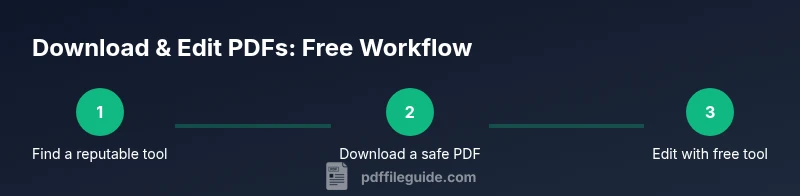
Starting with a clear, repeatable workflow helps you stay safe and efficient. First, identify a legitimate source that clearly states licensing. Then, download the PDF file to a dedicated folder, and scan it with up-to-date antivirus software. Afterward, open the document with a free editor like LibreOffice Draw or Inkscape and begin edits, leaving the original intact in case you need to revert. When you finish, export or save the document as a new PDF, using settings that preserve vector text and embedded fonts when possible. Finally, verify the new file by re-opening it, checking that all edits are correct and that accessibility tags remain intact. This method minimizes risk while delivering a usable, editable PDF for everyday tasks.
Maintaining formatting and accessibility while editing
One of the biggest challenges when download edit pdf for free is maintaining formatting across platforms and devices. Free editors can alter margins, font rendering, and image scaling if fonts aren’t embedded or if export settings aren’t chosen carefully. To preserve formatting, use fonts already embedded in the PDF or embed fonts during export. If accessibility is important, ensure that the edited document remains tagged for screen readers and that form fields are properly labeled. The WCAG guidelines emphasize accessible PDF structures; while you may not implement every aspect, aim to keep heading structure, alt text for images, and properly labeled form fields intact. A small investment in checking these details pays off in professional reliability for colleagues and clients.
Common pitfalls and how to avoid them
Editing PDFs for free is convenient, but it’s easy to introduce problems if you’re not careful. Pitfalls include corrupted fonts, missing images, broken form fields, or loss of metadata during export. To avoid these issues, always work on a copy of the original, test the edited file with the target viewer, and verify that forms still function. If the PDF contains interactive elements, test them thoroughly in multiple viewers. Avoid editing a PDF created from scanned images unless OCR is available, since text becomes uneditable otherwise. Finally, be mindful of licensing; some templates require attribution or have usage restrictions that you need to respect.
Security and safety tips for downloading PDFs
Security should be a primary concern when downloading free PDFs. Verify the source’s domain, watch for phishing indicators, and scan any downloaded file with updated antivirus protection before opening. If a file is compressed in a ZIP or RAR archive, extract it only in a secure environment. Avoid clicking unsolicited download prompts and consider using a sandboxed environment for first-time tests. When editing, limit the amount of sensitive information in a free tool and consider redacting confidential data before sharing. These steps help you minimize risk while maintaining productivity.
Best practices for storage, backup, and sharing
After editing, store PDF files with version control so you can track changes over time. Keep a separate copy of the original and the edited version in a secure backup location, ideally with encryption for sensitive documents. When sharing, use secure channels and confirm recipients’ authorization to view or edit. If you work across teams, create a standard naming convention and a short description of edits to maintain organization. Finally, remember to document the licensing terms for any templates used, especially if you plan to redistribute the edited PDFs.
AUTHORITY SOURCES
- https://www.adobe.com/content/dam/acom/en/devnet/pdf/pdf_reference_archive.pdf
- https://www.usa.gov
- https://www.nist.gov/publications
Tools & Materials
- Computer with internet access(Stable connection for downloading files and software updates)
- Trusted web browser(Keep it updated and review site certificates)
- Free PDF editor software(Examples: LibreOffice Draw, Inkscape; install from official sources)
- Online PDF editor (optional)(Be mindful of data privacy when handling sensitive documents)
- Antivirus software(Ensure definitions are up to date before downloads)
- Backup storage (local/ cloud)(Use versioned backups to preserve original content)
Steps
Estimated time: 30-60 minutes
- 1
Identify a legitimate source
Begin your workflow by locating official templates or reputable publishers that clearly state licensing terms. Avoid unknown aggregation sites that re-host PDFs without context. Take a moment to verify the domain and prior user reviews to gauge trustworthiness.
Tip: Prefer government portals or university repositories when possible. - 2
Download the PDF file
Save the file to a dedicated, clearly labeled folder. Use the browser's download manager to monitor progress and ensure the file extension remains .pdf. Scan the downloaded file with an up-to-date antivirus before opening.
Tip: Check the file size and name against the source expectations. - 3
Verify the file integrity
If available, compare checksums or digital signatures provided by the source. Run a full antivirus scan and look for signs of tampering such as unexpected characters in text or corrupted images. If anything looks off, discard the file and re-download from a verified source.
Tip: When in doubt, contact the publisher for a fresh link. - 4
Open in a free editor
Open the PDF in a trusted free editor (e.g., LibreOffice Draw). Make a duplicate of the original before editing. Be mindful of editor limitations, especially with fonts, layout, and form fields.
Tip: Always keep a pristine copy of the original for reference. - 5
Make edits carefully
Edit text, add annotations, or adjust images while preserving layout. If you touch form fields, keep their properties intact and avoid altering field names or positions unless necessary.
Tip: Save incremental versions as you progress to avoid data loss. - 6
Export the edited PDF
Export with settings that preserve fonts and accessibility tags when possible. Choose a high-quality export profile and verify that notations, links, and forms remain functional.
Tip: Test the final file in multiple PDF viewers to catch viewer-specific issues. - 7
Validate accessibility and formatting
Check that headings, alt text, and form labels remain coherent after edits. If accessibility tags are essential, run a quick accessibility check or use a dedicated tool to verify tagging.
Tip: If a screen reader is used, confirm that the reading order and structure remain logical. - 8
Organize and back up
Store both the original and edited versions in a structured folder with clear naming conventions. Maintain a short changelog so teammates can track what changed and why.
Tip: Use version numbers (e.g., v1, v2) to distinguish edits.
Questions & Answers
Is it legal to download editable PDFs for free?
Yes, as long as you use PDFs that are openly licensed or provided by official sources. Always respect the license terms and avoid pirated content.
Yes, when you use officially licensed or freely provided PDFs and follow the license terms.
Which tools can I use to edit PDFs for free?
Popular free options include LibreOffice Draw, Inkscape, and free tiers of web editors like PDFescape or Sejda. They offer basic editing, annotations, and form filling.
Try LibreOffice Draw or Inkscape first for offline editing, or web editors like PDFescape for quick edits.
What are the risks of downloading PDFs from untrusted sources?
Untrusted sites may host malware or corrupted files. Always scan downloads with antivirus and verify the source's legitimacy before opening.
Be cautious and verify sources; scan files before opening.
Can I edit scanned PDFs without OCR?
Edited text in scanned PDFs requires OCR (optical character recognition). Free editors support basic OCR, but results vary.
OCR is needed to edit scanned text; results may vary across tools.
How do I preserve PDF quality after editing?
Use export options that preserve vector text when possible and avoid rasterizing. Review fonts and image quality in the final file.
Export with high-quality settings and check fonts and images.
Watch Video
Key Takeaways
- Choose trusted sources for downloads
- Use free editors with form support
- Verify safety before opening files
- Preserve formatting when exporting
- Respect licensing and accessibility considerations