Edit PDF File Free: How to Modify PDFs Without Paying
Learn how to edit pdf file free with online editors and offline tools. This educational guide covers safe, no-cost editing methods, practical workflows, export options, and privacy tips for professionals.


You can edit pdf file free using a mix of online editors, desktop apps, and browser-based tools. This quick guide highlights no-cost methods to annotate, rearrange pages, fill forms, and fix typos without paid software. According to PDF File Guide, you’ll find practical options, risk considerations, and a clear path to success.
What it means to edit pdf file free
In practice, edit pdf file free means using legitimate no-cost tools to modify content, annotate, or rearrange elements in a PDF without purchasing software. According to PDF File Guide, many robust options exist for everyday workflows, from quick text corrections to form filling. The goal is to keep the document readable and faithful to the original, while avoiding data loss and watermarking. Whether you need to make a single typo correction or update a form, free editing should preserve layout, fonts, and interactive features as much as possible. If you work with sensitive information, prioritize offline tools to minimize data exposure, and always keep a backup copy of the original document.
Free tools and approaches to edit PDFs at zero cost
There are three main paths to edit pdf file free: browser-based online editors, open-source desktop applications, and conversion-based methods (convert to Word or another editable format, then re-export). Online editors are convenient and require no installation, but privacy should be considered. Desktop open-source tools can offer deeper control without a subscription. Finally, conversion-based workflows can be effective for large edits, but check formatting after conversion. Each path has trade-offs between ease of use, accuracy, and security. By aligning your choice with your document type (text-heavy, image-rich, or form-focused), you can minimize rework and preserve accessibility.
Practical editing workflow without paying anything
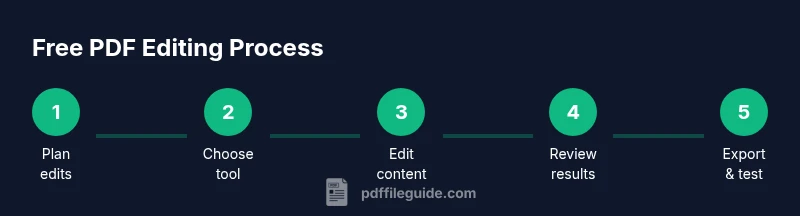
A typical no-cost workflow begins by determining your editing goals, then selecting a suitable tool, performing edits, and exporting the final document. Always start from a backup copy. PDF File Guide analysis shows that many professionals rely on a combination of online editors and offline apps to balance speed and privacy. If you encounter font or layout quirks after editing, consider re-applying the original font when possible or adjusting line heights and margins to maintain readability. For forms, ensure fields remain functional and check that copy-pasted text does not disrupt field properties.
Privacy, security, and data handling when using free editors
Online editors require uploading your document to a remote server, which may raise privacy concerns. If the PDF contains sensitive data, prefer offline editors or apps that run locally in your browser. Read privacy policies, use local OCR where needed, and avoid sharing links publicly. When evaluating tools, look for features like end-to-end encryption, local processing options, and clear retention policies. For scanned documents, OCR quality varies—test a sample page first to confirm that characters are captured accurately and do not introduce errors into searchable text.
Export options, validation, and final checks
After edits, choose the export format (PDF is standard) and verify that fonts, images, and forms remain intact. Check accessibility tags if relevant. Save a backup and test the document by opening on another device or viewer to catch layout issues. If you made extensive image edits, re-check alignment and compression settings to ensure the file remains compact without sacrificing quality. Finally, compare the edited file with the original to confirm that essential content was preserved and no unintended changes were introduced.
Tools & Materials
- Computer or mobile device(Windows/macOS/Linux or iOS/Android; ensure you can run apps or access a modern browser)
- Internet connection(Needed for online editors and cloud workflows)
- Web browser or PDF editor app(Modern browser with PDF editing features, or a free desktop editor)
- Sample PDF to edit(Use a non-sensitive document for practice)
- Backup copy of the original(Always keep the pristine copy in case you need to revert)
- Optional: OCR tool(If text isn’t selectable, you may need OCR; some free tools include OCR)
Steps
Estimated time: 45-60 minutes
- 1
Identify editing goals
Clearly define what needs to change: is it text, images, form fields, annotations, or page order? Document the exact edits you plan to implement to minimize back-and-forth and preserve layout.
Tip: Create a quick checklist of edits to keep you focused. - 2
Choose a free editing method
Select a tool based on your edit type: text edits, form changes, or image adjustments. If privacy matters, prefer offline editors or locally-running apps; for quick tweaks, online editors can be fastest.
Tip: Test on a copy first to verify results before touching the original. - 3
Open the PDF in the chosen tool
Load the document in your editor and verify that the file structure (texts, fonts, and images) loads correctly. If fonts look off, note them so you can adjust later.
Tip: If the file is large or image-heavy, ensure the tool can handle it without crashing. - 4
Make the edits
Apply your planned changes: correct typos, modify text, reposition images, or update form fields. Save frequently to prevent data loss and maintain a changelog for traceability.
Tip: Avoid excessive font changes; consistency improves readability. - 5
Review edits and adjust
Cross-check all edits against the original goals. Check for broken links, misaligned text, or altered spacing that might affect print or accessibility.
Tip: Use a 'before/after' comparison to spot unintended differences quickly. - 6
Export and test
Export the final version as PDF, then open it in multiple viewers to ensure compatibility. Verify that forms work and that searchable text remains accurate.
Tip: Save export settings with a descriptive filename to distinguish versions.
Questions & Answers
Can I edit text in a PDF for free?
Yes. Many free editors support text editing, though results vary by font and layout. For simple documents, you can fix typos or update wording without cost.
Yes, you can edit text for free using these tools. For more complex changes, consider the workflows described in this guide.
Will free editors watermark edited PDFs?
Some online free editors add watermarks, especially on exported documents. Offline free tools generally avoid watermarks, but verify before finalizing.
Some online free editors add watermarks. Check the tool’s export options or use offline editors to avoid watermarks.
Can I edit scanned PDFs for free?
Editing scanned PDFs typically requires OCR to convert images to editable text. Free OCR-enabled tools exist, but accuracy depends on the scan quality.
Yes, but you’ll usually need OCR. Free OCR tools vary in accuracy, so test on a sample page first.
Is my data safe when using free online editors?
Privacy varies by tool. Prefer offline editors for sensitive documents, and always read the privacy policy before uploading.
Privacy varies by tool—opt for offline options for sensitive documents and check the policy before uploading.
What about editing forms or fillable PDFs with free tools?
Some free editors allow form filling and basic form edits. For complex forms, you may need a paid editor or a dedicated form designer.
Some free editors support forms, but complex forms may require paid tools.
When should I switch from free to paid tools?
If you frequently edit PDFs professionally, consider tools with reliable font handling, batch processing, and advanced markup features. The free options are good for occasional edits.
Upgrade when you need consistent, professional-level editing and error-free rendering.
Watch Video
Key Takeaways
- Plan edits before starting to save time.
- Choose the right free tool based on edit type and privacy needs.
- Always back up the original before editing.
- Test the final PDF across viewers to ensure compatibility.