Free Edit PDF: Complete Guide to Free PDF Editing
Learn how to edit PDFs for free using online or desktop tools, understand limitations, and follow a practical, step-by-step approach to update text, images, and forms without buying software.


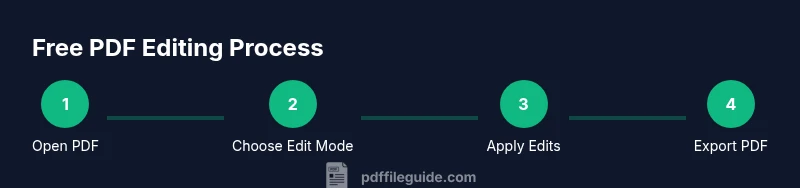
Goal: learn how to edit PDFs for free using no-cost tools. Free-edit workflows cover updating text, images, and forms with online editors or desktop apps that offer free tiers. Start by opening or uploading your PDF, choose the edit mode, apply changes, and save to a new file. This quick guide outlines practical approaches without paid software.
Understanding free edit pdf: scope, challenges, and definitions
According to PDF File Guide, 'free edit pdf' typically means using free-tier tools that allow basic text or image edits without watermark. In practice, free options range from web-based editors to open-source desktop programs. They are invaluable for quick corrections, form-filling, and annotation, but they come with tradeoffs: privacy considerations, feature gaps, and limits on file size or page count. This section clarifies what 'free' means in this context and sets expectations for accuracy and output quality. For many users, the goal is to avoid paid software while preserving readability and formatting. The most common scenario is a one-time update to a short document, a fillable form, or a PDF containing annotations that you plan to share. When you search for 'free edit pdf', you will encounter tools that offer free trials or freemium plans. The boundary between free and paid often depends on the number of documents per day, the presence of watermarks, or the maximum file size. If your document uses sophisticated fonts, embedded images, or complex tables, free tools may require compromises: you may need to adjust fonts, reflow text, or export to a different format before converting back to PDF. This reality underscores the importance of testing edits on a copy of the original file and validating the result on multiple devices.
As you pursue a no-cost editing workflow, expect occasional limitations in layout retention and font fidelity. In some cases you may need to re-create sections or use lightweight substitutes for fonts that aren’t installed on your system. Always compare the edited file against the original to ensure critical information remains intact. For professional or shared documents, consider preserving an archival copy and documenting the edits to maintain an audit trail.
The PDF File Guide team emphasizes that free edits are most effective for simple changes, quick annotations, and small form updates rather than complex redraws or large-scale redesigns. If your project requires high fidelity or compliance with standards like PDF/A, a paid tool or a workflow that combines free options with trusted proofing is worth considering.
Quick-start checklist before you begin
Before you start editing, gather the essentials and set expectations. Determine the type of change you need (text updates, image replacements, or form edits) and choose a tool that supports those capabilities in its free tier. Keep privacy in mind: avoid uploading sensitive documents to untrusted sites, and if possible, use offline editors for confidential files. Create a backup copy of the original PDF so you can revert if formatting shifts occur during edits. Check the document for locked or password-protected content; free editors may require removing protection or working on an exported version. Finally, set a target: how many pages will you edit, what quality is acceptable, and what output settings (quality, compression) you’ll accept for the final PDF. PDF File Guide’s guidance suggests starting with a non-critical page to test the workflow and verify that fonts, spacing, and alignment remain consistent across devices.
Having a plan helps you avoid repeated edits and reduces the risk of introducing errors. If you’re editing a form, ensure fields save correctly and that any calculations or validations still function after edits. For multi-user collaboration, share the edited version with a brief note outlining what changed and why, so recipients understand the modifications and can review them efficiently.
Online tools for free PDF editing
Online editors are popular for quick edits because they require no installation. They often provide text editing, annotation, and form-filling capabilities in a browser. Popular options in the no-cost tier include tools that let you upload a PDF, modify content, and download the updated file. Pros include convenience, cross-platform compatibility, and rapid testing of edits. Cons include potential privacy concerns, file-size limits, watermarking on free plans, and occasional font or layout shifts. When choosing an online editor, verify whether the tool preserves original fonts, supports embedded images, and allows exporting to PDF without extra steps.
Another common approach is to use open-source desktop software like LibreOffice Draw or other lightweight editors. Desktop solutions may offer better offline privacy and fewer watermarks, but they can have steeper learning curves and may not support all PDF features at the same fidelity as dedicated editors. If you frequently edit PDFs, a hybrid approach—online for quick edits and offline for sensitive documents—can be effective. Tools vary in how they handle vector graphics, tables, and complex layouts, so always run a quick visual check after edits. Finally, be mindful of service terms: some tools store uploaded documents temporarily for processing; others delete files immediately after download. Always read the privacy policy before uploading sensitive data.
For precise text edits, look for editors with a dedicated text tool, font options, and alignment controls. If you need to preserve fonts exactly, consider exporting to a format that supports fonts, editing, and then re-saving as PDF. In all cases, avoid heavy reflow that could disrupt tables or multi-column layouts. The no-cost options are powerful, but they work best when you keep expectations aligned with the limitations of free software.
Desktop vs online editors: pros and cons
Choosing between desktop and online editors hinges on convenience, privacy, and the nature of edits. Online editors excel for quick tweaks on any device with an internet connection; they’re ideal for light text edits, simple annotations, and form filling. However, they can pose privacy risks and may impose file-size or feature restrictions. Desktop editors, including free open-source options, offer stronger privacy for sensitive documents and typically handle larger files more reliably. They can be faster for repeated edits, support offline work, and provide more robust export options, but may require installation, updates, and occasional troubleshooting.
When deciding, consider your workflow. If you edit infrequently and need access from multiple devices, an online tool may be more practical. If your document contains confidential information or requires meticulous formatting, a desktop solution or a hybrid workflow is safer. For many users, combining a free online editor for a first pass with a desktop tool for final polish yields the best balance between speed and control. Finally, verify that the edited PDF preserves essential features such as form fields, hyperlinks, and accessibility tags, especially if the document will be distributed widely.
In addition to tool selection, pay attention to output quality. Free tools can introduce subtle font substitutions or line-wrapping changes, so always review the final document on different devices and PDF readers to ensure readability and compatibility with your intended audience. PDF File Guide recommends testing edits on a duplicate file to avoid accidental data loss and to confirm that signatures, if present, remain valid after edits.
How to edit text in a PDF using free tools
Editing text in a PDF with free tools is one of the most common tasks. Free editors provide text boxes or direct editing modes, but results can vary depending on font embedding and the document’s structure. Start by opening the PDF in your chosen tool, then select the text-editing option. If the tool supports direct text edits, click the area you want to change and type the new content. If direct editing isn’t available, you may need to add a new text box and adjust its position to cover the old content. After making changes, review the font size, font family, and spacing, because small differences can affect readability."You should also ensure that the text wraps correctly in multi-column layouts and that there are no orphaned lines. When you are done, export or save the file as a new PDF to preserve your original document. If you must preserve the exact font, check whether the tool supports embedded fonts; otherwise, substitute a closely matching font and note the substitution in a revision log. For scanned documents, text may not be editable without OCR features; many free tools offer OCR as a paid feature or limited trial, so plan accordingly.
A practical workflow is to create a draft in the editing tool, then export to PDF to review offline. If issues arise, revert to the original copy and re-attempt with alternative fonts or editing methods. For legal or professional documents, consider keeping a version history or supplementing with a changelog to trace edits clearly, especially when multiple stakeholders are involved.
Editing images and objects: limitations of free editors
Free PDF editors typically excel at text edits and annotations but can struggle with image manipulation. Some tools allow you to replace images by removing a graphic and inserting a new one, but quality may degrade if images are high resolution or embedded in complex layers. If you need to replace an image, prepare the replacement in advance at an appropriate resolution. Be mindful of aspect ratios and color profiles to avoid distortion. Free editors may also limit the ability to move objects, resize vector elements, or adjust layers. In layouts where images are tightly integrated with text, edits can cause reflow, misalignment, or caption shifts. To minimize disruption, work in small, incremental steps and review the page after each change. If image editing becomes a bottleneck, consider editing the original image in a dedicated image editor and re-inserting it into the PDF.
Another common limitation is form-field interaction. If your PDF contains embedded interactive fields, some free tools may remove or disable certain features when you modify the document, leading to broken forms. Always test interactive elements after edits and ensure that fills and calculations still function as expected. If you anticipate frequent image edits or layout changes, a desktop editor with broader support for image handling can be worth exploring, even if it’s part of a freemium model.
In all cases, preserve a high-resolution backup before making major image edits. This approach helps you revert to the original when needed and ensures you retain the best possible quality for final distribution.
Working with forms and annotations in free editors
Fillable forms and annotations are common targets for free PDF editing. Many free tools offer form-field editing, annotation tools (sticky notes, highlights, strikeouts), and the ability to save or export annotated versions. When working with forms, ensure that field properties (such as required status and calculation scripts) are preserved after edits. If a form relies on embedded fonts for legibility, verify that the appearance remains consistent after edits. For annotations, aim to maintain a clear, readable style and avoid over-annotating, which can clutter the document. If the form must be completed digitally, test the saved fields by entering sample data to confirm that the final file remains usable in downstream processes.
Accessibility is another consideration. Free editors may not fully preserve tags or semantic structure, which can impact screen readers. If accessibility is important, validate the document with a PDF/UA checker after edits and consider adding alternative text to images or figures. For multi-user collaboration, track changes by using a consistent annotation palette and maintain a changelog indicating what edits were made and by whom. Finally, always export a clean copy and a marked-up version to satisfy different stakeholders’ needs.
When in doubt, start with a simple form, confirm that it remains functional, and gradually expand to more complex sections. Free tools can handle many common tasks, but for mission-critical forms, a paid editor with robust validation features may be necessary.
Security, privacy, and reliability of free editors
Security and privacy are top concerns when editing PDFs online. Free editors hosted in the cloud process your files on remote servers, which may introduce data exposure risks. If your document contains sensitive information, limit uploads to trusted services or use offline tools that run entirely on your device. Check the service’s privacy policy for retention periods and whether files are stored after download. For workflow reliability, keep a local backup and test the final file on multiple devices or readers to ensure compatibility. If a tool provides encryption during transfer, that’s a plus, but it does not guarantee end-to-end security. When in doubt, opt for offline editors for confidential material and use online editors only for non-sensitive edits.
Reliability is another factor. Free editors often have usage limits, slow processing for large documents, or occasional outages. Build a resilient workflow by splitting large edits into smaller tasks, saving intermediate versions, and having a fallback plan (e.g., switching to a different tool mid-task). If you rely on a specific tool for critical work, consider maintaining a short list of vetted options and rotating among them to avoid single points of failure. PDF File Guide’s guidance emphasizes testing thoroughly before final distribution to mitigate unexpected formatting shifts or accessibility issues.
Finally, verify that crawlers or bots do not alter your document during processing. Review any metadata, embedded fonts, or security settings after edits to ensure you retain the intended protections and distribution rights.
Common pitfalls and how to avoid them
Free PDF editors are powerful but not perfect. A common pitfall is underestimating layout changes after edits, especially in multi-column or tabular content. To avoid this, review pages individually and compare the edited output to the original, paying attention to line breaks and orphaned headers. Another frequent issue is hidden formatting loss—fonts or embedded graphics can shift or disappear after export. Mitigate by choosing tools known for maintaining layout fidelity and by exporting at higher quality settings when available. Watermarks are another worry; many free options add a watermark to exported PDFs, which can undermine professionalism. If you must produce a watermark-free version, consider using a trial of a paid editor or a desktop tool with a one-time license.
File-size limits can also bite. Large documents may be split by some online services, which complicates the editing process. When working with large files, either compress the PDF after edits or edit in chunks, then recombine. Finally, always confirm that links, bookmarks, and navigational aids still function after edits. These small checks prevent usability issues for readers.
If you encounter a feature that’s not supported in free tools, search for a secondary method—such as editing the source document and recreating the PDF, or using a free OCR option to retrieve text from images. The key is to test iteratively and keep a clean, well-documented workflow so you can reproduce results with confidence.
Tools & Materials
- Source PDF file(The document you intend to edit)
- Free online PDF editor(Choose one with no watermark on export and acceptable privacy terms)
- Desktop PDF editor (free tier)(Optional for offline editing and better privacy)
- Web browser(Modern browser with up-to-date features)
- Backup copy of the original(Always keep a safe copy before editing)
- Internet connection(Needed for online editors; ensure stable bandwidth)
Steps
Estimated time: 30-60 minutes
- 1
Open the PDF in the editor
Launch your chosen free editor and import the PDF you want to edit. Confirm the file opens correctly and that you can access its text fields or images. This initial check helps avoid surprises later in the process.
Tip: If the file is large, upload in chunks or close unnecessary tabs to speed up loading. - 2
Choose the correct edit mode
Select the appropriate editing tool (text, image, or annotation). Understanding the mode ensures edits appear where expected and helps maintain layout.
Tip: Use a test page to try editing before applying changes to critical pages. - 3
Edit text or add new text boxes
Click the text area you want to modify and type the new content. If direct editing isn’t supported, add a new text box and position it to cover the old text. Adjust font size and alignment to match the surrounding content.
Tip: Prefer matching fonts to preserve readability; avoid drastic font changes. - 4
Replace or adjust images
If supported, swap images by removing the old graphic and inserting a new one. Check image resolution and aspect ratio to prevent distortion. Recheck surrounding text flow after replacement.
Tip: Prepare replacement images at suitable resolution beforehand. - 5
Edit forms and annotations
Modify form fields, check for required attributes, and ensure calculations still work. Add or adjust annotations like highlights or comments to improve clarity without clutter.
Tip: Test digital filling to confirm data saves correctly. - 6
Review and adjust formatting
Scan pages for alignment, spacing, and readability. Correct any misalignments introduced during edits and verify that headings and lists remain structured.
Tip: Use a two-device test to ensure formatting holds across readers. - 7
Export the edited PDF
Save or export the final version as a new PDF to preserve the original file. Check export quality and verify that links, bookmarks, and annotations carry over.
Tip: Keep both the original and edited files until final confirmation from all stakeholders.
Questions & Answers
What is considered 'free' in free edit pdf tools?
Free tools offer basic editing features without payment, though they may limit file size, add watermarks, or restrict advanced functions. Accuracy and fidelity can vary between tools.
Free tools provide basic editing, but limits may exist on size, features, or watermarks.
Do free editors watermark the output?
Many free editors add a watermark on export. Look for tools that advertise watermark-free exports in their free tier, or consider offline options to avoid watermarks.
Yes, watermarks are common in free plans; check the export settings before finalizing.
Can I edit scanned PDFs for free?
Editing scanned PDFs usually requires OCR. Some free editors include OCR in limited forms, while others do not. For reliable OCR, consider dedicated free OCR options or a paid solution.
OCR is often limited or paid in free editors; you may need a separate OCR tool.
Is online editing safe for confidential documents?
Online editors pose privacy risks since files may be processed on external servers. For sensitive documents, use offline tools or trusted services with strong privacy policies.
Online editing can risk privacy; use offline tools for sensitive files.
Can free tools preserve all formatting exactly?
Free tools may not preserve complex layouts exactly, especially with dense tables or multi-column text. Always verify formatting after editing and be prepared to adjust layout if needed.
Exact formatting preservation isn’t guaranteed; review carefully after edits.
When should I switch from free to paid tools?
If your edits require high fidelity, professional fonts, batch processing, or guaranteed output quality, consider a paid tool or a hybrid workflow to ensure reliability.
Upgrade when fidelity and features justify the cost for your workflow.
Watch Video
Key Takeaways
- Start with a backup copy of the original PDF.
- Choose tools that fit your edit type (text, image, form).
- Expect minor formatting changes with free editors.
- Prefer offline edits for sensitive documents.
- Always verify final export quality and accessibility.