Edit PDFs in Google Drive: Step-by-Step Guide
Learn how to edit PDFs in Google Drive with text edits, annotations, and safe export options. This guide covers conversion, in-app editing, and professional best practices.


To edit pdf in google drive, you can either convert the file to Google Docs for editable text or use a PDF editor right in Drive to annotate, fill forms, or modify images, then export back to PDF. This method keeps your files in Drive, preserves versions, and works with both text and scanned documents.
Two Core Approaches to Edit PDFs in Google Drive
Editing PDFs in Google Drive comes down to two core paths: converting the file to Google Docs for editable text, or using a Drive-compatible editor to annotate and modify content directly. Each path has distinct advantages and trade-offs. Conversion to Google Docs preserves a familiar word processor interface and makes large text edits straightforward, but it can alter layout, fonts, and images. In contrast, using a PDF editor within Drive preserves the original layout while adding highlights, text boxes, form fields, and comments. For teams that collaborate, the ability to track changes via Google Drive’s version history is a big plus. When deciding which path to take, start with your primary goal—editable text or markup—and plan your backup strategy (backup copies, version naming) to minimize rework. This approach helps you edit pdf in google drive efficiently while maintaining document integrity, compliance, and auditability.
Converting PDFs to Google Docs: Pros, Cons, and Limitations
Converting a PDF to Google Docs is often the fastest route for quick text edits. The conversion process lets you edit paragraphs, reflow content, and reuse existing material in a familiar editor. However, complex layouts, multi-column text, embedded tables, and unusual fonts might shift or appear distorted post-conversion. Images may resize or move, and some formatting can be lost entirely. OCR-driven conversions on scanned PDFs can yield variable results, especially for low-resolution scans. Before converting, consider whether your PDF’s primary need is editable text or precise layout. If exact typography and formatting matter, you may prefer annotating or using a dedicated PDF editor instead of relying on a pure text export. Also, always work from a duplicate copy to preserve the original.
Editing Text in Google Docs: Tips to Preserve Layout
Google Docs offers a robust set of editing tools, but preserving the original layout when editing a PDF that’s been converted can be challenging. After conversion, use Styles (Headings, Normal text) to re-create a clean hierarchy, and adjust margins, indentation, and line spacing to align with the source. Replace fonts with something common if the original font isn’t available, and check image placements after reflow. Keep a parallel checklist: verify bullet points, numbered lists, and table headers align with the source. If you must maintain exact page breaks, consider editing shorter sections and inserting page breaks to replicate the source structure. Remember that accessibility matters; use meaningful heading order and descriptive alt text for images.
Annotating PDFs in Drive: Using Built-in Tools and Add-ons
Annotating a PDF in Google Drive typically involves highlighting, commenting, and adding text boxes or sticky notes. For more extensive markups, install Drive-compatible add-ons (such as PDF editors or annotation tools) that overlay edits without converting the file. These tools can preserve the original layout while enabling precise notes and quick markups. When using add-ons, review permissions and privacy settings, as some tools upload your document to external servers. Always save a working copy before applying mass annotations, and use version history to revert if a change doesn’t meet expectations. If the document contains forms, confirm that form fields remain active after editing and test any fillable fields.
Exporting and Sharing: Getting a Ready-to-Distribute PDF
Once edits are complete, export or download the file as a PDF to ensure broad compatibility. In Google Docs, use File > Download > PDF Document to preserve your edits in a portable format. If you edited in Drive using an add-on, verify that exports maintain clickable links, embedded fonts, and form fields where applicable. For collaboration, share via Drive with appropriate permissions (viewer, commenter, editor) and consider creating a final “verification” version name to distinguish it from drafts. Saving a version-named backup before exporting is a prudent habit, ensuring you can roll back if needed.
Accessibility Considerations When Editing PDFs
Editing PDFs in Google Drive should consider accessibility from the start. When converting to Google Docs, structure your document with clear headings, descriptive alt text for images, and logical reading order to aid screen readers. If your final PDF includes images or charts, provide alternative text or captions. Ensure color contrast remains sufficient and that interactive elements (forms, checkboxes) are keyboard-accessible where possible. After edits, run a quick accessibility check if available, and invite screen-reader users or colleagues to review the document’s readability. These steps help you deliver accessible PDFs that are usable by people with disabilities.
Security and Privacy for PDF Editing in Drive
Handling PDFs in Google Drive requires attention to security and privacy. Make sure sensitive documents are stored only in trusted Drive folders with proper access controls. Use drive sharing settings to limit who can view or edit and enable two-factor authentication on your Google account. When using third-party add-ons, review their data handling policies and ensure they come from reputable developers. Avoid uploading highly confidential information to questionable services, and consider deleting temporary copies after the workflow completes. Finally, enable Google Drive’s activity and version history to monitor who accessed or modified the document.
Tools & Materials
- Google Drive account(Sufficient storage and permissions to edit and export PDFs.)
- Device with modern browser(Chrome, Edge, Firefox, or Safari recommended.)
- Original PDF file(Keep a backup before editing to prevent data loss.)
- Optional: PDF editor add-on for Drive(Lumin PDF, Smallpdf, or similar for in-Drive editing without conversion.)
Steps
Estimated time: 60-90 minutes
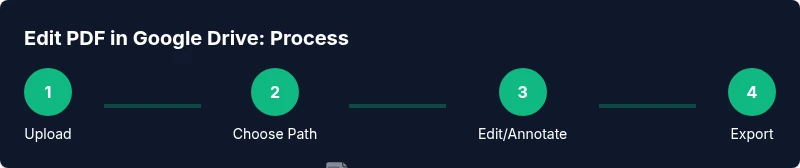
- 1
Upload or locate the PDF in Drive
Open Google Drive and upload the PDF if it isn’t there already. If it is, locate and select the file in your My Drive. Create a labeled duplicate to keep the original intact.
Tip: Naming convention matters: use a versioned name like filename_v2.pdf. - 2
Choose your editing path
Decide whether you need editable text or only markup. If you require substantial text edits, conversion to Google Docs is often best; for markups, use a Drive editor add-on.
Tip: If unsure, start with a duplicate and try both paths on a small page first. - 3
Convert to Google Docs (if editing text)
Right-click the PDF > Open with > Google Docs to begin text editing. Expect some layout shifts after conversion, especially with complex tables or multi-column layouts.
Tip: After conversion, adjust fonts and headings to improve readability. - 4
Edit text and reflow content
Edit paragraphs, update dates, and reorganize sections as needed. Use Styles for consistency (Headings, Normal text). Check for orphaned headings or broken lists.
Tip: Keep edits modular; avoid editing across many pages in a single go to limit layout drift. - 5
Annotate or fill forms (if not converting)
If you’re annotating rather than editing text, use comments, highlights, and text boxes. For form fields, ensure checkboxes and inputs remain interactive when exported.
Tip: Use a consistent color scheme for highlights to distinguish edits from original content. - 6
Export back to PDF
In Docs, go to File > Download > PDF Document. For add-ons, use the export feature provided by the tool. Verify that links, images, and form fields survive the export.
Tip: Review page breaks and image placement after export. - 7
Verify accessibility and readability
Ensure headings are structured, alt text is present for images, and the document remains navigable with screen readers. Re-check color contrast if visuals convey key information.
Tip: Run a quick accessibility check if available and ask a colleague to review with assistive tech. - 8
Manage versions and permissions
Use Version History to label critical milestones. Set appropriate sharing permissions to balance collaboration with security.
Tip: Name versions descriptively and keep a final verified copy separate from drafts. - 9
Document the workflow
Create a short internal note detailing which path you used and why. This helps future editors reproduce the process with minimal questions.
Tip: Include any caveats about fonts, layout, and accessibility in the note.
Questions & Answers
Can I edit a PDF directly in Google Drive without converting?
Direct in-Drive editing is limited to annotations and forms via add-ons. For substantial text edits, conversion to Google Docs is usually required, with potential formatting adjustments afterward.
In Drive, you can annotate or fill forms with add-ons, but for real text edits, you generally convert the PDF to Google Docs.
Will formatting stay the same after converting to Google Docs?
Not always. Conversions can alter fonts, spacing, and layout, especially with complex tables or multi-column text. Plan for post-conversion adjustments.
Formatting may shift when converting to Docs, so you’ll likely need to tweak it after conversion.
Is OCR available for scanned PDFs in Drive editing?
Google Docs uses OCR when opening scanned PDFs, but results vary. Higher quality scans yield better text recognition; review for accuracy.
OCR works on scans, but accuracy depends on scan quality, so proofread after conversion.
How usable is editing on mobile devices?
Editing capabilities are more limited on mobile. For heavy edits, use a desktop browser or a dedicated app that supports forms and text edits.
Mobile editing is possible but often limited; use a desktop for complex edits.
How can I revert changes if something goes wrong?
Utilize Google Drive’s Version History to restore previous states. Name versions descriptively and keep a final verified copy aside.
Use Version History to revert to a prior state if edits don’t meet expectations.
Can I maintain editable text after exporting back to PDF?
Exporting back to PDF preserves the final appearance but does not guarantee continued editability of the text unless you keep a Doc version. For ongoing edits, retain the Docs source.
Exported PDFs can be non-editable; keep the source Docs if you anticipate future edits.
Watch Video
Key Takeaways
- Choose edit path based on goal: text edits or markup.
- Always duplicate the original file before editing.
- Check formatting and accessibility after edits.
- Export to PDF only after confirming layout integrity.