How to Copy and Paste a PDF Document: A Practical Guide
Learn reliable methods to copy and paste text from PDF documents, including native selection, OCR for scanned files, and exporting to Word or Google Docs for seamless editing.


Goal: learn how to copy and paste text from a PDF accurately. This guide covers common methods for readable text extraction, including both native selection and OCR for scanned documents. You’ll discover quick keyboard shortcuts, how to preserve formatting, and when exporting to Word or Google Docs is preferable for longer edits.
Why copy-paste from PDFs can be tricky
PDFs are designed for presentation, not editing. Text may be stored as vector graphics, fonts embedded, or encoded as images. When text is selectable, copying is straightforward; however, many documents, especially scanned or secured PDFs, restrict text or present data as images. Additionally, the structural layout—columns, tables, and fonts—can break when pasted into another program. According to PDF File Guide, mastering copy-paste starts by recognizing document type (native text vs. image-based) and choosing the right extraction method. For professionals, knowing these distinctions saves time and preserves fidelity. You’ll learn practical methods in this guide, including native selection, exporting to Word, or using OCR for image-based content. Understanding copyright and usage rights is also important; always ensure you have permission to reuse text from PDFs.
What you can copy and paste from a PDF
Not all PDFs are created equal. You can typically copy: 1) plain text from native PDFs, 2) formatted text with some loss of font or layout, 3) images or charts as embedded objects, and 4) tables if the source supports extraction. Some PDFs enforce copy restrictions, others are image-based and require OCR. If you need a faithful reproduction, consider exporting to a Word document or using a PDF editor with layout-aware paste options. Always be mindful of copyright and licensing when reusing content from PDFs.
Methods at a glance: native copy, export, and OCR
There are three broad methods for extracting content from PDFs: (1) Native copy using text selection tools when text is selectable; (2) Exporting to a different format (Word, Excel, Google Docs) when the editor supports preserving layout; (3) OCR for image-based content or scanned documents, which converts images of text into editable text. Each method has trade-offs in accuracy, formatting, and speed. The best approach often depends on the document type and your editing needs.
Copy text with native selection in PDF viewers
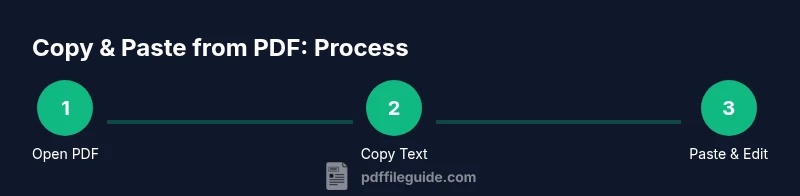
To copy text natively, open the PDF in a viewer that supports text selection. Use the Select Text tool, highlight the desired passage, and press Ctrl+C (Cmd+C on Mac). Paste into your destination app with Ctrl+V (Cmd+V). If line breaks or hyphenation occur, use the destination’s formatting tools to tidy the result. Pro tip: enable “Copy with formatting” if your viewer offers it, and consider pasting into a plain-text editor first to strip unwanted formatting before final polishing.
Copy content from scanned PDFs using OCR
When the document is scanned or image-based, you’ll need OCR (optical character recognition). Use built-in OCR in your PDF editor or a dedicated OCR app to convert the images to editable text. After conversion, proofread for typos and misreads, especially with fonts or languages with diacritics. OCR reliability improves with clear scans, high contrast, and minimal skew. PDF File Guide recommends verifying the output in a text editor before pasting.
Copy images and formatting: preserving layout
Copying images, charts, and diagrams from PDFs can be trickier than text. In many readers, you can right-click an image and choose Copy Image, then paste into your document. For complex layouts, it may be more reliable to export pages as images and insert them into your project, or to use a dedicated PDF editor to extract media while maintaining aspect ratios. When pasting, expect some manual adjustment to margins and captions.
Export options: Word, Google Docs, and other editors
Exporting a PDF to Word or Google Docs can preserve more structure than plain copy-pasting, especially for longer documents with headers, footnotes, and lists. Use the editor’s built-in export feature or print-to-PDF workflows if needed. After export, review headings, fonts, and spacing, and apply consistent styles. If export preserves layout poorly, revert to native copy or OCR with post-editing in the destination editor.
Special cases: tables, bullet lists, and columns
Tables and multi-column layouts often require manual adjustment after pasting. If you paste into Excel or Sheets, you may preserve rows and columns more faithfully; otherwise, paste into a table in Word and re-create column structure. Bullet lists can break across columns; you may need to reapply list styles in the destination app. In all cases, expect some cleanup time to restore readability.
Troubleshooting common issues
If copy-paste fails, check whether the PDF has copy restrictions or is password-protected. Ensure you’re using an up-to-date viewer/editor. For non-selectable text, try OCR; if OCR output is poor, re-scan or adjust image quality before re-running OCR. Finally, if formatting is consistently off, consider exporting to a format designed for editing and reformatting rather than relying on direct paste.
Tools & Materials
- PDF viewer/editor(Prefer a modern tool with text selection and export features (e.g., Acrobat Reader, Foxit, or browser-based viewers).)
- Computer or mobile device(Ensure your device has enough RAM for OCR or export tasks.)
- Keyboard and mouse or trackpad(Speed up with shortcuts: Ctrl/Cmd+C, Ctrl/Cmd+V, Ctrl/Cmd+A.)
- OCR software (optional)(Use built-in OCR in your PDF editor or a dedicated OCR tool for image-based PDFs.)
- Word processor or text editor(Needed for editing and final formatting after paste.)
- Clipboard manager (optional)(Helpful when copying multiple blocks of text.)
- Internet connection (optional)(Useful for online export tools or downloading OCR engines.)
Steps
Estimated time: 15-30 minutes
- 1
Open the PDF in a viewer
Launch your preferred PDF viewer and open the target document. Verify you have permission to copy content and ensure the file isn’t password-protected. If needed, rotate or zoom to improve readability for selection.
Tip: Tip: Use a dual-monitor setup to view the PDF on one screen while preparing the paste on the other. - 2
Select the text you want to copy
Use the Text Selection tool to highlight the passage you need. For long passages, consider selecting in blocks to maintain logical breaks. If selection is limited, try different selection modes or export options.
Tip: Tip: Press Ctrl/Cmd+A to select all text in the document if you want a full copy. - 3
Copy the selected text
Copy the highlighted text with Ctrl/Cmd+C. If the content includes unusual fonts or ligatures, you may see spacing issues after paste.
Tip: Tip: Copy to a plain editor first to strip heavy formatting, then reapply formatting in the destination. - 4
Paste into the destination app
Paste with Ctrl/Cmd+V into Word, Google Docs, or another editor. Check for font changes, line breaks, and hyphenation. If needed, use Paste Special or Keep Source Formatting options.
Tip: Tip: If formatting is lost, try pasting into Notepad or TextEdit first, then re-copy into the final app. - 5
Adjust formatting as needed
Tidy up paragraph breaks, headings, and lists. Apply the destination editor’s styles to restore consistency with the rest of your document.
Tip: Tip: Use the destination’s style presets to ensure uniform appearance across sections. - 6
If text isn’t selectable, run OCR
Use your editor’s OCR feature or a dedicated OCR tool to convert the image-based content to editable text. Review the output for misreads or incorrect characters.
Tip: Tip: Improve OCR accuracy by using a higher-quality scan or image, and clear contrast. - 7
Copy images or charts
Right-click an image to copy it or use the export/Save As options in the PDF tool. Paste into your document and adjust size and captions as needed.
Tip: Tip: If image quality is critical, export the image at the highest resolution available. - 8
Handle tables and structured data
Tables may paste as plain text or misalign columns. Consider exporting the table to a spreadsheet or reformatting in the destination editor.
Tip: Tip: When possible, paste tables into Excel/Sheets first to preserve grid structure. - 9
Save and review the final document
Save your work and perform a final read-through to catch typos or formatting inconsistencies. Cross-check embedded citations and page references.
Tip: Tip: Enable spell check in your editor to quickly catch obvious OCR or paste errors.
Questions & Answers
Can I copy text from any PDF?
Most PDFs allow text copying if the content is encoded as text. Image-based scans require OCR to convert to editable text. Some PDFs also have copy restrictions or security settings.
Most PDFs let you copy text, but scanned papers need OCR, and some PDFs restrict copying.
What do I do if text isn’t selectable?
If text isn’t selectable, try OCR using your PDF editor or an OCR tool. If that fails, consider exporting the PDF to a Word document if the option is available.
If you can’t select text, use OCR or export to Word if supported.
How can I preserve formatting after pasting?
Paste with formatting options in your destination app, or paste into a plain editor first to reformat. Using the editor’s 'Keep Source Formatting' feature often helps.
Use Paste Special or keep formatting when pasting to maintain layout.
Are there copyright concerns when copying PDFs?
Yes. Copying content should respect licensing terms. When in doubt, seek permission or use only publicly licensed or your own documents.
Be mindful of copyright and licensing when copying from PDFs.
Can I copy tables without losing data?
Tables can break on paste. Exporting the table to a spreadsheet or reformatting in the destination editor often yields the best results.
Tables may not paste cleanly; export to a spreadsheet when possible.
What about password-protected PDFs?
If a PDF is password-protected, you typically need the password or permission to copy content. Without it, extraction is not possible.
You generally need permission or a password to copy from protected PDFs.
Is there a difference between copying text and copying images?
Yes. Text copying is usually straightforward; images and charts may require right-click export or screenshot methods, and preserving quality matters for visuals.
Text copies easily; images may need separate handling for quality.
Should I always export to Word or Google Docs?
Exporting can preserve structure better for editing, but it depends on the document. Sometimes native copy plus formatting adjustments is quicker.
Exporting helps with structure, but assess your document's needs.
Watch Video
Key Takeaways
- Copy text with native selection when possible.
- OCR is essential for image-based PDFs.
- Export to Word/Docs can preserve formatting better than paste.
- Always verify copyright and license before reuse.