PDF File to Text: A Practical How-To
Learn practical methods to convert PDF files into editable text. This guide covers native text extraction, OCR for scanned pages, quality checks, and automation for batch workflows—ideal for professionals handling documents and research.


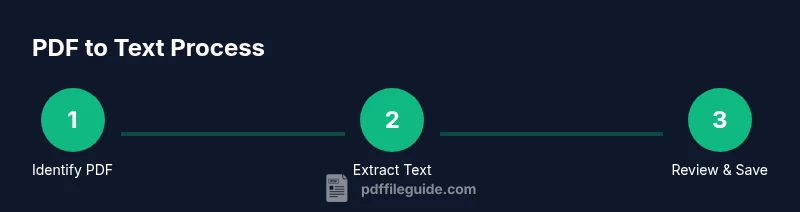
PDF file to text means turning the content of a PDF into readable, editable text. It covers native text extraction when text is selectable and OCR for scanned pages. The process typically involves identifying the PDF type, selecting a method (copy-paste, export, or OCR), and validating accuracy after extraction.
What pdf file to text means
In brief, pdf file to text means turning the content of a PDF into readable, editable text. According to PDF File Guide, pdf file to text encompasses two primary pathways: native text extraction for documents where text is selectable, and optical character recognition (OCR) for scanned or image-based pages. The goal is to produce a text stream you can search, copy, translate, or repurpose. The quality of the result depends on the PDF type, font clarity, and the extraction method you choose. Before starting, define the use case: will you preserve layout for readability, or do you only need raw text for indexing? This decision guides your approach and helps avoid unnecessary steps. Understanding the distinction also helps you budget time and choose tools wisely, since text-based extraction is typically faster and more accurate, while OCR demands quality source material and post-processing. Keep expectations realistic: not every document will cleanly convert, especially with mixed fonts or heavy formatting.
Core methods for extracting text
There are three primary pathways to convert a PDF to text: native text extraction, OCR-based extraction, and programmatic extraction. Each method suits different document types and workflows.
-
Native text extraction: If the PDF was created from a text source, the embedded text is accessible. You can select, copy, or export it to plain text, Word, or Markdown. This approach preserves most punctuation and simple formatting, but may still require post-processing to normalize line breaks or hyphenation.
-
OCR-based extraction: For scanned documents or image-based PDFs, OCR converts images into machine-readable text. Accuracy hinges on image quality, font clarity, and language settings. Expect occasional misreads (l, 1, O, 0). Post-processing, spell-checking, and layout cleanup help restore readability, especially for multi-column layouts.
-
Programmatic extraction: For large batches, automate with a script or workflow. This method uses PDF parsing libraries to pull text and metadata, preserving structure where possible. It’s ideal when you need consistent output across many files or to feed text into downstream systems, but it requires some setup and testing.
Hybrid approaches combine these methods when a document includes both text and images, enabling the strongest overall results.
Tools & Materials
- Computer with internet access(Stable device to run apps or access online tools)
- PDF viewer/editor(Program that can display and export text (e.g., free PDF readers with text export))
- OCR software or service(For scanned PDFs; should support multi-page documents)
- Plain text editor(Notepad, TextEdit, or code editor for post-processing)
- Optional: PDF processing library or scripting environment(For automation (e.g., Python) if batch processing is needed)
- Quality assurance checklist(Hold until finish to verify accuracy)
Steps
Estimated time: 30-60 minutes
- 1
Identify PDF type
Open the file in a viewer and check whether text is selectable. If you can select and copy text, the PDF likely contains embedded text and is suitable for native extraction. If not, you will need OCR or another approach.
Tip: Use a quick 'Select All' (Ctrl+A) to confirm if text is embedded. - 2
Choose extraction method
Decide whether to copy-paste, export to text/Word, or run OCR. Your choice depends on the PDF type, desired output format, and the volume of documents.
Tip: Exporting to plain text often preserves line breaks better than copying from multiple pages. - 3
Copy text from a text-based PDF
If text is available, select the content, copy, and paste into a plain text editor or your CMS. Check for broken lines or hyphenation and fix as needed.
Tip: Paste into a plain editor first to reveal any awkward line breaks that need cleanup. - 4
Export text from the PDF
Use the PDF's export feature to save as plain text or a structured format. This often preserves structure better than manual copy-paste for large documents.
Tip: Choose a format that aligns with your downstream workflow (txt, md, or csv). - 5
Run OCR on scanned pages
If the PDF is image-based, run OCR across the pages. Review results page by page to catch misreads, especially for numbers and domain-specific terms.
Tip: Increase DPI or use multi-pass OCR to improve accuracy on dense documents. - 6
Post-process extracted text
Run spell-check, fix hyphenation, normalize whitespace, and reflow multi-column text. This step often dominates time for accuracy.
Tip: Use find/replace to fix common patterns like line-wrapped titles. - 7
Automate for future PDFs
For recurring tasks, create a batch workflow or script to extract text from multiple PDFs consistently, with logging and error handling.
Tip: Document TODOs and edge cases to improve future runs.
Questions & Answers
What is the difference between text-based and scanned PDFs?
Text-based PDFs contain embedded selectable text, allowing direct extraction. Scanned PDFs are image-based and require OCR to convert images into text.
Text-based PDFs have searchable text; scanned PDFs need OCR.
Can I convert PDFs to text for free?
Yes. Many readers offer free export to text and there are free OCR tools available for basic needs.
Free options exist for both text extraction and OCR.
How accurate is OCR and how can I improve it?
OCR accuracy depends on image quality, font clarity, and language settings. Improve results with higher-resolution scans and careful post-processing.
OCR accuracy varies; better scans and post-processing help.
How do I preserve formatting when converting to text?
Some methods preserve headings and bullets; you may need post-processing to maintain structure.
Formatting is partially preserved; cleanup may be required.
What workflow works best for large PDFs?
Split large PDFs into manageable chunks and process them in batches, validating each chunk.
Process in chunks for big files.
Can I automate PDF-to-text for ongoing tasks?
Yes. Scripts and batch tools can extract text from multiple PDFs with consistent output.
Automation is possible with batch workflows.
Watch Video
Key Takeaways
- Identify the PDF type before extraction
- Choose the right method for your document
- Verify accuracy with QA checks
- Post-process to restore formatting
- Automate batch workflows when possible