How to deal with pdf: A practical guide for editing, converting, and securing PDFs
A comprehensive, step-by-step guide to deal with pdf tasks—edit, convert, compress, secure, and optimize PDFs for professional and personal use.


By the end of this guide you will know how to deal with pdf tasks across common workflows: viewing, editing, converting, compressing, and securing PDF files. You'll learn practical steps, recommended tools, and safety checks to keep data intact and accessible. This approach suits professionals who edit and optimize PDFs as well as casual users who want quick, reliable results.
Understanding PDF fundamentals and common pain points
PDFs differ from editable documents; they capture layout, fonts, images, and formatting in a portable way. For professionals who edit and optimize PDFs, the challenge is to modify text while preserving fonts and vector graphics, or to extract content without breaking the document. According to PDF File Guide, PDFs are designed for faithful rendering across devices, which makes editing a careful operation. This section unpacks typical pain points: missing fonts, image quality loss during conversion, form field behavior, and accessibility constraints. We'll share practical strategies to mitigate these issues, such as embedding fonts, choosing lossless export options, and preserving metadata to avoid indexing problems. You'll also learn when to preserve a PDF in its original state versus exporting a new file, and how to plan edits with minimal side effects by understanding PDF structure (objects, streams, fonts, and outlines). This foundation sets up the rest of the guide and helps you select the right tools and workflows for reliable results.
Tools and workflows: choose editors, converters, and services
Selecting the right toolset is crucial to how you deal with pdf effectively. A capable desktop editor lets you modify text, adjust images, and manage forms without destroying layout. For conversion tasks, you may need reliable PDF-to-Word, -Excel, or -PowerPoint converters, as well as batch processing for large jobs. Cloud-based services can streamline collaboration, but offline editors reduce exposure to data leakage. Throughout this section, we emphasize consistent backups, font embedding when possible, and preserving document integrity during export. The PDF File Guide recommends validating edits by re-exporting a fresh PDF and comparing with the original to catch subtle regressions. If your work involves accessibility, ensure tagged PDFs and alternative text are retained. This ensures both users and machines can interpret the content correctly.
Step-by-step workflow overview
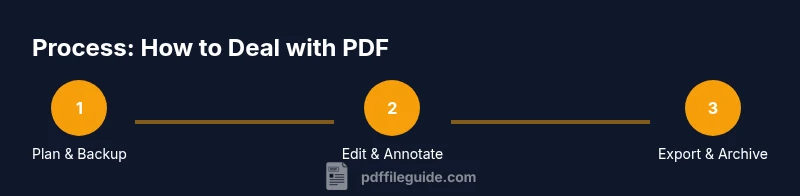
A practical workflow to deal with pdf starts with planning and backup, then edits, verification, and final delivery. In this overview we outline the core phases you will implement in practice: plan and backup, edit and annotate, update metadata and accessibility, test and validate, export and archive. Expect to spend more time in testing than in the first draft. For complex documents, split tasks into sections or pages to minimize reflow errors. This section sets the scaffold for the detailed STEP-BY-STEP guide that follows, which walks you through each action in sequence, with reasons and safe alternatives. If you’re new to PDFs, start with a small file to practice before tackling larger, multi-font documents. This workflow supports both editing and long-term preservation of your PDFs.
Shortcuts for accessibility, compression, and security
When you deal with pdfs, three axes deserve special attention: accessibility, file size, and protection. For accessibility, keep the document tagged, provide alternate text for images, and use descriptive heading structures so screen readers can navigate. For compression, choose appropriate image downsampling, font subsetting, and PDF version compatibility; always compare file size with legibility to avoid over-compression. For security, avoid bypassing password protections and respect document permissions; use encrypted storage for sensitive content. Additionally, preserve a change log and maintain backups of originals. By applying these shortcuts, you’ll produce PDFs that are easier to share, faster to load, and safer to distribute.
When to rely on experts vs DIY
Not every PDF task requires a professional editor, but complex edits, legal documents, or heavily formatted materials often benefit from expert review. If a document uses uncommon fonts, unusual encodings, or requires precise tagging for accessibility, consider consulting a specialist. DIY work is fine for quick updates, annotations, or minor reformatting, provided you maintain a robust backup strategy and test results thoroughly. The goal is to balance speed with reliability, ensuring the final PDF meets the required standards for your audience and the intended delivery channel. In more demanding environments—legal, regulatory, or archival—you should partner with experienced editors or accredited services.
Tools & Materials
- PDF editing software(A capable desktop editor such as an industry-standard suite or an equivalent)
- Reliable computer(At least 8 GB RAM; consider SSD if working with large files)
- Backup storage(Keep original PDFs in a separate backup location)
- Fonts and embedding licenses(Use licensed fonts or ensure fonts are embedded in the PDF)
- OCR capability(Use when editing scanned PDFs or turning them into searchable text)
- Review and annotation tools(Tools for markup, comments, and redlines during editing)
Steps
Estimated time: 60-120 minutes
- 1
Open the PDF and create a backup
Open the file in your chosen editor and immediately save a separate backup copy. This ensures you can revert changes if something goes wrong. Verify the backup opens correctly before continuing.
Tip: Always keep a non-editable original to compare against changes. - 2
Audit the document structure
Check fonts, embedded images, links, and form fields. Note any fonts that are not embedded and plan embedding or substitution to avoid rendering issues.
Tip: If fonts are missing, embed or substitute with similar ones to preserve layout. - 3
Plan edits and export strategy
Decide whether edits will be done in-place or by exporting to an editable format (for example, turning text into a temporary Word document for heavy edits). Plan the final export settings to preserve quality.
Tip: Document your plan before making large edits to reduce rework. - 4
Make precise edits
Edit text and replace images carefully, checking font size, alignment, and color contrasts. Avoid free-floating edits that disrupt the document’s flow.
Tip: Edit in smaller chunks and preview often to catch layout shifts early. - 5
Handle forms and annotations
If the PDF has interactive fields, test all form controls, validations, and calculations. Add annotations only where necessary to preserve readability and accessibility.
Tip: Document field names and purposes for future updates. - 6
Update metadata and accessibility
Fill or adjust document metadata, add alt text to images, and ensure headings follow a logical order for screen readers. This improves searchability and usability.
Tip: Keep tags in a structured order to support accessibility tooling. - 7
Test, compare, and adjust
Export a new PDF and compare it with the original for visual and data integrity. Check hyperlinks, bookmarks, and searchable text.
Tip: Use a diff tool where possible to spot subtle changes quickly. - 8
Archive and document changes
Store the final PDF with version information and a changelog. Save references to fonts, settings, and any substitutions used during editing.
Tip: Maintain a clear file naming convention to track revisions.
Questions & Answers
What does it mean to deal with pdf?
Dealing with pdf means performing tasks like viewing, editing, converting, compressing, and securing PDF documents. It involves managing fonts, images, forms, and accessibility while preserving overall document integrity.
Dealing with PDF means editing, converting, compressing, and securing PDF files while maintaining their structure.
What tools do I need to get started with PDFs?
A capable PDF editor, a reliable computer, backup storage, and a plan for backup and testing. Optional OCR can help with scanned documents.
You need a good PDF editor, a reliable computer, and a backup plan to start editing PDFs.
Can I edit scanned PDFs?
Yes, but you typically need OCR to convert scanned images into editable text before edits. After OCR, verify accuracy.
Yes, you can edit scanned PDFs with OCR to convert them into editable text, then review for accuracy.
Is it safe to edit PDFs from email or unknown sources?
Only edit PDFs from trusted sources and verify them with backups. Be mindful of malware in attachments.
Only edit PDFs from trusted sources and keep backups to avoid malware or data loss.
How can I preserve accessibility while editing?
Keep tagging intact, provide alternative text for images, and maintain a logical heading order for screen readers.
Maintain proper tagging, alt text, and a logical structure to support accessibility.
What is the best way to compress a PDF without losing quality?
Choose balanced compression settings, downsample images appropriately, and verify readability after export.
Use balanced compression settings and verify readability after exporting.
Watch Video
Key Takeaways
- Plan edits before starting to reduce rework
- Back up originals and test exports thoroughly
- Preserve accessibility and metadata during edits
- Choose the right toolset for your workflow
- Archive with versioning for long-term preservation