How to Edit PDFs Online: A Complete Step-by-Step Guide
Learn how to edit PDFs online with browser-based tools. This comprehensive guide covers editing text, images, annotations, security, and best practices to preserve formatting.


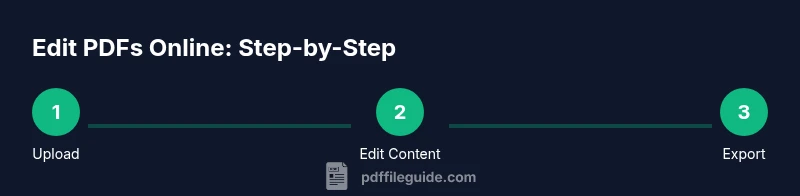
To edit a PDF online, upload your file to a browser-based editor, modify text and images, add annotations, and export in your preferred format. Choose a tool with good privacy controls, accurate OCR, and reliable font handling. This guide shows exact steps, safety tips, and best practices for maintaining formatting.
What 'how to edit pdf online' means in practice
Editing a PDF online means modifying the content directly in your web browser without installing software. You can change text, swap images, add or remove pages, annotate, sign, and fill forms. The best online editors offer reliable OCR for scanned PDFs, preserve fonts and layout, and export to multiple formats (PDF, Word, image). When you search for how to edit pdf online, prioritize tools with clear privacy policies, version history, and export options. Using a reputable editor reduces the risk of introducing formatting errors and ensures your edits look consistent across devices.
Key benefits of editing PDFs in the browser
- Convenience: edit from any device with internet access, no installation needed.
- Collaboration: share links for review and annotate together in real time.
- Accessibility: quick fixes to forms and accessible text can be applied without retyping content.
- Control: keep fonts embedded, preserve layout, and export in multiple formats.
- Security: many services offer endpoint deletion, encryption in transit, and access controls. In short, browser-based editing lowers barriers for quick changes and iterative workflows while maintaining professional results.
Choosing the right online PDF editor
When selecting an online PDF editor, consider OCR accuracy, font handling, form support, and export options. Check privacy policies for data retention and deletion, and look for reviews or trust signals from reputable sources. If you frequently edit scanned documents, prioritize tools with robust OCR, language support, and the ability to export to Word or Google Docs while preserving layout. For professional workflows, a paid plan often unlocks batch processing, fonts embedding, and higher fidelity exports.
Privacy and security considerations for online PDF editing
Editing PDFs online involves transmitting your document to a cloud service. To protect sensitive information, choose editors with strong encryption in transit (TLS), clear data retention policies, and explicit file deletion after editing. Prefer services that offer client-side processing or on-premise options if available. Always review the terms of service and consider temporary or disposable documents for extremely sensitive data. If in doubt, edit offline and upload only when necessary.
Techniques: text editing, image replacement, and annotations
Online editors enable text editing by selecting a text block and typing new content, and they allow image replacement by clicking on the image and choosing a new file. Annotations include highlights, notes, underlines, and drawings. Some tools support form fields and digital signatures. For best results, work with a copy of the original, enable font embedding where possible, and proofread after edits to catch spacing and hyphenation issues. When working with multilingual PDFs, verify language-specific fonts for accuracy.
Ensuring fonts and formatting stay intact
Fonts and formatting are often the trickiest part of online editing. Choose editors that embed fonts by default and preserve font metrics during export. If your document uses custom or nonstandard fonts, upload the font package if the editor supports it or use a PDF export option that preserves fonts. After editing, compare the edited version side-by-side with the original to verify line breaks, margins, and image placements. Consider exporting to PDF/A for long-term archiving to preserve layout.
Troubleshooting common issues
If text shifts after editing, try reapplying the font embedding option or exporting to a different format (PDF instead of Word) and re-importing. OCR on scanned PDFs may produce errors; proofread and correct misrecognized characters. If images appear blurry, adjust resolution settings during export or replace with higher-resolution originals. For form fields, test all inputs by filling and saving a test form to ensure data remains intact.
Real-world workflows: from drafts to final PDFs
In professional settings, editing PDFs online is often part of a larger workflow: collect feedback with comments, revise text based on reviewer notes, re-run OCR on scans, and finally export a polished file for distribution. Maintaining a version history is crucial to revert changes if necessary. For legal or regulatory documents, ensure you keep a sealed, non-editable copy alongside the editable version and track all changes with a clear audit trail.
Tools & Materials
- Web browser(Latest version of Chrome, Edge, Firefox, or Safari)
- Stable internet connection(Broadband or reliable Wi-Fi)
- PDF file to edit(The original document you intend to modify)
- Online editor account(Some editors require sign-in to save or export)
- Backup copy of the PDF(Keep a local copy in case of export issues)
Steps
Estimated time: 25-40 minutes
- 1
Upload your PDF to the online editor
Open your chosen browser editor and upload the PDF you want to modify. This initial step prepares the document for editing and ensures you’re working on a copy rather than the original. Some editors support drag-and-drop for speed.
Tip: Tip: Keep a backup copy before uploading in case you need to revert. - 2
Select the content you want to edit
Use the selection tool to highlight the text or image you wish to change. If your editor supports pages, navigate to the correct page first. For scanned documents, ensure OCR is enabled to access editable text.
Tip: Tip: Use the zoom feature to make precise selections and avoid unintended edits. - 3
Edit text or replace images
Type new text directly in the selected area or replace images by uploading a replacement. Check font consistency and spacing after edits. For fonts, choose a close match to preserve the document’s look.
Tip: Tip: Paste as plain text to avoid hidden formatting, then reapply consistent styling. - 4
Add annotations, form fields, or signatures
Attach comments, highlights, or sticky notes to capture feedback. If you need signatures, place a digital signature field and apply a compliant signature. Ensure accessibility by adding descriptive notes for assistive tech.
Tip: Tip: Use consistent annotation colors to keep the document readable. - 5
Review edits and perform OCR if needed
Review all changes carefully. If OCR was used, proofread the recognized text for errors and correct them. Validate that links, form fields, and cross-references still work as intended.
Tip: Tip: Run a spell-check and compare with the original to catch formatting drift. - 6
Export and secure your final file
Choose the export format (PDF for distribution, or another format if required). If privacy is a concern, delete the file from the editor after download and consider using a trusted service with optional client-side processing.
Tip: Tip: If the editor supports password protection, enable it for sensitive documents.
Questions & Answers
Is editing a PDF online safe for sensitive documents?
Editing PDFs online can be safe when using reputable tools with strong encryption and strict privacy policies. Review the provider’s data handling and deletion practices before uploading sensitive files.
Online editing can be safe if you choose trusted tools with strong encryption and clear data deletion policies.
Do I need an account to edit PDFs online?
Many editors offer guest editing for quick tasks, but saving and exporting often requires creating an account. A registered account also enables access to history and more features.
Some editors let you edit without signing in, but saving usually requires an account.
Can I edit scanned PDFs online?
Yes, if the editor provides OCR (optical character recognition). OCR converts images to editable text, though accuracy depends on language, font, and image quality.
You can edit scanned PDFs with OCR, but you may need to proofread for accuracy.
Will editing online preserve the original formatting?
Most reputable editors preserve layout and fonts, but complex fonts or unusual layouts may shift. Always verify the final export against the original.
Formatting is usually preserved, but verify after editing.
What about fonts and embedded images?
Embedded fonts are best for fidelity. If a font isn’t available, substituting may occur. Always check image quality after editing.
Fonts and images can change; check fidelity after editing.
How do I remove a password from a PDF for editing online?
If you have permission and the password, you can unlock the PDF to edit. Some editors support password removal if you provide the correct credentials.
Only remove passwords if you have the right permissions and password.
Key Takeaways
- Upload a copy first and maintain backups
- Choose editors with strong OCR and font handling
- Proofread edited text for accuracy and formatting
- Export carefully to preserve structure and accessibility
- Prioritize privacy and data deletion after editing