How to Write in PDF: A Step-by-Step Guide for Editors
Discover how to write in PDF with text edits, form fills, and annotations. This comprehensive guide covers tools, step-by-step methods, OCR, accessibility, and best-practice workflows for professional PDFs.


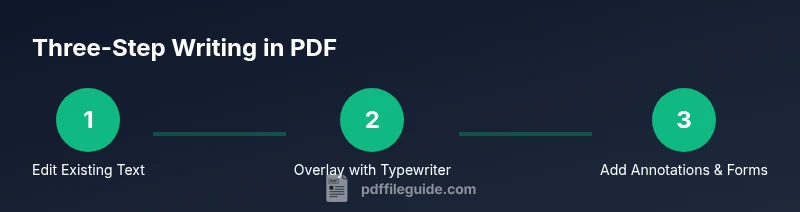
According to PDF File Guide, writing in a PDF can mean editing text, filling forms, or annotating content. This quick guide covers three core methods: typing in editable fields, using the typewriter tool for overlay text, and adding notes with annotation tools. The PDF File Guide team found that practicing with a dedicated PDF editor speeds up professional workflows.
What writing in a PDF means
Writing in a PDF typically means adding or changing text, filling interactive form fields, or annotating content without altering the source file's structure. In practice, you might type new sentences in a form, replace existing text, or leave comments for reviewers. The exact method depends on the file's permissions and the editor you choose. You may need to distinguish between editing the underlying text and overlaying new text with a Typewriter tool. Some PDFs are created with text that cannot be edited; others are scanned images requiring OCR. This block sets the stage for the rest of the guide and helps you understand the practical scope of what it means to write in a PDF.
At its core, writing in a PDF is about choosing the right approach for the file type and your goal, whether that’s making a quick comment, updating wording, or adding new content entirely. The distinction between editing vs overlaying is particularly important when you consider how editors render changes across different viewers. By understanding these basics, you’ll be prepared to pick the right tool from the start.
The main methods: text editing, Typewriter, annotations
There are three core ways to write in a PDF: editing existing text directly, using the Typewriter tool to place new text on the page, and adding annotations or comments that guide reviewers without changing the content. Direct text editing replaces existing characters when permitted by the file's permissions. The Typewriter tool creates overlays that can be useful for placeholders or notes. Annotations include sticky notes, highlights, and callouts that communicate changes without altering the original layout. For best results, understand when each method is appropriate and how they interact with viewer apps. This approach aligns with industry best practices cited by PDF File Guide Analysis, 2026.
Choosing the right method often depends on whether the content is editable, whether you must preserve the original wording, and whether the edit needs to be reversible for reviewers.
Tools & Materials
- A compatible PDF editor(Desktop or online tools like Adobe Acrobat Pro, Foxit, Nitro, or credible free editors.)
- A computer with internet access(Windows or macOS; for online editors or updates.)
- A sample PDF to edit(Prefer a copy or test form to avoid editing originals.)
- OCR capability (optional)(Needed for scanned/image-based PDFs.)
- Input devices (keyboard, mouse, or stylus)(For precise typing and placement.)
- Backup/versions strategy(Keep a backup before major edits.)
Steps
Estimated time: 35-60 minutes
- 1
Open the PDF in your editor
Launch your editor and load the target PDF. Check the document's permissions to know whether text editing is allowed, and identify sections where writing is required.
Tip: Create a labeled backup before making changes. - 2
Enable the correct editing mode
Choose the Text Edit tool if you can modify existing content, or the Typewriter tool for overlays. Confirm font and size settings to preserve consistency.
Tip: Which tool you pick affects how edits render across viewers. - 3
Edit or replace existing text
Replace words or sentences directly if the file allows; watch for line breaks and font substitutions that can shift layout.
Tip: Prefer replacing content rather than adding when permissions allow. - 4
Add new text with Typewriter if needed
Place new content as an overlay using the Typewriter tool. Align with existing margins and maintain consistent font.
Tip: Use Typewriter sparingly to avoid clutter. - 5
Fill form fields or add new ones
Click on a fillable field and type. If fields aren’t editable, consider adding a text layer or redefining the field structure.
Tip: Check tab order and field labels for accessibility. - 6
Add annotations for reviewers
Use highlights, sticky notes, and callouts to communicate changes without changing the core content.
Tip: Keep annotations concise and actionable. - 7
Review across viewers
Save a version, then open in multiple PDF viewers to verify rendering, fonts, and spacing.
Tip: If something looks off, revert and adjust. - 8
Finalize and save with version control
Save as a new version, run a quick accessibility check, and document changes for the reviewer.
Tip: Use descriptive filenames and maintain a change log.
Questions & Answers
Can I write directly in any PDF, or do I need a special editor?
Direct writing is possible only if the PDF allows text editing. If not, use the Typewriter tool or add annotations. Always check file permissions before editing.
You can edit directly only if the PDF allows it; otherwise you’ll need other tools or overlays.
What is the difference between editing text and using the Typewriter tool?
Editing text changes the original content; Typewriter overlays new text that isn’t part of the underlying text. Use Typewriter for placeholders or non-destructive notes.
Editing changes the content; Typewriter adds overlay text without changing the base.
How do I create fillable fields in a PDF?
Use the Form tool to add or modify fillable fields. Ensure proper tab order and labels for accessibility.
Add or adjust fillable fields using the form tools, and check tab order.
Is it safe to edit PDFs with online tools?
Online editors are convenient but may raise security concerns for sensitive documents. Use trusted providers and local editing when possible.
Online tools are convenient but may not be ideal for sensitive files.
How can I keep layout intact after edits?
Keep edits non-destructive when possible, verify font and spacing, and test in multiple viewers to catch layout shifts.
Non-destructive edits help preserve the original layout.
Do I need OCR for scanned PDF documents?
Yes, OCR converts images to editable text. Review results for accuracy and adjust formatting as needed.
OCR is required to turn scanned images into editable text.
Watch Video
Key Takeaways
- Identify the correct writing method for your file.
- Use text edits, Typewriter, or annotations as appropriate.
- Save versions and test rendering across viewers.
- The PDF File Guide's verdict: practice with real editors for best results.