The Complete Guide to Using PDF Acrobat for Editing, Converting, and Securing PDFs
Learn to edit, convert, and optimize PDFs with PDF Acrobat. This practical guide covers core features for professionals who edit, convert, and optimize PDF files. From editing and formatting to secure sharing and accessibility checks, this guide helps you optimize workflows.


Using PDF Acrobat, you will learn how to edit text and images, convert files to and from PDF, and optimize performance with compression and accessibility tools. This guide covers setup, core features, safety tips, and best practices for professionals who edit, convert, and optimize PDF files across Windows, macOS, and cloud workflows.
Overview of PDF Acrobat and Its Role in Modern Workflows
PDF Acrobat is a cornerstone tool for professionals who edit, convert, and optimize PDF files. It combines a rich editing surface with robust export options, form handling, and security controls. In today’s document-centric environments, teams rely on Acrobat to standardize layouts, preserve fonts, and ensure consistent output across devices and platforms. According to PDF File Guide, mastering PDF Acrobat can streamline document workflows across teams and reduce back-and-forth during review cycles. This section will lay the groundwork for understanding how the tool fits into your existing tech stack, whether you’re working from a laptop, a corporate device, or a remote workstation. We’ll also clarify the difference between Acrobat Pro and Acrobat Standard, so you know which features you should prioritize for editing, conversion, and optimization.
As you read, keep in mind that your setup, file sources, and target output all influence which features are most valuable. You’ll gain a map of the core capabilities—editing, converting, organizing, securing, and validating accessibility—that you can apply to real documents. The goal is to reduce friction between authors, reviewers, and recipients while maintaining fidelity to the original layout and typography.
Core Editing Capabilities: Text, Images, and Layout
Editing PDFs effectively requires understanding the tools that modify text, images, and page layout without compromising other elements like fonts or embedded media. In Acrobat, the Edit tool lets you adjust font size, color, and alignment, and it enables you to reposition or replace images with minimal disruption to surrounding content. You’ll learn how to select blocks of text, correct typos, and apply paragraph formatting that stays consistent across devices. For images, you’ll practice replacing photos, adjusting compression, and maintaining aspect ratios.
Beyond individual edits, Acrobat supports layout-aware edits that preserve headers, footers, and repeating motifs across pages. When working with multi-page documents, use the selection tool to move content blocks between pages, then reflow text to avoid awkward gaps. If you’re collaborating, adopt a structured commenting workflow: add sticky notes for recommended changes, export a review copy, and track responses. Pro tip: use the Compare Documents feature to spot differences between versions before final approval.
Conversion and Export: From PDFs to Word, Excel, PowerPoint, and vice versa
One of Acrobat’s most valuable capabilities is seamless conversion between PDF and other formats. Export a PDF to Word to edit body text while preserving layout; export to Excel to extract tables; and save as PowerPoint to create a visual briefing from pages. Conversely, you can convert native Word or PowerPoint files into polished PDFs with embedded fonts and clickable bookmarks. When performing conversions, check for retained styles, font substitutions, and broken tables. If you need high fidelity, experiment with different export settings (retaining images, preserving lists, and enabling tagged PDFs for accessibility).
To ensure a smooth workflow, keep source files in their original formats and maintain a consistent naming convention for exported PDFs (for example, PROJECTNAME_V1.pdf). This minimizes confusion during rounds of edits and ensures auditors and teammates can locate the latest version quickly. If you frequently convert, consider automating parts of the process with Actions (batch workflows) or the Auto-Export option in the Preferences panel.
Optimization, Compression, and Accessibility: Reducing File Size and Improving Accessibility
Large PDFs can slow down everyone in the review and distribution chain. Acrobat provides optimization tools to compress images, remove embedded fonts, and streamline structure without sacrificing essential quality. Start with the Optimize PDF tool and adjust image quality, downsample settings, and font embedding to balance file size and readability. For published reports and client deliverables, ensure the document remains accessible by generating tagged PDFs and running an accessibility check.
Accessibility is more than a checkbox. Proper tagging, reading order, alt text for images, and tagged tables ensure screen readers interpret the document properly. Acrobat’s Accessibility Checker highlights issues and guides you in fixing them. When you optimize, save a copy of the reduced file and compare against the original to verify that essential content remains legible and correctly arranged. PDF File Guide’s analyses for 2026 emphasize that accessibility checks are increasingly a baseline expectation in professional settings.
In practice, you’ll often iterate between compression and accessibility checks to meet both file size targets and inclusion standards. The trade-offs vary by document type and audience, so keep a change log and test on multiple devices.
Security and Compliance: Passwords, Redaction, and Digital Signatures
Security features protect sensitive information and ensure regulatory compliance. Start by applying password protection with strong, unique credentials, and set permissions that restrict printing or editing as needed. Redaction tools let you permanently remove confidential text and images before sharing the document externally. Digital signatures and certificate-based signing provide a verifiable trail of approval, which is valuable for contracts, HR records, and legal documents.
When implementing security, avoid relying on single-factor protection. Enable two-factor options where possible and maintain a clear policy for who can apply security settings. Always test security on a separate copy of the document to verify that redacted content cannot be recovered and that signatures render correctly on different devices. If you’re handling highly sensitive material, consult governance guidelines and ensure your workflow aligns with organizational data protection policies. PDF File Guide Analysis, 2026 highlights that robust security features are a top driver for adopting Acrobat in professional workflows.
Common Workflows for Professionals: From Draft to Delivery
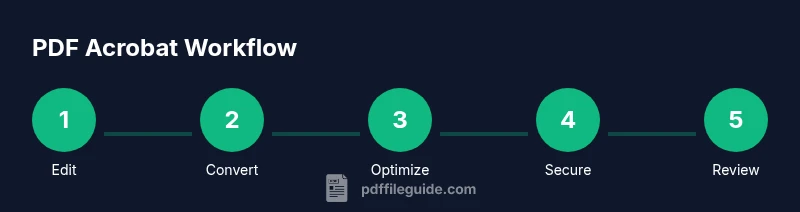
A typical workflow in a corporate setting begins with drafting or receiving a document, then editing for content and layout, followed by conversion to a finalized PDF version. Next, teams apply security settings, add forms or signatures, and run accessibility checks before distribution. Acrobat shines when multiple people need to review a document; you can share a link to a live PDF, collect comments, and merge feedback without losing formatting integrity. Saving incremental versions helps track changes and revert if needed.
When you’re working with teams, create a simple standard: a master editable file, a compliant PDF, and a review version with comments. Document decisions and versions in a shared log so reviewers know what changed and why. For frequent tasks, consider building a small library of templates for common document types (invoices, reports, proposals) so editors can produce consistent outputs faster. Using these workflows consistently reduces errors and speeds up approvals.
Troubleshooting Common Issues in PDF Acrobat
Even the best workflows encounter hiccups. A common issue is font substitution after a conversion or export, which can alter appearance. If you notice a mismatch, check the embedded fonts, subset options, and rendering settings in the export dialog. Another frequent problem is corrupted scans or image-heavy PDFs that become slow or unresponsive; run a quick optimization pass and verify OCR results if the document relies on scanned text. If interactive forms stop saving data, verify form field properties and ensure that the document is not restricted by security settings. For accessibility checks, failing items often relate to improper tagging or reading order; revisit the tags panel and adjust structure as needed.
When issues persist, start with a clean test document that reproduces the problem. This helps isolate whether the problem lies with the source file or with Acrobat settings. Finally, consult official documentation and community forums for patch notes or known issues and apply updates when advised.
Best Practices and Pitfalls to Avoid
Best practices include maintaining a versioned archive of critical PDFs, using descriptive file names, and keeping a consistent export profile across projects. Avoid editing original source files directly; work on duplicates to preserve the master copy. Be mindful of retaining fonts and color profiles that ensure documents render consistently across devices. One common pitfall is over-compressing images, which can degrade readability in print or high-resolution displays. Always preview both on screen and in print to confirm fidelity. Lastly, establish a security review step in your workflow to confirm that sensitive information is properly redacted and that signatures validate correctly on target platforms. The PDF File Guide team emphasizes establishing a repeatable, auditable process for production-ready PDFs.
Tools & Materials
- Computer with internet access(Windows, macOS, or Linux; up-to-date browser.)
- Adobe Acrobat Pro DC (or Acrobat Standard)(Licensed subscription or perpetual license.)
- Sample PDFs for practice(Use non-confidential documents first.)
- External storage (cloud or USB)(For versioned backups.)
- Notebook or note-taking app(Capture changes and decisions.)
Steps
Estimated time: 60-120 minutes
- 1
Prepare workspace and confirm license
Open Acrobat and verify your license or subscription status. Check for updates to ensure you have the latest editing, conversion, and security features. Create a dedicated work folder and copy your target file to a working version to avoid editing the original.
Tip: Pro tip: enable auto-save and create a backup before making major changes. - 2
Open PDF and enable editing
Launch the document and use the Edit tool to verify which elements are editable. If the file is protected, remove restrictions only if you have authorization. For scanned documents, ensure OCR is enabled to convert images of text into selectable text.
Tip: Pro tip: use the 'Edit PDF' pane to quickly access fonts and image properties. - 3
Edit text and images accurately
Select text blocks to edit content, adjust font attributes, and correct typography. Replace or reposition images with careful alignment to preserve the document’s visual flow. Use guides and snapping to maintain consistent margins.
Tip: Pro tip: use the Show Floating Tools option for faster access to image and text editing controls. - 4
Compress and optimize for size
Navigate to Optimize PDF or Reduce File Size and balance image quality with file size. Preview results to confirm readability and print fidelity. Save a version of the optimized file for distribution and keep the original intact for archival.
Tip: Pro tip: compare two versions side-by-side to ensure no critical data was lost during optimization. - 5
Convert to other formats
Use Export or Save As to convert to Word, Excel, or PowerPoint. Check retained structure, lists, and tables after conversion. If formatting looks off, adjust export settings or perform minor manual corrections in the destination format.
Tip: Pro tip: retain or remove images during export based on downstream use; sometimes a later edit in the target format is easier. - 6
Secure the document
Apply password protection and specify permissions. Redact sensitive content before sharing, and use digital signatures for approval workflows. Verify the security settings by opening the file in a different session or device.
Tip: Pro tip: create a separate copy for security testing to avoid locking yourself out of your working file. - 7
Add forms and signatures if needed
Use Prepare Form to create fields or Fill & Sign to collect signatures. Validate field types (text, checkbox, dropdown) and ensure tab order makes sense for users. Save as a reusable form template when possible.
Tip: Pro tip: test form submission on desktop and mobile devices to confirm compatibility. - 8
Validate accessibility and finalize
Run the Accessibility Check and fix issues such as reading order and alt text. Ensure headings, lists, and tables are properly tagged. Save the final version and archive the workflow notes for audit trails.
Tip: Pro tip: document the steps taken for accessibility fixes to simplify future reviews.
Questions & Answers
What is the difference between Acrobat Pro and Acrobat Standard?
Acrobat Pro typically includes advanced editing, batch processing, extensive form features, and enhanced security tools, while Acrobat Standard covers core editing, basic security, and standard export options. The Pro version is aimed at professionals who need deeper tools for production and collaboration.
Acrobat Pro includes more advanced editing and form features; Standard covers core tasks. If you edit frequently or work with forms, consider Pro.
Can I edit scanned PDFs?
Yes. Use Optical Character Recognition (OCR) to convert scanned images into editable text. Ensure language and layout settings are correct for best results, and manually verify results for accuracy.
Yes. Just run OCR to turn scanned pages into editable text and review the output for accuracy.
How do I reduce a PDF’s file size without losing quality?
Use the Optimize PDF or Reduce File Size feature, balancing image quality and compression. Preview both screen and print versions to ensure readability remains acceptable.
Use the optimize tool to balance quality and size, then verify readability on screen and print.
Is it secure to share PDFs with external parties?
Yes, if you apply password protection, restrict editing, and redact sensitive content. Use digital signatures for verifiable approvals and maintain an audit trail.
Yes, with passwords, restrictions, redaction, and digital signatures for traceability.
Can I convert PDFs back to editable Word or Excel files?
Yes. Acrobat supports exporting PDFs to Word, Excel, and PowerPoint. Review results for formatting issues and adjust as needed in the target application.
Yes, export to Word or Excel and fix any formatting issues after export.
What about accessibility checks and compliance?
Run the built-in Accessibility Check to identify tagging, reading order, and alt text issues. Fix items and re-run until the report shows compliant results.
Run accessibility checks and fix issues until you’ve met compliance.
Watch Video
Key Takeaways
- Edit PDFs precisely with Acrobat’s Edit tool.
- Convert between formats to support collaboration.
- Protect documents with robust security settings.
- Check accessibility to ensure compliance.
- Save versions regularly and maintain clear change logs.