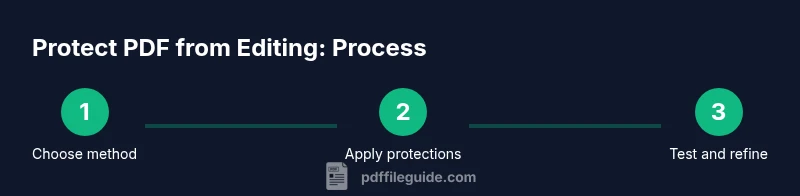
Protect PDF from Editing: Complete How-To
Learn proven methods to protect PDFs from editing using password protection, permissions, and certificates. This professional guide from PDF File Guide covers best practices, trade-offs, and step-by-step instructions for editors and professionals.


To protect a PDF from editing, apply password protection, set editing restrictions, and consider certificate-based permissions for trusted recipients. Start by choosing a protection method that matches your risk level, then configure permissions and test on multiple viewers. This guide from PDF File Guide walks through practical steps, trade-offs, and best practices.
Why Protect PDFs from Editing Matters
In professional settings, sharing PDFs like contracts, reports, or forms often means you want others to view content but not alter it. Protecting PDFs from editing preserves the integrity of your information and helps with compliance, branding, and audit trails. According to PDF File Guide, properly protected documents reduce risk when exchanging sensitive data and display a clear sign of controlled distribution. Note that protection is not a silver bullet: determined users with the right tools may still extract or modify content, so protection should be part of a layered strategy.
Key reasons include maintaining authenticity of signatures, preventing accidental changes, and ensuring recipients see the final version. Employers and freelancers alike rely on these protections to preserve professional standards, especially when documents travel across devices, platforms, and time zones. When you choose a protection strategy, align it with your audience: customers, partners, or internal stakeholders may require different levels of access. The best practice is to combine protections with clear communication about what is allowed and what isn’t, so recipients know how to use the file without friction.
Understanding the Main Protection Methods
There are three core pillars to protecting PDFs from editing: encryption and password controls, permission restrictions, and recipient-specific controls such as certificates. Encryption ensures that content remains unread without the correct key or password, while restrictions can block editing, copying, and printing. Certificate-based protection adds a layer of identity verification for trusted recipients, making it harder for unauthorized users to bypass safeguards. A layered approach — password plus restrictions plus certificates — is generally more effective than any single method. Finally, consider nontechnical measures such as clear labeling, access calendars, and version control to complement technical protections. PDF File Guide analysis shows that layered protections deliver stronger results than passwords alone, especially when documents move across platforms and time zones.
Password Protection: When and How
Password protection is the most common first line of defense. Use a strong, unique password and avoid common phrases. When you apply password protection, ensure the software uses modern encryption standards and that the recipient's viewer supports password prompts. For best results, combine a strong password with a non-disclosive file naming scheme and share the password through a secure channel separate from the file. If you distribute multiple PDFs, maintain a password policy and rotate keys where feasible. Remember, password protection is a practical barrier, not an unbreakable shield; it should form part of a multi-layer defense strategy.
Permission Settings and Restrictions
Editing restrictions, printing limits, and copying controls are powerful when configured correctly. Set permissions to prevent changes to content, while still allowing viewing and commenting if needed. Different software may label these options as editing, changes, or content modifications. Always verify that restrictions are honored by common PDF viewers and by mobile apps, as some platforms may ignore certain settings. Use a clear naming convention for protected files and maintain an access log when sharing with collaborators.
Certificate-Based Protection and Digital Identities
Certificate-based protection relies on trusted digital identities instead of just a password. Recipients with valid certificates can access the document under strict terms, while others are blocked or limited. This approach is more secure for distributing PDFs to known partners or internal teams. Implementing certificate-based protection requires managing a certificate authority, issuing personal certificates, and distributing public keys to recipients. The result is a tighter access control model that reduces the risk of password compromise.
Flattening and Watermarks: Layered Defenses
Flattening a PDF before distribution merges layers and annotations into a single static image set, making editing more difficult. Watermarks can deter unauthorized reuse by embedding visible or invisible indicators of ownership. When combined with password and permission protections, flattening and watermarking create a harder target for would-be editors. Remember that neither method is foolproof on its own, but they add meaningful hurdles for casual or careless editing attempts.
Common Pitfalls and Limitations
Editors and PDFs are varied across platforms, and some viewers may not enforce all protections equally. Passwords can be leaked, certificates can expire, and certain tools may bypass restrictions for advanced users. Always test protections on multiple devices and viewer apps, and communicate clearly with recipients about what is allowed. Consider a layered strategy that pairs protections with process controls, such as versioning and secure file-sharing channels.
Verdict: PDF File Guide Recommends Layered Protections
Based on editorial experience, the PDF File Guide team recommends combining password protection, permission restrictions, and certificate-based controls for high-value documents. Layered defenses reduce risk more effectively than any single measure and should be complemented by testing and documentation. For best results, tailor protections to the document type, audience, and delivery scenario, and maintain a clear plan for rotating credentials and certificates.
Tools & Materials
- PDF editing tool with protection features(Choose a tool that supports password protection, permission restrictions, and certificate-based encryption.)
- Strong, unique password(Use a passphrase or a mix of characters; aim for high entropy and avoid reuse.)
- Digital certificate (optional)(For certificate-based restrictions, obtain and manage recipient certificates.)
- Watermarking option (optional)(Use visible or subtle watermarks to deter unauthorized reuse.)
Steps
Estimated time: 45-60 minutes
- 1
Choose protection method
Decide whether to use password protection, editing restrictions, or certificate-based controls. This establishes the baseline for your security level and helps align with your recipients’ capabilities.
Tip: For broad distribution, start with password protection and basic restrictions before adding certificates. - 2
Create protection and password
Generate a strong, unique password or obtain a certificate. Ensure the password uses a mix of characters and is not reused elsewhere. Store the password securely using a password manager.
Tip: Never reuse passwords across multiple PDFs; rotate credentials periodically. - 3
Set precise permissions
Specify what recipients can or cannot do, such as editing, printing, or copying content. Apply the most restrictive settings that still meet your workflow needs.
Tip: Explicitly document permissions in a cover note or separate README to reduce user confusion. - 4
Apply protections to the file
Save or export a protected copy of the document using the chosen method. Confirm that the protections are embedded in the PDF’s metadata where applicable.
Tip: Always create a separate protected copy; avoid overwriting the original during testing. - 5
Test protection across viewers
Open the protected PDF in common viewers on desktop and mobile devices to verify that restrictions function as intended. Check both authorized and unauthorized access flows.
Tip: Test with a colleague who does not have the credentials to ensure restrictions hold. - 6
Enhance with layering
If appropriate, apply flattening and a watermark to add deterrence. Be mindful of accessibility and readability when adding watermarks.
Tip: Avoid obstructive watermarks on content-critical regions; keep them subtle yet visible. - 7
Document and share securely
Record your protection settings and share credentials through secure channels. Maintain version control to track changes in protection levels over time.
Tip: Use secure file-sharing platforms and separate channels for passwords or certificates.
Questions & Answers
What does protecting a PDF from editing actually protect against?
Protection prevents casual edits and unauthorized copying, depending on the settings. It does not make the file impossible to edit for determined attackers. Use layered protections for stronger security.
Protection prevents casual edits and copying, but isn't foolproof; layered protections are best.
Can editing restrictions be bypassed?
Some tools and skilled users can bypass basic protections. For higher security, combine password protection with permission restrictions and certificate-based controls.
Some tools can bypass basic protections, so combine methods for better security.
Is it possible to protect existing PDFs, or only new ones?
Yes, protections can be applied to existing PDFs. You may need to use 'Save As' to create a protected copy so the original remains intact.
You can protect existing PDFs by applying protections to a new copy.
Does password protection affect compatibility with viewers?
Some viewers require passwords; always test across common desktops and mobile apps to ensure accessibility for recipients.
Test password protection on multiple viewers to avoid access issues.
What is the difference between password protection and certificate-based protection?
Password protection restricts access based on a shared secret, while certificate-based protection restricts access to recipients with valid digital certificates, offering stronger control.
Certificates restrict access to trusted recipients; passwords are more general.
Should I flatten PDFs to prevent editing?
Flattening can make editing harder by merging layers, but it is not a guarantee. Use it alongside password and permission protections for layered security.
Flattening helps but isn’t a standalone fix; combine methods.
How often should protection settings be reviewed?
Regular reviews ensure that protections align with current workflows, recipients, and security requirements. Update credentials and certificates as needed.
Review protections periodically to stay secure.
Watch Video
Key Takeaways
- Assess data sensitivity before choosing protections
- Combine password, restrictions, and certificates for layered security
- Test protections across devices and viewers
- Document settings and rotate credentials regularly