How to Edit a Protected PDF: Safe, Legal Methods
Learn legal and safe strategies to edit a protected PDF, including permission checks, direct editing with authorization, and compliant workarounds. PDF File Guide explains step-by-step methods, tools, and best practices for professionals.


This guide shows you how to edit a PDF when it is protected, including how to verify permissions, remove or work around protections legally, and apply edits using trusted tools. You'll learn safe, compliant methods for both personal and professional PDFs, plus alternatives if editing directly is blocked. By the end, you'll be able to decide when to seek permissions, request access from authors, or use approved workflows.
Understanding PDF Protection: What It Is and Why It Exists
PDF protection is a set of safeguards designed to control who can view, copy, print, or edit a document. At its core, protection helps preserve confidentiality, enforce licensing terms, and protect the author’s intellectual property. In practice, protection layers include password protection, document restrictions (no editing, no copying, no printing), and sometimes more advanced measures known as digital rights management (DRM). The page you’re about to edit may carry one or more protections, and understanding which layer is active informs your next steps. According to PDF File Guide, recognizing the type of protection is not just a technical step but a legal one; it clarifies what you’re allowed to do and what you’re not.
Most protected PDFs reveal their guard rails in the document properties or security settings. A password may be required to view or edit content, or there may be restrictions that prevent editing while allowing viewing. Some documents also embed restrictions that apply only to certain operations, like copying text or printing. It’s important to distinguish between a document you cannot open without a password and a document you can open but not modify. The difference matters because it determines whether you should request access, negotiate terms with the owner, or pursue an approved workflow. The goal is to edit legally and safely, preserving the original content’s integrity while meeting your legitimate needs.
As you proceed, keep in mind that attempting to bypass protections without permission can violate copyright law, contract terms, and organizational policies. If you’re unsure, pause and consult your organization’s legal counsel or a supervisor. PDF File Guide emphasizes that the safest path is to work within the author’s permissions or to obtain a new, author-approved version. Doing so minimizes risk and ensures that edits reflect the intended use of the document.
Quick Legal First Steps: Check Permissions and Terms
Before touching a protected PDF, establish whether you have permission to edit. Start with any written authorization from the document owner, supervisor, or publisher. If such permission exists, verify exactly what is allowed: can you modify text, rearrange pages, or add annotations? Clarify whether the edits require a revised version of the document and whether the file should be delivered with the same protection, a different password, or no protection at all.
Next, examine the document’s licensing or usage terms. Some PDFs are governed by corporate policies, educational terms, or publisher licenses that specify permitted modifications and redistribution. If the rights are unclear, document the questions in an email or a ticket and request explicit guidance. When possible, ask for a version of the source file or an unprotected draft that you may edit directly. Storing decisions and dates helps you demonstrate compliance if questions arise later.
Finally, assess your own role and the purpose of the edit. Are you correcting a typo in a report, updating a form field, or adapting content for a new audience? The purpose often determines the acceptable workflow. PDF File Guide emphasizes that professional editing under protection should align with business or academic policies and should never bypass security controls for convenience. If permission is granted, proceed with the next steps using the approved method.
How to Edit When You Have Access: Direct Editing Methods
When you have explicit permission, editing a protected PDF becomes a two-stage process: unlock (if required) and modify with a trusted editor. First, confirm you know the password or the unlocking mechanism provided by the owner. Enter the password carefully and save the document under a new version name to preserve the original. If the owner uses password protection solely to control edits, you may unlock the file to proceed, but ensure you document the change and the reason for it.
Once the document is unlocked or permissions allow editing, open the file in a reputable PDF editor that supports the required operations. Make your edits in a way that preserves the document’s structure and accessibility. For forms, update field values while respecting form definitions; for text edits, review typography and line breaks to maintain readability. After edits, run a quick validation pass: check that tables, captions, and figures still align, and that your changes appear in the final view across devices or viewers.
Finally, save a new version with a clear versioning scheme, and re-check security settings if the owner requires them to be re-applied. If the final output must retain protective features, apply the same or updated protections and share the revised file with the owner for approval. Document your actions and maintain a changelog for accountability.
When Editing Isn't Allowed: Workarounds That Respect Copyright
If you don’t have permission or if the terms forbid modification, do not attempt to bypass protections. Instead, consider alternatives that respect rights. Request a new, editable source document from the owner, or ask for a version with the same content but editable fields enabled. Some organizations provide a non-protected template or a redlined version to show suggested changes. Another compliant route is to extract content through allowed means, such as official data exports or accessible copies, and incorporate edits into your own derivative work in a way that preserves attribution and licensing terms.
If your goal is to annotate or review rather than permanently edit, you can use annotation tools that do not alter the underlying content. Add comments, highlight sections, or insert sticky notes to communicate changes without changing the file’s content. When a supervisor or client approves a workflow, you can proceed with edits on an unprotected copy or on a version that’s specifically designated for review.
Always document every step you take: who granted permission, what changes are made, and when. This documentation reduces risk and demonstrates compliance with organizational and legal requirements. The guiding principle, as PDF File Guide notes, is to choose the lawful path and avoid actions that could be interpreted as subverting security controls.
Choosing Tools: What to Use for Protected PDFs
Selecting the right tool matters as much as the permission itself. Look for a PDF editor that supports secure handling of protected documents and preserves accessibility and searchability. Key features to prioritize include: password handling (where allowed), accurate font rendering, reliable text editing that respects line breaks and hyphenation, and robust version control so you can preserve the original alongside the edited copy.
For scenarios where you need to extract information without changing content, use readers with annotation capabilities or export-to-text features that are compliant with permissions. If you must re-create forms, choose tools that can re-enter fields precisely, while maintaining form relationships and data validation rules. Remember to back up the original file before making edits, and keep a detailed note of any permissions you used to enable changes.
If the document is scanned—a common case—OCR becomes necessary to transform images into editable text. Use OCR only within the guidelines provided by the owner or institution, and verify that the resulting text matches the original content in accuracy and formatting. In all cases, avoid third-party tools that claim to “remove protection instantly” or bypass security without documented authorization. PDF File Guide consistently recommends sticking to approved workflows and trusted tools.
Best Practices for Auditing and Compliance
Edits to protected PDFs require careful auditing. Start by documenting permission, the exact scope of edits, and the date. Save the edited file as a new version and store it in a controlled location with access controls. Maintain a changelog that briefly explains what was changed and why, and attach supporting communications (permission emails or tickets). When sharing the edited document, provide a brief note on the modified content to recipients and remind them of any licensing or usage terms.
Finally, review the file’s security status after editing. If the owner intends to reapply restrictions, verify that the new protections are in place and that the resulting file remains accessible to authorized users. The aim is to produce an auditable workflow that supports traceability, accountability, and compliance with industry and organizational policies. PDF File Guide encourages readers to adopt a transparent process that protects both authors and editors.
Tools & Materials
- Original PDF file(The protected document you intend to edit)
- Written permission or authorization(Include author, supervisor, or publisher consent with scope)
- A computer with internet access(For accessing tools and saving updated files)
- A reputable PDF editor (with permission support)(Choose a tool that preserves accessibility and integrity)
- Backup copies of the original file(Store in a separate secure location)
- Documentation template for permissions(Helpful for audit trails and compliance)
Steps
Estimated time: 30-60 minutes
- 1
Identify protection type
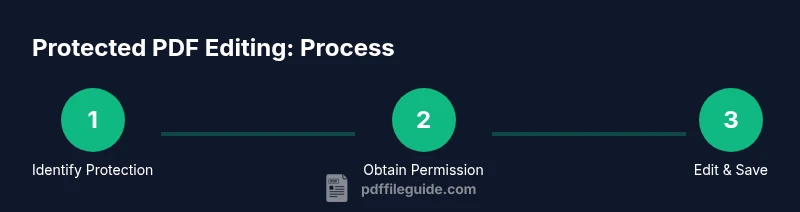
Open the PDF properties or security settings to determine whether password protection or editing restrictions exist. If the document is only viewable, note whether printing or copying is allowed. This informs whether you should request permission or pursue an approved workflow.
Tip: If you can print, generate a print-to-PDF copy as a starting draft for review, but only if permitted. - 2
Obtain explicit permission
Secure written authorization from the owner or responsible party that specifies what you may edit and how the revised file will be delivered. Without written permission, proceed only with non-destructive annotations or seek an editable source from the owner.
Tip: Keep a dated copy of the permission and link it to the project task. - 3
Gather unlocking details
If the owner provides a password or unlocking method, collect it securely. Do not attempt guessing or bypassing protections. Document the password handling procedure and ensure it is used only for the intended file.
Tip: Use a secure password manager to store the unlocking credentials. - 4
Open and unlock the document (if permitted)
Open the PDF in your trusted editor and apply the unlocking step with the provided credentials. Save a new version name to preserve the original in its untouched state.
Tip: Verify that the unlock state persists after closing and reopening the file. - 5
Make edits carefully
Edit content with attention to typography, layout, and accessibility. For forms, update fields without altering underlying form definitions unless you have explicit permission to do so.
Tip: Work in a copy and compare changes against the original side-by-side. - 6
Validate and document changes
Review the edited document for consistency, page breaks, and figure alignment. Save as a new version and attach a short changelog describing the edits and the permission used.
Tip: Include a note about any restrictions that must be re-applied if required. - 7
Deliver and store securely
Share the revised file with the owner or stakeholder, and store it in a controlled location with access controls. Ensure the final file complies with any re-applied protections or distribution rules.
Tip: Set up a simple audit trail so future reviewers can trace changes.
Questions & Answers
Is it legal to edit a protected PDF?
Editing a protected PDF is legal only when you have explicit permission from the copyright owner or authorized party. Without permission, editing may violate copyright, contract terms, or organizational policy. Always confirm rights before making changes.
Editing a protected PDF is legal only with explicit permission from the owner. If you don’t have permission, don’t modify the document.
What should I do if I can’t locate the owner?
If the owner cannot be reached, avoid modifying the document. Request a new, editable version or a redlined draft from the administrator. Maintain records of your attempts to contact the owner for compliance purposes.
If you can’t reach the owner, don’t edit. Ask for an editable version or redlined draft and keep records.
Can I remove password protection without permission?
No. Removing password protection without explicit authorization is generally inappropriate and could violate laws or terms of use. Use legitimate channels to obtain access or an editable version.
No, you should not remove protection without explicit authorization.
What are legitimate alternatives to direct editing?
Ask for a non-protected template, a new editable version, or access to source files. If annotation is sufficient, use commenting tools that don’t alter the original content.
Ask for an editable version or source files, or use non-destructive annotations if edits aren’t required.
How can I verify changes after editing?
Compare the edited file with the original, check that all edits render correctly across viewers, and confirm permissions were observed. Maintain a changelog and retain permission records for accountability.
Compare edits to the original and ensure they display correctly across viewers; keep a changelog.
Watch Video
Key Takeaways
- Always verify permissions before editing.
- Use approved workflows and trusted tools.
- Document changes and maintain an audit trail.
- Keep backups of the original and edited files.
- Respect copyright and licensing terms.