How to Add Signature to PDF: A Complete Guide Easily
Learn to add a signature to a PDF using built-in tools, third‑party apps, or online services. This comprehensive guide covers image and digital signatures, legal considerations, and best practices for secure signing in 2026.


By following this guide, you’ll learn how to add a signature to a PDF using built-in tools, third‑party apps, or online services. You'll need the PDF file, a signature image or digital ID, and a signing method (static or interactive). The steps cover preparing your signature, placing it accurately, and saving the signed document securely.
What signing a PDF means
Signing a PDF creates a tamper-evident seal that confirms who signed and when. There are several approaches: image-based signatures (your handwritten sign captured as an image), digital IDs (cryptographic signatures tied to a certificate), and live e-signatures from a signing service. According to PDF File Guide, choosing the right method depends on your workflow, the level of legal enforceability required, and whether you need offline or online signing. Digital signatures use public-key cryptography to verify authenticity, while image signatures rely on the signature graphic; both can be visible on the document or embedded in the PDF metadata. Many professionals keep both a signed and unsigned version for archiving. Ensure your PDF reader supports the signature type you choose and that recipients can verify it without needing additional software. In regulated environments, a trusted digital ID from a CA can help maintain compliance; for quick approvals, an image signature placed by the author may suffice.
Signing methods and formats
There are multiple ways to add signatures to PDFs, from desktop editors to online services. Common formats include image based signatures embedded as an annotation, and cryptographic digital signatures that validate author identity. Modern tools also support certified signatures that lock certain edits after signing. When selecting a method, consider the document’s purpose, audience, and whether the recipient will verify the signature in different readers. PDF File Guide notes that interoperability across readers is essential to avoid confusion or rejected documents.
How to choose the right signing workflow
Your signing workflow should match your environment. For quick approvals, use a lightweight image signature placed in a corner or along the bottom margin. For formal agreements, generate a cryptographic digital signature tied to a certificate from a trusted authority. If multiple people must sign, choose a workflow with an audit trail and signature order. Always test signing on a copy to verify appearance and legibility across devices.
Best practices for professional PDFs
Maintain document integrity by keeping a signed copy and an unsigned draft. Use clear placement that does not obstruct content, and maintain legible font sizes for any signature text. Include a timestamp and signer name when possible to improve traceability. Consider accessibility by ensuring signature fields are properly labeled for assistive technologies and screen readers.
Troubleshooting common issues
If the signature does not appear to verify, check that the signature is placed within a signature field and that the reader supports the signature type. Inconsistent font rendering or signature graphics can indicate compatibility problems. Always sign a test copy before distributing to avoid last minute issues.
Tools & Materials
- PDF document to sign(The target file in PDF format.)
- Signature option(Choose image based or digital ID.)
- Signature image (optional)(PNG/JPG of your signature for image-based signing.)
- Digital ID / certificate (optional)(For a trusted digital signature.)
- Signing software or service(Desktop app, online service, or mobile app that supports signing.)
- Backup/exported copy(Keep an unsigned and signed copy for verification.)
- Device with signing capability(Computer, tablet, or smartphone with signing capability.)
Steps
Estimated time: 25-40 minutes
- 1
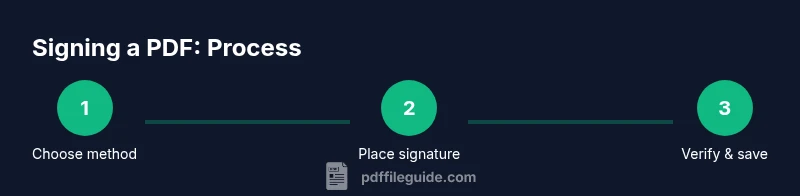
Choose signing method
Decide whether you will attach a signature image or use a digital ID. Consider legal requirements and ease of verification.
Tip: Start with the simplest method that meets your needs to reduce risk. - 2
Open the PDF in the signing tool
Launch your signing software or online service and import the PDF you want to sign.
Tip: Ensure you have the latest version of the tool to access signature features. - 3
Create or import your signature
If using an image, upload your signature; if using a digital ID, configure the certificate.
Tip: Prepare a high-resolution image for best clarity. - 4
Place the signature
Drag the signature to the desired location and resize if needed without obscuring content.
Tip: Place in a consistent spot across documents for familiarity. - 5
Add metadata and signing reason
Optionally include a signing date, reason, and signer identity to improve traceability.
Tip: Keep metadata concise and legible. - 6
Verify the signature
Check that the signature appears correctly and that the document’s integrity is preserved.
Tip: Open the signature properties to confirm validity. - 7
Save a signed copy
Save as a new file to preserve the original unsigned version.
Tip: Use a clear naming convention like Signed_ProjectName_Date. - 8
Share and track
Distribute to recipients and monitor signature status if using an online service.
Tip: Enable notification alerts if available.
Questions & Answers
What is the difference between a digital signature and an image signature?
A digital signature uses cryptographic certificates to verify identity and document integrity, while an image signature is a graphic representation of your signature placed on the PDF. Digital signatures offer stronger verification and audit trails, but may require more setup.
Digital signatures use certificates for verification, while image signatures are graphics; choose based on your security needs.
Can I sign a PDF on mobile?
Yes, many apps support signing PDFs on smartphones and tablets. Look for apps with signature fields or image upload options and ensure the tool preserves the signature in a portable format.
Yes, you can sign PDFs on mobile with the right app.
Do signed PDFs work in all readers?
Most modern readers support standard signature types, but behavior can vary. Test signing on the readers your recipients use to avoid compatibility issues.
Most readers can verify signatures, but test across apps.
How do I remove a signature?
Removing a signature may require the original document or signature field. If the document is unlocked, you can delete the signature annotation or replace it.
You may need the original file to remove the signature.
Is signing legally binding?
Digital signatures meeting industry standards are generally legally binding in many jurisdictions when properly implemented. Check local regulations and your signing service terms.
Digital signatures are generally legally binding if implemented correctly.
What tools are best for corporate signing workflows?
For organizations, use tools with robust audit trails, access controls, and bulk signing capabilities. Evaluate compatibility with document management workflows.
Look for audit trails and controls in enterprise signing tools.
Watch Video
Key Takeaways
- Choose the signing method that fits legal needs
- Place signatures consistently for readability
- Verify integrity before sharing
- Keep separate unsigned and signed copies