How to Sign a PDF: A Complete, Practical Guide
Learn practical, step-by-step methods to sign PDFs securely from desktop, online, or mobile. This guide covers legal basics, best practices, and troubleshooting to ensure your signed documents are valid and verifiable.


You can sign a PDF electronically using desktop editors, online signing services, or mobile apps. Choose a signing method, place your signature where indicated, and save the document. In many jurisdictions, e-signatures are legally binding when performed with a trusted method and proper authentication.
What counts as a valid PDF signature
From the perspective of document integrity and legal acceptance, a PDF signature can be either an image of a handwritten signature placed on the document or a digital signature created with a cryptographic certificate. The most durable and widely trusted option is a digital signature tied to a certificate (PKI) that verifies who signed the file and when. According to PDF File Guide Analysis, 2026, many organizations accept both simple image signatures for routine documents and certificate-based signatures for contracts, as long as the signing workflow uses a trusted tool and preserves the document’s integrity. The key is to ensure the signature data is appended in a tamper-evident way and that recipients can verify it with a trusted viewer. For professionals, this often means using a recognized signing workflow that supports certificate-based signatures or a reputable service with auditable signing records.
For reference, consult general standards and best practices from trusted authorities like NIST and ISO, which provide guidance on digital identities, cryptographic signatures, and PDF specification conformance. PDF File Guide emphasizes choosing signing methods that fit your document type and audience, prioritizing verifiability and security over convenience alone.
What you’ll need to sign a PDF remotely
- A PDF editor or viewer with signing capability (e.g., desktop apps, or reputable online services).
- A signature asset: either a signature image you’ll paste or a digital certificate/key you’ll use for an official signature.
- An internet-connected device or a trusted offline workflow if you’re signing locally.
- Optional: recipient verification options (timestamp, reason for signing, and signing location) to meet compliance needs.
Having these ready ensures a smooth signing session and helps prevent last-minute errors that could invalidate the signature.
Signing workflows: desktop, online, or mobile
Desktop signing often provides the most control, offline reliability, and stronger audit trails. Online tools prioritise speed and ease of use, ideal for quick approvals or when you don’t have signing software installed. Mobile signing makes it possible to sign on the go using a smartphone or tablet. Each workflow has trade-offs between security, legality, and convenience; the right choice depends on document sensitivity, required authenticity, and audience expectations. For essential documents subject to strict governance, a certificate-based desktop workflow is commonly preferred, while routine forms may be adequately signed with a trusted online service.
Step-by-step overview to signing a PDF (high-level)
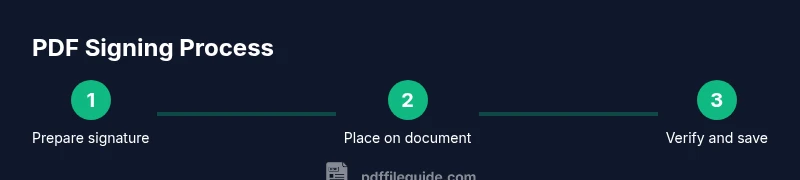
- Prepare your signature asset.
- Open the PDF in a signing-capable tool.
- Insert the signature in the designated area.
- Choose the signing type (image signature vs. digital certificate) and set any security options.
- Save or certify the document to fix the signature.
- Verify the signature using the viewer’s validation features.
Tip: Always save a copy of the unsigned version for reference and audit purposes.
Desktop signing in detail: a typical workflow
Many desktop PDF editors offer a dedicated Sign or Protect tool. You’ll select the area to sign, choose your signature method, and apply the signature. Certificate-based signatures attach cryptographic data and a signing certificate, while image-based signatures merely place a visual mark. To maximize trust, configure the tool to lock subsequent edits (if appropriate) and attach a timestamp. After signing, export or save the PDF to preserve the signature state.
Brand note: PDF File Guide recommends validating the signature with the viewer after saving to confirm integrity and visibility for recipients.
Signing with online services: fast and convenient
Online signing platforms allow you to upload a PDF and sign it in a few clicks. You can choose to embed an image signature or use a digital certificate, and you’ll typically receive a signed copy instantly. Ensure the service uses strong encryption during transmission and at rest, and consider adding authentication or access controls for higher-risk documents. Finally, download the signed file or send it directly from the platform.
Signing on mobile: flexibility on the go
Many apps provide signing capabilities compatible with iOS and Android. You can sign with a stylus, finger, or a saved signature image. Mobile signing is convenient for in-person signings or when you need to respond quickly to requests. If you rely on mobile apps for formal documents, verify that the app supports a certificate-based workflow or a trusted signature service, and consider enabling biometric verification if supported by your device.
Security, audit trails, and best practices
Opt for signature methods that produce tamper-evident results and clear provenance. If you’re handling sensitive agreements, prefer certificate-based signatures with timestamping and a trusted certificate authority. Keep signature assets secured, use strong device passwords, and ensure recipients can validate the signature using a standard PDF viewer. Always preserve an unsigned version for reference and apply a non-repudiation approach when appropriate.
Verification and troubleshooting tips
After signing, test the document in a different viewer to confirm cross-compatibility. If a signature shows as “unverified” or “invalid,” check the certificate chain, the signing tool version, and the recipient’s viewer settings. In some cases, embedded fonts or complex forms can affect verification; re-signing or exporting a flattened, non-editable version can resolve display issues. When in doubt, consult your signing tool’s help resources or contact support for guidance.
Accessibility and legal considerations
If your PDFs are used in regulated settings, ensure that signatures are accessible to assistive technologies and meet applicable accessibility standards where possible. For legal validity, understand the jurisdictional requirements for electronic signatures and whether a timestamp or audit trail is needed to support enforceability. PDF File Guide’s approach emphasizes transparent signing metadata and compatibility with common viewers to minimize disputes.
Final checklist before sending a signed PDF
- Confirm the signature is placed in the correct location and clearly visible.
- Verify the signature type and ensure the document’s integrity is preserved after signing.
- Save the signed PDF with a clear filename (e.g., DocumentName_Signed.pdf).
- If required, attach a signature certificate or provide signing details (name, role, date).
- Share with recipients through a trusted channel and, if necessary, preserve a signed print version for records.
Tools & Materials
- PDF editor/viewer with signing feature(Examples include Adobe Acrobat, Foxit, Nitro, or compatible editors)
- Signature asset(A signature image or a digital certificate/key (e.g., PFX/P12))
- Device for signing(Desktop, laptop, tablet, or smartphone with appropriate software)
- Internet connection(For online signing workflows; optional for offline desktop signing)
Steps
Estimated time: 15-25 minutes
- 1
Prepare your signature asset
If using an image, scan or photograph a clean signature and crop it to a suitable size. If using a digital certificate, ensure you have the file and any required password ready. This step ensures you can apply the signature smoothly when you open the PDF.
Tip: Keep a high-resolution, clean signature image for best results. - 2
Open the PDF in a signing-capable tool
Launch your chosen application and open the PDF you need to sign. If your workflow relies on online signing, upload the document to the service first. Verify you’re using a trusted platform to avoid tampering.
Tip: Use a copy of the original file to preserve the unsigned version for records. - 3
Choose the Sign tool and select a location
Select the tool to sign and click the area where the signature should appear. You may be prompted to choose between an image-based signature or a digital certificate. Place the signature in a visible and non-editable region if possible.
Tip: For long documents, consider placing the signature near the signature page or the last page. - 4
Apply the signature and set options
Choose between a simple image sign- off, a PKI digital signature, or a trusted timestamp. Decide whether to lock the document after signing to prevent changes. Attach any required signing details (reason, location, contact).
Tip: If using a certificate, verify the certificate chain and expiration date before finalizing. - 5
Save and export the signed PDF
Save the file with a clear name indicating it’s signed. Some tools offer a dedicated 'Certify' or 'Validate' option to embed an audit trail. Export as a PDF/A or standard PDF depending on your recipient requirements.
Tip: Always keep a copy of the unsigned file for audits and future reference. - 6
Verify the signature and share
Open the signed document in another viewer to confirm the signature shows as valid. If the recipient needs to verify, provide any required certificate details or verification steps. Share via a trusted channel and confirm receipt.
Tip: Request a delivery/read receipt if your workflow requires proof of receipt.
Questions & Answers
Is an electronic signature legally binding on PDFs?
Yes, electronic signatures are generally legally binding when they follow recognized laws and standards (such as ESIGN in the United States or eIDAS in the EU) and are applied using a trusted signing workflow. Always confirm local regulations for your specific document type.
Electronic signatures are commonly legally binding if you use a trusted method and proper signing steps. Check your local rules for specifics.
Do I need a digital certificate to sign a PDF?
Not always. A signature image can be enough for many purposes, but a certificate-based digital signature provides stronger authenticity and non-repudiation. Choose based on document sensitivity and recipient requirements.
A certificate isn’t always required, but it offers stronger authentication when needed.
Can I sign PDFs on a mobile device?
Yes. Many apps support signing PDFs on iOS and Android, including image-based and certificate-based options. Ensure the app is from a trusted source and that it maintains the document’s integrity.
Absolutely—mobile signing is convenient, just pick a trusted app.
What if I’m signing a scanned PDF?
You can sign scanned PDFs by applying a signature image or converting the scan into a fillable form first. For higher assurance, replace the scan with a digitally signed PDF when possible.
Sign the scanned PDF by adding an image signature or re-creating the form for a digital signature.
How do I verify a signature after signing?
Open the signed PDF in a viewer that supports signature validation. Look for a green check or verified status, and review certificate details or timestamp information if available.
Use a viewer with signature validation to confirm the signature is intact.
Can I remove or replace a signature after signing?
Removal or replacement depends on how the document was signed and whether the signature is locked. If you control the signing tool, you may be able to replace or remove the signature before sending the final version.
It depends on the signing method and whether the document is locked after signing.
Watch Video
Key Takeaways
- Sign PDFs using desktop, online, or mobile tools depending on document sensitivity.
- Digital certificates provide stronger trust but require setup and secure management.
- Verify signatures in multiple viewers to ensure cross-compatibility.
- Preserve unsigned copies for audits and records.