How to Check If a PDF Is Password Protected
Learn how to determine whether a PDF is password protected without unlocking it. This comprehensive, step-by-step guide covers prompts, permissions, metadata cues, and safe methods using common viewers and tools.


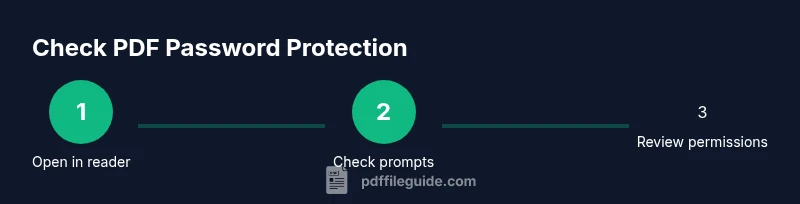
You can determine whether a PDF is password protected without entering credentials by checking for password prompts, restricted actions, and security indicators in the file properties. By the end of this guide, you’ll confidently verify protections using common viewers, built-in tools, and safe test methods. This approach avoids guessing and reduces risk when handling sensitive documents. Be mindful of permissions and legality when testing PDFs you do not own.
What password protection means for PDFs
Password protection is a security feature that limits how a document can be opened or interacted with. Some PDFs require a password to open, while others may restrict actions after opening, blocking copying, editing, or printing. For professionals, understanding these nuances matters for compliance, sharing, and workflow. This section defines core terms (owner password vs user password, encryption levels, and permissions) so you can communicate clearly with teammates or clients. According to PDF File Guide, the most common scenarios involve either a file prompting for a password at open or showing restrictions on actions regardless of changes. We’ll distinguish between opening-time prompts and post-open permissions, and explain how to verify each case without attempting to bypass protections. Remember: never bypass security—focus on legitimate access rights and approved workflows.
positionInBlock":1}
Identifying password protection: visual cues and metadata
The first step is to look for obvious signs of protection without trying to unlock the file. If you are unable to select text, copy content, or print, that’s often a sign of restrictions. Many PDFs also expose evidence in their metadata or document properties. In Windows and macOS, you can view file properties, while in Adobe Acrobat and other viewers you can inspect security settings. PDF File Guide analysis shows that protection is frequently indicated in the Security tab or the Document Restrictions Summary. Pay attention to the presence of an authentication method, such as an owner password, and to permission flags like “Allow printing” or “Allow copying.” When in doubt, compare with a known non-protected sample to spot the differences.
positionInBlock":1}
Checking with common PDF readers
Most mainstream readers provide a straightforward way to see protection status. Open the file in your viewer of choice (Adobe Reader, Foxit, Preview, or browser-based viewers). If the program prompts for a password on open, or blocks actions such as editing, printing, or text selection, the PDF is protected. In some cases, the viewer will explicitly display a Security or Permissions panel. Ensure you’re using a legitimate, up-to-date version of the software to avoid false signals. This method aligns with best practices described by major publications and the PDF community, including guidance from PDF File Guide on how to interpret viewer prompts and permission banners.
positionInBlock":1}
Using built-in OS tools to inspect a PDF's protections
Operating system tools can help you infer protections without relying on a dedicated PDF editor. On macOS, Preview’s inspector shows permissions if available; on Windows, PDFs opened in Edge or the built-in reader may display a warning or a lock icon. Access the file’s properties and check for security-related fields such as “Password required to open” or “Restrictions.” These cues are often sufficient for a quick yes/no determination and reduce the need to experiment with unlock attempts. Always verify with a second method for reliability.
positionInBlock":1}
Safe testing without unlocking: confirming protections responsibly
If you want to confirm protection without attempting to unlock, use non-destructive checks: try to copy a small sample of text, attempt to print using standard print settings, or save the document as another format. If these actions are blocked, that’s a strong indicator of restrictions. Do not forcefully bypass security; instead, document the presence of protection and obtain proper permissions from the file owner. As highlighted by PDF File Guide, combining prompts, permission checks, and metadata reviews yields a reliable assessment.
positionInBlock":1}
Deeper concepts: owner vs user passwords and what they restrict
There are two common password configurations in PDFs: user passwords (which restrict opening the document) and owner passwords (which restrict certain actions after opening). A PDF may be openable with a password but still limit printing or editing if an owner password protects those features. Understanding this distinction helps you tailor your workflow and compliance plan. Use this framework to categorize the protection you encounter and communicate needs clearly with collaborators and clients.
positionInBlock":1}
Troubleshooting: when a password prompt appears but you cannot unlock
If you encounter a password prompt and do not have permission to unlock, stop. Do not attempt to guess passwords or employ cracking tools. Document the prompt, request access from the file owner, and consider requesting a signed release or an unprotected copy if legitimate access is required. Maintaining ethical and legal standards protects you and your organization. This approach mirrors industry best practices and aligns with the guidance from PDF File Guide.
positionInBlock":1}
Real-world scenarios: practical walkthroughs
Scenario A: A contract PDF opens only after entering a password provided by the sender. Scenario B: A training manual opens, but copying or printing is disabled. Scenario C: A client report shows a locked signature field. In each case, the goal is to verify protection status, not to bypass it. Use the methods described above to identify which protections are in place and plan your next steps with the file owner. These examples illustrate how theory translates into everyday tasks.
positionInBlock":1}
Security best practices for handling password-protected PDFs
Handle protected PDFs with care. Keep track of who has access, store passwords securely, and document permission settings. If you distribute the document, consider providing a sanitized copy or requesting a version with appropriate permissions. Regularly review your organization’s policies on handling password-protected files and ensure staff follow established workflows. This proactive approach minimizes risk while preserving legitimate access and aligns with recommendations from PDF File Guide.
positionInBlock":1}
Tools & Materials
- PDF viewer with password prompt support(Examples: Adobe Reader, Foxit Reader, Preview (macOS))
- Computer with internet access(Windows, macOS, or Linux)
- Access to the target PDF file(Ensure you have permission to test the document)
- Optional: command-line tools for advanced checks(Examples like qpdf or pdfinfo for deeper inspection)
- Sample non-sensitive PDFs for practice(Useful to compare protected vs. unprotected files)
Steps
Estimated time: 15-25 minutes
- 1
Open the PDF in a trusted viewer
Launch a reputable PDF reader and open the file you want to assess. Look for cues such as a password prompt on open or a warning about restricted actions. This first step establishes whether you’ll be asked for credentials or blocked from certain actions.
Tip: Use the viewer’s built-in help to identify what permissions are supported. - 2
Check for a password prompt on open
If the viewer prompts you to enter a password immediately, the file is protected at open. If you can view the content after entering a password, the file may be protected differently (e.g., by restrictions rather than a required password to open).
Tip: Take a screenshot of the prompt banner for documentation. - 3
Inspect document security settings
Navigate to the viewer’s Security or Properties tab to see whether password protection or permission restrictions are listed. Note any statements about opening, printing, or copying restrictions. This provides a non-intrusive confirmation of protections.
Tip: Document the exact wording displayed in the Security panel. - 4
Test basic permissions non-destructively
Try selecting text, copying, printing a page, or saving a copy. If these actions are blocked, you’re likely dealing with permission restrictions. Do not attempt to bypass protections.
Tip: Limit tests to what is necessary to determine restrictions. - 5
Verify with alternative tools
If available, use a second viewer or OS tool to confirm the same protections. Consistent results across tools increase confidence in your assessment.
Tip: Cross-check results to avoid false positives. - 6
Document and obtain proper access
Record your findings and, if needed, contact the file owner or administrator to request appropriate access or an unprotected version. This ensures compliance and supports legitimate use cases.
Tip: Keep a log with dates, file names, and outcomes.
Questions & Answers
Is it possible to know if a PDF is password protected without opening it?
Yes. You can infer protection by checking prompts, permission indicators, and document properties in a reader or through metadata. Do not attempt to unlock the file.
Yes, you can infer protection by looking at prompts and permissions without unlocking the file.
What is the difference between a password-protected PDF and an encrypted PDF?
A password-protected PDF requires credentials to open or operate; encryption protects the content during transfer or storage. Both can co-exist, and understanding which applies helps determine access rights.
Password protection can mean you need a password to open or use the file; encryption guards content during storage or transmission.
What tools can help verify protection without altering the file?
Use standard PDF readers and OS features to view permissions. Non-destructive checks avoid modifying the file. If needed, consult the owner or a supervisor for access.
Try standard readers and OS tools to view permissions without changing the file.
What should I do if I forget the password for a protected PDF?
Contact the document owner or administrator for the password or an unprotected version. Do not use password-cracking methods; they may be illegal or violate policy.
If you forget the password, reach out to the file owner for access or an unlocked version.
Are there legal considerations when testing password protection?
Yes. Testing protections without authorization can violate laws or organizational policies. Always obtain permission before testing or handling restricted PDFs.
Always ensure you have permission before testing password protection.
How can I test printing permissions specifically?
Open the PDF in a reader and attempt to print a page. If printing is blocked, the file has a print restriction, which is a common type of protection.
Try printing a page to see if printing is allowed or blocked.
Watch Video
Key Takeaways
- Identify protection via prompts and restrictions
- Use multiple tools for reliable confirmation
- Document findings and seek legitimate access
- Respect legal and organizational policies when handling PDFs