How to Check If a PDF Is Encrypted
Learn how to determine whether a PDF is encrypted, what encryption means for access and sharing, and practical steps to verify encryption across common viewers and tools. Includes best practices for secure handling.


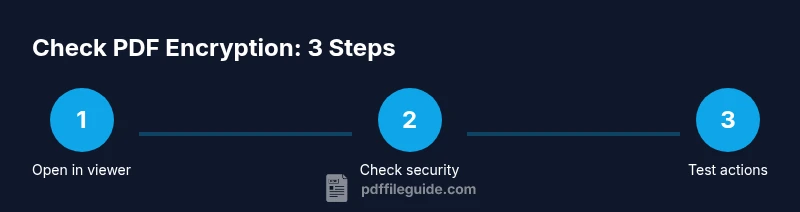
To check if a PDF is encrypted, try opening the file in a PDF viewer. If you're prompted for a password, or if you cannot print or export the document, it is encrypted. You can also inspect Security or Properties to confirm the encryption type.
What encryption on PDFs means
Encryption on PDFs is a protective measure that restricts access and certain actions unless the correct credentials or keys are provided. According to PDF File Guide, encryption is designed to prevent unauthorized viewing, copying, printing, or editing of sensitive content. There are several layers to this protection: open password encryption, which requires a password to view the file; permissions-based encryption, which restricts actions like printing or copying even when the file is readable; and certificate-based schemes, which rely on trusted certificates to grant access. For professionals handling sensitive documents, understanding the difference between these forms helps determine how to share or store files securely. Remember that encryption strength can vary (common standards includeAES-based methods), and the presence of encryption doesn’t always reveal the exact password policy. Always verify with the source or the document issuer when access is restricted.
In addition to direct access checks, consider the context in which the PDF was obtained. A document from a regulated environment may use stricter encryption and stricter policies for distribution. PDF File Guide analysis, 2026, shows that encryption labeling can be inconsistent across readers, so relying on a single indicator (e.g., a password prompt) is not enough. Instead, combine several checks: try to open, observe prompts, review document properties, and attempt typical actions like printing or saving a copy. This multi-step approach minimizes the risk of misinterpreting a permissions warning as a lack of encryption.
Ultimately, encryption is about controlling access and permissions. If a file is encrypted, you should treat it as restricted content unless you have legitimate authorization or the appropriate credentials. This section lays the groundwork for practical verification across platforms and tools, emphasizing that the presence of encryption affects how you handle and share PDFs in daily workflows.
Tools & Materials
- PDF viewer software(Examples: Adobe Acrobat Reader DC, Preview on macOS, or a trusted browser-based viewer.)
- Web browser(Chrome/Edge/Firefox or Safari can also reveal basic security prompts.)
- Test PDF file(File you want to verify for encryption and access restrictions.)
- Notepad or logging app(Optional for recording findings and timestamps.)
- Password (if available)(Use only if you have authorization to unlock the document.)
Steps
Estimated time: 15-25 minutes
- 1
Prepare your verification environment
Open a trusted PDF viewer and ensure the file to test is accessible. If you’re performing this on a shared workstation, close other sensitive documents to avoid accidental disclosure. This setup helps ensure any prompts or restrictions come from the PDF itself, not from external software.
Tip: Having a secondary device to compare prompts can help confirm consistency. - 2
Open the PDF and observe prompts
Launch the file in the viewer and look for a password prompt or a lock icon. If asked for a password to proceed, encryption is present. If the document opens without a prompt but has restricted actions, encryption with permissions may be in effect.
Tip: If you see a password prompt, avoid entering anything unless you have authorization. - 3
Check the document properties or security settings
In many readers, you can view the Security or Document Properties to see the encryption method and access controls. Look for phrases like 'Password security,' 'Encryption algorithm,' or 'Printing allowed: No.' This provides a clear indicator of encryption status.
Tip: Document Properties can reveal the encryption level (e.g., AES-256) even when the prompt isn’t obvious. - 4
Test a typical action (print/export)
Attempt to print, save a local copy, or export to another format. If these actions are blocked or require credentials beyond viewing, encryption is actively enforcing restrictions.
Tip: If actions are blocked, note which ones fail and under what conditions (e.g., after clicking 'Print'). - 5
Attempt to copy content
Try selecting and copying text or images. If copy is disabled or copy-paste doesn’t work, it can indicate encryption or robust permissions. This helps distinguish between read-only PDFs and encrypted ones.
Tip: Some PDFs allow copying through OCR or certain viewers; treat such exceptions with caution. - 6
Document the results
Record what prompts appeared, which actions were blocked, and any security details shown. This documentation aids future sharing decisions and can be useful when requesting access from the file owner.
Tip: Include a timestamp, viewer version, and the exact actions you tested.
Questions & Answers
Can you check encryption without a password?
Yes, you can verify encryption status by attempting to open the file, checking the security settings, and testing actions like printing or exporting. Some details may be visible in document properties even if a password isn’t required to view content.
You can usually verify encryption without a password by checking security settings and attempting typical restricted actions.
What is the difference between password-protected and encrypted PDFs?
A password-protected PDF requires a password to view or modify content, while encryption is the underlying protection that may exist even when viewing is allowed but editing or printing is restricted. Both affect how content is accessed and shared.
Password protection is about opening the file; encryption covers broader protections like printing and copying.
Why can't I open an encrypted PDF even with a viewer?
If you’re not the intended recipient or you don’t have the correct credentials, you may be unable to open or fully access the file. In some cases, you may need the author to provide a password or a secure access method.
If you don’t have the right credentials or authorization, access will be blocked by encryption.
Is it legal to decrypt a PDF without authorization?
Decrypting or bypassing encryption without authorization is likely illegal and could violate privacy, contract, or regulatory requirements. Always obtain explicit permission or use legitimate recovery channels.
No—decrypting without authorization is generally not legal; seek proper authorization.
Does encryption always prevent printing or copying?
Not always. Some PDFs allow printing or copying under certain permissions, even when the content is encrypted. Check the document’s Security settings to confirm what is allowed.
Encryption can enable or restrict actions like printing, depending on the policy.
What should I do if I need access to an encrypted document?
Contact the document owner or administrator and request the appropriate access or a version without encryption. Keep a record of approvals and the reasons for access.
Reach out to the owner for the right credentials or a shareable version.
Watch Video
Key Takeaways
- Verify encryption by testing prompts and security settings.
- Differentiate between password-protected and permissions-restricted PDFs.
- Document results to inform secure sharing decisions.
- Always obtain authorization before attempting decryption or bypassing protections.