How to Save a PDF Without a Password: Safe, Legal Steps
Learn legitimate steps to save a PDF without password by removing protection only when you own the file or have explicit permission, using trusted tools, and following best practices for security.


To save a PDF without a password, you must have legitimate access to the file. If you know the password and own the rights, unlock the document and save a copy without encryption. If you don’t own it, obtain permission or have the owner provide a non-protected version. This guide explains safe, legal methods and best practices.
Understanding password protection and permissions
Password protection on PDFs serves two core purposes: restricting access (user password) and controlling modification or distribution (owner password or encryption policies). In many workplaces, files are protected to protect sensitive information and ensure compliance with data governance. A fundamental distinction for readers is that removing a password is only appropriate when you have clear authorization from the file owner or creator. According to PDF File Guide, legitimate use means you either own the file or have explicit permission to modify it. When these conditions are met, you can remove encryption and save a non-protected copy for easier collaboration, printing, or distribution. Always document the authorization status in case you’re asked to prove compliance later.
In this section, we’ll cover how to approach password removal ethically and legally, so you can work efficiently without compromising security or scholarly integrity.
Legal and ethical considerations when removing protection
The legality of removing password protection varies by jurisdiction and context. Generally, if you created the document, or you have explicit permission from the rights holder, removing protection is permissible. If the document contains personal data governed by privacy laws, you must ensure that removing protections aligns with policy and regulations. PDF File Guide’s 2026 analysis emphasizes that authorized access is a prerequisite for any password removal activity; unauthorized attempts can constitute data breach or copyright violation. When in doubt, consult your organization’s legal/compliance team and keep an audit trail of permissions and actions performed.
From an ethical perspective, consider the purpose of the protection. If the password exists to limit copy or distribution in a sensitive setting, discuss sharing needs with the owner instead of hastily unprotecting the file. This ensures both value and accountability, preserving trust with clients and stakeholders.
Verifying your rights before removing protection
Before touching a protected PDF, confirm you have the right to modify and save an unencrypted version. Start by identifying the file owner or administrator who set the password. If you’re part of an organization, obtain written authorization or a policy-compliant request. If you’re the author, locate the original password and confirm whether removing protection is consistent with data-handling guidelines. Keep a note of who approved the change and when it happened, in case of future audits. If you do not have permission, do not proceed—the risk of legal or reputational harm is real, and attempting to bypass protections could violate policy and law.
This step saves you from wasted effort and potential compliance breaches, especially when dealing with confidential or regulated content.
Preparing to save a copy without password
Preparation reduces error and ensures the process is auditable. Create a backup of the original protected file, and store it securely. Ensure you’re using a trusted device with up-to-date PDF software. If you’re in a corporate environment, align with IT security guidelines. Plan the output filename so it’s clear this is the unencrypted version (for example, ProjectX_Final_Unencrypted.pdf). Clear naming helps prevent accidental distribution of the password-protected source. Finally, decide on the destination folder with appropriate access controls to prevent unauthorized duplication.
With the right preparations, you can proceed confidently, knowing you have a compliant, traceable workflow.
Tools and methods: choosing the right approach
There are several legitimate pathways to remove password protection, depending on what you own and what tools you have. Desktop PDF editors often provide a straightforward path: open the document with the password, access the Security or Protection settings, and select a non-security option to save a copy unencrypted. Some editors also offer an export function that explicitly saves a non-passworded version. Online services exist, but they pose privacy risks and should be avoided for sensitive files. In all cases, rely on reputable software from trusted sources and verify the encryption status after saving by reopening the file without a password. If you’re using a corporate computer, ensure your actions are logged in your organization’s change-management system.
Choosing the right approach reduces risk and increases the likelihood of a smooth transition to an unencrypted file.
How to save a new unencrypted copy: practical workflow
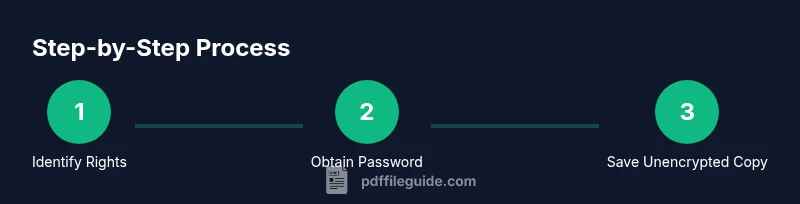
The practical workflow begins after you have verified authorization. Open the file in your trusted PDF editor and supply the password. Navigate to the Security or Protection section, and disable encryption or password protection. Save a copy of the document to a new filename that clearly indicates it is unencrypted. Close the editor and reopen the new file to confirm it opens without a password. If the editor prompts about permissions or changes, confirm and complete the process. Finally, store the unencrypted file in a secure location with access controls appropriate for your data.
This practical workflow emphasizes accuracy and traceability, ensuring you can defend your actions if questioned later.
Post-removal checks: ensure readability and security
After saving the unencrypted copy, verify that all content renders correctly. Look for missing images, fonts, or embedded elements that sometimes fail when security settings are altered. Ensure form fields, annotations, and links work as intended. Consider running a quick content comparison between the original and unencrypted copies to confirm there are no inadvertent changes. Finally, reassess security: even without a password, you may want to set access controls or apply a document lifecycle policy to prevent unnecessary sharing. Remember, the goal is to maintain usability without compromising privacy or compliance.
Common obstacles and how to address them
Some PDFs resist removing protections due to robust encryption, digital rights management, or policy-level restrictions. If you encounter this, consult the file owner or your IT department to obtain a compliant copy. In some cases, the password itself may be dynamic or tied to a device; a simple password change can unlock the document for legitimate editing, but only with authorization. If an editor reports that non-password-protected output is still subject to restrictions, verify that any policy-based protections have been fully disabled. Finally, be prepared to revert to the original protected file if you cannot obtain an authorized unencrypted version.
Best practices for professionals: governance and audit trails
As a professional, documenting each step enhances accountability. Maintain an access log showing who requested the unprotected version, the permissions provided, and the exact steps taken to remove protection. Use version control to track changes, and preserve the original password-protected file in a secure repository. Share unencrypted copies only with stakeholders who have explicit authorization and implement retention policies so that unencrypted documents don’t linger beyond their useful life. When in doubt, consult your organization’s policy on data handling and ensure alignment with legal and regulatory requirements.
Final considerations: balance, privacy, and future workflows
Balancing accessibility with privacy is essential. Unprotecting PDFs should be part of a controlled workflow that respects data sensitivity and user rights. If you frequently need unencrypted copies for legitimate collaboration, consider negotiating standardized access rights with stakeholders or adopting a secure sharing method that preserves confidentiality while enabling efficient work. As data governance evolves in 2026, professional practices increasingly favor transparent authorization, auditable steps, and secure distribution channels. By following the outlined approach, you can save PDFs without passwords responsibly and sustainably.
Tools & Materials
- PDF editor with password removal capability(Choose a reputable desktop application and avoid unreliable online tools for sensitive documents)
- Original password or documented authorization(You must have permission or the password to proceed)
- Backup copy of the original file(Store securely before making changes)
- Secure storage location(Access-controlled folder or repository for the unencrypted file)
- Written approval or policy reference(Helps support compliance if questioned later)
Steps
Estimated time: 20-40 minutes
- 1
Identify rights and permissions
Confirm you own the document or have explicit permission from the rights holder. Document who approved the change and when. This step prevents unauthorized actions and protects you from potential legal issues.
Tip: If uncertain, pause and obtain written authorization before proceeding. - 2
Open the PDF in a trusted editor and enter the password
Launch your chosen PDF editor and provide the required password to access the content. This step is necessary to disable protections in the next stage and ensures you’re working on the correct file.
Tip: Use a trusted, up-to-date editor to minimize compatibility issues. - 3
Disable encryption or remove protection
Navigate to the Security/Protection settings and choose a non-secure option to remove password protection. Confirm the change and ensure that no residual encryption remains.
Tip: If you don’t see a remove option, consult the editor’s help resources or support. - 4
Save a copy without encryption
Use Save As to create a new file name that clearly indicates it is unencrypted, and store it in a secure location with proper access controls.
Tip: Avoid overwriting the original file in case you need to refer back to it. - 5
Verify the new file opens without a password
Close and reopen the unencrypted copy to confirm it no longer prompts for a password. Check that content renders correctly and all features work.
Tip: Test on another device or viewer to ensure broad compatibility. - 6
Document and secure the workflow
Record the steps you took, the permissions obtained, and where the unencrypted file is stored. Implement access controls and a retention plan for sensitive data.
Tip: Keep the original protected version archived in a secure location.
Questions & Answers
Is it legal to save a PDF without password?
It is legal only if you own the document or have explicit permission from the rights holder. Removing protection without authorization can breach laws and policies.
You should only unprotect a PDF if you own it or have written permission from the owner.
What should I do if I forget the password?
If you forget the password, contact the file owner or administrator to obtain access rights or a non-protected version. Do not attempt unauthorized bypasses.
If you forgot the password, reach out to the owner for access or a non-protected copy.
Can I remove password from PDFs I created?
Yes. If you created the PDF, you can remove protection by turning off encryption in your editor and saving a new copy without security.
If you created the PDF, you can remove protection by saving a non-encrypted copy.
What if the PDF is DRM-protected?
DRM-protected PDFs require explicit rights to modify or remove protections. You must obtain permission or access rights from the rights holder.
For DRM-protected files, you need explicit rights to modify; otherwise removal isn’t possible.
Are there free tools to remove password?
Some editors offer password removal for owned files, but be cautious about free online services that may compromise privacy or security.
Some editors can remove passwords for files you own, but be careful with online tools.
How should I share an unencrypted PDF securely?
Share only with authorized individuals, use access controls, and consider encrypting or using secure sharing links if needed.
Share unencrypted PDFs only with authorized people and use secure methods.
Watch Video
Key Takeaways
- Verify authorization before removing protection
- Use trusted software to avoid privacy risks
- Save a clearly named unencrypted copy for collaboration
- Document steps for auditability
- Reassess security after sharing