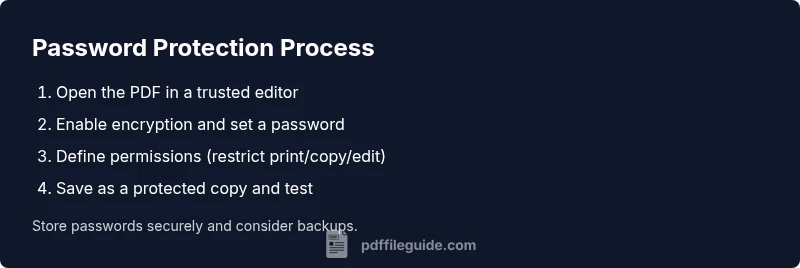
Protect PDF with Password: A Practical How-To Guide
Learn how to protect pdf with password across platforms, choose strong protections, and verify outcomes. This guide from PDF File Guide covers practical steps, security basics, and best practices for professionals handling sensitive PDFs.


Protect pdf with password to prevent unauthorized viewing, copying, or editing. This guide explains why password protection matters, what options exist across major tools, and how to verify protections work. PDF File Guide provides practical steps, common pitfalls, and best practices to keep sensitive PDFs secure.
What password protection does for PDFs
Protect pdf with password is a practical, widely recommended safeguard for any document that contains sensitive information. According to PDF File Guide, password protection is a foundational step in reducing risk when you share PDFs with colleagues, clients, or customers. The approach is simple: you specify a password, and the PDF software encrypts the file so that only someone who knows the password can open it. In addition to opening restrictions, you can enforce permissions that limit printing, copying, or editing. The combination of password and permissions creates a layered defense that helps maintain confidentiality, integrity, and control over your content. This approach is especially important for documents containing personal data, financial details, or proprietary information. In professional settings, password protection helps ensure compliance with privacy regulations and internal data-handling policies. When used consistently, it becomes a reliable baseline security habit across teams and projects.
Methods and options
There are multiple ways to protect a PDF with a password, depending on the tools you already use. The core ideas are the same: set a password, choose the encryption level, and decide what the recipient can do with the document. Strong practice combines a robust password with permissions that restrict printing, editing, or content extraction. PDF File Guide analysis shows that password strength and correct implementation dramatically influence effectiveness. For best results, avoid reusing passwords across documents and prefer password managers to generate and store long, unique phrases. Compatibility matters too; test the protected file on the devices and readers used by your audience.
Security basics and password hygiene
Password protection relies on encryption to safeguard the document's content and metadata. Most modern PDF protections use strong encryption algorithms to obscure data, making it infeasible to read without the key. To maximize security, combine password protection with safe sharing practices: send password separately from the file, use access-controlled storage, and limit distribution to necessary recipients. Remember that a password is only as strong as its secrecy and the software’s implementation; keep both up to date and avoid insecure tools that do not surface recognizable encryption options.
Step-by-step overview: applying protection across tools
Applying password protection is typically straightforward but can vary by editor. Always work on a copy of the original file to prevent accidental loss of data. After you set a password, save the file as a new, protected version so the unprotected original remains available for comparison or recovery if needed. In environments with regulatory requirements, document the protection settings and retention rules for auditing purposes.
Testing password protection after setup
Testing is essential to verify that the protection works as intended. Close the PDF and reopen it to confirm that a password prompt appears. Try to copy text or print the document if permissions are restricted to ensure limits are enforced. If the file opens without a password or allows restricted actions, revisit the protection settings and try a different encryption level or password. Regular testing after any change helps ensure ongoing security.
Pitfalls to avoid: common mistakes in password protection
Common mistakes include using weak passwords, reusing passwords, and sharing passwords insecurely. Do not rely on password alone for sensitive materials; combine with additional controls like restricted permissions and monitoring access when possible. Always keep backups of original files, document the encryption method used, and rehearse password recovery processes with your team. A thoughtful approach reduces risk and ensures smoother collaboration.
Best practices for password management and sharing
Use a password manager to generate and store long, unique passphrases. Share passwords through secure channels separate from the protected PDF. Consider periodic reviews of access permissions and updates to encryption standards as technology and threats evolve. By treating password protection as part of a broader security routine, you’ll achieve better protection without sacrificing productivity.
Accessibility and compatibility considerations
Some readers or older systems may have limited support for modern encryption. If you must share with a broader audience, balance strong protection with compatibility by testing across common devices and readers. Provide clear instructions for recipients on how to access the file and ensure that accessibility features do not hinder password entry or reading. Planning for diverse environments helps maintain usable, secure documents.
Final notes on security posture
Good password protection is a baseline security measure, not a silver bullet. Pair encryption with disciplined data-handling practices: limit access to only those who need it, rotate passwords periodically, and maintain auditable records of who accessed which files. The goal is to make unauthorized access impractical while keeping legitimate collaboration smooth and secure.
Tools & Materials
- PDF editing software with encryption features(Examples include reputable editors like Adobe Acrobat, Preview on macOS, or equivalent. Ensure the tool supports AES-256 or equivalent encryption.)
- Strong, unique password(Use a passphrase or a long mix of characters; never reuse passwords across documents.)
- Password manager(Store and autofill passwords securely; generate high-entropy passwords.)
- Backup copy of the original PDF(Keep an unencrypted backup until you confirm protection works as intended.)
- Test device or reader(Optionally test the protected PDF on different devices to ensure compatibility.)
Steps
Estimated time: 40-60 minutes
- 1
Open the PDF in a trusted editor
Launch your chosen PDF editor and open the document you want to protect. Work on a copy to avoid data loss if something goes wrong. Verify you have permission to modify the file before proceeding.
Tip: Always start from a clean, unencrypted copy for testing. - 2
Choose encryption or protection settings
Navigate to the security or protect section and select the password protection option. Look for terms like Encrypt, Password Security, or Restrict Permissions to ensure you’re applying encryption, not just a watermark.
Tip: If the tool offers multiple encryption levels, choose the strongest standard available (prefer AES-256 or equivalent). - 3
Set a strong password
Enter a long, unique password, ideally a passphrase that blends words with numbers and symbols. Avoid common phrases or personal data. Confirm the password when prompted.
Tip: Use a password manager to generate and store the password securely. - 4
Define permissions
Specify what recipients can do: disable printing, copying, or editing if needed. If you must allow viewing but restrict other actions, choose the appropriate permissions carefully.
Tip: Keep permissions at the minimum level necessary for collaboration. - 5
Save as a new, protected file
Save the document as a new file with a clear name indicating it’s password-protected. Do not overwrite the original unprotected document.
Tip: Include the protection status in the filename for easy auditing. - 6
Test the protected file
Close the file and reopen it to verify a password prompt appears. If possible, try performing restricted actions to ensure permissions are enforced.
Tip: Test on multiple devices or readers that your recipients may use.
Questions & Answers
Can I password-protect a PDF for free?
Yes. Many tools, including free editors and online services, offer password protection. Ensure you trust the source, avoid uploading sensitive files to unknown services, and verify that encryption is actually applied.
Yes—there are free tools, but verify the encryption and avoid questionable services.
Does password protection encrypt both content and metadata?
In modern PDFs, password protection typically encrypts the content and limits access to metadata. However, some metadata may still be visible depending on the tool and settings. Always enable full encryption when available.
Modern protections encrypt content and limit access, but check settings to guard metadata as well.
What happens if I forget the password?
Forgetting the password can lock you out of the document. Use a password manager to recover or retrieve access if possible, and always maintain a secure backup of the unprotected original until you’re sure access is no longer needed.
Losing the password can lock you out; use a password manager and backups to recover access.
Will password protection impact compatibility with readers?
Most current PDF readers support password-protected files, but some older readers may have limited support. If your audience uses legacy software, test the protected document across common readers.
Most readers work, but test with older software if you expect legacy devices.
Can password protection also restrict editing and printing?
Yes. Password protection allows you to enforce permissions that disable or limit printing, copying, and editing. Combine with encryption for stronger security.
Yes, you can block printing and editing through permissions along with encryption.
Is it safe to share protected PDFs over email?
Sharing protected PDFs via email is common, but ensure you send the password through a separate channel. For highly sensitive documents, consider secure file transfer methods in addition to protection.
Share the file in one channel and the password in a separate, secure channel.
Watch Video
Key Takeaways
- Choose strong, unique passwords for each document.
- Test protection and permissions before sharing.
- Store passwords securely and share them safely.
- Review compatibility to avoid reader issues.