Adobe Acrobat Online PDF to Word Converter: A Practical Guide
Master Adobe Acrobat’s online PDF to Word converter: upload, convert, and download editable Word files with confidence. This guide covers setup, formatting tips, OCR for scans, privacy considerations, and troubleshooting for professional use.


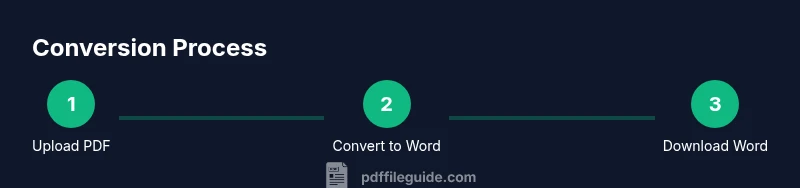
According to PDF File Guide, the Adobe Acrobat online pdf to word converter lets you turn PDFs into editable Word documents quickly and safely. Upload your PDF, choose Word as the output format, and the service will process it in seconds. Download the Word file and review formatting, then export or save for later. For best results, use clean source PDFs and check that tables and fonts translate correctly.
What is the Adobe Acrobat online pdf to word converter?
The Adobe Acrobat online pdf to word converter is a cloud-based tool that lets you transform PDF files into editable Word documents. Accessible from any modern web browser, it removes the need to install software on your computer for simple conversions. For professionals who circulate PDFs that need quick edits—such as resumes, contracts, or reports—this converter offers a fast, convenient workflow. According to PDF File Guide, using the official Adobe service provides reliability and consistent results across a range of document types. Expect the tool to handle text extraction, basic styling, and image placement, while acknowledging that complex layouts may require minor adjustments in Word after download.
Who benefits most from using this tool?
The online converter is particularly valuable for people who regularly share documents in editable formats but start from PDFs. Editors, legal professionals, academics, recruiters, and administrative staff often need quick edits without switching apps or purchasing desktop software. Students drafting papers from scanned PDFs can rely on OCR to recover text, while remote teams collaborating on proposals benefit from the ease of cloud access and cross-device compatibility. The tool also helps freelancers who deliver deliverables in Word format without requiring expensive licenses. Across industries, speed, accessibility, and a low barrier to entry make this option appealing for both beginners and power users. As PDF File Guide notes, the online path lowers friction for ad-hoc editing tasks while maintaining a familiar Word workflow.
Key features and limitations to know
The converter emphasizes core capabilities common to reputable online services: fast processing, OCR for scanned documents, and straightforward export to Word formats. It preserves core text and basic styling but may shift complex layouts, multi-column structures, or advanced typography. When working with forms, check that fillable fields transfer correctly and that fonts render consistently. Language support is important for non-English documents, and the tool typically handles major languages with reasonable accuracy. A key limitation to keep in mind is that privacy and data handling depend on the service's policy; do not use online converters for highly sensitive documents unless you’ve reviewed the terms. From the user's perspective, this means testing small sample files first and performing post-conversion edits in Word. PDF File Guide highlights that online tools are best suited for quick edits rather than full-format recreation.
OCR and scanned PDFs: getting text out of images
OCR (optical character recognition) is a pivotal feature for turning scanned PDFs into editable text. The Adobe Acrobat online converter can apply OCR to identify characters in images and reconstruct them as text in Word. For best results, upload high-resolution scans, choose the correct language, and verify that numbers, tables, and symbols map correctly after conversion. Keep in mind that OCR accuracy reduces with very noisy scans, unusual fonts, or watermarks. In practice, you may need to run OCR more than once or apply manual corrections in Word. PDF File Guide suggests using high-quality source scans and avoiding layered PDFs where text is embedded in nonstandard ways.
Privacy, security, and data handling considerations
Online converters process your files on servers, which raises valid privacy questions for sensitive documents. Review the service’s privacy policy and data retention terms before uploading. Standards such as encryption in transit (HTTPS) protect data during transfer, but you should still avoid uploading confidential files that contain private personal information. After conversion, ensure you delete or securely remove files from the service if options exist. If you work in regulated environments, compare the online tool with on-premises solutions or trusted desktop software. The PDF File Guide team recommends using sandboxed accounts for testing and choosing services that offer clear data handling disclosures.
Common pitfalls and how to avoid them
One frequent issue is formatting drift: paragraphs, headings, and lists may shift during conversion. To mitigate this, format your source PDF with clear headings and avoid complex layouts before uploading, then clean up in Word afterward. Another common problem is broken tables or merged cells in the Word output; take advantage of Word’s table tools to reconfigure columns and rows. Images may appear oversized or misaligned; resizing or reflowing content in Word is usually faster than re-uploading. If OCR is applied, verify recognized text for typos and symbols. For long documents, prefer saving interim results to avoid data loss.
Desktop vs online: when to choose the Adobe Acrobat online converter
The online converter shines when you need a quick, no-install solution, or you’re working on a device without access to licensed software. It’s ideal for one-off conversions, travel work, or collaborative edits where the majority of content is text. Desktop alternatives can offer more robust formatting preservation, advanced editing tools, and batch processing, making them better suited for complex documents or high-volume workflows. Your decision should weigh factors such as project complexity, sensitivity of data, device availability, and whether OCR quality needs to be maximized. The PDF File Guide perspective is that many users can handle routine conversions in the browser, while power users with recurring needs may prefer a desktop workflow or an integrated PDF suite.
Tools & Materials
- A device with internet access(Laptop, tablet, or smartphone with a modern browser)
- Source PDF file(PDF document you want to convert)
- Web browser(Latest version of Chrome/Edge/Firefox/Safari)
- Adobe account (optional)(Sign in to access additional features or cloud storage)
Steps
Estimated time: 15-25 minutes
- 1
Open the official Adobe Acrobat online converter
Open your preferred web browser and navigate to the official Adobe Acrobat online PDF to Word converter page. If you have an Adobe account, sign in to access any extended features. This step ensures you are using the authentic service and reduces the risk of phishing sites.
Tip: Always verify the URL starts with https and that the domain shows adobe.com. - 2
Upload your PDF file
Click the upload button and select your PDF from your device. For large files, consider splitting the document or preparing a smaller sample to confirm formatting before committing the full file.
Tip: Use a reliable internet connection to prevent upload interruptions. - 3
Choose Word as the output format and enable OCR if needed
Select Word as the target format (doc or docx). If you’re converting a scanned document, enable OCR and choose the document language to improve text recognition.
Tip: If the document is multi-language, set the correct language for each section if the option exists. - 4
Start the conversion process
Click Convert and wait for the tool to process the file. Processing time depends on document length and server load; smaller files finish quickly while larger ones may take longer.
Tip: Avoid switching tabs during conversion to prevent interruptions. - 5
Download and review the Word output
Save the Word file to your device. Open it in Word and review formatting, headings, tables, and images. Make quick edits to restore layout and typography where needed.
Tip: Use Word’s formatting tools to fix any drift from the original PDF. - 6
Save or export for future use
If you have an Adobe account, you can save the converted document to cloud storage or export to another location. Organize your files to maintain an audit trail for revisits or revisions.
Tip: Name the file consistently to improve future retrieval.
Questions & Answers
Is the Adobe Acrobat online pdf to word converter free?
There is a free tier with basic features and limits; more advanced options may require a paid plan. Review current pricing on Adobe’s site for the most accurate details.
There’s a free tier with basic features, but full capabilities may require a paid plan.
Can it preserve complex formatting and tables?
Most standard documents convert with intact text and basic formatting, but highly complex layouts or nested tables may need manual adjustment in Word after download.
Most layouts transfer well, but you might need some tweaks in Word for complex tables.
Does it OCR scanned PDFs?
Yes, the tool supports OCR to convert scanned pages into editable text, provided you enable OCR and select the correct language.
OCR is supported; enable it when converting scanned PDFs to Word.
Is my data secure when using the online converter?
Adobe uses encryption in transit and provides privacy terms; avoid uploading highly sensitive documents to public networks or untrusted devices.
Data security is guarded in transit, but exercise caution with sensitive content.
What file types are supported for input and output?
Input is PDF; output is Word (DOC or DOCX). Some services also offer additional formats, but this guide focuses on PDF to Word.
Input is PDF and output is Word documents.
Watch Video
Key Takeaways
- Know when to use online vs desktop tools
- Utilize OCR for scanned PDFs to recover text
- Always verify and polish formatting in Word
- Prioritize privacy with sensitive documents
- Prepare source PDFs to minimize layout drift