How to Turn a PDF into a Word Document
Learn practical, tested methods to convert PDFs into editable Word documents, including Word's built-in converter, Acrobat OCR, and trusted online tools. Includes quality checks, troubleshooting, and best practices for preserving layout.


By the end of this guide, you will be able to turn any PDF into a Word document using three reliable methods: Microsoft Word's built‑in export, Adobe Acrobat's PDF to Word tool, or trusted online converters. You'll know which approach suits scanned vs. native PDFs, how to preserve layout, and practical tips to review results before editing.
Understanding the PDF to Word conversion landscape
PDFs come in two main flavors: native (text-based) and scanned images. Native PDFs contain actual text that Word can recognize directly; scanned PDFs are images that require OCR to turn into editable text. In practice, most users achieve high accuracy with native PDFs, while scanned PDFs often require supplementary steps. According to PDF File Guide, selecting the right method based on your PDF type dramatically improves results. This guide sticks to practical workflows that align with common office realities, from a quick one‑shot conversion to a thorough post‑edit process.
Method 1: Convert with Microsoft Word (native PDFs)
Microsoft Word (365 or newer standalone versions) can open native PDFs and convert them into editable Word documents. To start, open Word, go to File > Open, select your PDF, and let Word perform the conversion. The resulting document usually preserves paragraphs, bullet lists, and basic formatting, but fonts, tables, and column layouts may shift. This method is fastest when the PDF was created from a text document and contains clean, machine‑generated text. According to PDF File Guide, this native route often yields the best balance of accuracy and convenience for straightforward documents.
Method 2: Use Adobe Acrobat Pro DC for reliable conversion
Adobe Acrobat Pro DC offers a dedicated PDF to Word export with advanced options, including better preservation of complex layouts and fonts. Open the PDF in Acrobat, choose Export PDF > Microsoft Word > Word Document, and select whether to include images and preserve layout. If the PDF is image-based, enable OCR during export to convert images into editable text. Acrobat’s export tends to handle multi‑column layouts, tables, and embedded fonts more consistently than basic Word imports, which is why many professionals prefer it for more complex files. The PDF File Guide analysis highlights Acrobat as a strong option when you need higher fidelity, especially for longer documents with mixed content.
Method 3: Online converters: when to use them and privacy considerations
Online PDF to Word converters can be convenient and cost‑effective, especially for quick tasks or when you don’t have Word or Acrobat installed. Choose reputable services, and upload only non‑confidential PDFs to minimize privacy risks. After conversion, download the Word file and review it thoroughly for formatting anomalies. Note that online tools may struggle with complex tables, intricate fonts, or unusual layouts, and sometimes require additional manual cleanup. For sensitive or proprietary documents, favor desktop software over online services to avoid data exposure.
Post-conversion: editing and formatting in Word
Once you have a Word document, the next phase is cleaning up formatting. Expect some fonts to shift, bullets to misalign, and tables to require reflow. Use Word styles (Heading 1, Heading 2, etc.) to re‑establish a consistent structure, and adjust margins and spacing to align with the original. If your PDF contained images, verify image placement and captions. Saving frequently during edits prevents losing changes, and enabling Track Changes can help teams review the edits collaboratively.
Quality checks after conversion
Quality control is essential after any conversion. Compare the Word output against the original PDF for text accuracy, page breaks, and table integrity. Run a quick spell check and verify that hyperlinks, footnotes, and cross‑references are intact. For longer documents, consider a spot‑check of 5–10% of pages to gauge consistency. If you notice recurring formatting drift, identify the source (font families, column widths, or image handling) and apply targeted fixes. The goal is a Word document that reads naturally and mirrors the PDF’s structure as closely as possible.
Troubleshooting common issues
Garbled text, broken tables, or misplaced images are common hurdles. If text is not recognized correctly, try re‑exporting with adjusted OCR settings or switching to a different tool. For complex layouts, consider converting sections separately (text blocks, then tables and images) and reinserting them in Word. If a PDF has many fonts or embedded graphics, you may need to normalize fonts in Word or substitute images with approximations. When in doubt, a short iterative cycle of convert → edit → review yields the best results.
Best practices to preserve layout and accuracy
Plan your workflow before starting: identify whether you’re handling native text or scans, decide on the conversion tool, and set expectations for post‑conversion edits. For native PDFs, rely on Word’s built‑in converter first; for scans, prepare OCR via Acrobat or another OCR tool. Keep fonts consistent by choosing standard options (e.g., Arial, Calibri) in Word after conversion, and use Word’s table tools to reconstruct any complex layouts. Finally, always proofread with a fresh eye after a break; a second pass often catches subtle formatting drift that a quick skim misses.
Tools & Materials
- Computer with internet access(Needed to download tools and access online converters)
- Microsoft Word (365 or 2019/2021)(Open PDFs directly via File > Open or Import)
- Adobe Acrobat Pro DC(Optional for higher fidelity and OCR when needed)
- Web browser (Chrome/Edge/Firefox)(Used for online conversion tools)
- OCR software or OCR-enabled online service(Use for image-based (scanned) PDFs)
- Original PDF file(s) to convert(Source documents for conversion)
Steps
Estimated time: 60-90 minutes
- 1
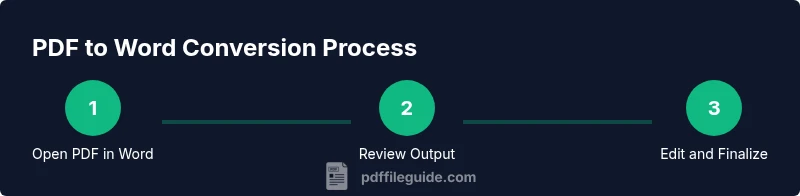
Open the PDF in Word
Launch Word, go to File > Open, and select the PDF you want to convert. Word will attempt to translate the PDF into an editable document, which may take a moment for larger files. Review any prompts about layout and formatting.
Tip: If you see a warning about changing the file type, confirm to let Word proceed with the conversion. - 2
Review Word's conversion output
Examine the converted document for obvious issues: paragraphs, bullets, and simple headers usually transfer well, but fonts, columns, and tables may shift. Decide whether this result meets your needs or if you should try Acrobat or an online tool for a second pass.
Tip: Turn on formatting marks (¶) to spot spacing and alignment issues quickly. - 3
If needed, use OCR for scans
If the PDF is image-based, OCR is required to extract readable text. In Acrobat, use Recognize Text or equivalent OCR settings before exporting to Word. If you don’t have Acrobat, try a reputable OCR tool or online service, keeping privacy in mind.
Tip: OCR quality improves with higher resolution scans; reprocess if text appears blurry. - 4
Save as a Word document
Once you're satisfied with the content, save the file as a .docx. Consider enabling compatibility options only if you plan to share with older Word versions. Store a copy of the original PDF for reference.
Tip: Use Save As to keep the original converted file intact in case you need to revert. - 5
Proofread and adjust formatting
Revisit headings, fonts, spacing, and alignment. Rebuild complex tables and reflow text where necessary. Use Word styles for consistent headings and lists to simplify long documents.
Tip: Apply consistent font choices (e.g., Times New Roman or Calibri) to minimize layout drift. - 6
Finalize and share
Perform a final read and, if collaborating, enable Track Changes. Save a final version and share via your preferred channel or cloud storage. Consider exporting a PDF copy for distribution if required.
Tip: Export a PDF of the final Word document for easy sharing without accidental edits.
Questions & Answers
Can I convert password-protected PDFs to Word?
You can convert only if you have the password or permission; otherwise, the converter will block access. Remove protection with authorization before attempting conversion.
Password‑protected PDFs require permission or the password to convert to Word.
Will formatting be preserved exactly?
Formatting is often close but not exact. Complex layouts, fonts, and tables may require manual adjustments after conversion.
Formatting is usually similar but not exact; expect some edits.
Which method is best for scanned PDFs?
For scanned PDFs, OCR is essential. Acrobat Pro DC provides strong OCR and export options, but quality depends on scan clarity and layout.
OCR is essential for scanned PDFs; Acrobat often yields better results.
Is online conversion safe for sensitive documents?
Online tools pose privacy risks for confidential files. Use offline software for sensitive material, and only use reputable services if you must.
Online tools can risk privacy; prefer offline options for sensitive documents.
Can I perform this on a Mac?
Yes. Word for Mac and Acrobat for Mac offer similar PDF‑to‑Word workflows, though some UI steps differ from Windows.
Mac users can convert PDFs to Word with Word and Acrobat, with minor interface differences.
Watch Video
Key Takeaways
- Start with native PDFs for best accuracy.
- Use OCR only when needed to convert scans.
- Proofread thoroughly after conversion.
- Choose desktop tools for sensitive documents.
- Keep Layouts consistent with Word Styles.