How to Get PDF to Word: Step-by-Step Conversion Guide
Learn how to convert PDFs into editable Word documents using built-in tools, trusted software, and online converters. This educational guide covers preserving formatting, handling scanned PDFs with OCR, and best practices for accurate results in 2026.


To get pdf to word efficiently, choose a reliable method (built-in Word conversion, desktop software, or a trusted online converter) and prepare your PDF file. The goal is to preserve layout, fonts, and tables while producing a clean Word document. According to PDF File Guide, selecting the right tool first reduces reformatting later and speeds up your workflow. This guide shows the best options and steps.
Understanding PDF to Word conversion
Converting a PDF into an editable Word document means translating fixed-layout content into editable blocks. The goal is to preserve as much of the original formatting as possible while enabling you to edit text, adjust styles, and reuse data. There are several viable paths: use Word's built-in conversion, turn to Google Docs as an intermediary, or employ desktop software and online converters. For many professionals, mastering the basics of how to get pdf to word reduces time spent on reformatting.
If you want to know how to get pdf to word with minimal fuss, start with the simplest built-in option. Text-based PDFs, where you can select and copy text, generally convert with fewer adjustments than scanned documents. The quality of your source and the capabilities of the tool determine the final output. According to PDF File Guide, the tool choice matters as much as the source quality, and this guide focuses on practical steps you can apply across ecosystems. Expect occasional font substitutions, layout shifts, and table formatting changes after conversion. This is normal and solvable with a little cleanup.
Choosing the right method
Selecting the best conversion path depends on your document type, required fidelity, and available software. For quick edits, Word's built-in PDF converter is often sufficient. If you work in a browser or collaborate online, Google Docs can provide a convenient intermediary step. Desktop software such as Adobe Acrobat DC or specialized PDF converters typically offer higher accuracy, particularly for complex layouts like multi-column text, embedded tables, and images. Online tools can be convenient but require careful consideration of privacy and file size limits. In the end, the right method balances accuracy, speed, and data security. PDF File Guide Analysis, 2026, suggests that testing a couple of methods on a sample page yields the best overall approach, especially when working with corporate formats. Keep your version of Word and browser up to date to maximize compatibility, and avoid exposing sensitive PDFs on untrusted online services.
Preparing your PDF for conversion
Preparation reduces surprises during conversion. Start by removing password protection if you have authorization, ensuring the file is not restricted. Verify that the PDF text is selectable; if not, you’ll need OCR (optical character recognition) later. Check the font embedding status; some fonts may not render correctly in Word, causing substitution. If you anticipate heavy formatting, try to keep the original document’s margins and page sizes intact. Rename the file clearly before converting, and store a copy in a known location. PDF File Guide notes that clean source material minimizes post-conversion cleanup and speeds up delivery to stakeholders.
Converting using Word’s built-in feature or Google Docs
Word’s built-in converter lets you open a PDF directly and receive an editable Word document. In Word, go to File > Open, select the PDF, and let Word translate the content. Review headings, bullets, and tables to catch any misalignments. If you prefer a browser-based approach, upload the PDF to Google Drive, open with Google Docs, then download as a Word document. This can preserve structure reasonably well, but images and complex formatting may require further edits. For both methods, expect minor reformatting and typographic tweaks after the first pass.
Using dedicated software or online converters
Dedicated PDF converters often deliver higher fidelity, especially for complex layouts. Desktop tools like Adobe Acrobat Pro, Nitro Pro, or PDFelement provide robust export options to DOCX with layout retention controls. Online converters can also work well for simple documents but pose privacy considerations for sensitive files. When using them, choose reputable providers, review their privacy policies, and monitor file size limits. Typical workflows involve selecting Export or Save As > Word, then choosing DOCX as the output format. After export, open the document in Word and perform a quick cleanup.
Handling scanned PDFs with OCR
If your PDF is a scan, you must run OCR to extract searchable text before or during conversion. Many tools offer OCR as a step in the export process, sometimes with language and layout options. AI-based OCR tends to produce better accuracy for complex fonts and mixed languages. After OCR, review the resulting Word document for misrecognized characters, spacing, and hyphenation. You may need to re-flow paragraphs or correct table structures. If your PDF contains sensitive information, opt for offline OCR software to avoid uploading files to the cloud.
Preserving formatting: fonts, tables, and images
Preserving the original formatting is one of the biggest challenges in PDF-to-Word conversion. Pay attention to fonts—Word may substitute fonts that aren’t embedded in the PDF, altering line breaks and spacing. Tables can shift columns, and images may float rather than stay anchored. Use Word's styles (Heading 1, Heading 2, etc.) to reconstitute the document structure, adjust image wrapping, and re-align tables. When possible, export to DOCX rather than RTF to maintain fidelity, and keep a copy of the original PDF for reference. Consistency in margins and page breaks helps a lot in multi-page documents.
Troubleshooting common issues
If you encounter formatting drift, re-check font availability and try newer export options. For large PDFs, split the file into sections to reduce conversion errors and then combine the results. If tables collapse or misalign, re-create them in Word using the original as a guide, or paste with 'Keep Source Formatting' to preserve as much of the original layout as possible. Images that don’t appear should be reinserted and re-cropped. Password-protected PDFs require the proper authorization to convert; always respect copyright and access rights. If a particular tool consistently fails, compare results across two methods to identify whether the issue is tool-specific.
Best practices and verification
Always verify the converted Word document against the original PDF. Check headings, bullets, numbered lists, and table data for accuracy. Run a quick spell-check and review formatting across pages to ensure consistency. Save a final DOCX version with a descriptive filename and create a backup copy. For multi-user workflows, prepare a clean, trackable version history and document any corrections made during cleanup. With careful selection of tools and a structured approach, you can achieve reliable results and significantly reduce post-conversion work.
Tools & Materials
- PDF file(Source document you want to convert)
- Computer or device(With internet access and a compatible OS)
- Word processor(Microsoft Word (2013+) or compatible Word processor)
- Internet connection(For online converters or cloud-based workflows)
- Online converter or desktop software(Choose reputable providers; review privacy policies)
- OCR-ready PDF (optional)(Only if the PDF is scanned and needs text extraction)
Steps
Estimated time: 15-25 minutes
- 1
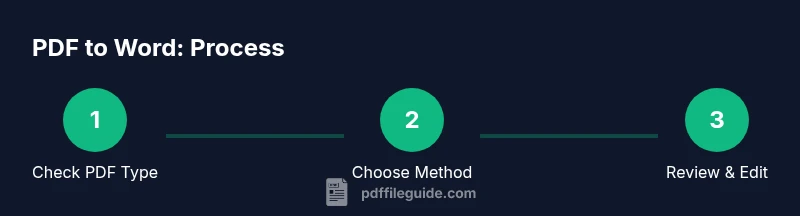
Check PDF type (text vs. image)
Open the PDF and test selecting text. If you can copy-paste, it’s text-based; if not, it’s likely a scanned image. This determines whether OCR is needed and which conversion method will yield the best results.
Tip: If text is selectable, start with the built-in Word converter to save time. - 2
Choose your conversion method
Decide between Word’s built-in export, Google Docs as an intermediary, or a dedicated converter. Consider document complexity and privacy requirements. For large or graphics-rich PDFs, a desktop tool may provide higher fidelity.
Tip: Testing two methods on a sample page helps you pick the best option. - 3
Prepare the PDF for conversion
Remove password protection if you have permission, ensure fonts are embedded, and keep the original margins and page size. Rename the file clearly and back it up in a known location to prevent data loss.
Tip: A clean source reduces post-conversion cleanup time. - 4
Convert with Word's built-in feature
In Word, use File > Open to select the PDF. Word will convert it to an editable document. Review headings, lists, and tables for misalignment and adjust as needed.
Tip: Expect minor formatting changes; plan a quick pass to fix them. - 5
Alternate path: Google Docs
Upload the PDF to Google Drive, open with Google Docs, then download as a Word document. This can preserve structure but may require post-editing of images and complex layouts.
Tip: Use this method if Word’s converter struggles with fonts or spacing. - 6
Consider dedicated software or online converters
For dense layouts, export to DOCX via a reputable desktop tool or a trusted online service. Review privacy terms and ensure the output format is DOCX for best compatibility.
Tip: Offline desktop tools reduce privacy concerns for sensitive documents. - 7
Handle OCR for scanned PDFs
If OCR is required, enable it within your chosen tool and select the appropriate language options. Post-process the result by correcting recognition errors and reformatting paragraphs.
Tip: OCR accuracy improves when the source is high-resolution and clear. - 8
Clean up formatting after conversion
Adjust fonts, headings, and margins. Rebuild tables and reinsert images with proper wrapping. Apply Word styles to create a consistent structure.
Tip: Using Styles simplifies future edits and consistency. - 9
Save, verify, and back up
Save as DOCX with a descriptive name, compare with the original PDF, and keep a backup copy. Document any changes for teammates.
Tip: Create a versioned backup to track edits over time.
Questions & Answers
Can I convert a PDF to Word without losing formatting?
Yes, but complex layouts often require post-conversion cleanup. Start with a trusted tool and review headings, tables, and images for fidelity.
Yes—though you may need to tweak formatting afterward.
Is Word capable of converting PDFs directly?
Yes, Word 2013 and later can open PDFs and convert them into editable Word documents with reasonable accuracy.
Yes, Word can open PDFs and convert them.
When should I use OCR?
Use OCR when the PDF is a scan of a document rather than text-based content. OCR converts images to editable text.
Use OCR when your PDF is just images.
Are online converters safe for confidential files?
Only use trusted services and avoid uploading sensitive PDFs to unknown sites. Prefer offline tools for confidential material.
Be cautious with sensitive files on the web.
What is the best method for preserving formatting?
Desktop software or Word’s built-in converter tends to preserve layout better; online tools vary in fidelity.
Usually desktop tools or Word's built-in converter work best.
Do I need to modify fonts after conversion?
Fonts may substitute if not embedded in the PDF. Adjust font styles in Word to match the original as closely as possible.
Fonts may shift; you’ll likely adjust them in Word.
Watch Video
Key Takeaways
- Choose the right conversion method early.
- Identify whether OCR is needed for scanned PDFs.
- Expect and plan for post-conversion cleanup.
- Verify the final DOCX against the original PDF and save a backup.