Adobe Acrobat PDF to PPT: A Complete How-To Guide
Learn how to convert PDF to PowerPoint with Adobe Acrobat Pro DC. This step-by-step guide covers OCR, exporting, and post-export tweaks for polished, editable PPT slides.


By the end of this guide, you will convert a PDF to a PowerPoint presentation using Adobe Acrobat Pro DC. You’ll verify text with OCR if needed, export to PPTX, and perform post-export tweaks to preserve fonts, layout, and imagery. This approach helps professional presenters turn static PDFs into editable, presentation-ready slides.
Understanding the PDF-to-PPT workflow with Adobe Acrobat
Converting a PDF to PowerPoint with Adobe Acrobat Pro DC begins with understanding what survives the export and what might require manual tweaking. When you export to PPTX, Acrobat tries to preserve text, headers, bullet lists, and simple images, but complex page layouts, multi-column text, and embedded charts often need a PowerPoint makeover. For professionals handling client decks, this workflow saves time by turning static PDFs into editable slides, while still letting you refine fonts, spacing, and design in PowerPoint. According to PDF File Guide, the most reliable results come from starting with clean, text-based PDFs or performing OCR on scanned documents before exporting. The PDF File Guide team found that enabling OCR substantially improves text selection and reflow, especially for documents created from scans or images. Keep expectations realistic: you may gain a solid starting point, then invest a few minutes polishing each slide for a polished presentation.
prerequisites and setup
Before you start, gather the required software and check the PDF's readiness. You should have Adobe Acrobat Pro DC installed with a valid license and access to Microsoft PowerPoint. Ensure the PDF is accessible (not password-protected or restricted from copying), or you won't be able to export. If your document contains scanned pages, OCR may be needed to convert images to editable text. If you use Acrobat Online for temporary conversion, a stable internet connection is essential. For professional environments, consider setting up a consistent PPTX template to apply after export; this reduces formatting work and ensures consistent branding across slides. The PDF File Guide emphasizes testing a small, representative PDF first to verify that the output aligns with expectations.
OCR and text extraction considerations
OCR can dramatically improve the usefulness of a PDF that originated as a scan. In Acrobat, run Recognize Text under Tools > Enhance Scans, select the document language, and choose an output; this makes the following export more faithful to the source. If you work with multilingual documents, set the primary language carefully to reduce misrecognition. After OCR, perform a quick spell check and review each slide for stray line breaks. If text remains garbled, try rescanning the source at a higher DPI or re-creating the document from the original file. According to PDF File Guide analysis, OCR is a critical step for accurate conversion but is not a magic fix—you will likely need post-export edits in PowerPoint to perfect formatting.
Export steps in Acrobat
Open your PDF in Acrobat Pro DC, then go to File > Export To > Microsoft PowerPoint Presentation (.pptx). Choose a destination, and consider whether to include comments or annotations in the export. If your PDF contains complex graphics, bookmarks, or layered content, review what exports and adjust export options accordingly. After exporting, open the PPTX in PowerPoint to examine each slide and determine where reformatting is required. Using a clean, branded PowerPoint template will help you achieve a consistent look across all slides. The goal is to produce a usable PPTX file that minimizes the amount of post-export rework.
Post-export adjustments in PowerPoint
The export is rarely perfect, so expect a round of refinement in PowerPoint. Start by applying a slide master that matches your brand, then adjust fonts, spacing, and alignment for readability. Reflow text boxes so bullets fit cleanly on each slide, and align images to preserve visual balance. For charts and tables that exported poorly, consider recreating them in PowerPoint using your original data. Finally, run a quick review of transitions and animations to ensure they support your message rather than distract from it.
Troubleshooting common issues
If the PPTX opens with missing fonts, substitute with your standard brand fonts and embed them if possible. If images appear cropped, reinsert or resize them in PowerPoint and check aspect ratios. When export fails or a page is truncated, export individual pages as separate PPTX files and then consolidate. Password protections, restricted permissions, or outdated software can block exporting; update or remove protections before attempting again. For scanned PDFs, OCR quality varies—if your text remains non-selectable, you may need to re-scan or source an editable version. PDF File Guide notes that preparation, such as OCR and clean source PDFs, significantly reduces post-export effort.
Best practices for accurate conversions
Start with a clean PDF: remove unnecessary pages and ensure text is selectable. Use OCR for scanned documents, then export to PPTX and immediately open in PowerPoint to assess layout. Apply a consistent theme and master slides to keep formatting uniform. When dealing with complex layouts, expect some manual adjustments; converting to PPTX is often about achieving a good working baseline rather than a perfect one-click result. Save incremental versions so you can compare changes and revert if needed.
Tools & Materials
- Adobe Acrobat Pro DC(Export to Microsoft PowerPoint format (.pptx) is available in Pro; ensure an active license.)
- Microsoft PowerPoint(Needed to edit and present the exported PPTX.)
- Source PDF file(The PDF you want to convert; check for security restrictions.)
- Stable internet connection(Only if using Acrobat's online tools.)
- OCR option (optional)(If the PDF is image-based and you plan to extract text.)
Steps
Estimated time: 15-30 minutes
- 1
Open the PDF in Acrobat
Launch Acrobat Pro DC and open the PDF you want to convert. Verify that the document is visible and accessible, with any sensitive pages ready for export. This initial step sets the foundation for a smoother conversion.
Tip: If the file is large, give Acrobat a moment to render thumbnails before proceeding. - 2
Check if OCR is needed
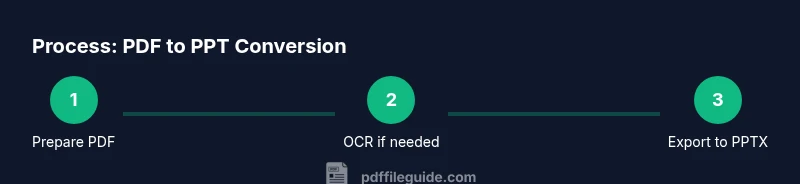
If any pages are image-based, run Recognize Text (OCR) under Tools > Enhance Scans. Choose the document language and output. OCR improves text extraction for the subsequent PPTX export.
Tip: OCR first for scanned PDFs; this reduces the need for later manual text fixes. - 3
Export to PPTX
Go to File > Export To > Microsoft PowerPoint Presentation (.pptx). Pick a save location and decide whether to include comments. This creates the editable PPTX baseline.
Tip: Use a descriptive file name to reflect the source and date. - 4
Review in PowerPoint
Open the exported PPTX in PowerPoint and scan all slides for layout issues. Check fonts, bullet spacing, and image alignment. Prepare to adjust slide masters for consistency.
Tip: Switch to Outline View to quickly check text structure. - 5
Refine charts and images
Reposition and resize charts or images that didn’t export cleanly. Recreate complex charts if needed and ensure images have correct aspect ratios. Apply branding fonts and colors.
Tip: Group related elements and send non-critical items to the back to improve readability. - 6
Finalize and save
Apply a final branded template, run a spell-check, and save a final version. Consider exporting a PDF copy for archival and a PPTX for presentation use.
Tip: Enable AutoSave or set up regular backups during edits.
Questions & Answers
Can I convert any PDF to PPT with Adobe Acrobat Pro DC?
Adobe Acrobat Pro DC can export most PDFs to PPTX, but complex layouts, fonts, and embedded graphics may require manual adjustments.
Yes, but you may need to tweak slides after export.
What should I do with scanned PDFs?
If the PDF is scanned or image-based, enable OCR before export to improve text conversion.
Enable OCR before exporting for better results.
Will charts and tables convert accurately?
Charts and tables may not transfer perfectly; you might need to recreate them in PowerPoint.
Expect some re-creation for charts and tables.
Can I batch convert multiple PDFs at once?
Acrobat's export feature typically converts one file at a time; batch processing is limited and may require scripting or separate tools.
Batch conversion requires extra steps or tools.
Is there a free alternative to Acrobat for this task?
There are free online converters and other software options, but privacy and quality vary. For professional work, a trusted tool is recommended.
There are free tools, but consider privacy and quality.
Will I lose formatting during export?
Some formatting may be lost; be prepared to adjust fonts, spacing, and images in PowerPoint.
Some formatting changes are common; adjust after export.
Watch Video
Key Takeaways
- Verify PDF content before exporting to PPTX.
- OCR improves text accuracy on scanned documents.
- Expect manual layout tweaks in PowerPoint.
- Use a branded template to ensure consistency.