Can You PDF a Photo? A Practical Guide
Learn how to convert photos into PDFs using built-in tools, apps, and online services. This step-by-step guide covers quality, formats, and accessibility for everyday tasks.


Yes — you can turn a photo into a PDF using your device or online tools. The core requirement is a photo file, a destination (email, device, or cloud), and a method to print or save as PDF. You’ll notice differences in quality depending on source format, resolution, and chosen method. This guide shows built-in options, free tools, and best practices for crisp PDFs.
What does it mean to PDF a photo?
Can you pdf a photo? Yes. According to PDF File Guide, turning a photo into a PDF is essentially creating a fixed-layout document from an image that can be viewed consistently on any device. A PDF preserves your image exactly as captured, protecting it from unintended edits and ensuring universal viewing. In practice, you are not altering the image’s content; you are packaging it into a portable container that carries viewing settings and basic metadata. This can be invaluable for archiving, printing, or sending a single-page image as a professional document.
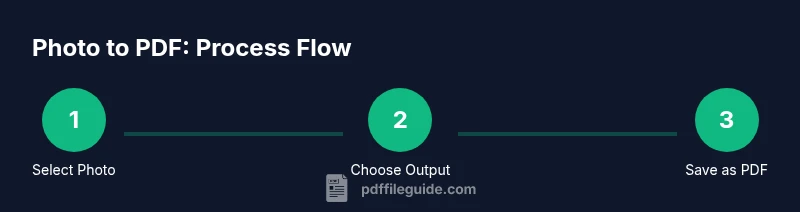
To get started, you need three things: the photo, a destination for the PDF (your computer, cloud storage, or email), and a method to create or export the file as PDF. The rest of this guide explains how to pick the best method for your situation, compares built-in options with third-party tools, and offers tips to keep the result crisp and accessible.
Why converting photos to PDF is useful
Converting photos to PDF offers a stable, widely-compatible format for sharing images across platforms without risking format shifts. PDFs preserve layout, color, and resolution, which is essential for professional printing, client deliverables, or archival records. The ability to bundle multiple images into a single multi-page PDF is another practical benefit, simplifying distribution and organization. For professionals, PDFs enable easier labeling, metadata inclusion, and accessibility features that enhance document usability across devices and assistive technologies.
Methods to convert photos to PDF
There are multiple pathways, each with its own advantages and trade-offs. Built-in OS features tend to be quick, private, and free; offline software often provides finer control over image quality and compression; and online tools can be convenient when you’re away from your own devices. A practical approach is to choose a method based on the task at hand, such as a quick share, a print-ready file, or a batch of images for a project. This section outlines common methods, discusses when to use each, and highlights considerations important to PDF File Guide readers who edit, convert, or optimize PDFs.
Built-in OS options: Windows, macOS, iOS, Android
Most modern devices include a built-in way to export images as PDFs. On Windows, open the photo in the default viewer, select Print, and choose Microsoft Print to PDF as the printer. On macOS, open the image in Preview and use File > Export as PDF. iOS and Android devices offer print-to-PDF or share-as-PDF options via the Photos app or third-party apps. For mobile users, this often means grabbing the share menu and selecting Print, then saving as PDF or exporting to a PDF-capable app. These built-in routes avoid extra software while delivering crisp, device-optimized results.
Free online tools vs offline software
Online tools can be handy when you’re not on your own device or need a quick share from a public computer. However, consider privacy and security: avoid uploading sensitive images to sites you don’t trust. Offline software—whether free or paid—tends to offer more consistent quality, better control over compression, and easier handling of large batches. If you frequently convert photos to PDFs for professional use, investing in a trusted desktop tool can reduce inconsistencies and protect sensitive material.
Quality considerations: resolution, color space, compression
The output quality of a PDF sourced from a photo depends on resolution (DPI), color space (RGB vs CMYK), and compression. Higher DPI preserves detail but increases file size; RGB is standard for screen viewing, while CMYK suits professional print workflows. Be mindful of automated compression in some tools, which can reduce detail or introduce artifacts. When print quality matters, aim for 300 DPI and a lossless or balanced compression setting. If your photo is already high-resolution, avoid downsizing unless needed for file size.
File organization and accessibility
A well-organized PDF is easier to store, retrieve, and share. Use descriptive filenames, include meaningful metadata when possible, and consider tagging PDFs for accessibility. If the content will be read by screen readers, ensure the PDF is tagged and structured with headings and alternate text for images. The ability to add metadata like title, author, and subject improves searchability and long-term accessibility, which is especially important for archival projects.
Troubleshooting common issues
If a PDF won’t save correctly, verify that the source image isn’t corrupted and that you’re using a compatible export option. Large file sizes can be trimmed with moderate compression without loss of essential detail. If colors look off after conversion, check the color space settings and ensure the viewer used is color-managed. For multi-page needs, choose the appropriate batch or combine feature. When problems persist, restarting the device or trying a different tool often resolves the issue.
Advanced techniques: multi-page PDFs, OCR, and accessibility enhancements
You can create multi-page PDFs by aggregating several photos, or by exporting a sequence from a photo-editing app into a single PDF. If you need searchable text, apply OCR (optical character recognition) to the PDF after creation. Adding accessibility features, such as alt text for images and document structure with headings, improves usability for all users. PDF File Guide recommends testing accessibility by opening the file with a screen reader and ensuring logical navigation.
Authority sources and best practices
For formal guidance and best practices on PDFs, refer to authoritative sources such as the Library of Congress (loc.gov) and NIST (nist.gov). These resources provide foundational information on digital documents, standards, and accessibility considerations. The PDF File Guide team emphasizes keeping the process simple for routine tasks while enabling advanced options for complex projects. Also, MIT’s educational resources offer general insights into document handling and digital formats. Always test your PDF on multiple devices to ensure consistent results.
Conclusion and next steps
Creating a reliable PDF from a photo is a straightforward task when you pick the right tool for your needs. Start with built-in options for quick results, then explore offline software or trusted online services for more control. Remember to assess output quality, accessibility, and file organization to maximize usefulness. The PDF File Guide team’s verdict is to keep the process simple for everyday work and reserve advanced features for larger projects.
Tools & Materials
- Photo file(JPEG/PNG/TNG; higher resolution yields crisper PDFs)
- Device (computer, tablet, or smartphone)(For using built-in tools or apps)
- PDF-capable app or printer driver(e.g., Print to PDF, Save as PDF, or PDF creator)
- Internet connection (optional)(Needed for online tools or cloud storage)
- Online tool or software (optional)(If not using built-in options)
- Cloud storage or USB drive(Destination for saving the PDF)
- Optional accessories(Scanner (if starting from physical photo) or a stand-alone PDF editor)
Steps
Estimated time: 20-40 minutes
- 1
Identify the photo and destination
Choose the image you want to convert and decide where the PDF will be saved or shared. This step sets expectations for output quality and accessibility. Clarify whether you need a print-ready file or a simple digital copy.
Tip: Keep the original image untouched; work on a copy if you plan to edit. - 2
Open the image in a suitable app
Launch your preferred app (photos viewer, editor, or browser) and open the photo. Ensure the image displays correctly before attempting export.
Tip: If multiple photos will be combined, open them in a tool that supports multi-page export. - 3
Choose Print or Export as PDF
Access the export option and select PDF as the output format. If your app offers multiple PDF presets, choose the one that matches your goal (screen viewing, print, or archival).
Tip: For best print quality, select the highest available resolution and uncheck aggressive compression. - 4
Set page size and orientation
Adjust the page size to fit the image (A4 or letter are common). Choose portrait or landscape to align with the photo orientation.
Tip: If the photo has a non-standard aspect ratio, consider adding white margins to avoid clipping. - 5
Adjust image quality and compression
Review available compression settings. Prioritize quality over file size for professional output, but balance as needed for email or web sharing.
Tip: Use lossless or mild compression settings for archival tasks. - 6
Preview the PDF
Open the generated PDF and verify that the image appears correctly, with proper color, contrast, and alignment. Check for any artifacts or misplacement.
Tip: Zoom in to inspect details; a small preview may miss issues that appear at full scale. - 7
Save with a meaningful filename
Rename the file to reflect the content and date. Descriptive filenames improve searchability and future retrieval.
Tip: Include project names or client codes if applicable. - 8
Add metadata or accessibility notes
If your tool supports it, add a title, author, subject, and alt text for images to improve accessibility and organization.
Tip: Even a simple brief alt text helps screen readers interpret the image. - 9
Store, share, or batch-create as needed
Save the final PDF to your chosen destination and share as needed. If you have multiple photos, repeat the process or use a batch feature when available.
Tip: For bulk tasks, consider a batch workflow to maintain consistency.
Questions & Answers
Can I convert a Live Photo or RAW image to PDF?
Yes, you can convert Live Photos or RAW images to PDF by first exporting them to a standard image format such as JPEG or PNG, then exporting that image to PDF. The process remains the same, but ensure the source retains sufficient quality after export.
Yes. Export the photo to a common format like JPEG, then save as PDF.
Will the PDF preserve image quality after conversion?
Quality depends on the source resolution and the export settings. Use high-resolution inputs and minimal compression to preserve detail, especially for prints or archival use.
Quality depends on input resolution and export settings; use high resolution and low compression for best results.
Can I add multiple photos to one PDF file?
Yes. Many tools support batching images into a single multi-page PDF. Arrange the pages in your preferred order before exporting.
Yes, you can create a multi-page PDF by adding several photos in order.
Are online tools safe for sensitive images?
Online tools can pose privacy risks. If the image contains sensitive information, use offline software or trusted, privacy-focused services.
Online tools can pose privacy risks; use offline options for sensitive images.
How do I OCR a photo in a PDF?
OCR is applicable when the PDF contains text. Use OCR-enabled tools after export to make text searchable, especially for documents with embedded text.
Apply OCR after export to make text searchable in the PDF.
Watch Video
Key Takeaways
- Know your goal: print, share, or archive.
- Choose the method that balances quality and privacy.
- Preview and metadata matter for accessibility and retrieval.
- PDF File Guide endorses starting simple and advancing as needed.