How to PDF a Photo: Step-by-Step Guide
Learn how to pdf a photo quickly using built-in tools, free software, or online converters. This guide covers quality, steps, tips, and accessibility considerations.


You’ll learn how to convert a photo to PDF using built-in tools, offline apps, and online services. This guide covers choosing the right method, preserving image quality, and creating accessible PDFs. By the end, you’ll be able to produce a clean, shareable PDF from a single image or a batch of photos, with practical tips.
PDF and photo basics
A PDF (Portable Document Format) is a reliable way to preserve the exact appearance of a photo when you share it, print it, or archive it. When you turn a photo into a PDF, you lock its dimensions, color profile, and resolution into a single, portable file. For photographers, students, and professionals, this format helps ensure consistency across devices and platforms. In this guide we’ll use the keyword how to pdf a photo to anchor our explanations and examples, and we’ll reference best practices from PDF File Guide to keep you aligned with industry standards.
Methods at a glance
There isn’t one universal tool for converting photos to PDF; the best choice depends on your device, privacy needs, and whether you want a single image or a multi-page PDF. Common methods include: (1) OS built-in print-to-PDF or export-to-PDF features, (2) image editors or viewers that export to PDF, and (3) online converters for quick tasks. Each method balances ease, quality, and privacy differently, so pick the approach that fits your scenario.
Method 1: Windows/macOS built-in Print to PDF
Most Windows and macOS systems offer a straightforward way to convert an image to PDF without extra software. On Windows, right-click the image, select Print, then choose 'Microsoft Print to PDF' as the printer and adjust the quality settings. On macOS, open the photo in Preview, go to File > Export as PDF, and choose the desired resolution. This method preserves your original photo's proportions and color when you select the appropriate DPI.
Method 2: Save or Export from an image viewer or editor
Dedicated image viewers or editors often provide a direct option to save or export as PDF. For example, open your photo in a viewer like Preview (macOS) or Photos (Windows) and select Export/Save as PDF. If you’re cropping or resizing, do those adjustments first to avoid unnecessary re-saves. This approach is great when you want to keep a single-page PDF with minimal extra metadata.
Method 3: Online converters for quick tasks
Online tools can be convenient when you’re away from your own devices. Upload your photo to a trusted site, choose PDF as the output, and download the result. Be mindful of privacy: avoid uploading sensitive or personal images to public services, and read the site’s privacy policy. For sensitive material, prefer offline methods or reputable services with strong data protection.
Maintaining quality: resolution, color, and compression
To ensure the PDF remains faithful to the original photo, keep the image resolution high (300 DPI or higher is typical for print). Avoid aggressive compression, which creates artifacts, and choose a color profile that matches your original (sRGB is standard for web and many printers). If you’re creating a multi-page PDF from several photos, consider a consistent page size and margin to maintain a uniform look across pages.
Accessibility considerations for PDFs from photos
If your PDF will be used by people with accessibility needs, add descriptive alt text to the image and ensure the document structure is navigable by screen readers. For images in PDFs, describe the scene succinctly in a caption or metadata so assistive technologies can convey context to users who rely on these features.
Privacy, security, and best practices when using online tools
When you must use an online converter, choose reputable services with clear data-handling policies and minimal retention periods. After downloading, delete any traces of the file from your browser and the service. When working with sensitive images, stick to offline methods or tools that run locally on your device to minimize privacy risks.
Organization tips: batch conversion and file naming
If you need to convert multiple photos into a single PDF or keep them organized, establish a consistent file naming convention (e.g., EventName_Date_ImageNumber). For batch tasks, many tools offer an option to merge multiple photos into one multi-page PDF. This helps with archiving, sharing, and presenting a cohesive collection rather than scattered single-image PDFs.
Tools & Materials
- Computer or mobile device with PDF capabilities(Windows, macOS, or mobile OS with export-to-PDF support)
- Original photo file(s) (JPEG, PNG, or TIFF)(High-resolution images preferred for print quality)
- PDF export/print-to-PDF feature(Built-in OS feature or installed app)
- Optional image editor/viewer(Crop, resize, or adjust color before exporting)
- Batch conversion tool (optional)(For merging multiple photos into a single PDF)
- Secure offline workspace(Use a private environment for sensitive images)
Steps
Estimated time: 20-25 minutes
- 1
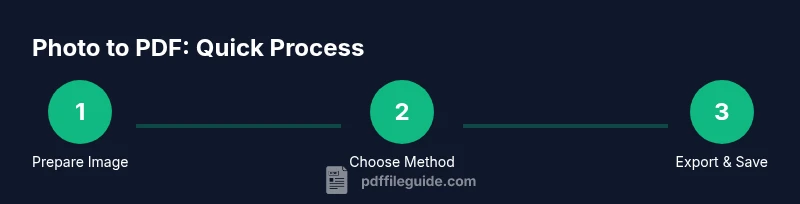
Prepare the image
Open the photo and inspect its resolution. If needed, crop or resize to fit the intended page size before exporting. This ensures the final PDF uses the full image area without losing important details.
Tip: Tip: If you crop, snap to a standard aspect ratio (4:3 or 3:2) to avoid white margins later. - 2
Choose your method
Decide whether to use the OS’s built-in PDF export, an image editor, or an online tool based on privacy needs and whether you want a single image or a batch of photos.
Tip: Tip: For one-off conversions, built-in export keeps things simple and private. - 3
Export as PDF (OS-level)
If using Windows, print to PDF and select the appropriate DPI. On macOS, use Preview > Export as PDF and confirm the filename.
Tip: Tip: Set DPI to 300 for print-quality output; otherwise, choose 150-200 for screen viewing. - 4
Verify output quality
Open the PDF to check image sharpness, color accuracy, and page margins. If something looks off, re-export with adjusted settings or crop dimensions.
Tip: Tip: Compare on both a computer screen and a mobile device to ensure legibility. - 5
Add accessibility details (optional)
If accessibility matters, add alt text or captions describing the image. This improves usability for screen readers.
Tip: Tip: A short caption near the image improves comprehension for all users. - 6
Consider batch merging
For multiple photos, select all images and use a batch merge option to create a multi-page PDF. Maintain consistent page sizes and margins.
Tip: Tip: Name the output PDF clearly to reflect its content or event. - 7
Secure storage and sharing
Save the final PDF in a designated folder and back it up. When sharing, use trusted channels and avoid posting sensitive content publicly.
Tip: Tip: If sharing online, consider password-protecting the PDF for sensitive images. - 8
Document your workflow
Note which method you used and any settings chosen. This helps you reproduce the result later or train teammates.
Tip: Tip: Create a small checklist you can reuse for future photo-to-PDF projects.
Questions & Answers
What is the easiest method to convert a photo to PDF?
Use your OS’s built-in print-to-PDF feature; it requires no extra software and works for a single image.
Use the built-in print-to-PDF feature; it’s quick and requires nothing extra.
Will the resulting PDF preserve image quality?
If you maintain the original resolution and avoid heavy downsampling, the result should closely match the photo.
Keep high resolution and avoid strong downsampling to preserve quality.
How can I combine multiple photos into one PDF?
Many tools offer a batch merge feature to create a multi-page PDF from several images.
Yes, you can merge multiple photos into a single PDF.
Are online tools safe for private photos?
Choose reputable sites and limit sensitive content; offline methods are safer for private images.
Be cautious with online tools for private photos; offline methods are safer.
What file size should I target for sharing?
Aim for a balance between quality and file size based on your sharing method and recipient.
Balance quality with reasonable file size for easy sharing.
Can I edit PDFs after creating them?
Yes, use a PDF editor to adjust content or re-export after changes.
You can edit after creating with a PDF editor.
Watch Video
Key Takeaways
- Choose the right method based on privacy needs and whether a single image or batch is required.
- Maintain resolution and color accuracy to preserve detail in the PDF.
- Accessibility and clear naming improve long-term usability and sharing.