Change PNG to PDF: A Practical How-To Guide
Learn how to change PNG to PDF using desktop apps, online tools, or built-in OS features. This guide covers single and batch conversions, preserving quality, compression, accessibility, and secure workflows for professionals.


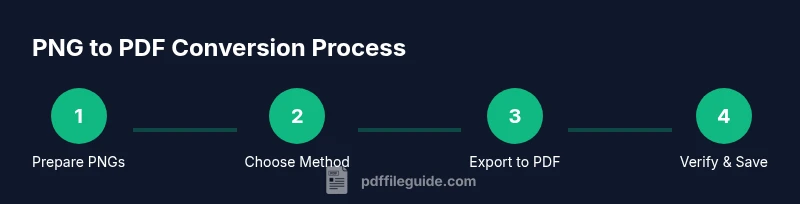
To change PNG to PDF, start by selecting your PNG image(s) and choosing a conversion method—desktop software, online tool, or built-in OS feature. Ensure your files are accessible and check image quality. For best results, export to a multipage PDF if you have multiple PNGs, or combine them into a single PDF with correct page order.
Why converting PNG to PDF matters for editors and workflows
According to PDF File Guide, converting PNG to PDF helps professionals consolidate images into a single, portable document suitable for printing, emailing, or archiving. The PDF File Guide Editorial Team notes that PDFs preserve layout, font embedding options, and color consistency better than a collection of PNGs. For many teams, turning scattered PNG assets into a single PDF reduces clutter and simplifies review cycles, especially when sharing with clients or stakeholders. In real-world workflows, PDF format often serves as a reliable standard for universal access and long-term preservation. This context matters whether you are preparing marketing visuals, architectural plans, or product sheets. PDF File Guide’s ongoing work emphasizes practical, secure, and accessible conversion practices for professionals.
When PNG-to-PDF conversion makes sense: use-cases and outcomes
Converting PNG to PDF shines in several common scenarios: preparing documents for print with consistent color and layout; bundling multiple images into a single file for client reviews; archiving project assets with metadata-friendly structure; and sharing assets with teams that maintain strict version control. For designers, educators, or engineers, turning image sets into PDFs simplifies distribution and reduces the risk of broken links or missing pages. Keep in mind different workflows require different output settings, such as page size, DPI, and compression levels. PDF File Guide analysis shows professionals appreciate predictable results and straightforward quality control when converting PNG assets to PDFs.
Core methods: desktop software, online tools, and OS-level options
There are three broad categories to consider: desktop software, online tools, and built-in OS features. Desktop software often provides more control over image quality, color profiles, and compression; online tools can be convenient for quick one-off tasks; and OS-level options (like Print to PDF) deliver lightweight, no-installation solutions. Each method has its own security implications—offline software generally offers better privacy for sensitive files, while online tools may speed up fast tasks when data sensitivity is low. The choice depends on file count, required fidelity, and whether you need multipage documents.
How to convert PNG to PDF with desktop software (Windows/macOS/Linux)
Desktop tools typically expose a straightforward path: import the PNG, configure output settings, and export to PDF. On Windows, you can use Print to PDF from the image viewer or a dedicated converter; on macOS, the Preview app offers a Save as PDF option; Linux users often rely on vendor tools or command-line utilities for batch workflows. In all cases, verify color profiles (sRGB vs. Adobe RGB) and DPI to avoid surprises in print. Remember to choose a sensible file name and destination folder.
Online converters: when to use and how to choose safely
Online converters provide rapid results without installing software. When using them, ensure the service is reputable, HTTPS-secured, and transparent about data handling. If you’re dealing with sensitive branding materials or confidential client assets, prefer offline methods to minimize exposure. Look for features like multipage output, batch support, and clear output quality controls, and avoid sites that require unnecessary permissions or request unneeded access to files.
Step-by-step: single PNG to PDF using built-in Print-to-PDF
- Open the PNG in your default image viewer.
- Select Print, then choose Save as PDF or Print to PDF as the printer.
- Set the page size to match the image and adjust orientation if needed.
- Save the output with a descriptive name to a secure location. Tip: Use a multipage workflow only if your viewer supports combining images into a single PDF during printing.
Step-by-step: batch conversion for multiple PNGs
- Collect all PNGs in a single folder and verify the intended order.
- Choose a batch-capable tool (desktop app or script) and import all images.
- Configure output settings for PDF (page size, orientation, and compression).
- Run the batch process and review a sample of pages for accuracy.
- Save the resulting PDF with a coherent naming scheme per project. Tip: For large batches, consider a small script to automate file naming and order.
Managing image quality, color profiles, and compression
Preserve quality by selecting high DPI (dots per inch) values and keeping color profiles consistent with your target output. When printing, you may want to embed fonts and ensure the color space is appropriate. Compression should balance file size and visual fidelity; lossless options protect quality, while lossy schemes reduce size for web sharing. Always preview the PDF on multiple devices to verify appearance.
Accessibility and metadata considerations for PNG-to-PDF
PDFs offer accessibility features such as tagged PDFs and alternative text for images. When possible, attach descriptive alt text to graphics to aid screen readers and improve discoverability. Embedding metadata (title, author, subject) helps with document management and searchability in professional environments. If you export from a design tool, check that the metadata transfers correctly and that fonts are embedded where required.
Troubleshooting common issues during conversion
If pages appear blank, images fail to import, or color looks off, verify that you’re using a compatible DPI, color profile, and page size. Check for corrupt PNG files and retry with a smaller batch. For online tools, re-upload or switch to a different trusted service. When offline, ensure your software supports the PNG color depth and transparency if needed.
Best practices and optimization for professional use
Adopt a consistent workflow: name files clearly, standardize page sizes, and maintain a versioned archive. Use multipage PDFs when consolidating related images and compress only as needed for distribution. Regularly test your PDFs on common devices and printers to ensure broad compatibility. The overarching goal is reliability and efficiency, especially for client deliverables and archival records.
Final checklist and next steps
Double-check that you have the original PNGs and that output PDFs meet your project’s requirements for quality, size, and accessibility. If batch processing is part of your routine, document the steps and consider automation options. The PDF File Guide team recommends keeping security in mind: avoid uploading sensitive assets to untrusted services and prefer offline conversion when handling confidential material.
mainTopicQuery palavra:null}],
toolsMaterials
Tools & Materials
- PNG image file(s)(One or more PNGs to convert)
- Computer or device with internet access(Windows/macOS/Linux; optional for offline work)
- PDF conversion tool (desktop app or trusted online service)(Save as PDF or Print to PDF options; ensure it supports your PNGs' color depth)
- Optional: batch-processing tool or script(Speeds up converting many PNGs to a single PDF)
- Quality settings (resolution, color profile)(Adjust for print vs. screen; maintain color fidelity)
Steps
Estimated time: Total time: 25-45 minutes
- 1
Prepare your PNG files
Organize your PNGs in a dedicated folder and verify file names reflect the intended order. If you’re exporting a multipage PDF, arrange the images in the sequence you want them to appear. High-quality PNGs reduce surprises later in the workflow.
Tip: Use clear, consistent naming to prevent misordering later. - 2
Choose your conversion method
Decide whether to use desktop software, an online converter, or a built-in OS feature. Offline methods are preferable for sensitive files, while online tools can speed up simple tasks.
Tip: Consider data sensitivity before uploading images to a web service. - 3
Open the conversion tool and load PNGs
Launch the chosen tool and import or drag-and-drop your PNGs. If using a batch tool, use the batch import option and verify all files are included.
Tip: Double-check that every intended PNG is loaded before proceeding. - 4
Configure output options
Set page size, orientation, and color space. Decide whether to embed fonts or include image compression. If you need a multipage PDF, enable the appropriate option.
Tip: Match page size to your final printing or viewing expectations. - 5
Convert and export to PDF
Run the conversion and save the output as a PDF file. Name the file descriptively to reflect its contents and project.
Tip: Choose a logical destination folder to simplify access later. - 6
Review the resulting PDF
Open the PDF to verify all pages render correctly, colors look right, and text remains legible. Check any embedded links or interactive elements if applicable.
Tip: Zoom in to verify fine details and legibility. - 7
Batch conversion for multiple PNGs
If handling many images, repeat the process or use a batch tool to ensure consistent output across all pages. Validate one sample page from the batch.
Tip: Batch errors are easier to catch if you sample early. - 8
Automate repetitive tasks
Consider scripting or using templates to streamline repeated PNG-to-PDF conversions. Automation reduces human error and accelerates workflows.
Tip: Document the automation steps for future reference. - 9
Compress and optimize as needed
If file size is a concern, apply appropriate compression and test whether quality remains acceptable for distribution or printing.
Tip: Avoid aggressive compression that degrades important visuals. - 10
Archive and share securely
Store the final PDF in a project folder and share only with authorized recipients. Use secure channels when distributing sensitive assets.
Tip: Keep a checksum or version history to track changes.
Questions & Answers
Can I convert a single PNG to PDF with high print quality?
Yes. You can preserve print quality by selecting a high DPI, embedding color profiles, and avoiding excessive compression. Use offline tools when possible to control settings precisely.
Yes. You can preserve print quality by using high details and avoiding aggressive compression. Prefer offline tools for precise control.
Can I combine several PNGs into one PDF?
Yes. Many tools support multipage PDFs, allowing you to arrange images in a specific order and export as a single document. Ensure the page size matches your final output needs.
Yes. You can combine images into one PDF and set the order as needed.
Are PNGs with transparency preserved in PDF?
Most modern converters preserve transparency when exporting to PDF, but verify settings such as background color and alpha handling. If transparency is critical, test a sample before committing to a batch.
Most tools preserve transparency, but always test a sample.
Is it safe to upload PNGs to online converters for confidential documents?
Online converters can pose security risks for sensitive content. Prefer offline desktop tools or trusted services with clear privacy policies when handling confidential materials.
Online tools can be risky for confidential files; offline tools are safer.
How do I batch convert PNGs to PDF efficiently?
Use a batch-capable tool or script that processes all images in a folder, maintaining a defined order and consistent output settings. Validate a few pages after conversion.
Use a batch tool or script to process many PNGs at once.
What should I do if the resulting PDF is too large?
Review compression settings and image resolution. If quality allows, enable moderate compression or reduce DPI slightly, then re-export and recheck the document size.
If the PDF is big, adjust compression and resolution, then re-export.
Watch Video
Key Takeaways
- Export PNGs to PDF to consolidate assets
- Choose offline tools for sensitive files
- Use multipage PDFs to keep related images together
- Verify output quality before archiving or sharing
- Document and standardize your PNG-to-PDF workflow