How to Change JPEG to PDF: A Complete Guide
Learn how to change JPEG to PDF with reliable methods, preserving image quality, and applying best practices for desktop, mobile, and online tools. This guide covers settings, safety, and verification to ensure perfect output.


This guide helps you change JPEG to PDF quickly and accurately, preserving image quality and layout across devices. You’ll learn both offline and online methods, what settings matter (dpi, page size, margins), and how to verify the result. Whether you’re converting a single photo or a batch, the steps stay simple and repeatable.
change jpeg to pdf: Why it matters
Changing a JPEG to PDF is a common task for professionals who need universal compatibility, reliable archiving, and easy sharing. When you convert, you prevent issues like color shifts, formatting mismatches, and platform-specific viewing quirks. The PDF File Guide team emphasizes that choosing the right method and settings can make the difference between a crisp, print-ready document and a blurry, difficult-to-view file. In practice, converting to PDF is about preserving the intent of your image—its content, layout, and accessibility—so it travels well across devices, apps, and operating systems.
From sending invoices with embedded images to compiling product photos for a catalog, the ability to reliably change jpeg to pdf is a workflow enabler. As you read, you’ll find guidance on both offline and online options, and you’ll see how small adjustments to DPI, page size, and color settings influence the final result. PDF File Guide’s guidance highlights practical defaults you can apply immediately to avoid common quality problems.
Understanding JPEG vs PDF
JPEG is a raster image format optimized for photographs and complex visuals, often employing lossy compression that can degrade details at higher zoom levels. PDF, by contrast, is a document format designed for reliable viewing, printing, and annotation across platforms. When you change jpeg to pdf, you’re packaging the image into a portable document with potential options for multiple pages, annotations, and metadata. Knowing these differences helps you decide when a single image should stay as a crisp image or be combined into a multi-page PDF for distribution. PDF File Guide also notes that the choice of color profiles and compression matters more in PDFs because they affect consistency across screens and printers.
On-Device vs Online Tools
You can perform JPEG-to-PDF conversions on desktop software (Windows, macOS) and mobile apps, or you can use reputable online converters. Desktop tools often provide more control (DPI, page size, margins, image order) and don’t require sending files over the internet. Online services are convenient for quick one-off tasks, but Privacy concerns should factor into your choice—avoid uploading sensitive images to unknown sites. The PDF File Guide editorial team recommends prioritizing offline tools for sensitive content while using trusted online options for non-confidential work.
Preparing for a clean conversion
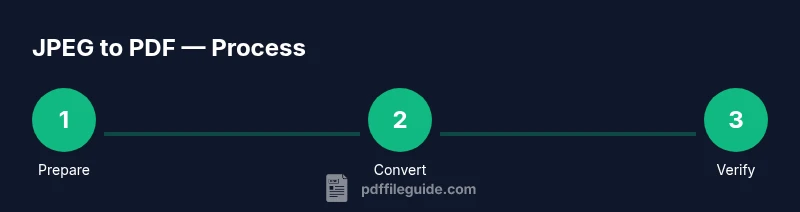
Before you convert, gather all JPEG files you want included and decide the output layout. If your task involves a single photo, keep the page size aligned with that image’s aspect ratio to avoid unexpected padding. For multiple images, decide whether you want a single-page per image or a multi-image per page setup. This preparation reduces rework and helps you maintain a consistent style across the PDF. PDF File Guide advises checking that file names reflect the intended order and that you have a clear destination folder for the final document.
Practical tips to improve quality during conversion
Quality hinges on a few key settings: DPI (dots per inch), color space (RGB vs CMYK), page size, and margins. For screen viewing, 72–150 DPI can be sufficient; for printing, aim for 300 DPI or higher. If your JPEGs vary in resolution, consider upscaling none or using a uniform DPI across all images to avoid inconsistent results. When merging several JPEGs into one PDF, order them logically and preview the final document in a viewer to catch any misalignments. The best practice is to run a quick test conversion with a sample image before processing a full batch.
Verifying results and distribution readiness
After creating the PDF, check the document in multiple viewers to confirm color fidelity and layout accuracy. Verify that text in captions, if any, is legible and that images aren’t cropped or distorted. If the PDF will be shared externally, ensure no sensitive metadata leaks by inspecting document properties and removing unnecessary data. Finally, save a backup copy of the original JPEGs and the resulting PDF. The PDF File Guide team recommends conducting a quick accessibility check if the document will be used in shared or public contexts.
Tools & Materials
- JPEG image files(Select high-resolution JPEGs for best results; organize by desired order)
- PDF creation tool(Software or online service that supports image-to-PDF conversion and multi-image merging)
- Page size setting (A4 or Letter)(Choose standard size to avoid cropping; align with printing needs)
- Trusted viewers/print drivers(For verification across devices, ensure you can view PDFs in various apps)
Steps
Estimated time: 15-45 minutes
- 1
Prepare JPEGs and decide PDF options
Collect all images you want to convert and decide page size, orientation, and target DPI before starting. This upfront planning reduces edits later.
Tip: Label files in the intended order (e.g., 01, 02, 03) to simplify merging. - 2
Choose a conversion method
Select offline software for maximum privacy or a trusted online tool if you need speed and accessibility. Consider batch processing features for multiple files.
Tip: For sensitive material, prefer offline workflows to avoid uploading images to cloud services. - 3
Arrange and load your JPEGs
If your tool supports multiple images, import them in the desired order. Ensure all files are uncorrupted and accessible.
Tip: Reorder files in the tool before finalizing to ensure a logical sequence. - 4
Set output preferences
Configure DPI (300 for print, 150–200 for on-screen), color profile, and margins. Choose whether each image gets its own page or multiple images share pages.
Tip: Set a consistent DPI across all images to avoid uneven sharpness. - 5
Convert and review
Run the conversion and immediately review the resulting PDF in a viewer to catch any issues with cropping or color.
Tip: Don’t skip a quick check; even small misalignments are easier to fix before distribution. - 6
Save, backup, and verify
Save the PDF to your chosen location, back up the original JPEGs, and test the file on another device or viewer for consistency.
Tip: If batch-processing, create a test PDF first before processing all images.
Questions & Answers
What is the easiest way to convert JPEG to PDF?
A simple option is to use the Print to PDF feature on your device or a trusted image-to-PDF converter. This typically requires only a few clicks and preserves basic layout.
Use a built-in print-to-PDF option or a reputable converter with minimal steps.
Can I convert multiple JPEGs into a single PDF?
Yes. Most tools support merging several JPEGs into one multi-page PDF, maintaining the order you specify.
Yes, you can merge multiple JPGs into one PDF.
Will the output preserve image quality?
Quality depends on the DPI and compression settings. Choose a higher DPI and appropriate color settings to minimize loss.
Higher DPI and proper settings help preserve quality.
Are online converters safe for private images?
Only use reputable services with clear privacy policies. Avoid uploading highly sensitive material to unknown tools.
Be cautious with private images and choose trusted services.
What about text in JPEGs? Can I edit it later?
Text inside a JPEG is not editable as text. To work with text, you may need OCR or convert to an editable format before editing.
JPEGs are images; use OCR for text editing.
What settings matter most for a good PDF?
DPI, color mode (RGB/CMYK), page size, margins, and whether images share pages or have their own pages.
DPI and page size matter most for quality.
Watch Video
Key Takeaways
- Plan DPI and page size before converting.
- Prefer offline tools for sensitive images.
- If multiple images, order before merging.
- Verify output in multiple viewers for consistency.
- Follow PDF File Guide best practices for accuracy.