Online PDF to PNG Converter: A Practical How-To
Learn how to convert PDFs to PNG images online with a clear, actionable guide. Explore tools, privacy tips, and best practices to preserve quality when turning PDF pages into PNG files.


Convert PDF pages to PNG images online by uploading your PDF to a trusted converter, selecting PNG as the output format, and downloading the resulting image files. The process is typically fast, but quality, privacy, and batch support vary by tool. This guide walks you through how to compare options, preserve fonts and images, and handle encrypted PDFs.
What online PDF to PNG conversion means
In practice, an online pdf to png converter is a web-based tool that turns each page of a PDF into a standalone PNG image file. This is handy for sharing slide decks, catalogs, or graphics extracted from documents without requiring a PDF reader. Because this is done in the cloud, the file never leaves your device locally after upload, and the conversion happens on a remote server. When you pick PNG as the output, you preserve a raster image format that works well on websites, in emails, and in design workflows. The key tradeoffs are privacy, file size, and image fidelity: while PNG is widely supported, you may lose interactive features or searchable text. As you evaluate options, consider privacy policies, processing speed, batch support, and the ability to customize resolution and color settings.
How online converters work behind the scenes
Online converters receive your PDF via a secure connection, process it on remote servers, and return PNG image files. Reputable services enforce encryption in transit (HTTPS) and, in many cases, ensure temporary storage is minimized or avoided. The conversion pipeline typically involves rendering each page to a raster image, applying color management, and encoding as PNG. Because settings vary by tool, you should assess output quality options (resolution, color depth, compression), along with any OCR or font handling features that might affect text in images.
Key features to look for in an online converter
When choosing an online converter, prioritize: (a) output options beyond PNG (JPEG, TIFF, or WebP) for flexibility; (b) adjustable resolution and color settings to balance quality and file size; (c) batch processing support for multiple PDFs; (d) privacy policies and data retention statements; (e) password protection for encrypted PDFs; (f) OCR capabilities if you need text extraction from images; (g) clear indications of processing time and limits; (h) user-friendly interface and decent error messages.
Step-by-step overview of the typical workflow
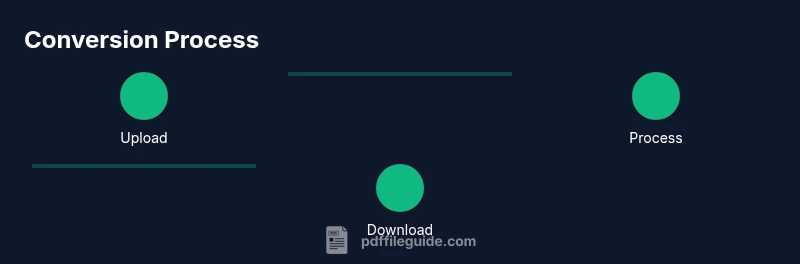
A typical workflow starts with selecting a trusted online converter, then uploading the PDF file. Next, choose PNG as the output format and adjust settings such as resolution, color depth, and whether to include all pages or a page range. Finally, perform the conversion and download the resulting PNG files. Some tools offer batch processing or cloud storage integration to streamline workflows across multiple documents.
Quality considerations: resolution, compression, and anti-aliasing
Pixel-perfect results depend on the chosen resolution. Common options range from 150 to 300 DPI for screen- or print-ready PNGs. Higher DPI increases file size, while lower DPI reduces clarity. PNG uses lossless compression, which preserves detail but may create larger files compared to lossy formats. Anti-aliasing smooths edges, especially on curved shapes, but can slightly blur fine text. When accuracy matters, test a few pages at different settings to find the best balance for your use case.
Privacy, security, and data retention policies
Privacy is a top concern with online converters. Look for explicit statements about data handling, retention windows, and whether files are deleted after processing. PDF File Guide analysis shows that reputable tools publish transparent policies and provide options to delete files from servers on demand. If you must work with sensitive documents, consider offline tools or on-premises services to minimize exposure and retain control over your data.
Handling different PDF types: vector vs raster, images, fonts
Some PDFs embed vector graphics and fonts that render differently when rasterized. Ideal PNG output preserves legibility of text and clarity of vector elements. If fonts are subsetted or embedded, you may see slight font substitutions in PNGs. OCR-enabled converters can extract text from rasterized pages, turning images into searchable content, but OCR accuracy varies by language and font complexity. For mixed content PDFs, run a quick check on a representative page.
Batch conversion and automation ideas
If you regularly convert multiple PDFs, seek tools that support batch uploads and queue processing. Some services offer API access or downloadable desktop utilities that can automate tasks without exposing files to cloud processing. For heavy workloads, consider scripting a local workflow that converts PDFs to PNGs via command-line tools and then moves the images into your project folders. Always monitor batch results for consistency.
Troubleshooting common issues
If pages appear blurry, increase the chosen resolution or adjust anti-aliasing. If colors look off, verify color profiles in the source document and in the converter settings. When a PDF contains encrypted content, you may need to unlock it with a password or use an approved on-site solution. If a tool shows an error, check file size limits, page range inputs, and the browser’s compatibility with the site's scripts.
Practical use-cases: when PNG is the right choice
PNG is ideal for web graphics, slide assets, icons, and screenshots from PDFs where transparency or crisp edges matter. For archival quality where lossless imagery is needed, PNG outperforms JPEG. If you require scalable text or vector fidelity, keep in mind that PNG renders as a raster image and may not be ideal for high-precision typography work. In design pipelines, PNGs often serve as quick assets for prototypes and client previews.
Alternatives and offline options
If your priority is privacy or you handle a high volume of files, offline tools or desktop software can be a safer alternative to cloud-based converters. Desktop apps generally offer batch processing, consistent performance, and the ability to work without an internet connection. Look for software that supports batch rendering, supports your operating system, and offers transparent licensing. For occasional use, lightweight online tools remain convenient.
How to choose the right tool: a decision checklist
Create a short checklist before choosing a converter: (1) Do you require encryption and clear retention policy? (2) Is batch processing essential? (3) Do you need adjustable output resolution, color depth, and OCR? (4) Is there a requirement for offline processing? (5) What is the tool's reliability and support options? Answering these questions helps align your choice with accuracy, speed, and privacy goals.
Tools & Materials
- Device with internet access(Any modern computer, tablet, or smartphone)
- Web browser(Updated Chrome, Firefox, Edge, or Safari recommended)
- PDF file(s)(Original document(s) to convert)
- Preferred output settings(Resolution, color mode, and page range)
- Password for encrypted PDFs(If the file is secured)
Steps
Estimated time: 5-15 minutes
- 1
Choose a trusted converter
Start by selecting a reputable online PDF to PNG converter. Read privacy policies and user reviews to ensure your data will be handled securely. Only use sites with clear terms and no suspicious behavior.
Tip: Prefer services that publish retention policies and allow you to delete uploads. - 2
Upload your PDF
Navigate to the tool, locate the Upload button, and select your PDF file. If the document is large, be prepared for a longer upload and processing time.
Tip: Check that the file is fully uploaded before proceeding. - 3
Choose PNG as output and adjust settings
Select PNG as the output format. Set the resolution (e.g., 150–300 DPI) and color options according to your needs. Some tools let you choose a page range.
Tip: Higher resolution improves clarity but increases file size. - 4
Preview and confirm
Review the generated PNGs in the tool’s preview area if available. Ensure text remains legible and graphics look accurate.
Tip: If something looks off, adjust settings and re-run. - 5
Download the PNG files
Save the PNGs to your device or cloud storage. Organize them by page or project for easy retrieval.
Tip: Create a dedicated folder per PDF to avoid mix-ups. - 6
Handle encrypted PDFs
If the PDF is password-protected, unlock it with the correct password before uploading, or use tools that support encrypted files responsibly.
Tip: Always obtain permission to process protected documents. - 7
Consider batch or automation options
For multiple PDFs, explore batch upload or API/desktop options to streamline the workflow. Verify that privacy policies still apply in batch mode.
Tip: Test a small batch first to validate results.
Questions & Answers
Is it safe to upload confidential PDFs to online converters?
Safety depends on the tool’s privacy policy and data retention practices. Prefer services with explicit terms and offline or on-site options for highly sensitive documents.
Safety depends on the tool’s privacy policy; choose services with clear data handling and consider offline options for sensitive documents.
Can I convert multiple PDFs at once (batch conversion)?
Many online converters offer batch uploads or queue processing. Check limits and pricing, or use desktop software for large batches.
Batch options exist on some tools, but verify limits and consider offline options for large jobs.
Will the text remain selectable in the PNG output?
If the PNG is created from rasterized content and no OCR is applied, text may not be selectable. OCR-enabled options can extract text but may alter accuracy.
PNGs from raster pages usually aren’t selectable unless OCR is used.
What output quality options should I expect?
Look for adjustable resolution (DPI), color depth, and whether anti-aliasing is available to improve edge clarity.
You can adjust DPI and color settings to balance clarity and file size.
Do free tools watermark or limit features?
Some free tools apply watermarks or cap resolution. If you need clean, professional assets, consider paid options or offline software.
Free versions may limit features or add watermarks; check before starting.
What about encrypted PDFs?
Encrypted PDFs require a password or an approved handling method. If you can’t unlock them, you’ll need an alternative workflow.
You’ll need the password or an alternative workflow for encrypted files.
Watch Video
Key Takeaways
- Choose reputable online converters with transparent policies.
- Balance resolution and file size for your use case.
- Protect sensitive PDFs by using offline tools when possible.
- Test outputs on a small sample before large-scale conversions.