Convert Image to PDF: A Practical How-To
Learn how to convert images to PDF across devices using online tools, desktop software, and mobile apps. This comprehensive guide covers quality settings, batch conversions, accessibility considerations, and best practices for professionals, with clear steps and checklists from PDF File Guide.


You will learn how to convert an image to a PDF across devices and tools, with steps you can follow immediately. Start with the right image, choose a conversion method (online, desktop, or mobile), adjust options for quality and size, and save a clean PDF ready to share or print.
Why convert image to PDF: benefits and use cases
Converting images to PDF is a simple way to create universally shareable, print-friendly documents from photos, screenshots, or scanned images. PDFs preserve layout, fonts (if embedded), and color fidelity across platforms, making them ideal for client presentations, portfolios, and archival records. For professionals, a single PDF can assemble multiple images into a cohesive report. According to PDF File Guide, a well-constructed image-to-PDF workflow reduces back-and-forth when sharing visual content with teammates, clients, or vendors. The result is a portable file that looks the same on Windows, macOS, Android, and iOS, minimizing compatibility issues and ensuring a consistent viewing experience for reviewers and collaborators.
When you plan a conversion, think about the destination: Will recipients print the page, view on screen, or OCR for text search? Your choices around resolution, compression, and color mode should align with that goal. A good starting point is 150–300 DPI for general use, with higher DPI for print-quality PDFs. If you want a compact file for emailing, use moderate compression and avoid noisy images that escalate file size. A strategic approach keeps your PDFs clean, readable, and ready for distribution.
Supported image formats and limitations
Most image-to-PDF workflows support common formats such as JPG/JPEG, PNG, and TIFF. Many tools also handle BMP and HEIC from newer devices, but compatibility can vary by software and platform. When you convert, be mindful of color profile compatibility; some tools embed ICC profiles automatically, while others may convert colors to sRGB for consistency. If you work with very large TIFFs or RAW image files, you may need to pre-process to reduce resolution or convert to a more web-friendly format first. PDF File Guide notes that staying within widely supported formats reduces compatibility issues for recipients across devices and software suites.
Limitations to anticipate include potential quality loss from aggressive compression, loss of alpha channels in certain workflows, and metadata gaps if the tool does not translate EXIF or IPTC data. If preserving these details matters, test a sample before mass conversions. For scanned documents, ensure the scanner output is saved at suitable resolution to avoid pixelation in the final PDF.
Quick win: online converters
Online converters offer a fast path to convert a single image to PDF without installing software. Choose a reputable tool, upload your image, and adjust basic options like orientation (portrait/landscape) and page size. Always review privacy policies before uploading sensitive files; avoid uploading confidential material to untrusted services. PDF File Guide recommends performing a quick quality check after download to confirm that the PDF preserves the image alignment and legibility. If you have multiple images, look for a tool that supports batch processing or merging into a single PDF to save time.
Pro tip: Use-respecting tools that provide a preview before download so you can catch issues early in the workflow.
Desktop software options and how to use
Desktop applications offer more control over output settings and batch processing. Popular options include image viewers with “Print to PDF” capabilities, standalone converters, and PDF editors that include image import features. The typical workflow is to open the tool, select Add Images or Import, choose your file(s), set the target page size and orientation, and export as PDF. If you’re aiming for print-quality results, adjust DPI to 300 and select lossless or high-quality compression. For shared documents, embed fonts if the tool supports it to avoid font substitution problems. PDF File Guide emphasizes testing a sample file on a printed page to verify that the visuals appear as intended.
Tip: When converting multiple images, look for a merging option to create a single PDF rather than separate files. This reduces file clutter and simplifies distribution.
Built-in OS tools: Windows, macOS, Linux
Operating systems increasingly include built-in options to save images as PDFs. Windows users can often print an image from any viewer and choose Save as PDF in the printer dialog. macOS users can use the Print dialog and select Save as PDF, with options to secure the document or export as grayscale. Linux users can leverage image viewers or command-line tools like cups-pdf or ImageMagick for image-to-PDF conversions. Built-in tools are convenient for quick tasks and don’t require third-party software. These options also keep data on your device, which can be preferable for sensitive materials. PDF File Guide highlights that mastering OS-level features speeds up small, frequent conversions.
Always review the final pages for layout fidelity and ensure that margins are appropriate for your intended use.
Mobile workflows for on-the-go conversions
Smartphones and tablets make it easy to convert photos to PDF while on the move. Most devices offer the “Share” or “Print” option to export as PDF from within the photo app or gallery. Several apps specialize in batch conversion, panorama-to-PDF compaction, or capturing multiple images as a cohesive PDF. When using mobile apps, ensure the app handles image order correctly when multiple images are added. Also confirm that the resulting file name is descriptive and that the PDF includes embedded metadata if your workflow requires it. PDF File Guide suggests keeping mobile processes simple and checking file size after export to avoid upload or email issues.
If your workflow includes scanning documents, verify that the app supports OCR or plain image saving depending on your needs.
Quality and fidelity: resolution, compression, color spaces
The visual quality of the final PDF depends on initial image resolution and the compression settings applied during conversion. A higher DPI preserves detail for print but increases file size, while a lower DPI reduces file size at the cost of clarity. Color spaces matter: sRGB is widely supported and usually sufficient for on-screen viewing, but professional print workflows may require CMYK or ICC profiles embedded in the PDF. Some tools offer lossless compression (or minimal compression) for image data, which preserves fidelity but yields larger files. UV printing, color matching, and consistent lighting conditions when capturing images can help maintain fidelity after conversion. PDF File Guide recommends testing different DPI settings with representative images to establish a balanced default for typical tasks.
Accessibility and metadata in PDFs
PDFs from images can be enhanced for accessibility by adding OCR text, descriptive alt text for visuals, and meaningful document structure. If your workflow involves scanned pages, OCR helps users with screen readers search the content. When possible, maintain descriptive filenames and add metadata (title, author, subject, keywords) to improve document discoverability. Some tools automatically attach basic metadata during export, while others require a separate step. PDF File Guide advises reviewing accessibility options in your chosen tool and ensuring that any extracted text is accurate and correctly aligned with the corresponding image.
Tip: If accessibility is a priority, run a quick OCR check after export and validate the text with a screen-reader emulation to confirm readability.
Batch conversions and automation
Batch conversion enables you to convert many images into PDFs in one operation, a huge time saver for projects with large image sets. Look for features like “batch convert,” “create from multiple images,” or “merge into a single PDF.” For automated workflows, consider scripting options with command-line tools (where supported) or workflow automation platforms. When scaling, maintain a consistent output structure: identical page sizes, uniform margins, and predictable file naming. PDF File Guide notes that batch jobs shine when consistency and repeatability are required, such as archiving daily screenshots or building client deliverables from photo libraries.
Troubleshooting common issues and best practices
Common hiccups include file size spikes after conversion, blurred images, or misordered pages when using batch tools. Start by validating the source image quality and ensuring you’re not compressing too aggressively. If pages appear out of order, double-check the image list and the merge order in the tool. For cross-device workflows, test the final PDF on another device to ensure layout fidelity. Always save a backup of the original images before bulk conversions. Finally, keep your software up to date to benefit from bug fixes and improved output fidelity. As emphasized by PDF File Guide, a well-documented workflow minimizes last-minute surprises and makes it easier to reproduce successful results.
Tools & Materials
- Images to convert (JPG, PNG, TIFF, BMP, HEIC)(Have at least one image ready for conversion)
- Device with internet access(Needed if using online converters)
- Web browser or dedicated app(Chrome, Edge, Safari, or a PDF app)
- Target output path for the PDF(Choose a descriptive filename and folder)
- Optional: OCR-ready software(For searchable text, if needed)
Steps
Estimated time: 15-60 minutes
- 1
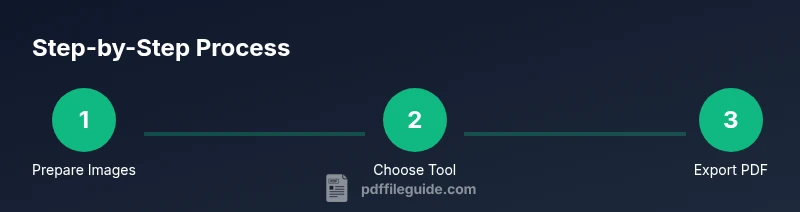
Prepare your image set
Collect the image files you want to convert and place them in a dedicated folder. Ensure each image has clear focus, minimal motion blur, and the correct orientation for viewing. Organize the sequence if you plan to merge multiple images into one PDF.
Tip: Name files with a consistent convention to preserve intended order (01_image.jpg, 02_image.jpg, etc.). - 2
Choose your conversion method
Decide whether to use an online tool, desktop software, or a mobile app based on your device, privacy concerns, and the number of images. Online tools are quick for small tasks, while desktop apps excel at batch workflows and offline reliability.
Tip: For sensitive content, prefer offline desktop solutions to avoid data exposure. - 3
Open the tool and add images
Launch the chosen tool and import or drag-and-drop your images. If you plan a single PDF, add all images in the desired order. If you want separate PDFs, add only one image per file.
Tip: Check the preview to confirm order and orientation before proceeding. - 4
Set output options
Configure page size (e.g., A4 or Letter), orientation, and DPI. Choose a reasonable balance between quality and file size. Enable or disable color profiles based on your needs and ensure compression is appropriate for the intended use.
Tip: Use 300 DPI for print-ready PDFs and 150–200 DPI for on-screen viewing to keep file sizes reasonable. - 5
Convert or merge into PDF
Execute the conversion. If merging multiple images, ensure the tool produces a single PDF with correctly ordered pages. If you’re exporting multiple PDFs, save each one with a clear, consistent naming pattern.
Tip: Always run a quick view of the resulting PDF to confirm page order and legibility. - 6
Save and organize
Choose a destination folder and naming convention that reflects the content. Save a copy of the original images as a fallback. If needed, embed metadata like title and keywords for easier retrieval.
Tip: Create a project-specific folder so related PDFs stay grouped together. - 7
Test accessibility (optional)
If accessibility matters, apply OCR to the PDF and add descriptive alt text for images. Verify that screen readers can locate and interpret the content where possible.
Tip: Run a quick screen-reader test on the PDF to ensure basic navigability. - 8
Batch automation (advanced)
For frequent tasks, set up a batch workflow or script to convert and merge images automatically. This reduces manual steps and ensures consistency across runs.
Tip: Document the steps in a checklist so the process remains repeatable.
Questions & Answers
What image formats can be converted to PDF?
Most tools support JPG, PNG, TIFF, BMP, and HEIC. Some tools may handle RAW formats with conversion first. Always test a sample to confirm compatibility.
Common formats like JPG and PNG convert smoothly; test a sample if you’re unsure.
Can I batch convert multiple images into a single PDF?
Yes. Look for options labeled merge, combine, or create from multiple images. Ensure the order is correct before exporting.
You can merge many images into one PDF; just check the order.
Will converting images affect quality?
Quality depends on DPI and compression settings. Higher DPI preserves detail but increases size; lower DPI reduces file size with some loss of clarity.
DPI and compression affect quality and file size; choose according to your use.
Is it safe to use online converters for sensitive images?
Be cautious with sensitive content. Prefer offline tools for confidential material and always review the privacy policy before uploading.
Avoid sensitive files with online tools; use offline options when possible.
How can I improve accessibility of a PDF created from images?
Add OCR text and descriptive alt text for images. Include metadata like title and keywords to aid navigation and search.
Add OCR and alt text to make the PDF more accessible.
Are built-in OS tools sufficient for image-to-PDF tasks?
For simple needs, built-in OS tools (Print to PDF on Windows/macOS) are usually enough. For batch or high-precision tasks, dedicated software may be better.
Yes, OS tools work for basics, but advanced tasks may require apps.
What should I consider for output file naming?
Use clear, descriptive names and include dates or project identifiers to avoid overwriting and to simplify retrieval.
Name PDFs clearly so you can find them later.
How do I verify the final PDF looks right before sharing?
Open the PDF on multiple devices, check page order, margins, and legibility. If possible, print a test page to ensure fidelity.
Preview on different devices and printer tests help ensure accuracy.
Watch Video
Key Takeaways
- Choose the method that fits your workflow.
- Balance image quality with file size for your audience.
- Batch conversions save time on large projects.
- Add metadata to improve searchability and retrieval.