Convert PDF to Images Online: A Complete How-To
Learn how to convert PDFs to images online with privacy-conscious tools. This guide covers formats, resolutions, batch extraction, security, and best practices for editing and sharing PDF content as images.


You're about to convert a PDF into high-quality images using an online tool. This guide covers choosing a reputable online converter, setting the right resolution, and saving images in common formats. Before you start, ensure your PDF isn't password-protected or contains sensitive data, and review the site’s privacy policy and file size limits. The PDF File Guide team provides practical, safe steps.
Why convert PDFs to images online
Converting PDFs to images online is a common workflow for designers, educators, and professionals who need to present or annotate content without relying on PDF readers. Images are easier to embed in websites, slides, or documentation, and they ensure consistent rendering across platforms. Online conversions offer convenience: you can perform the task from any device with internet access, without installing specialized software. However, the convenience comes with trade-offs—privacy, data retention, and image quality must be weighed carefully. The PDF File Guide team notes that understanding these trade-offs helps you choose tools that balance speed with integrity of the original document. When done thoughtfully, online conversion can streamline workflows, improve accessibility, and simplify collaboration by producing universally viewable image files such as PNG or JPEG.
Use cases and workflows
There are several scenarios where converting a PDF to images is advantageous. For instance, preparing web-ready content where embedded PDFs aren’t supported, creating thumbnail galleries for catalogs, or distributing course materials in slides that don’t require live PDF readers. Images also simplify annotation in collaborative reviews—team members can mark up visuals more easily than PDF pages. A common workflow starts with selecting pages to export, choosing an image format, and standardizing resolution for consistency across multiple pages. For multi-page documents, you can export each page as a separate image or generate a sprite sheet for a compact gallery. Keeping track of source versions and naming conventions helps prevent mix-ups during revisions.
Key considerations before converting
Before you hit convert, assess several factors to avoid surprises. Check whether the PDF contains sensitive or confidential information; avoid uploading such files to untrusted online tools. Be mindful of password protection, as some services cannot access secured documents without the password. Consider the target use: online viewing benefits from PNG for lossless quality, while web thumbnails may prefer JPEG for smaller file sizes. DPI (dots per inch) matters too: higher DPI yields crisper images but increases file size. Finally, review the converter’s privacy policy, data retention terms, and whether it retains copies of your uploaded files. Following these checks helps protect privacy while delivering predictable image quality.
How to choose an online converter
Selecting the right online converter is crucial for quality and privacy. Look for (a) HTTPS security and a clear privacy policy; (b) explicit notes on data retention and deletion after processing; (c) output options such as PNG, JPEG, TIFF, or WEBP; (d) the ability to process multiple pages in one pass and to specify a page range; (e) visible limits on file size and daily usage. User reviews and brand reputation matter; prefer tools recommended by reputable guides and that offer trial options to verify results before committing. If you regularly convert PDFs, choose a service with batch processing and a predictable queue. Always test a small file first to verify output fidelity.
Step-by-step guide: Convert a PDF page to an image
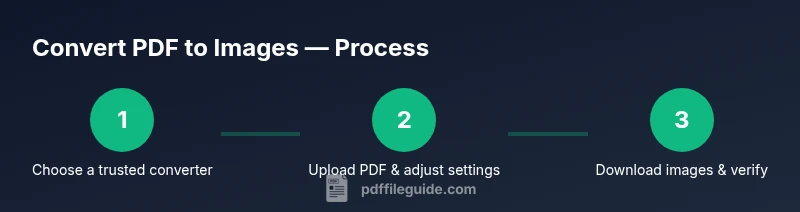
- Open your preferred online converter and verify it’s a trusted site with security indicators. 2) Upload the PDF you want to convert and enter any required credentials for access. 3) Select your desired image format (PNG or JPEG), set a suitable resolution (e.g., 300 DPI for print quality), and decide whether to export a single page or a range. 4) Initiate the conversion and wait for processing to complete; larger files may take longer. 5) Download the resulting image(s) and verify color, clarity, and alignment with the original page. 6) Rename and organize the files for easy reference in your project.
Handling multi-page PDFs and batch extraction
Multi-page PDFs offer two practical approaches: export every page as a separate image to preserve fidelity, or extract specific pages to reduce workload. When batch processing, ensure the converter supports consistent settings across all pages, so color, density, and file format remain uniform. If you must produce a single image per page for a slide deck, automate file naming (e.g., Document_Page_01) to keep order. For archiving, consider exporting in a lossless format like PNG first, then convert to JPEG for lighter sharing if needed. Tracking page counts helps you confirm that the export aligns with the source document.
Quality, resolution, and color management
Image quality hinges on resolution, color depth, and compression. Higher DPI yields crisper text and graphics but larger file sizes. For on-screen use, 150–300 DPI is typically sufficient; for print, 300–600 DPI may be preferred. Color management matters too: preserve color accuracy by maintaining the color profile provided in the PDF, and avoid aggressive compression that introduces artifacts. If your document contains sharp text, PNG often preserves edges better than JPEG. When possible, preview a sample page at your target size to ensure readability and fidelity before exporting the entire document.
Security, privacy, and best practices
Security should guide every online conversion. Use converters with clear data deletion policies and avoid uploading documents containing sensitive data to uncontrolled sites. Prefer services that do not store your files permanently, and disable account-based features that could log activity. If you must convert password-protected PDFs, opt for a tool that supports unlocking through secure authentication or perform the unlock offline. After exporting, delete the uploaded source from the tool’s server if that option exists. Finally, review the terms of service to understand how your data may be used or stored.
Common pitfalls and troubleshooting
Common issues include blurry text after export, color shifts, and missing embedded fonts. If text appears fuzzy, re-export at a higher DPI or switch to PNG to avoid compression artifacts. Color shifts can result from mismatched color profiles; ensure the converter retains the original color space. If a page exports as blank or corrupt, try a smaller file size, a different browser, or a different tool. For password-protected PDFs, ensure you have permission and the tool supports secure unlocking, or remove protection offline before uploading. Finally, validate output against the source to catch discrepancies early in your workflow.
Tools & Materials
- Internet-connected device (computer, tablet, or smartphone)(Stable connection for upload/download; avoid public networks for sensitive files.)
- Web browser (latest version)(Chrome, Firefox, Edge, or Safari recommended.)
- PDF file to convert(Ensure you have permission to share or convert the document.)
- Preferred image format and resolution(Examples: PNG 300 DPI, JPEG 150–300 DPI.)
- Privacy-conscious online converter(Review privacy policy and data deletion terms before use.)
Steps
Estimated time: 5-15 minutes
- 1
Choose a trusted online converter
Open a reputable converter and confirm its security indicators (HTTPS, privacy policy, user reviews). Research whether it deletes files after processing to protect sensitive data.
Tip: Always verify the site’s privacy terms before uploading any file. - 2
Upload the PDF file
Select the PDF you want to convert and initiate the upload. If the file is password-protected, ensure you have permission and the tool supports unlocking.
Tip: If password protection blocks upload, consider removing protection offline with proper authorization. - 3
Configure output settings
Choose the image format (PNG or JPEG), set an appropriate DPI (e.g., 300 for print), and decide whether to export all pages or a page range.
Tip: Higher DPI improves quality but increases file size; balance needs based on usage. - 4
Run the conversion
Start the process and wait for completion. Large PDFs may take longer; monitor progress and avoid navigating away from the page.
Tip: If the tool offers a batch mode, enable it to keep settings consistent across pages. - 5
Download and verify results
Save the exported images to a known folder, review a few pages for fidelity, and rename files for easy retrieval.
Tip: Check text clarity and alignment against the original PDF.
Questions & Answers
Is it safe to upload PDFs to online converters?
Safety depends on the converter’s privacy policy and data-retention practices. Use trusted services with transparent terms and avoid uploading sensitive information. If in doubt, use offline tools or provider recommendations from reliable sources.
Safety depends on the provider. Choose trusted tools with clear privacy terms and avoid sensitive documents.
What image formats are typically supported?
Most online converters support PNG and JPEG; some offer TIFF or WEBP as alternatives. PNG is preferred for text clarity, while JPEG is useful for smaller file sizes when high fidelity isn’t critical.
Common formats include PNG and JPEG; TIFF and WEBP may also be available on some services.
Can I export all pages or just a subset?
Many tools let you export all pages or select a page range. For large documents, exporting by chapters or sections helps manage file sizes and workflow.
You can export all pages or choose a specific range depending on the tool.
Will text remain searchable after conversion?
If you export to a raster image like PNG/JPEG, text is not searchable. For searchable outputs, consider exporting to a vector-friendly format or using OCR after export.
Raster images aren’t searchable by text unless you run OCR afterward.
What should I do if a password-protected PDF won’t upload?
You’ll typically need to remove the password first or use a tool that can unlock files securely with authorization. Always ensure you have permission to bypass protection.
If a file is password-protected, you usually need permission to unlock it, or remove protection offline.
Watch Video
Key Takeaways
- Choose trusted tools with clear privacy policies.
- Balance resolution with file size for practical use.
- Verify outputs page-by-page before finalizing.
- Respect password protections and permissions.
- Prefer tools that delete data after processing.