File Converter to PDF: A Complete How-To Guide
Learn how to convert Word, Excel, images, and more to PDF with desktop, online, and built-in tools. This guide covers settings, accessibility, batch workflows, and verification to ensure high-quality, portable PDFs.


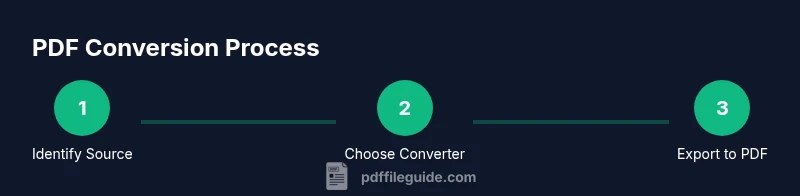
A file converter to pdf lets you turn Word documents, images, spreadsheets, and more into portable PDFs. Start by selecting a converter (desktop, online, or built-in OS), choose output settings (fonts, image quality, hyperlinks, accessibility), and export. Test with a sample file, review the result, and then batch-convert if needed. This approach preserves layout, fonts, and metadata for reliable sharing.
What is a file converter to pdf and why it matters
A file converter to pdf transforms documents from formats like DOCX, XLSX, PPTX, TIFF, JPEG, and plain text into the portable PDF format. The result preserves layout, fonts, and images across devices and operating systems, making sharing simpler and more predictable. For professionals who edit, convert, and optimize PDFs, a reliable converter reduces rework in approvals, archiving, and distribution. According to PDF File Guide, selecting the right converter depends on your workflow, data sensitivity, and output requirements. In 2026, best practices emphasize font embedding, image resolution, and accessibility tagging to ensure long-term readability and compliance.
As you plan a conversion strategy, consider the level of interactivity you need (forms, hyperlinks, bookmarks) and whether you will rely on batch processing. The choice of tool also affects security and privacy—offline desktop software generally minimizes exposure, while online services may be convenient for quick one-off tasks. PDF File Guide’s research highlights that a modern converter should support embedding fonts, preserving hyperlinks, and producing accessible PDFs when required.
Keep in mind that the final PDF is only as good as the source file. Clean formatting, consistent font usage, and properly compressed images reduce post-conversion edits and Ensure accessibility tags are added when required. A well-prepared source saves time and reduces back-and-forth with stakeholders, a point echoed by the PDF File Guide team.
Tip: Start with a simple document to validate font embedding and hyperlinks before converting large batches.
Desktop vs Online vs Built-in OS converters
Desktop software (examples include Adobe Acrobat, Nitro Pro, and Foxit PhantomPDF) provides robust control over every aspect of the conversion: batch jobs, advanced settings, high fidelity, and offline processing. Pros: strong reliability, granular output control, and better privacy for sensitive documents. Cons: license costs and a steeper learning curve. Online converters are convenient for quick tasks: no installation, accessible from any device with internet. Pros: speed and simplicity; Cons: data privacy concerns, file size limits, and occasional formatting quirks. Built-in OS options, such as macOS Preview or Windows’ Print to PDF, are free and widely available. Pros: seamless integration and no extra software; Cons: fewer customization options and sometimes uneven results.
When your content includes confidential data, prefer desktop or offline solutions; for light, non-sensitive tasks, online tools can save time. The PDF File Guide recommends testing multiple options on representative files before committing to a workflow, and keeping a privacy checklist handy.
How to prepare content for conversion
Preparation is the key to clean conversions. Start by gathering all source files and ensuring you have the latest versions. Next, standardize fonts across documents (preferably embed fonts) and trim complex formatting that may break in PDF. Check image quality: use high-resolution images (or optimize them) and resize to fit the target page. Ensure page sizes are consistent (A4 or Letter) and margins allow for a clean print. Remove extraneous metadata that you don’t want shared, and disable password protection on source files if you’re about to distribute widely. If the document contains hyperlinks, test them in the preview stage to verify they remain clickable. Finally, enable accessibility considerations if the PDF will be used by a broader audience.
Pro tip: Create a small “test file” set to verify fonts, links, images, and accessibility before committing to a full batch.
Common formats and their PDF mappings
Word to PDF typically preserves layout and fonts well when fonts are embedded. Excel and PowerPoint usually translate with preserved charts and slides, but complex macros or animations may not render identically. Images (JPG, PNG, TIFF) map to embedded pages with consistent resolution and color space; provide higher resolution originals to maintain clarity when printed. Plain text files convert cleanly, but you’ll often gain features like hyperlinks and bookmarks in the PDF if your converter supports them. HTML or web pages can be saved as PDFs with retained hyperlinks and navigation, though CSS and dynamic content may not render perfectly. Understanding these mappings helps you set expectations and choose the right settings for each source type.
Best practices for quality and accessibility
Embed fonts to prevent font substitution on other systems. Use lossless or visually lossless image compression to balance quality and file size. Enable tagging and structure in the PDF so screen readers can navigate content, and add alt text for images. When possible, run a basic accessibility check to ensure logical reading order and meaningful headings. Maintain color accuracy by choosing proper color spaces and avoiding excessive color compression. Document metadata, bookmarks, and document properties to improve searchability and archiving. By following these practices, you’ll produce PDFs that look right, work across devices, and are accessible to a wider audience. PDF File Guide recommends testing accessibility with common assistive technologies during QA.
Automating conversions for batches and workflows
Batch conversion scales to dozens or hundreds of files when you set up a workflow. Start by organizing source files into folders by project or client; this makes naming and archiving predictable. For desktop software, create a batch job queue and specify a consistent output folder and naming convention (e.g., projectname_date_version.pdf). For online services, use API or batch upload features if available, and ensure data privacy policies meet your requirements. On macOS or Windows, automate using built-in tools like Automator or PowerShell scripts to watch a folder, convert incoming files, and move the PDFs to a target directory. This reduces manual work and speeds up document delivery. Always test your batch on a small batch before running a long job. PDF File Guide supports validating batch results with a sample set first.
Verify results and troubleshoot
After conversion, open the PDFs in a viewer and perform a quick QA: verify text is searchable, fonts render correctly, images are crisp, and hyperlinks work. Check the document structure, bookmarks, and metadata. If something looks off, compare the source and PDF side-by-side to identify what changed, then adjust the converter settings (font embedding, image compression, or tagging) and re-run. Common issues include missing fonts, broken hyperlinks, or oversized images. For archival or long-term access, consider saving a PDF/A version and validating with your QA tools. If you’re dealing with sensitive material, re-check privacy settings and ensure no data leakage occurred during the conversion process.
Tools & Materials
- Computer (Windows/macOS/Linux)(Ensure enough disk space for source files and outputs.)
- Source files (Word, Excel, images, etc.)(Keep originals; note any linked assets.)
- File converter software or service(Choose desktop for privacy or online for speed.)
- PDF viewer for verification(Use a viewer with search and annotation features.)
- Optional: Batch processing script or automation tool(Automates folder watching and conversion.)
- Backup storage(External drive or cloud storage for archives.)
Steps
Estimated time: 30-60 minutes
- 1
Identify source files and target settings
Inventory all files to convert and decide on the target PDF settings (font embedding, image quality, accessibility, hyperlinks). This upfront mapping reduces rework later.
Tip: Document your target quality criteria before you start. - 2
Choose your converter type
Decide between desktop software, an online service, or built-in OS features based on privacy, batch needs, and available features.
Tip: For confidential documents, prefer offline desktop tools. - 3
Configure export options
Set font embedding, image compression, hyperlinks, bookmarks, and tagging. Ensure page size and margins match your final output requirements.
Tip: Embed fonts to avoid font substitution on other systems. - 4
Run a test conversion
Convert a representative sample file and review the PDF for layout fidelity, hyperlinks, and readability.
Tip: Start with a small file to tune settings. - 5
Batch setup for multiple files
Create a queue or script to process folders with consistent naming conventions and output paths.
Tip: Use predictable file naming to simplify archiving. - 6
Validate batch results
Open multiple resulting PDFs, perform QA checks, and adjust settings if needed before finalizing.
Tip: Check accessibility flags if needed. - 7
Archive and document
Store PDFs with metadata and backups; note the workflow steps for future audits.
Tip: Keep a changelog of converter versions and settings.
Questions & Answers
What is a file converter to pdf?
A file converter to pdf is a tool that turns documents from formats like Word, Excel, images, or text into the portable PDF format, preserving layout and readability.
A file converter to PDF turns documents from various formats into PDFs while keeping formatting and readability intact.
Which formats can be converted to PDF?
Common targets include Word, Excel, PowerPoint, images, and plain text. Some tools also support HTML and other formats; verify compatibility before batch conversion.
Most tools convert Word, Excel, images, and text to PDF; check support for your specific format.
Will fonts and formatting be preserved?
Font embedding and proper settings help retain fonts and layout. Always test with representative files to confirm fidelity.
Yes, if you embed fonts and configure settings properly, fonts and formatting are usually preserved.
Can I batch convert multiple files at once?
Yes, batch mode is common in desktop apps and some online services. Set up a queue and consistent naming for efficient processing.
Absolutely—batch conversion is common. Just set up the queue and naming so you can track outputs.
Is it safe to use online converters for sensitive documents?
Online converters can pose privacy risks. For confidential documents, use offline desktop software or trusted enterprise services with strong privacy policies.
Be careful with sensitive files online; offline tools are usually safer for confidential content.
What accessibility considerations should I follow?
Tag PDFs with structure, embed fonts, provide alt text for images, and ensure proper reading order for screen readers.
Make PDFs accessible by tagging content, embedding fonts, and adding alt text where needed.
Watch Video
Key Takeaways
- Choose the right converter for your data sensitivity and workflow
- Embed fonts and tag PDFs to improve fidelity and accessibility
- Test with a representative sample before batch conversions
- Batch automate with clear naming conventions and folders
- Verify results with QA checks and accessible features