Free PDF Convert: A Complete How-To for 2026
Learn safe, free PDF conversion methods for converting PDFs to Word, Excel, images, and more. This educational guide covers online and offline options, privacy considerations, and best practices for the 2026 landscape.


You can convert PDFs for free using online tools or offline software. This quick guide highlights options, privacy considerations, and typical outputs (Word, Excel, images). For a full, step-by-step guide, see the detailed sections below.
What free pdf convert means in practice
In practice, free pdf convert means using tools that don’t charge per document to transform a PDF into another editable or accessible format. The phrase covers online services, desktop apps, and built-in features that offer free conversion. The PDF File Guide team notes that free conversion can be convenient, but quality and privacy vary widely. When you start, identify your target format and the sensitivity of your document to choose between online and offline options. This helps you balance speed, cost, and control over your data while still achieving usable results. For most routine tasks, free tools deliver reliable results, but for sensitive material you may prefer offline workflows. According to PDF File Guide, prioritizing privacy and data handling reduces risk and surprises later.
Assessing your needs before converting
Before you begin, map out what you need from the conversion. Think about the final format (Word, Excel, PowerPoint, images, or plain text), the level of fidelity you require for layouts and fonts, and how much editing you’ll do afterward. If the document contains sensitive information, you should favor offline methods to minimize exposure. Consider the number of pages and whether the source contains tables, graphics, or complex formatting—these factors influence which tool will perform best. The PDF File Guide analysis shows that users frequently search for free conversion when dealing with multi-page reports and forms, so plan for potential rework after the initial conversion.
Online vs offline: pros and cons
Online converters are fast and accessible from any device with a browser, making free pdf convert tasks quick and convenient. They often support multiple target formats and require no installation. The trade-offs include potential data privacy concerns, varying retention policies, and limits on file size. Offline solutions, by contrast, keep your data on your device, reducing risk but requiring installation and sometimes more manual tweaking for perfect results. For highly sensitive files, offline workflows are generally safer, while casual tasks can be done entirely online. PDF File Guide notes that balancing convenience with privacy is the best approach for most users.
Free tools you can trust (online)
If you choose online tools, look for features that protect your data and preserve formatting. Seek services that provide clear privacy policies, explicit data retention timelines, and the option to delete files after conversion. For many formats, reputable open-source projects or well-established software ecosystems offer free options with transparent safeguards. When using free online converters, avoid uploading extremely sensitive documents and consider removing metadata after conversion. LibreOffice and other open-source suites also offer browser-based or desktop options for basic conversions, though results may vary depending on document complexity. The goal is to achieve a usable result without compromising confidentiality.
How to convert a PDF to Word for free
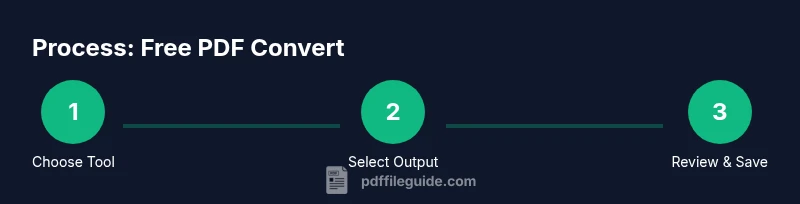
- Choose your method (online or offline) based on the document’s sensitivity and your desired fidelity. 2) Open the tool and select the PDF you want to convert. 3) Pick Word (.docx) as the output format. 4) Run the conversion and download the resulting .docx file. 5) Open the file in Word and review formatting, fonts, and images. 6) Make necessary adjustments and save with a clear, descriptive name. If you notice misaligned tables or broken fonts, try a different tool or adjust the source PDF (e.g., export as image pages first, then run OCR if needed). For best results, consider converting in smaller chunks for very long documents. The PDF File Guide suggests starting with a sample page to gauge accuracy before committing to the full file.
Converting PDFs to image formats (JPG, PNG) for free
Converting to image formats is useful for sharing static content or embedding visuals in other documents. Choose a tool that lets you set resolution (DPI) and image quality. Upload the PDF, select the image format, and review the preview. Download the images, then organize them by page order to maintain readability. If pages include text, OCR may be necessary after conversion to extract editable text when needed. Ensure you’re comfortable with the file size of many images, especially for multi-page documents.
Converting PDFs to Excel or other Office formats (free)
Converting PDFs containing tables to Excel or other Office formats can preserve rows and columns but may require post-processing. Start with a trusted converter that recognizes table structures; then export to .xlsx or .csv. Review the resulting sheet for misaligned cells, merged cells, or dropped formatting. You may need to adjust column widths and reapply decimal formats. If the data is complex, a two-step approach—convert to Word or a text format first, then copy into Excel—can improve accuracy. Always verify totals and formulas after any conversion.
Handling limitations and data privacy
Free pdf convert options often come with trade-offs: speed vs. accuracy, convenience vs. privacy, and occasional watermarks or file-size limits. Always read the privacy policy and, when possible, avoid uploading highly sensitive documents to online services. If your document includes personal data or confidential information, use offline desktop software or open-source tools that run locally. Remember to remove any embedded metadata after conversion to reduce inadvertent data leakage. For many users, combining a free online tool with a cautious offline workflow yields the best balance of speed and safety.
Best practices and quick checks before sharing
Before sharing a converted file, perform a quick quality check: verify that headings and bullet lists align, images aren’t cropped, and fonts appear as intended. Check that essential data and tables remain readable and that hyperlinks work. If you need editable text, ensure the extraction was accurate and run a quick spell check. Maintain a naming convention so recipients understand the format and version. Finally, respect copyright and licensing considerations—not every PDF can be freely redistributed, even for free conversions. The PDF File Guide recommends maintaining a clear trail of versions when distributing converted files.
Tools & Materials
- Computer or mobile device with internet access(Any modern browser or installed app will do)
- Sample PDF file(Use a non-sensitive document for practice)
- Web browser or offline software(Browser for online tools; offline option like LibreOffice for offline workflow)
- Text editor or word processor(Needed to review and edit converted files)
- Basic privacy checklist(Optional but recommended to assess tool safety)
Steps
Estimated time: 30-60 minutes (depending on document length and tool chosen)
- 1
Define target format
Decide whether you need Word, Excel, or an image output. The choice determines which tool and settings to use, affecting layout fidelity and editing ease.
Tip: Write down the required format before starting to avoid back-and-forth. - 2
Choose online or offline method
Assess sensitivity of the document and the desired fidelity. Online tools are quick, but offline software reduces data exposure.
Tip: If in doubt, start with a non-sensitive sample page to gauge results. - 3
Prepare the PDF and settings
Open the tool and select the PDF. Choose appropriate output settings (e.g., Word .docx, 300 DPI image, or CSV for tables).
Tip: For large files, convert in chunks to avoid timeouts. - 4
Run the conversion
Execute the conversion and download the resulting file. Some tools offer OCR if the PDF is image-based.
Tip: If OCR is available, enable it for better text recognition. - 5
Review and edit the output
Open the converted file and check for misaligned tables, broken fonts, or missing images. Make necessary edits.
Tip: Use Find/Replace to quickly fix common formatting issues. - 6
Save with a clear name and version
Save the final file in a well-organized location with a descriptive name and version number.
Tip: Include date and format in the filename for easy tracking.
Questions & Answers
Is it safe to convert PDFs online for confidential documents?
Online converters can be convenient, but they may pose privacy risks for sensitive documents. If possible, use offline tools or trusted services with explicit data-retention policies and the option to delete files after conversion.
Online converters can be convenient, but for confidential PDFs use offline tools or trusted services with clear data policies.
Will free tools preserve formatting exactly?
Free tools often preserve most content but can struggle with complex layouts, fonts, and embedded tables. You may need manual adjustments after conversion.
Free tools usually preserve most content but complex layouts may require edits afterward.
Can I convert PDFs to Word for free on mobile?
Yes. Many free online and offline options are mobile-friendly. Look for tools with responsive design or dedicated apps, then adjust formatting on your device.
Yes, there are mobile-friendly free options; adjust formatting on your device after conversion.
What if my PDF has scanned pages?
Scanned pages require OCR (optical character recognition). Some free tools enable OCR, but results may vary in accuracy.
OCR is needed for scanned PDFs; results vary by tool.
Are there any limits on free conversions?
Many free tools impose file-size or page-count limits, and some may add watermarks. For larger needs, consider offline software or paid options.
Free tools often have size limits or watermarks; for bigger tasks, use offline software.
What formats can I convert to for free?
Common free outputs include Word, text, image formats, and sometimes Excel or HTML. Availability varies by tool, so check the options before starting.
Common outputs are Word and images; check tool options first.
Watch Video
Key Takeaways
- Identify target format before starting
- Balance online convenience with offline privacy
- Test with sample pages to gauge accuracy
- Verify converted data and adjust as needed
- Maintain clear naming for every version