Google Docs to PDF: A Complete How-To Guide
Master Google Docs to PDF conversions with official export options, preserving layout, images, and links. This practical guide from PDF File Guide covers steps, tips, and troubleshooting for reliable, shareable PDFs.


By the end of this guide, you will confidently convert Google Docs to PDF using built-in export options, ensuring your layout, fonts, and hyperlinks remain intact. Whether you’re sharing a contract, resume, or collaboration notes, the steps below show both one-click downloads and browser-based PDF creation for any device.
Why convert google document to pdf
Converting a google document to pdf helps ensure the final version looks the same for recipients, regardless of device, OS, or software. PDFs preserve page layout, embedded images, and most fonts, making them ideal for contracts, manuscripts, and forms. According to PDF File Guide, converting from Google Docs into a fixed-format PDF reduces the risk of accidental edits and font substitutions when sharing with clients or teammates. This article explains why you should convert and how the PDF output differs from a live Google Doc. Key reasons include universal accessibility, stable formatting for printing, and reliable archiving for records. As you work with a google document to pdf workflow, you’ll also notice that PDFs tend to maintain hyperlinks and image fidelity more consistently than editable formats.
How Google Docs exports to PDF: built-in options
Google Docs provides a simple, reliable export path that most users rely on. The most common route is File > Download > PDF Document (.pdf), which creates a fixed-layout file suitable for sharing and printing. This method preserves the document’s structure, images, and basic formatting, and it is ideal when you want a final, non-editable version. The export works across platforms and devices, ensuring colleagues using Windows, macOS, Linux, or mobile apps receive the same layout. For teams that need a quick, repeatable approach, this is the recommended starting point when converting a google document to pdf.
In addition to the direct download, you can use the browser’s built-in print-to-PDF option as a fallback, especially when you need quick captures of multiple pages or if the document contents include dynamic elements that don’t export cleanly with the standard option.
Alternative: Printing to PDF from your browser
If you cannot access the File > Download path, you can print the document to PDF from your browser. This method uses the Print dialog to save as a PDF, which is particularly useful on devices where the export option is disabled or when working with a shared screen. Steps typically involve choosing Print, selecting Destination as Save as PDF, and adjusting layout settings such as margins and landscape/portrait orientation. While this approach is convenient, you should verify the resulting file to ensure images, tables, and links remained intact after export.
This browser-based approach can be a quick alternative for ad-hoc conversions and when you need to export from devices with restricted Google Docs permissions. The core outcome is the same: a portable, non-editable document suitable for distribution and archival.
Quality considerations when exporting to PDF
To maximize fidelity when converting a google document to pdf, pre-check layout choices in Google Docs. Prefer standard fonts (Arial, Times New Roman, or the Google Fonts collection that maps well to PDF rendering). Ensure images are high enough resolution and that hyperlinks are correctly formatted. Page size (A4 or Letter) should match your intended recipient’s expectations, and margins should be set consistently to avoid content clipping. If your document includes tables or multi-column layouts, test the export to confirm alignment remains stable across viewers. Remember that PDF files are meant to be a fixed representation; planning fonts, spacing, and image placement beforehand helps preserve your original intent.
Accessibility and archiving considerations
When you export a document to PDF, consider accessibility. Use descriptive heading structure in Google Docs so the PDF outline is navigable by screen readers. Include alternative text for images and ensure that color contrast remains readable in the final PDF. For archiving purposes, PDFs are preferred because they are less susceptible to accidental edits and corruption compared to editable formats. PDF File Guide emphasizes developing a consistent export workflow to maintain long-term accessibility and reproducibility across teams and devices. A reliable google document to pdf workflow supports legal, educational, and professional documentation needs.
Troubleshooting common issues
If the exported PDF looks different from the original Google Doc, first check fonts and margins. Switching to Arial or Times New Roman can improve consistency across viewers. Large PDFs with many images may export more slowly; consider simplifying pages or exporting in batches. If hyperlinks fail to work, re-create them in the original document before exporting, as some export paths may strip certain hyperlink styles. In rare cases, embedded Google fonts may not render exactly the same in every viewer. In those cases, sticking to widely supported fonts helps preserve fidelity across platforms.
Next steps and automation
For teams that export frequently, consider automating or semi-automating the process. Set up a shared folder where source Google Docs reside and establish a naming convention for exported PDFs (e.g., ClientName_Project_Draft.pdf). While Google Docs itself lacks a native bulk export, you can combine manual exports with lightweight scripts or third-party tools that interact with Google Drive to trigger per-document PDF exports on a schedule. A simple, repeatable process reduces errors and enhances consistency across documents.
Brand note and archival strategy
The PDF File Guide Editorial Team recommends adopting standardized export workflows for team documents to maintain consistency and accessibility. By documenting your steps, you ensure that new team members follow the same path, reducing variance in document presentation. This approach also supports compliance needs and long-term accessibility, aligning with best practices for digital documentation in professional environments.
Tools & Materials
- Computer or mobile device with internet access(Essential for accessing Google Docs.)
- Google account(Needed to open and export documents.)
- Source Google Doc(The file you intend to convert.)
- Web browser (Chrome, Edge, Firefox, Safari)(Accessible export options.)
- PDF viewer (optional)(For quick verification after export.)
Steps
Estimated time: 5-15 minutes per document
- 1
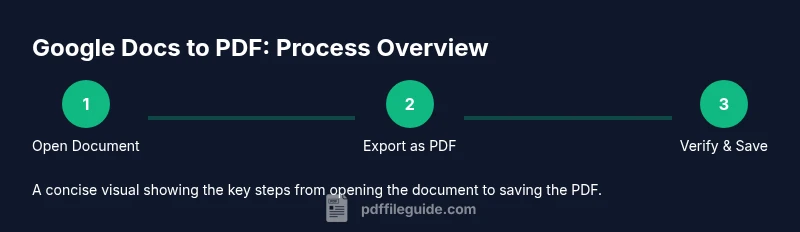
Open the Google Doc
Navigate to docs.google.com and open the file you want to export. Confirm you have access to the document and that the content is up to date before exporting.
Tip: Ensure you are signed into the correct Google account and that you have edit or view rights. - 2
Initiate export to PDF
From the menu, select File > Download > PDF Document (.pdf). The browser will begin preparing the file for download.
Tip: If you don’t see the option, refresh the page or try a different browser. - 3
Choose save location and filename
When prompted, choose a known folder and name that reflects the document's purpose or project.
Tip: Use a consistent naming convention like ProjectName_DocuName_Date. - 4
Open the saved PDF to verify
Locate the exported PDF and open it to verify formatting, images, and links.
Tip: Check headers, footers, and any tables for alignment issues. - 5
Alternative export for multiple documents
For several documents, repeat steps 1–4 or leverage browser Print-to-PDF as a quick batch approach.
Tip: Batching can save time, but validate each file individually. - 6
Optional browser-based print-to-PDF
If the standard export path is unavailable, use Print in your browser and choose Save as PDF.
Tip: Adjust layout settings to preserve margins and page orientation.
Questions & Answers
Will exporting preserve formatting?
In most cases, basic formatting is preserved when exporting to PDF. Complex layouts may require minor adjustments, but the outcome remains a fixed, shareable document.
Yes, most formatting stays intact, but you may need to tweak layout for complex designs.
Are hyperlinks clickable in the PDF?
Yes, hyperlinks generally remain clickable in the exported PDF. Always test a sample to confirm; some viewers handle links differently.
Hyperlinks usually work, but test to be sure in your viewer.
What if fonts change after export?
If fonts shift, switch to common system fonts (e.g., Arial, Times New Roman) before exporting. This reduces discrepancies across devices.
Use common fonts before exporting to minimize changes.
Can I export multiple Google Docs at once?
Google Docs does not natively bulk export. You typically export documents individually or use Drive-based automation tools to trigger exports one-by-one.
Bulk export isn’t built-in; you’ll export docs one by one or automate externally.
Do comments or suggestions appear in the PDF?
Comments and suggestions do not automatically appear in the PDF export. If needed, copy the comments into the document or export a separate notes version.
Comments aren’t shown by default; add them manually if needed.
Can I export from mobile devices?
Yes. Use the Google Docs mobile app to open the document, then use the export/share option to save as PDF. The path mirrors the desktop workflow but optimized for touch interfaces.
Export from the Google Docs app on iOS or Android by choosing PDF.
Watch Video
Key Takeaways
- Exporting from Google Docs to PDF preserves layout and links when done correctly.
- Use File > Download > PDF Document (.pdf) as the primary method.
- Print-to-PDF offers a reliable fallback for quick exports.
- Verify the final PDF on multiple devices to ensure fidelity.
- Adopt a consistent archival workflow to support accessibility and compliance.