Convert PDF into Google Docs: A Practical Guide
Learn how to turn PDFs into editable Google Docs with reliable methods, best practices, and tips. This guide from PDF File Guide covers built-in Drive conversion, OCR considerations, and post-conversion editing for accurate results.


Goal: turn a PDF into an editable Google Doc using Google Drive’s built-in converter, with optional third-party tools for tricky layouts. Upload the PDF, open with Google Docs, and refine formatting. According to PDF File Guide, plan for OCR needs if a PDF is scanned, and expect some layout adjustments along the way.
Understanding the PDF into Google Docs workflow
Converting a PDF into Google Docs is essentially two tasks: extracting text and reconstructing layout in an editable document. The complexity of the conversion depends on whether the PDF is text-based or a scanned image, and on how the original was laid out (columns, tables, headers, and embedded graphics). For simple PDFs, you’ll get clean text with minimal editing needed. For more complex layouts, you may need to manually reflow columns, rebuild tables, and adjust fonts. The goal is to produce a Google Doc that remains faithful to the original while staying easy to edit and share. Be mindful of OCR needs for scanned pages and the trade-off between preserving exact formatting and producing clean, searchable text. This approach aligns with best practices highlighted by PDF File Guide to deliver reliable results.
Choosing the Right Conversion Route
There are two main routes to convert a PDF into Google Docs: the built‑in Drive converter and a robust third‑party tool. The built‑in option is quick, convenient, and well suited to text‑based PDFs. For more complex layouts or scanned documents, a dedicated converter or OCR tool can improve fidelity, albeit with additional steps. If you need to pdf into google doc exactly, consider whether you value speed over precision, and choose the method that minimizes manual rework. If you are pursuing fidelity, start with the simplest method and escalate to OCR or specialized software if you encounter stubborn formatting. According to PDF File Guide, starting with the simplest method is usually best, then escalate to OCR or specialized software if needed.
Step 1: Prepare the PDF for a smoother conversion
Preparation pays off. Ensure the PDF’s text is selectable if possible, remove any password restrictions, and note any complex elements such as multilevel tables or embedded graphics. If you’re starting with a scanned PDF, aim for the highest scan quality available (300 dpi or higher) because OCR accuracy drops with blur. Save a backup copy of the original. Having a clean source helps reduce the amount of post‑conversion editing required.
Step 2: Convert using Google Drive
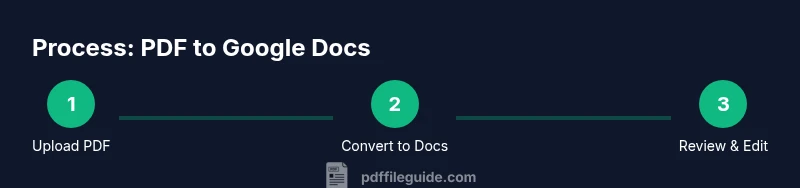
The fastest path is to use Google Drive’s Open with > Google Docs option. Upload the file, right‑click, choose Open with > Google Docs, and wait as Drive converts the file to an editable document. Review the new document for obvious issues, such as misinterpreted characters or broken lists. If the result isn’t satisfactory, try exporting to another format (Word) first, or use a dedicated PDF editor to adjust before re‑importing.
Step 3: Edit in Google Docs after import
Once the document opens in Google Docs, apply consistent headings and typography using the Styles panel. Correct any misread characters, fix hyphenation, and adjust line breaks to avoid wide gaps. Reinsert or resize images if needed, and ensure tables retain readable widths. Take advantage of built‑in find/replace to fix common OCR artifacts across the document. Aim for a clean, legible result suitable for collaboration.
Step 4: Alternative methods for complex PDFs
If the built‑in converter struggles, consider an alternate path: export the PDF to Word (or another editable format) via a desktop PDF editor, then import or copy into Google Docs. You can also run the PDF through an OCR tool to extract text before importing. Some teams use paid converters designed for high fidelity, with post‑conversion editing in Docs. Each method has trade‑offs between fidelity, formatting, and privacy.
Step 5: Validate results and fix formatting issues
After conversion, perform a line‑by‑line check against the original PDF. Verify headings, lists, tables, and captions. Check fonts and spacing; some fonts may not be available in Docs, prompting substitutions. If a section is hard to read, consider splitting it into shorter paragraphs or using a two‑column layout recreated with Docs’ table options. Finally, confirm that any sensitive information remains properly protected when sharing the final document.
Step 6: Save, share, and best practices
Rename the document with a clear, versioned title and organize it in a logically named Google Drive folder. Set share permissions carefully to restrict or grant access as needed. Consider enabling comments for collaborative edits and keeping a changelog in the document’s header. For long‑term projects, maintain a copy of the original PDF for reference and a separate master Doc for ongoing work.
Tools & Materials
- Google account with Google Drive access(Needed to access Google Docs converter)
- PDF file to convert(Source file (text-based preferred))
- Web browser(Chrome/Edge/Firefox recommended)
- Stable internet connection(Avoid timeouts during upload)
- Backup copy of the original PDF(Keep a secure copy before conversion)
- Optional: third-party converter or OCR tool(For complex layouts or scanned PDFs)
Steps
Estimated time: 30-60 minutes
- 1
Open the PDF in Google Drive
Upload or locate the PDF in Google Drive, then open it with Google Docs. This initializes the conversion process and creates an editable document.
Tip: Ensure you’re signed into the correct Google account before starting. - 2
Trigger the conversion to Google Docs
In Drive, right‑click the PDF, choose Open with > Google Docs, and wait for Drive to generate the editable document.
Tip: If you don’t see Google Docs, try refreshing Drive or using a different browser. - 3
Review and adjust formatting
Check headings, bullets, and alignment. Correct fonts and spacing to resemble the original without sacrificing readability.
Tip: Use Google Docs Styles to apply consistent headings and body text. - 4
Handle tables and images
Verify table structures and image placements. Rebuild complex tables if needed and resize images for the doc.
Tip: Right-click tables to access properties and adjust column widths. - 5
Save, rename, and organize
Rename the document and move it to the appropriate folder. Set sharing permissions as required.
Tip: Create a versioned name to track changes. - 6
OCR consideration for scanned PDFs
If your PDF is image‑based, OCR will extract text; accuracy depends on scan quality.
Tip: For poor scans, consider an OCR pass with a dedicated tool before importing.
Questions & Answers
Can Google Docs preserve complex formatting from a PDF?
Google Docs preserves simple text and basic formatting well; complex layouts (multicolumns, advanced tables) may require manual adjustments.
Google Docs handles simple formatting, but complex layouts often need edits.
Is OCR automatically applied when uploading a scanned PDF?
Yes, Drive can apply OCR during conversion, but accuracy depends on the scan quality and clarity.
OCR helps, but results vary with the scan.
How do I handle multiple PDFs at once?
Upload each PDF to Drive and convert individually, or use batch processing with Apps Script for automation.
You can batch process by uploading all PDFs and converting one by one.
Will images and charts be editable after conversion?
Images are generally not fully editable after conversion; you may need to reinsert or replace graphics.
Images may not be directly editable; you might reinsert.
What if the PDF is very large?
Large PDFs can be slow to convert and may trigger performance issues. Consider splitting before conversion.
Split large PDFs to improve reliability.
Watch Video
Key Takeaways
- Plan for OCR needs if the PDF is scanned.
- Choose the right route based on layout complexity.
- Always review and adjust formatting after conversion.
- Organize and share in Google Docs with proper permissions.