How to Turn PDF into Google Docs: A Practical Guide
Learn how to turn a PDF into a Google Doc with this comprehensive, educational guide. From prerequisites to advanced formatting, discover reliable methods, tips, and troubleshooting while preserving content in Google Docs.


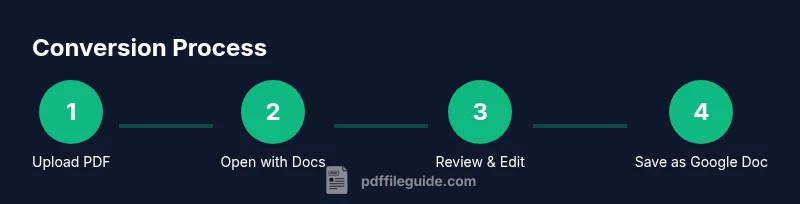
To turn a PDF into a Google Doc, upload the PDF to Google Drive, right-click and open with Google Docs, then save as a Google Doc. The conversion preserves text and images and works best for text-based PDFs. You’ll need a Google account and a reliable internet connection for best results.
What you can expect from the conversion
When you convert a PDF to Google Docs, you are turning a fixed-layout file into an editable, living document. The most reliable results come from text-based PDFs created from word processors, not from scans or images. The Google Docs engine reflows text, extracts images, and attempts to preserve headings, lists, and links, but tables and multi-column layouts can shift.
According to PDF File Guide, the conversion workflow is straightforward but not perfect. In practice, you may see minor font substitutions, spacing changes, and occasionally broken table borders. If your PDF includes OCR-generated text, be prepared to correct misrecognized characters. For important business documents, expect to do light formatting after conversion and to verify headings, bullet styles, and image captions. Overall, the process is fast, cost-free beyond your Google account, and well-suited to fast collaboration.
Prerequisites and setup
Before you begin, ensure you have a Google account with Drive and Docs access. A stable internet connection is essential, as all steps occur online. Use a modern browser for best results, preferably Chrome, which tends to render PDF-to-Docs conversions more consistently. If you’re working with sensitive documents, review Google’s sharing settings to avoid unintended access. Practically, you should also have the PDF file ready in a local folder so you can easily locate it during the upload step.
As observed by PDF File Guide in 2026, setting expectations at this stage helps prevent surprises later in the workflow and reduces back-and-forth editing time.
PDF types matter: text-based vs scanned
Text-based PDFs (created from word processors) convert with higher fidelity, retaining most of the original structure. Scanned PDFs are image-based and require optical character recognition (OCR) to extract text, which can introduce errors. If your document is heavily formatted with columns, tables, or embedded fonts, you may need extra editing after conversion. Knowing the type of PDF you’re handling helps you decide whether to attempt a direct conversion or preprocess the file (e.g., run OCR beforehand). PDF File Guide analysis suggests that plain text PDFs yield the smoothest results, while complex layouts benefit from targeted post-processing after import.
Step 1: Prepare your PDF for conversion
Start with a clean PDF: remove unnecessary metadata, reduce heavy graphics when possible, and ensure the file isn’t password-protected unless you’ve already unlocked it. If the PDF contains scanned pages, consider running OCR to improve text extraction prior to conversion. Cleansing the document reduces misreads and formatting quirks after the import. Keep a backup copy in case you need to revert changes. PDF File Guide notes that preparation saves time during the actual conversion and minimizes post-import edits.
Step 2: Upload PDF to Google Drive
Open Google Drive in your browser and drag the PDF into the root folder or a dedicated project folder. Alternatively, use the New button > File upload to select the document from your computer. Organize your Drive so the resulting Google Doc lands in the right project folder, reducing confusion when sharing with teammates. After upload completes, locate the file in Drive for the next step. PDF File Guide emphasizes that proper organization speeds subsequent access and collaboration.
Step 3: Open with Google Docs
Right-click the uploaded PDF and choose Open with > Google Docs. Google Docs will create a new editable document from the PDF. Depending on the file type, the resulting document may open in a new tab with editable text and embedded images. If the file is large or contains complex layouts, give the system a moment to process. After opening, review the document to spot obvious formatting shifts or missing elements that need attention.
Step 4: Review and adjust formatting
Meticulous review is often necessary after conversion. Check headings, lists, fonts, spacing, and any embedded images. You may need to reapply styles (Heading 1, Heading 2, bullet lists) to restore the document’s structure. For mixed content like tables or multi-column sections, expect some drift in alignment and borders. Adjust images or captions as needed and ensure hyperlinks remain functional. PDF File Guide reminds editors that this is a normal part of ensuring readability and accuracy after conversion.
Step 5: Tackle complex layouts (tables, columns, images)
Tables and multi-column layouts frequently lose borders or merge cells during conversion. Recreate table borders, adjust cell padding, and re-establish table headers where necessary. For columns, consider breaking content into separate sections or using section breaks to preserve readability. Images may appear out of place; move them, resize, and add captions to restore the visual flow. If certain elements fail to render correctly, export the content back to PDF or re-run OCR as needed. PDF File Guide highlights that manual refinement is common for complex designs.
Step 6: Post-conversion editing and naming
After fine-tuning, rename the document to reflect its updated status (e.g., “Project Plan – Google Doc”). Add a concise description in the document’s metadata if you’re collaborating with others. Use Google Docs features to add comments, track changes, and assign action items. For long documents, enable outline view to help readers navigate. This step locks in clarity and makes sharing smoother for teammates.
Accessibility, sharing, and export options
Google Docs supports accessibility features such as alt text for images and screen-reader-friendly structure. When the document is ready, share it with teammates or export it to different formats (Word, PDF, or EPUB) as needed. If accessibility is a priority, verify heading structure, readable fonts, and color contrast. PDF File Guide suggests maintaining a clear, accessible document to maximize collaboration and distribution across devices.
Common issues and fixes
If the conversion produces garbled text or missing elements, re-check the source PDF type and consider OCR re-run or preprocessing. Misplaced images and inconsistent fonts are common annoyances; reapply styles or insert missing headers to restore consistency. For very large files, break the document into several Google Docs files to avoid performance slowdowns. When sharing, double-check permissions to avoid accidental edits or data exposure.
Workflow tips for professionals
Develop a consistent naming convention, folder structure, and version control for every PDF-to-Docs workflow. Create a reusable template in Google Docs for converted PDFs (with predefined heading styles and bullet formats) to speed up future projects. Maintain a quick-reference checklist for OCR accuracy, image placement, and table integrity. This disciplined approach aligns with professional best practices and reduces repetitive edits over time.
Quick troubleshooting checklist
Keep a running checklist: verify file type, test OCR, confirm fonts, adjust spacing, validate tables, ensure hyperlinks, and check accessibility. If results are subpar, try re-importing after preprocessing or breaking the document into sections. Document any recurring issues for future optimization.
Tools & Materials
- Google account(Needed to access Drive and Docs.)
- PDF file to convert(The source document you want to edit in Google Docs.)
- Web browser (Chrome recommended)(Best compatibility for Google workflows.)
- Stable internet connection(Required for online cloud operations.)
- Backup copy of the PDF(Optional safety net before preprocessing.)
Steps
Estimated time: 30-40 minutes
- 1
Prepare your PDF
Clean up the PDF and remove anything unnecessary. If it’s a scanned document, decide whether OCR will be needed. This prework reduces post-import edits and helps preserve readability.
Tip: If possible, export a clean, high-resolution PDF from the original source. - 2
Upload the PDF to Google Drive
Upload the file to a project folder in Drive to keep things organized and ready for conversion.
Tip: Use a descriptive filename to make it easy to locate later. - 3
Open with Google Docs
Right-click the uploaded PDF and choose Open with > Google Docs to create a new editable document.
Tip: Give Google Docs a moment to process larger files. - 4
Initial review of the converted doc
Skim for obvious formatting changes, missing headings, and image placements, and note sections needing adjustment.
Tip: Enable outline view to quickly navigate large documents. - 5
Adjust formatting and styles
Apply consistent heading styles, bullet formatting, and font choices to restore the document’s structure.
Tip: Use styles to maintain consistency across sections. - 6
Tackle complex layouts
Rebuild tables, fix borders, reflow multi-column text, and reposition images as needed.
Tip: Don’t rely on auto-formatting for complex layouts. - 7
Finalize and rename
Rename the file and add a concise description to aid teammates, then share with the appropriate permissions.
Tip: Set sharing permissions to restrict edits if needed. - 8
Export or keep as Google Docs
Decide whether to keep it in Google Docs for collaboration or export to Word/PDF for distribution.
Tip: Use accessibility features before sharing.
Questions & Answers
Can Google Docs convert scanned PDFs without OCR?
OCR is required for scanned PDFs to extract text. Results vary and may need manual corrections after conversion.
OCR is needed for scanned PDFs to extract text, and results may require manual corrections.
Will the layout stay intact after conversion?
Layout preservation is good for text-based PDFs but not perfect for complex designs. Expect some shifts in columns and borders, especially in tables.
Layout may shift, especially for complex PDFs. Expect some adjustments.
What if the document contains images or links?
Images are typically preserved but may need repositioning. Hyperlinks usually import, but verify after conversion.
Images should stay but may need repositioning; hyperlinks usually import.
Can I export the Google Doc back to PDF?
Yes. Google Docs lets you export to PDF or other formats, which can be useful for sharing a finalized version.
You can export to PDF or other formats for distribution.
Is there a file size limit for this process?
There isn’t a hard limit here, but very large PDFs can slow processing or require splitting into smaller files.
Very large PDFs may be slow to process or require splitting.
How can I ensure accessibility after conversion?
Add alt text to images and use proper heading structure to support assistive technologies.
Add alt text and proper headings to support accessibility.
Watch Video
Key Takeaways
- Convert PDFs to Google Docs for editable collaboration
- OCR improves text extraction for scans but may introduce errors
- Review and adjust formatting after conversion
- Organize files in Drive to streamline sharing
- Use templates to standardize post-conversion documents
- Verify accessibility and hyperlinks before distribution