How to PDF an Email in Outlook
Learn how to save Outlook emails as PDFs using built-in options in desktop and web versions. This educational guide covers methods, fidelity, troubleshooting, and best practices for reliable PDF exports.


By the end of this guide, you’ll save any Outlook email as a PDF using built-in Print to PDF options available in desktop Outlook or Outlook on the Web. You’ll learn a quick method, how to verify content fidelity, and how to troubleshoot common formatting quirks—without installing extra software today.
Why saving Outlook emails as PDF is useful
Saving a copy of an email as PDF provides a stable, shareable record that preserves the original formatting, inline images, and attachments. When you need to share a message with colleagues or archive correspondence for compliance, a PDF offers a consistent view across devices and platforms. According to PDF File Guide, using built-in export methods minimizes the risk of losing formatting compared to copying text into a word processor. In Outlook, you can save individual messages as PDFs or batch-export multiple messages if your workflow requires it. This section dives into why PDFs are preferable for email documentation and how to approach the task using native features on both Windows and macOS. The goal is to help professionals keep exact records, reduce confusion, and streamline audits or reviews.
Note: The PDF File Guide team emphasizes sticking to built-in options when possible to ensure broad compatibility and future accessibility.
Outlook variants: Desktop vs Web
Outlook on Windows and macOS provides slightly different paths to export emails as PDFs, while Outlook on the Web (OWA) relies more on the browser's print-to-PDF capability. In desktop Outlook, the common route is through the Print dialog, where you choose a PDF printer or Save as PDF. On the Web, you generally use the browser's print dialog and select Save as PDF or a PDF printer. The core principle remains the same: access the Print options, choose PDF as the output, and save with a clear file name. The PDF File Guide analysis shows that most users achieve reliable results with native options, provided the layout is preserved and attachments are visible within the printable area.
Methods to convert: built-in print-to-PDF vs browser print-to-PDF
Two primary methods exist for exporting Outlook emails to PDF. Method A uses the native Print to PDF feature in Windows or macOS, which often preserves layout and inline content. Method B leverages the browser print dialog when using Outlook on the Web, which can yield consistent results for simple emails but may vary with complex signatures or images. For most users, starting with the built-in Outlook print flow is sufficient, and Edge/Chrome can handle the final Save as PDF step. In some cases, switching printers in the dialog to a dedicated PDF printer provides more control over image quality and resolution.
Quick method overview for time-sensitive scenarios
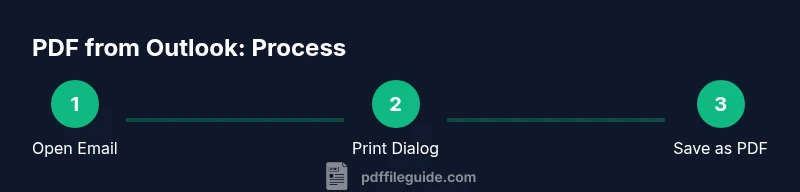
If you need a fast export, open the email, press Ctrl+P (Windows) or Cmd+P (macOS), select Save as PDF or a PDF printer, review the preview, name the file, and save. This path minimizes navigation steps while preserving formatting. When saving multiple emails, batch-export will require a slightly more deliberate approach or a small scripting aid, but for single messages, the direct print-to-PDF route is the quickest route.
Formatting and content fidelity considerations
Emails often include signatures, images, and inline formatting that may shift in the PDF. To maximize fidelity, review the print preview for margins, header/footer adjustments, and whether attachments appear in the document. If content is truncated, try adjusting scale or choosing a different PDF printer. For long threads, consider exporting each message separately to avoid losing context within a single PDF. The goal is a faithful, readable replica that preserves hyperlinks and critical data.
Troubleshooting common issues and edge cases
If the PDF lacks images or formatting, ensure the printer is set to high-quality output and that web fonts render correctly. If signatures look garbled, try printing from a different Outlook renderer (desktop vs web) or adjust Internet options related to fonts in your browser. For emails with large attachments, remember the PDF will capture the attachments as part of the message, but you may want to include or reference large attachments separately in a companion document. The PDF File Guide suggests verifying the final PDF on another device to confirm consistent fidelity.
Tools & Materials
- Outlook (desktop or web)(Open the email you want to export to PDF)
- Print to PDF option or PDF printer(Choose Print, then select 'Save as PDF' or a PDF printer)
- PDF viewer(Open the created PDF to verify content and layout)
- File name and destination(Choose a clear filename and a folder you can locate later)
- Optional: separate backup method for large threads(If exporting multiple emails, consider grouping or batching exports)
Steps
Estimated time: 5-15 minutes per email, depending on length and settings
- 1
Open the target email in Outlook
Navigate to the email you want to export and open it in full view. Make sure you can clearly see the message body, images, and any attachments. This ensures all content will be captured in the PDF.
Tip: If printing a thread, view the specific message you want to export to keep the PDF focused. - 2
Open the Print dialog
With the email open, invoke the Print dialog using Ctrl+P (Windows) or Cmd+P (Mac). This opens the print preview where you’ll choose the output format.
Tip: In many Outlook setups, you can also access Print via the File menu if keyboard shortcuts don’t respond. - 3
Select Save as PDF or a PDF printer
In the printer selection, choose Save as PDF (or a PDF printer like Microsoft Print to PDF). Confirm that the preview shows the full email content and that signatures and images appear.
Tip: If you see truncated content, adjust the scale or margins before saving. - 4
Configure page settings for fidelity
Review layout options such as orientation, margins, and whether headers/footers are included. A small adjustment here can prevent content from being cut off.
Tip: Turn on background graphics if your email includes important background colors or logos. - 5
Name the PDF and choose a save location
Enter a descriptive filename (e.g., 'Project A – Client Reply 02-06-2026') and pick a folder you can easily access later. Consistent naming helps future retrieval.
Tip: If you export multiple emails, adopt a consistent naming convention to simplify sorting. - 6
Open the PDF to verify fidelity
Open the saved PDF in a PDF viewer and check that all content—text, images, links, and signatures—renders correctly. If issues appear, repeat with adjusted print settings or try the web browser method.
Tip: Keep a backup copy of the original email in case you need to reference it later.
Questions & Answers
Can I include attachments in the PDF export?
The PDF export captures the email content, including attachments if they were embedded or attached in the message. Consider referencing large attachments separately if needed.
Yes, attachments can be included as part of the email view, but large files might require separate handling.
Will the formatting stay the same across devices?
PDFs generally preserve layout and fonts, but some email signatures or dynamic content may render differently depending on the viewer. Use high-quality PDF settings if fidelity matters.
Most formatting stays stable, but test on another device to be sure.
Does this work with Outlook on mobile?
Outlook mobile apps may offer limited export options; use a desktop or web approach with the browser’s print-to-PDF if needed.
Mobile export can be limited; desktop or web is usually more reliable.
How do I export multiple emails into a single PDF?
Export emails individually to separate PDFs for clarity, or use a third-party tool if you need a single consolidated document. The built-in options typically export one email at a time.
Export each email separately, or use a dedicated tool for a single file.
What if Save as PDF isn't available in the Print dialog?
Try Microsoft Print to PDF (Windows) or use the browser’s print function if you’re on the web version. If issues persist, update printer drivers or try a different browser.
If Save as PDF isn’t shown, use the browser or a PDF printer as fallback.
Is there a recommended file naming convention?
Adopt a consistent convention such as 'YYYY-MM-DD_Name_Subject.pdf' to simplify sorting and retrieval later.
Use a clear, consistent naming scheme for easy search later.
Watch Video
Key Takeaways
- Open the target email and access Print options
- Choose Save as PDF or a PDF printer for fidelity
- Review layout and margins before saving
- Verify the resulting PDF for content integrity