Can You PDF an Email? The Complete 2026 Guide
Learn how to save email messages as PDFs across devices and clients. This step-by-step guide covers print-to-PDF, browser options, handling attachments, privacy tips, and cross‑platform workflows for professionals who edit and archive PDFs.


Yes. You can convert an email to PDF by using print-to-PDF in your email client, the browser’s print dialog, or a dedicated PDF printer. The process works for emails in all major clients, and you can save attachments as a separate PDF if needed. This guide shows both built-in and utility methods.
What does it mean to PDF an email?
PDF stands for portable document format. When you pdf an email, you're turning the dynamic email into a static document. This is useful for archiving, legal records, or distributing a record-keeping copy. A PDF preserves text, images, and basic layout. It does not typically capture dynamic content like interactive forms or scripts. For most professionals who edit, convert, or optimize PDFs, this means you can share a faithful copy that looks the same on any device. The PDF File Guide team notes that the most reliable approach depends on the device and the email client you use. If your goal is to preserve metadata such as date, sender, and subject, you should select the option to include headers in the PDF or use a profile that keeps these fields visible on the first page. Considering these points will help you standardize your archival process.
Quick overview of the most reliable methods
There are several dependable routes to convert emails to PDF, depending on your device and software ecosystem. The most common are built-in print-to-PDF options in email clients and web browsers, followed by third‑party PDF printers or dedicated conversion tools. Each method has nuances around headers, thread formatting, and attachments, so selecting the right approach matters for consistency. Throughout this article, we’ll reference best practices from PDF File Guide to help you meet professional standards for document management.
Method 1: Print-to-PDF from your email client
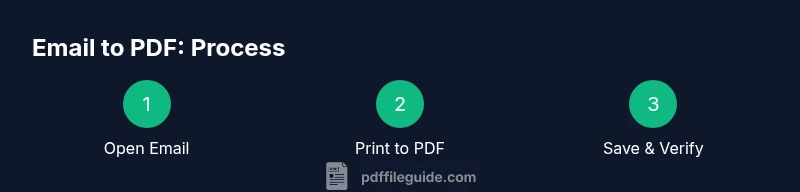
Most desktop email clients (like Outlook, Thunderbird, Apple Mail) include a print option that can save the content as a PDF. Open the message, choose Print, then select Save as PDF or Print to PDF as the printer. Verify that the subject, sender, date, and content appear in the PDF, and adjust margins or page size if needed. If attachments are essential, consider saving them as separate PDFs to keep the main document compact. Pro tip: preview the PDF before saving to catch truncations or formatting issues.
Method 2: Print-to-PDF using a webmail browser
Webmail interfaces (Gmail, Outlook.com, Yahoo) expose print options within the browser. Open the email, click the printer icon or Ctrl/Cmd+P, and choose Save as PDF. This method reliably captures the visible web view, including links, images, and signatures. If you’re archiving multiple messages, use the “Print” dialog’s options to adjust layout, or use a browser extension that streams multiple emails into a single PDF.
Method 3: Using dedicated PDF software or virtual printers
If you frequently convert emails, a dedicated PDF solution or a virtual printer offers more control. Programs like Adobe PDF, CutePDF, or PrimoPDF install a printer driver you can select in any print dialog. They provide advanced features such as embedding fonts, password protection, and automated naming. Choose a tool that fits your security requirements and licensing terms.
Keeping the right content: including headers, attachments, and metadata
Decide whether headers (From, To, Date, Subject) should appear in the PDF. For some workflows, including full headers helps compliance; for others, a clean front page is enough. Attachments can be embedded or saved separately; for archiving, a separate PDFs bundle can improve readability and indexing. Metadata such as keywords or author can be embedded in the PDF for searchability, so enable metadata fields if your tool supports it.
Handling conversations and threaded emails
Threaded conversations can create long, multi-page PDFs. You may want to print individual messages as separate PDFs or collapse threads into a single document with separators. Some clients allow “conversation view off” to export each message cleanly. If you need to cite a specific reply, the PDF should clearly show the relevant timestamp and sender for audit trails.
Security and privacy considerations when saving emails as PDFs
PDFs can be shared or stored in cloud drives. Be mindful of confidential information, especially if the email contains personal data, financial details, or credentials. Use password protections or restricted permissions if your PDF software supports it. Remove sensitive content when sharing publicly, and consider redacting headers if they disclose sensitive metadata.
Cross-platform tips: Windows, macOS, Linux, and mobile
Windows and macOS both support built-in print-to-PDF workflows, while Linux users can rely on CUPS-PDF or LibreOffice. On mobile devices, many apps offer a “Share as PDF” option or a print-to-PDF route. Consistency across platforms helps maintain uniform archives. PDF File Guide recommends testing a sample email on each platform you support to confirm layout and metadata alignment.
Troubleshooting common issues and quick fixes
If the PDF looks cropped or missing images, adjust the page size, margins, or print quality settings in the dialog. Some attachments may not render inline; save attachments separately if needed. For long threads, consider exporting as a multi-page PDF with clear headers and page breaks. When content is missing, re-open the email and re-export to a fresh PDF to ensure completeness.
Accessibility and searchability of PDFs
Ensure that PDFs are accessible by using proper tagging and alt text for images, and by including meaningful document structure with headings. If your tool supports it, add document metadata like title, author, and subject. A well-tagged PDF improves readability with screen readers and enhances search indexing for internal archives.
Tools & Materials
- Computer or mobile device with email access(Windows, macOS, Android, or iOS; ensure internet access for webmail)
- Email client or webmail interface(Outlook, Gmail, Apple Mail, Thunderbird, etc.)
- Print-to-PDF capability or PDF printer(Built-in or third-party like Microsoft Print to PDF, Adobe PDF, or CutePDF)
- PDF management tool (optional)(Adobe Acrobat, Foxit, or similar for advanced features)
- Storage location(Folder or cloud storage with organized naming)
Steps
Estimated time: 15-30 minutes
- 1
Open the email you want to convert
Locate the message in your email client or webmail and open it in a focused view to ensure all content renders correctly in the resulting PDF.
Tip: If the email is long, use a single message view rather than a conversation view to avoid missing content. - 2
Choose Print or Print to PDF
Access the print command from the application menu or use Ctrl/Cmd+P to open the print dialog. This is the gateway to saving the email as a PDF.
Tip: Some apps use a dedicated Save as PDF option instead of the generic print dialog. - 3
Select Save as PDF option or PDF printer
In the print dialog, select Save as PDF or choose a PDF printer driver such as Microsoft Print to PDF, Adobe PDF, or CutePDF.
Tip: If multiple PDF printers are listed, pick the one that offers best quality and file size control. - 4
Configure layout and pages
Adjust margins, orientation (portrait/landscape), and page size to ensure all content fits clearly on the page. Preview the output to catch truncation.
Tip: Use landscape orientation for long threads to reduce page breaks. - 5
Save with a descriptive filename
Name the file with a clear, consistent convention (date, subject, and recipient) to ease retrieval.
Tip: Include a version or thread identifier if exporting multiple messages. - 6
Save attachments if needed
If you need attachments accessible in the record, save them as separate PDFs or embed them if your tool supports it.
Tip: Keep attachments separate to avoid inflating the main PDF. - 7
Verify the PDF content
Open the saved PDF and verify that header information, links, and formatting appear as expected.
Tip: Check that embedded images render correctly and that any signatures are included. - 8
Store or share the PDF securely
Move the final PDF to its destination and set access controls if supported by your storage system.
Tip: For sensitive emails, enable password protection or restrict sharing. - 9
Repeat for additional emails or threads
If archiving multiple messages, repeat the process or consider exporting a full thread as a single PDF for easier searchability.
Tip: Use a consistent naming scheme across all PDFs.
Questions & Answers
What is the difference between saving a single email and a thread as PDF?
Saving a single email captures just that message, while saving a thread includes all replies. Decide based on archival needs and readability. Some clients allow exporting the thread as a single PDF with separators.
Saving a single email captures just that message; a thread includes replies. Choose based on readability and archival needs.
Can attachments be included in the PDF?
Attachments can be saved as separate PDFs or embedded, depending on the tool. If preserving readability, consider separate PDFs for attachments.
Attachments can be saved separately or embedded, depending on the tool you use.
Is there a difference between Windows and macOS for printing to PDF?
Both OSes support print-to-PDF, but the available options and dialogs differ. On macOS, the built-in Save as PDF is straightforward; Windows offers a built-in PDF printer in newer versions.
Both OSes support print-to-PDF; dialogs differ by platform.
Are there privacy concerns when saving emails as PDFs?
Saving emails as PDFs can expose sensitive data if not secured. Use password protection and restrict sharing for confidential content.
Yes. Protect PDFs with passwords and control sharing to protect privacy.
Can I automate email-to-PDF workflows?
Automation is possible with scripting or third-party tools, but requires setup and security considerations. Review policies before enabling automated exports.
Automation is possible but requires setup and security checks.
What about mobile devices?
Most mobile mail apps support a print-to-PDF option or a share-as-PDF feature. Check app-specific menus.
Mobile export is usually supported via print or share options.
Do I need special software to preserve formatting?
For most needs, built-in print-to-PDF preserves formatting. Advanced formatting may benefit from a dedicated PDF editor.
Usually built-in options preserve formatting; more control with PDF editors if needed.
Watch Video
Key Takeaways
- Know when to export full threads vs single messages
- Use print-to-PDF or a PDF printer for consistency
- Verify content and headers before filing
- Protect sensitive PDFs with passwords when needed
- Maintain a consistent naming convention for easy retrieval