How to Save Emails to PDF: Step-by-Step Guide
Learn how to save emails to PDF across Gmail, Outlook, and Apple Mail. This educational guide covers methods, best practices, security, accessibility, and step-by-step workflows for individuals and professionals.


Saving emails to PDF is straightforward. Use Print -> Save as PDF or the built-in export options in your email client. This concise guide provides a reliable, repeatable workflow for single messages or grouped conversations.
Why saving emails to PDF matters
In the modern digital workspace, emails document decisions, approvals, and communications that drive projects. Saving emails to PDF preserves the exact content, layout, timestamps, and even embedded links, while producing a portable file that can be shared, stored, or archived with minimal risk of alteration. PDF files tend to render consistently across devices and operating systems, which helps teams maintain a reliable evidence trail. According to PDF File Guide, a consistent email-to-PDF workflow improves retrieval times and simplifies audits by providing a stable, searchable format. When you convert emails to PDF, you can attach multiple messages into a single document or split long threads into topic-specific archives. This is especially useful for project records, client conversations, and regulatory records. The guidance here is designed for both individuals and professionals who manage email records.
By mastering basic and advanced saving techniques, you gain control over how you store, share, and secure sensitive information. You’ll also learn to balance accessibility with privacy, so that PDFs remain readable by assistive technologies while staying protected from unauthorized access.
PDF File Guide’s approach emphasizes a practical workflow that minimizes friction and maximizes consistency. As you read on, you’ll see methods tailored for Gmail, Outlook, and Apple Mail, plus tips for batching, organizing, and securing your archives.
]] ,
bodyBlocks.length
0
Tools & Materials
- Computer or mobile device with internet access(Desktop or laptop preferred for batch exports; mobile devices support some apps but with limitations.)
- Email client or webmail access (Gmail, Outlook, Apple Mail, etc.)(Ensure you have access to the target account and permissions to view the messages.)
- PDF printer or built-in Save as PDF feature(Windows: )
- PDF viewer/editor (optional)(Useful for verifying content or merging PDFs later.)
- Cloud storage or external drive (optional)(For long-term backups or sharing large archives.)
- Named folder structure or naming convention guide (optional)(Helps with consistency across archives.)
- OCR-capable tool (optional for scanned images)(If your emails contain scanned images or non-selectable text.)
- Security tools or password-protection option (optional)(Use when you need to protect sensitive archives.)
Steps
Estimated time: 60-90 minutes
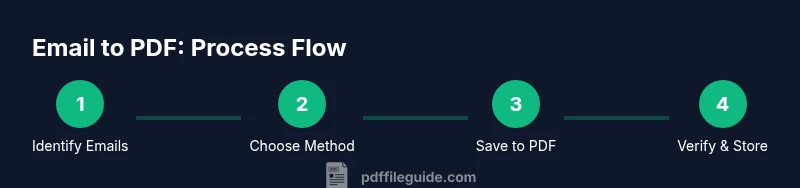
- 1
Identify the emails to save
Catalog the messages you want archived. Decide if you will save a single email, a complete thread, or a batch of conversations. Clarify the purpose of the archive (compliance, project records, or knowledge sharing) to choose the right method.
Tip: Create a focused list or label in your email client to group the items you’ll export. - 2
Choose a saving method
Choose between the browser/email client’s built-in Save as PDF, a dedicated PDF printer, or a batch export tool. For most users, Print/Export to PDF is the simplest path; for many threads, saving as a single PDF works best.
Tip: If you’re unsure, start with Save as PDF for a few messages to confirm formatting before batch exporting. - 3
Open the target email or thread
Open the message you want to save. For threads, ensure you can view the entire conversation or select the option to print the whole thread. Confirm that any attachments or linked content are visible in the view you intend to archive.
Tip: Use the “Print” view to verify what will appear in the final PDF. - 4
Initiate the PDF save
Trigger the Save as PDF function via Print (Ctrl/Cmd + P) or through the email client's export menu. Select the destination folder and ensure the format is PDF. If prompted, adjust layout (portrait/landscape) and margins for readability.
Tip: Choose a folder with consistent access rights to avoid missing archives later. - 5
Save a thread as a single PDF
When archiving a conversation, select the option to print the entire thread. Most clients offer “All messages” or similar. Save as PDF to preserve the chronological flow and attached items as part of the document.
Tip: Verify that the first page shows the thread summary and dates for context. - 6
Batch export multiple emails
If exporting many messages, use a bulk selection (e.g., a label or folder) and print/export to a single PDF when possible, or export to individual PDFs and merge later with a PDF tool.
Tip: Merging after export keeps file counts manageable and reduces duplication. - 7
Rename and organize the PDFs
Name files with a consistent convention (date_subject, or project_code_subject) and place them in a logical folder structure. Include year-month for easy sorting.
Tip: Avoid spaces or special characters that can cause issues across systems. - 8
Verify content and accessibility
Open the saved PDFs to confirm text is selectable, links work, and embedded content is accessible. Use a screen reader to test basic accessibility if needed.
Tip: If text is not selectable, consider OCR for better accessibility. - 9
Secure and back up the archives
If confidentiality matters, password-protect PDFs and store the files in a secure location or encrypted drive. Create a backup copy in a trusted cloud service.
Tip: Document your archival policy so others follow the same process.
Questions & Answers
What is the simplest way to save a single email as a PDF?
Open the email, press Ctrl+P (Windows) or Cmd+P (Mac), choose Save as PDF, and select a destination. This preserves formatting and links.
Open the message, print to PDF, and save to your chosen folder.
Can I save an entire conversation thread as a single PDF?
Yes. Use the Print option to print the entire thread and then Save as PDF. Ensure the view includes all messages and timestamps to maintain context.
Print the whole thread and save as one PDF for easy sharing.
How do I batch export multiple emails into PDFs?
Batch exports are typically done by selecting a group or folder in your email client, printing or exporting to PDF, and then combining the resulting PDFs with a merging tool if needed.
Select the emails, export to PDFs, and merge if you want a single file.
Will saving to PDF preserve attachments and links?
Most exports preserve email content, links, and inline attachments. Attachments are usually included as part of the PDF content or as linked items within the document.
Attachments and links are typically preserved and clickable in the PDF.
How can I password-protect saved PDFs?
Use your PDF tool’s security settings to set a password. This helps protect sensitive information during storage and sharing.
Apply a password when saving the PDF to keep it secure.
Is there a mobile-friendly method to save emails as PDFs?
Yes. Use the mobile app’s share or print function to Save as PDF, then store the file on the device or cloud.
Open the email on mobile, share or print to PDF, and save it.
Watch Video
Key Takeaways
- Archive emails with a consistent PDF workflow
- Save full conversations when needed to preserve context
- Batch export and merge for efficient long-term storage
- Use clear, consistent naming and organized folders