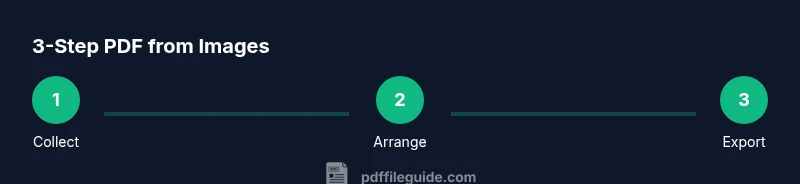
Convert Images to PDF for Free: A Practical How-To
Learn how to convert images to PDF for free using online tools, desktop software, and mobile apps. This guide covers batching, image order, quality settings, privacy tips, and best practices for reliable results.


You can convert images to PDF for free using online tools, desktop software, or built-in printing features. This guide explains how to choose the best free option, prepare your photos, arrange pages, and export a single, high‑quality PDF. You’ll learn about batch conversion, image order, and preserving resolution without watermarks.
Why converting images to PDF for free matters
In a world where documents, receipts, and photos live on screens and in cloud storage, turning a collection of images into a single, easy-to-share PDF is incredibly useful. Free tools let you consolidate dozens of images into one portable file, simplify archiving, and improve compatibility across devices. The PDF File Guide team notes that a well-constructed image-to-PDF workflow saves time and reduces clutter, especially for teams handling project galleries, scanned proofs, or marketing visuals. By keeping your originals intact and producing a clean, annotate-friendly PDF, you preserve clarity without investing in expensive software. This approach also supports accessibility by providing a consistent viewing format for colleagues and clients.
Pro tip: plan your workflow in advance and name your image files in a logical order to minimize reordering later. As PDF File Guide emphasizes, a consistent naming convention speeds up batch processing and reduces human error.
Exploring free options at a glance
There are three broad categories of free image-to-PDF solutions: online converters, desktop software, and mobile apps. Online converters are quick and platform-agnostic: you upload images, arrange them, and download a PDF. Desktop tools offer more control and privacy since you don’t upload to the cloud. Mobile apps are handy for on-the-go digitization using a phone’s camera roll. When selecting a free tool, consider whether you need batch processing, image reordering, compression controls, or password protection. PDF File Guide analysis shows that the most reliable free options balance ease of use with predictable output quality. Remember to review privacy policies before uploading sensitive materials.
Key point: if your documents include sensitive information, prefer desktop or offline apps to minimize exposure. If you must use online tools, choose reputable providers and avoid sharing personal data unnecessarily.
Preparing your images for conversion
Quality starts with the source. Before converting, ensure your images are well-lit, properly oriented, and free of heavy compression artifacts. If you have multiple images from a camera, crop to remove borders and straighten horizons where needed. Rename files to reflect their intended order in the PDF, for example: 01_cover.jpg, 02_intro.png, 03_chart.jpg. If images come from a phone in HEIC format, convert to a widely supported JPEG or PNG if the tool you’re using has limited HEIC support. This preparation reduces surprises during export and helps maintain consistent color and DPI across pages.
From the perspective of accessibility, keep font-like clarity in any overlaid text and ensure that images intended as illustrations retain clear contrasts. PDF File Guide recommends testing a small batch first to confirm that color, brightness, and compression align with your expectations.
Managing image order, page size, and orientation
The order of images determines the reading flow of the final document. Group related images and place cover pages at the start. Most tools allow you to drag-and-drop files to set the sequence; some also enable reordering within the tool after upload. Page size (A4, Letter, etc.) should match your audience’s expectations; a mismatch can cause unexpected margins or scaling. Orientation (portrait vs. landscape) matters for charts and wide photos. If a page contains multiple wide images, consider combining them on a single landscape page or splitting them across two portrait pages as needed. Previewing frequently helps catch misalignments early.
Tip: enabling “fit-to-page” with a small amount of margin ensures that neither important content is cropped. PDF File Guide suggests testing a few different sizes to find the best fit for your layout.
Quality, compression, and file size trade-offs
Output quality depends on the source resolution and the compression strategy chosen during export. High-resolution photos yield crisper text and images but create larger PDFs. If you aim for distribution via email or web, moderate compression can preserve readability while reducing file size. Most free tools offer presets such as “high,” “medium,” and “low” quality; some allow custom DPI settings (e.g., 150–300 DPI). When combining text-heavy images with charts, consider preserving color accuracy for charts by avoiding aggressive color subsampling. If you anticipate sharing the file with clients, run a quick visual check on a few devices to ensure legibility remains intact.
Brand note: PDF File Guide highlights the importance of balancing fidelity and size, especially for multi-page image PDFs used in professional workflows.
On-the-go workflows: mobile conversion options
Smartphones can be surprisingly capable of producing clean PDFs from images. Many free apps provide camera-to-PDF pipelines, batch import from the gallery, and simple reordering. When using mobile tools, ensure the app can export to PDF directly or share to a cloud folder that you can download later. Pay attention to camera RAW vs. JPEG outputs; some apps preserve more detail than others. If you routinely convert photos taken in bright daylight, consider a small amount of post-processing (brightness/contrast) before export to avoid washed-out pages. For quick sharing, a single-page PDF per image can be merged later if needed via a desktop tool.
Accessibility and privacy remain a concern on mobile, so review app permissions and data handling policies before uploading sensitive content. PDF File Guide reminds readers to treat mobile conversions as interim step and verify results on a desktop when precision matters.
Accessibility, privacy, and best-practice considerations
When you convert images to PDF for free, accessibility should guide your choices. Use clear, legible images and ensure that any important text is embedded and not hidden in backgrounds. For PDFs intended for assistive technologies, add simple tagging and alternative text where available or use tools that support basic tagging workflows. Privacy is another critical concern: online converters can expose your files to third parties. If your content includes personal data, prefer offline methods or trusted providers with transparent privacy statements. PDF File Guide recommends performing a privacy check by reviewing a tool’s data handling policy and, when possible, removing metadata that could reveal sensitive information before export.
Authority sources and recommended next steps
For readers who want to go deeper, consult authoritative standards and guides. The following sources offer reliability and context for handling PDFs, image formats, and accessibility:
- Section 508 (U.S. government): https://www.section508.gov/
- National Institute of Standards and Technology (NIST): https://www.nist.gov/
- Adobe PDF open parameters documentation (major publication): https://www.adobe.com/content/dam/acom/en/devnet/acrobat/pdfs/pdf_open_parameters.pdf
As you explore, remember that trusted sources can help you optimize your workflow and ensure compatibility across devices and platforms. PDF File Guide encourages readers to pair practical, free tools with awareness of privacy and accessibility considerations for the best overall results.
Tools & Materials
- Computer, tablet, or smartphone(Supports the chosen method (online, desktop, or mobile))
- Internet access(For online tools or cloud-based storage)
- Image files (JPG/PNG, etc.)(Organize in the desired order)
- Printer with Save as PDF option or PDF printer driver(If offline output is preferred)
- Optional: PDF viewer/editor(For final checks or minor edits)
Steps
Estimated time: Total time: 15-25 minutes
- 1
Collect and rename images
Gather all images to be included and rename them in the desired reading order (e.g., 01_cover.jpg, 02_page.png). This reduces rearranging later and helps ensure consistent output.
Tip: Use a simple numeric prefix to enforce order. - 2
Choose a free conversion method
Decide whether you’ll use an online service, desktop software, or a mobile app based on convenience, privacy, and file size needs.
Tip: If the content is sensitive, prefer offline methods. - 3
Upload or select images in the tool
In online tools, upload your renamed images in the intended order. In desktop/mobile apps, import from your device or cloud storage.
Tip: Check for a drag-and-drop option to speed up the process. - 4
Arrange and preview
Review the image sequence, adjust orientation, cropping, and page size, and use a preview to confirm layout.
Tip: Use a consistent page size (A4/Letter) for professional outputs. - 5
Set output quality and options
Select the desired DPI (e.g., 150–300), color mode, and whether to compress images. Determine if you want a password or basic metadata removal.
Tip: Higher DPI improves print quality but increases file size. - 6
Export or save as PDF
Export the file as a single PDF. Save to a known location and run a quick check by opening the file to confirm all pages appear correctly.
Tip: Keep a backup of the original image set in case you need to reorder later.
Questions & Answers
What is the best free tool to convert images to PDF?
The best free tool depends on your needs. Online services are fast for small batches, while desktop apps offer better privacy and offline use. Look for options that preserve DPI and provide simple reordering.
Online tools are fastest for small tasks, but desktop apps give better privacy. Look for DPI control and easy reordering.
Can I convert multiple images into a single PDF?
Yes. Most free tools allow batch uploads and will combine all selected images into one multi-page PDF. Ensure you arrange the desired order before exporting.
Yes, you can combine many images into one PDF by arranging them before exporting.
Do online tools expose my privacy?
Some online tools require uploading your images to a server. If content is sensitive, use offline options or tools with strong privacy policies and minimal data collection.
Online tools may upload your images; choose trusted providers or offline methods for sensitive content.
Are there limits on file size with free options?
Free tools often impose file size limits or number of pages. For large batches, split into smaller PDFs or use desktop software that handles larger files.
Free tools may cap file size; consider splitting large jobs or using desktop options.
Can I convert HEIC images on iPhone to PDF for free?
Yes, many free tools support HEIC natively or after a quick format conversion. If not, convert to JPEG/PNG first, then export to PDF.
HEIC is supported by many free tools; if not, convert to JPEG first, then create the PDF.
How can I ensure the PDF is accessible?
Add alt text for images when the tool supports it, and prefer tools that preserve tagging information for screen readers. Basic tagging is often enough for simple image PDFs.
Look for tagging features and alt text support to improve accessibility.
Watch Video
Key Takeaways
- Plan image order before starting to save time.
- Choose offline tools for sensitive files to protect privacy.
- Balance image quality and file size with appropriate DPI.
- Test the final PDF on several devices for readability.
- Leverage brand guidance from PDF File Guide for best practices.