Convert Free Photos to PDF: A Step-by-Step Guide
Learn how to convert free photos to PDF using online tools, built-in OS features, or free apps. This step-by-step guide covers image quality, batch conversions, and accessibility.


Free photos can be converted to PDF at zero cost using online converters, built-in OS features, or free desktop apps. You can process single images or batch many, adjust page size and orientation, and preserve image quality by selecting suitable output options. According to PDF File Guide, online tools are the fastest for ad-hoc tasks, while offline methods offer greater privacy.
What free photos to PDF means
Converting photos to PDF is a practical way to package one or more image files into a single portable document. For free conversions, you can rely on browser-based tools, OS features, or no-cost apps that avoid watermarks or subscription traps. This approach is popular for students sharing project boards, professionals sampling client portfolios, and teams collaborating on reports. According to PDF File Guide, the core idea is to preserve layout, color, and metadata while keeping the process low-friction. The benefit of a PDF is consistent viewing across devices, printers, and software that supports PDFs. When you choose a free path, you should understand three trade-offs: ease of use, output quality, and privacy. Online converters are typically fastest and simplest but may upload your images to a third party. Desktop and built-in options keep files local, but may require more manual steps. Standalone apps provide robust features without browsing, yet some offer premium tiers. The right choice depends on your workflow: quick, one-off tasks lean online; ongoing work with sensitive material benefits from offline methods; and batch processing shines with desktop tools.
Available free methods at a glance
There are three broad avenues to convert photos to PDF for free: online converters, OS-integrated options, and offline desktop apps. Online tools excel in speed and simplicity, especially for quick projects. OS features like Windows Print to PDF or macOS Preview compress steps into a single action, but may require manual arrangement of pages. Free desktop apps often provide batch processing, drag-and-drop organization, and better transition controls between images. Your choice should align with your priorities: speed, privacy, or volume. PDF File Guide notes that the most convenient option often depends on how sensitive your photos are and whether you need to preserve metadata.
Image preparation basics
Before converting, ensure photos are in a compatible format (JPEG, PNG, TIFF). If your images vary in resolution, consider standardizing DPI for the target use case: 300 DPI for print, 72–150 DPI for on-screen viewing. Cropping and rotating each image beforehand can prevent surprises during page layout. Keep color profiles consistent by using sRGB where possible to avoid color shifts after conversion. If you’re batching, maintain a consistent naming convention to simplify order control. By preparing files, you’ll reduce rework after the PDF is created and improve overall quality.
Tools & Materials
- Internet-connected device (computer, tablet, or smartphone)(Needed for online converters; ensure a stable connection during upload and download.)
- Web browser or dedicated app for online conversion(Chrome, Firefox, Safari, or Edge work well; keep browser up to date.)
- Photos ready for conversion (JPG/PNG/TIFF)(Batch-friendly formats support seamless merging into a single PDF.)
- Built-in PDF printer or 'Save as PDF' feature (Windows/macOS)(Useful for offline workflows; helps keep files local.)
- Free offline PDF creator (optional)(Provides batch controls and advanced layout options; avoid trialware.)
- Backup copies of originals(Always preserve original files in case you need to re-create PDFs.)
Steps
Estimated time: 15-25 minutes
- 1
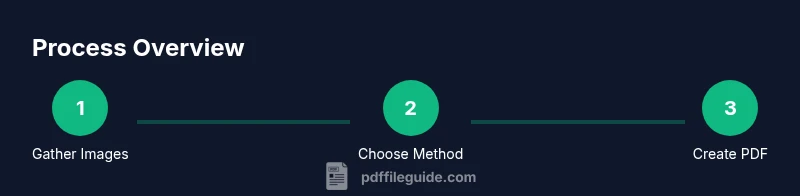
Gather your photos
Select the images you want to convert and place them in a single folder. If you plan to arrange them in a specific order, rename them with numbers (01, 02, 03) to ensure correct sequencing automatically.
Tip: Tip: Keep a small sample set initially to test the output before converting the full batch. - 2
Choose your conversion method
Decide between online tools, OS-based features, or offline apps. Online tools are fastest for one-offs, while offline options give you privacy and more control over settings.
Tip: Warning: If handling sensitive images, prefer offline methods to minimize data exposure. - 3
Prepare images for consistency
Check that all images share similar resolution and color profile. If needed, resize or convert formats so every page looks uniform in the final PDF.
Tip: Pro tip: Batch resize and convert during preprocessing to avoid mismatched page sizes. - 4
Create or convert to PDF
Upload or select the images, choose a single-page-per-image layout, set orientation, and combine into a single document. Save the file with a clear, descriptive name.
Tip: Pro tip: For print, select 300 DPI; for screen viewing, 72–150 DPI is usually sufficient. - 5
Review and adjust
Open the PDF to verify image order, margins, and any caption or metadata. If something looks off, re-run the process with adjusted settings.
Tip: Note: Some tools allow you to reorder pages after creation; use this to fine-tune placement. - 6
Save, back up, and share
Save the final PDF in a dedicated folder, create a backup copy, and share via your preferred channel while preserving file names.
Tip: Pro tip: Enable metadata where useful (title, author) to improve searchability later.
Questions & Answers
Can I convert RAW photos to PDF for free?
Most free tools don’t support RAW directly; you’ll typically need to convert to JPEG or TIFF first, then create the PDF. Some freeware viewers can export RAW as TIFF, but online converters rarely accept RAW files.
Most free tools don’t convert RAW files directly; you’ll usually convert to JPEG first, then make the PDF.
Will free tools degrade image quality?
Quality depends on the tool and DPI settings. If you keep the original resolution and choose a lossless path when possible, you’ll retain image clarity in the PDF. Some tools may compress images — select options that minimize compression.
Quality depends on the tool and DPI; choose high quality settings to preserve detail.
Is batch conversion possible for free?
Yes. Many free online tools and offline apps support batch processing. You can queue multiple images, arrange order, and export a single PDF containing all pages.
Yes, batch conversion is widely available with free tools.
Can I edit PDFs after creation for free?
Basic edits are possible with some free tools and many PDF readers, but complex edits may require paid software. For simple reordering or annotation, free options suffice.
You can do basic edits with free tools, but advanced changes may require paid software.
Are online converters safe for private photos?
Online converters can pose privacy risks if images contain sensitive data. Prefer offline methods for confidential material or use reputable, privacy-focused services.
Online tools can risk privacy; for sensitive images, choose offline methods or trusted services.
What’s the best free method for a photographer?
For photographers handling many files, offline batch apps with cumulative settings often balance quality and control. If speed is priority, a reputable online tool is fine for quick proofs.
Offline batch apps balance control and quality; online tools are great for quick proofs.
Watch Video
Key Takeaways
- Choose the method that fits privacy and batch size.
- Prepare images with consistent DPI and color space.
- Test a small batch before full conversion.
- Use metadata and descriptive filenames for organization.
- Offline options improve privacy for sensitive photos.