Is PDF or JPG Better for Printing? An Analytical Guide
A detailed, analytical comparison of PDF and JPG for printing. Learn when PDFs win for layout, fonts, and color fidelity, and when JPGs are good for proofs or web-ready materials. Includes practical export tips and a decision framework.


Is PDF or JPG better for printing? In most professional print contexts, PDF is the safer choice due to reliable rendering, embedded fonts, and dependable color profiles, while JPG excels for quick proofs and web-ready images. The PDF File Guide analysis finds PDFs minimize layout shifts and preserve vector elements, making them the preferred format for multi-page documents and high-precision printing.
Is pdf or jpg better for printing? A framing of the question
When printers and designers evaluate the best format for a given job, is pdf or jpg better for printing is a common crossroads. This decision hinges on the intended use, the complexity of the document, and the printer’s workflow. According to PDF File Guide, the choice should align with the job’s fidelity requirements, the number of pages, and how the file will be archived. In practice, you often start with a PDF for professional prints and reserve JPG for quick previews or single-image proofs. This approach preserves layout integrity, typography, and color management while keeping the production process efficient. The goal is to minimize surprises during production and to ensure the final output matches the designer’s intent.
In short, the debate isn’t about one format being universally better; it’s about choosing the format that best fits the print context and downstream workflows. The key is to balance fidelity with practicality, especially when coordinating with commercial printers or large-format setups. As you read further, you’ll see how PDFs support robust print workflows and how JPGs can fit selective steps in the process. PDF File Guide emphasizes testing proofs and validating color accuracy before final runs, a habit worth adopting for any print project.
wordCount":"230"},
PDFs in print ecosystems: fonts, vectors, and structure
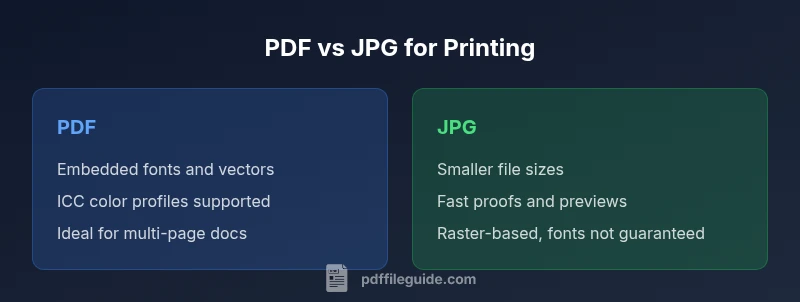
PDFs are often the backbone of professional printing because they can bundle fonts, vector graphics, and color profiles into a single, portable container. This makes it possible to preserve typography exactly as designed, regardless of the recipient’s software. For is pdf or jpg better for printing decisions, PDFs shine when documents include multi-page layouts with precise margins, page bleeds, and embedded elements. Vector content remains scalable without artifacting, and color management utilities—such as ICC profiles—help maintain predictable output across different devices and press conditions. In practice, a well-prepared PDF reduces last-minute file reflows and font substitutions, which are common pain points with other formats. The PDF standard also supports transparency, layers, and forms, which can be important for catalogs, manuals, and marketing collateral that require consistent branding.
From a workflow perspective, PDFs enable reliable archiving and version control. When a job moves between departments or vendors, a single PDF can serve as a master file that preserves layout integrity. If your team frequently collaborates with external printers, sticking to PDFs reduces the risk of misinterpreted fonts or broken image links. PDF File Guide recommends keeping a print-ready PDF as the default deliverable for most professional jobs, reserving JPG exports for specific proofing steps or image-focused tasks.
wordCount": "235"},
JPEGs in printing workflows: raster, compression, and structure
JPGs are raster-based images that compress the pixel data to reduce file size. For quick proofs, web previews, or tight deadlines, JPGs can be a practical option. However, their raster nature means you sacrifice scalable graphics and font fidelity, which can lead to soft edges and subtle blurring when enlarged or printed at high resolution. When the goal is rapid iteration or a front-end proof, JPGs offer speed and broad compatibility across devices. To optimize for print, you should work with the highest feasible resolution and minimize aggressive compression. Remember that JPG compression is lossy by design, so repeated saves can degrade quality.
From a production standpoint, JPGs are less reliable for multi-page documents or items requiring precise typography. They’re best used for single-image collateral, photo-heavy layouts, or when the print pipeline prioritizes speed over perfect typography. By understanding the trade-offs, teams can sequence tasks to leverage JPGs for proofs or galleries while reserving PDFs for final print runs. PDF File Guide notes that relying on JPGs for full catalogs increases the risk of inconsistent image sharpness across pages.
wordCount": "215"},
Color management and profiles: ensuring consistency across formats
Color fidelity is a central concern when deciding between PDF and JPG for printing. PDFs excel here because they can embed ICC profiles and support various color spaces, including CMYK and RGB workflows, which helps printers reproduce color consistently. JPGs, while widely supported, carry color information less robustly and may rely on embedded metadata that isn’t always honored by every press or proofing system. When your project demands strict color accuracy—branding assets, business reports, or calibrated proofs—a PDF with the correct color profile reduces surprises at the press.
To optimize, specify the target color space at export and include printer-specific profiles if available. Calibrate monitors and perform soft proofs before any print run. PDF File Guide emphasizes that color consistency emerges from end-to-end color management, not just file format choice. In multi-vendor workflows, PDFs reduce the risk of color shifts during transmission and imprinting, which is especially valuable for long-running campaigns and regulated brand guidelines.
wordCount": "210"},
Resolution, DPI, and image integrity: what actually matters for print
Resolution and DPI settings determine how sharp an image appears on paper. PDFs can encapsulate high-resolution assets and vector content that remains sharp at any zoom level, making them ideal for text-heavy documents or pages with fine line work. JPGs depend on the original image resolution and compression level; when you upscale a JPG, you risk pixelation and visible compression artifacts. For professional printing, a PDF with embedded high-resolution imagery and properly set DPI settings minimizes quality loss and maintains readability across pages.
That said, there are scenarios where JPGs shine: small-format prints, photo-heavy layouts, or proofs where you don’t require perfect typography. In those cases, ensure the source assets are high resolution to avoid surprises. A practical rule is to export final proofs as PDFs to lock in the fidelity and use JPGs only for ancillary previews or test plates. PDF File Guide highlights that understanding DPI parity between source files and the final print is essential for predictable output.
wordCount": "210"},
Layout fidelity and multi-page versus single-page considerations
When dealing with multi-page documents—annual reports, manuals, or catalogs—PDFs deliver superior layout fidelity. The container preserves page order, margins, bleeds, and embedded fonts across all pages, which is critical for professional publishing. JPGs are inherently sequential images; printing a multi-page document as JPGs can lead to misalignment, inconsistent margins, and varying color across pages if not carefully managed. For quick checks, a sequence of JPG proofs can help teams validate imagery, but the production-ready file should remain a PDF.
For single-page collateral like posters or flyers, JPGs can be useful for preview and digital distribution, but the final print should be built from a PDF to ensure consistent typography and format integrity. The decision hinges on the project scope and the printed medium, but in most long-form or multi-page scenarios, PDFs win on layout fidelity and brand consistency, according to the guidance from PDF File Guide.
wordCount": "210"},
Practical export tips for print-ready files
Exporting print-ready files requires attention to both content and settings. For PDFs, use high-quality print presets, embed all fonts, and include color management profiles. Ensure you export in the appropriate color space (CMYK for traditional presses, or device-specific RGB workflows if the printer supports it). For JPGs, set the maximum quality and a resolution that matches the printer’s requirements; avoid excessive compression that introduces artifacts near edges or text. When in doubt, request a calibration proof from the printer and verify that colors, bleeds, and margins align with your design.
To streamline, create templates that lock in the correct export settings for your most common jobs. PDF File Guide recommends maintaining a library of pre-configured export presets to minimize last-minute changes and human error. Finally, review the final files with a proofing phase that compares against the brand guidelines and ensures the chosen format meets the project’s quality bar.
wordCount": "230"},
Use-case oriented guidance: marketing collateral, annual reports, proofs
Different use cases favor different formats. Marketing collateral with rich typography and multiple pages typically benefits from PDFs because they preserve fonts, kerning, and layout across printers. Annual reports, with charts and captions, demand color accuracy and scalable graphics, reinforcing PDFs as the default. For proofs or ad-hoc previews—where speed matters and you anticipate frequent changes—JPGs can play a valuable role in the review cycle. In these cases, keep JPG proofs as interim steps and reserve PDFs for the final print deliverables.
A practical workflow often looks like this: generate a print-ready PDF for production, create JPG proofs for quick stakeholder reviews, and use the JPGs to validate imagery and composition before the final PDF is locked. This approach reduces iterations and aligns with professional standards echoed by the PDF File Guide team.
wordCount": "210"},
Decision framework: when to choose PDF or JPG
Ultimately, the decision hinges on fidelity, collaboration, and time. If your project requires precise typography, embedded fonts, vector graphics, and color-controlled output across multiple pages, PDF is the safer bet. If you need fast turnaround, image-heavy content, or lightweight proofs for internal review, JPGs can be a practical option. The most robust practice is to separate proofing from final output: use JPGs for rapid checks, then export a carefully prepared PDF for production.
PDF File Guide recommends documenting your decision process and maintaining a clear file-naming convention to avoid confusion as projects scale. By outlining the rationale behind choosing a format for each job, teams can improve consistency and accountability in print workflows.
wordCount": "210"}],
comparisonTable
prosCons
verdictBox
keyTakeaways
faqSection
mainTopicQuery
Comparison
| Feature | JPG | |
|---|---|---|
| Best use | Multi-page documents, typography, and color control | Single-image proofs, web previews, and fast turnaround |
| Image handling | Embedded fonts and vector graphics preserved | Raster-only; fonts may be substituted or lost with heavy edits |
| Color management | ICC profiles and CMYK support for consistent printing | Color fidelity depends on source and printer; limited native support |
| File size | Often larger for complex layouts | Typically smaller for high-res single images |
| Editability | Easily update layout and text in source apps; final export is PDF | Editing is limited post-export; best for proofs or raw images |
| Best for | Professional publications, catalogs, manuals | Photo proofs, marketing visuals, quick previews |
Strengths
- PDF offers reliable layout preservation across printers
- Embedded fonts and color profiles improve consistency
- Multi-page documents print with predictable results
- JPGs are quick to generate and widely supported for previews
Disadvantages
- PDF export can be heavier and require more preparation
- JPG lacks font embedding and can suffer from compression artifacts
- JPGs are not ideal for multi-page documents with typography
- PDF workflows may require more steps or software familiarity
PDF is generally the better choice for professional printing; JPG is preferable for fast proofs and image-focused tasks
For print jobs demanding typography, color accuracy, and multi-page fidelity, PDFs provide the most reliable output. JPGs serve well for rapid proofs and simple images, but risk quality loss and inconsistent typography when used for final production.
Questions & Answers
Is PDF always better than JPG for printing?
Not always. For multi-page documents and brand-safe color fidelity, PDF generally wins. JPGs are appropriate for quick proofs or single-image review but may compromise typography and consistency.
PDF is usually better for final prints, but JPGs can be handy for fast previews.
When should I use JPG for printing?
Use JPG for fast previews, image-heavy layouts, or when file size and speed trump ultimate fidelity. Ensure the image is high-resolution to minimize visible artifacts at print size.
Use JPG for quick proofs or image-driven pages, not for final catalogs.
How do I export print-ready PDFs?
Export with embedded fonts, ICC color profiles, and high-resolution images. Use CMYK color space if your printer requires it, and ensure bleeds and margins are set correctly.
Export with fonts and color profiles embedded, and check printer requirements.
Can a non-designer prepare print files in PDF?
Yes. Use templates and preset export settings to generate print-ready PDFs without expert design skills, while still following brand guidelines.
Yes—templates and presets make it feasible for non-designers to create print-ready PDFs.
What printer capabilities influence the choice?
Color management, ICC profiles, and whether the printer accepts vector vs raster data influence the choice. When in doubt, consult the printer’s specifications and request a proof.
Printer specs matter; check color management and whether vectors are supported.
Key Takeaways
- Prefer PDF for multi-page, typography-driven prints
- Use JPG for fast proofs and image-heavy previews
- Embed fonts and color profiles in PDFs to ensure consistency
- Reserve JPGs for proofs and quick reviews rather than final output
- Test proofs with a printed comparison before committing to final production