PDF vs JPEG for Printing: A Practical Guide
A thorough, analytical comparison of PDF and JPEG for printing. Learn when to choose PDF for multi-page, text-heavy documents and when JPEG is suitable for image-heavy assets, with practical workflow tips, color considerations, and real-world scenarios.


PDF is generally the safer choice for printing due to scalable graphics, embedded fonts, and reliable layout. JPEG can work for quick, image-heavy tasks but may lose sharpness when enlarged or edited. Overall, PDF preserves quality and proofing consistency across devices, while JPEGs excel in speed and smaller file size for simple image prints.
Why printing format choice matters
For professionals who edit, convert, and optimize PDFs, the choice between pdf or jpeg for printing is not just about image quality; it defines workflow, archiving integrity, and how proofs read across devices. According to PDF File Guide, choosing the right format can save time, reduce misprints, and ensure brand consistency in multipage documents. In practice, this decision touches color fidelity, font rendering, and the ability to scale without introducing artifacts. Whether you’re producing an annual report, a marketing brochure, or product sheets, the format you pick sets the baseline for every downstream step—from layout checks to press proofs. This article compares PDF and JPEG for printing, outlining where each format shines, the tradeoffs involved, and concrete steps to optimize your workflow. Expect practical guidance, scenario-based recommendations, and actionable tips tailored to editors and designers.
Understanding PDF and JPEG: Core differences
PDF, short for Portable Document Format, is designed to preserve a document’s typography, layout, and vector graphics across platforms. It can bundle fonts, ICC color profiles, and high‑resolution images in a single file, making it ideal for multi-page proofs and professional printing workflows. JPEG, by contrast, is a raster image format optimized for compression and quick sharing. It captures a fixed grid of pixels and loses sharpness if zoomed or re-edited, especially on text and fine linework. When you send a document to a printer, a PDF often behaves like a self-contained booklet: you can include forms, annotations, and interactive elements, and the print engine can interpret embedded data consistently. JPEGs are common for photo-heavy assets or image-only pages where file size matters. Understanding the fundamental difference—vector/font fidelity and page structure in PDF versus pixel-based raster rendering in JPEG—helps you anticipate issues before sending files to print. In short, pdf or jpeg for printing will depend on the content mix and the printing context.
When to choose PDF for printing
PDF is generally the best default for printing when documents contain text, charts, and mixed graphics. It preserves embedded fonts, supports scalable vector elements, and can embed color profiles to control how colors appear on press proofs. For proofs and prepress workflows, PDF/X variants offer industry-accepted constraints that help avoid surprises at press time. If your project includes forms, annotations, or multipage layouts, PDF remains stable through the review cycle and reduces the risk of font substitution or layout drift. In environments where printers or proofing software expect a single file, PDF minimizes compatibility issues and ensures consistent results across devices and platforms. For the phrase pdf or jpeg for printing, PDF often wins due to its ability to scale without pixelation and to carry essential production data. When high fidelity with typography is essential, produce a PDF first and only convert to JPEG if a specific image-only deliverable is required.
When to choose JPEG for printing
JPEG shines for image-heavy materials where photographic quality matters and file size must stay small. If your project is a photo gallery, a marketing banner with large photographic panels, or a social-media print asset that won’t be proofed on press, JPEG can be a practical choice. However, JPEG is lossy—each save compresses the image and may introduce compression artifacts around details. When text is present, JPEG is prone to soft edges, which can be problematic for legibility in brochures and product sheets. If you’re printing from consumer printers or home setups where software handles raster assets easily, JPEG may load faster and compress more aggressively to meet tight deadlines. The key is to balance resolution (DPI) and compression level while remembering that jpeg for printing is best suited for image-heavy pages rather than typography- or vector-rich documents. In contexts like newsletters with photos and a few headlines, JPEG can be appropriate, but be mindful of potential quality loss if the document is later scaled or edited.
Color management, resolution, and DPI explained
Color management is a decisive factor in printing. PDFs often carry ICC profiles or reference color spaces that align on-press output with your monitor and with press results. JPEGs typically embed color information but rely heavily on the source image’s color space; if a JPEG uses RGB in a CMYK print workflow, printers or RIPs will need to convert colors, which can shift hues or contrast. When you prepare print files, aim for a consistent color workflow: convert to the target color space early, embed ICC profiles, and match your proofing environment. Resolution matters too: for printed photos, a higher DPI (at least 300 DPI at final print size) is ideal, but PDFs can keep vector text crisp at any size. JPEGs compress pixels; aggressive compression reduces detail, so choose a quality level that preserves edges and fonts when the image is scaled. If your design includes fine lines or small typography, PDF is usually safer because vectors and embedded fonts remain sharp.
Quality considerations: text, vector vs raster, compression
Text sharpness, edge definition, and font rendering are central to print quality. PDFs support embedded fonts and vector shapes, which means text stays crisp at any zoom. JPEG relies on raster data; scaling a JPEG can cause jagged edges around letters and lines, unless you started with an exceptionally high-resolution image. Compression is another lever: JPEG uses lossy compression that reduces file size but can blur fine details, especially in small type or subtle gradients. PDF allows lossless elements and lossy or lossless images, but you can control compression inside the PDF creation process. When deciding pdf or jpeg for printing, consider the balance between fidelity and practicality: PDFs preserve typography and layout; JPEGs can deliver fast previews and smaller assets, but at the cost of possible quality degradation in critical areas. For archival and long-term reuse, PDFs with embedded fonts and color profiles are typically the best practice.
Print workflow and compatibility: printers, proofing, press
Print workflows differ by environment. Many professional printers, proofing systems, and prepress houses prefer PDF because it provides predictable rendering and supports color-managed workflows. PDF/X variants give constraints to ensure consistent output. JPEG is widely supported by consumer printers and some proofing tools, but handling color profiles and font rendering becomes less predictable in multi-page or professional contexts. When preparing files for a press, choose PDFs that are optimized for print: embed fonts, convert colors to CMYK or specify the required profile, and flatten as needed to avoid surprises. For internal proofs, you might generate a high-quality JPEG as a quick preview, but always accompany it with a PDF for production. In corporate settings, standardizing on PDF as the primary print asset reduces misinterpretations and misprints across teams.
File size, compression impacts on print quality
File size matters for distribution, especially in fast-turn projects or remote collaboration. PDFs can be relatively large when they contain high‑resolution images, embedded fonts, and multiple pages, but modern compression and optimization settings can reduce size without sacrificing print quality. JPEGs tend to be smaller, especially for photo-heavy content, but compression increases with each save, potentially introducing artifacts that become visible in printed output. When deciding between pdf and jpeg for printing, consider not only the visible quality but the downstream use: archival copies, proofs, and reprints require different handling. Always run a test print to confirm that the chosen format meets your color and sharpness expectations before mass production. A practical approach is to reserve PDFs for the main document and use JPEGs only for image assets intended for quick previews or single-page prints.
Practical scenarios: business reports, marketing materials, photos
Consider real-world cases to guide your decision. For a quarterly report with charts, tables, and a formal layout, PDF typically delivers the most reliable proofing, color control, and font fidelity. For a photo-centric brochure with large, glossy imagery, JPEG can be suitable for on-screen proofs or limited-run prints, provided you optimize resolution and compression. Social media banners that will be printed in small sizes often benefit from JPEG due to smaller file sizes and faster turnaround, but ensure the original image is high‑quality to minimize artifacts at print scale. For internal boards and quick handouts, PDF provides a professional standard that avoids font substitution and guarantees legibility. PDF offers more stable reproducibility across devices, while JPEG adds speed and flexibility for image-first assets. When pdf or jpeg for printing, align choice with content type and print context. Authoritative sources: https://nist.gov, https://nih.gov, https://mit.edu.
Comparison
| Feature | PDF for Printing | JPEG for Printing |
|---|---|---|
| Color fidelity | Supports ICC profiles and CMYK/RGB with consistent proofing | Relies on embedded color data; prone to color shifts if not properly managed |
| Resolution and scaling | Vector text and graphics scale without pixelation | Raster-based; quality tied to source image DPI |
| Editability | Typically not easily edited; relies on editing the PDF workflow | Easily editable as an image but edits may degrade quality |
| File size | Can be larger for multipage, embedded fonts | Generally smaller for image-heavy single pages |
| Best use case | Multipage documents, proofs, forms, and professional printing | Photo-heavy assets, image previews, fast-turn prints |
| Printer compatibility | Widely supported in pro print and proofing tools | Broadly supported in consumer printers; color handling varies |
| Color workflow | Supports robust color management with profiles | Color handling often RGB; CMYK conversion may occur at RIP |
| Recommended practice | PDF/X workflows for press, embed fonts, and profiles | High-quality JPEG for quick previews; preserve resolution |
Strengths
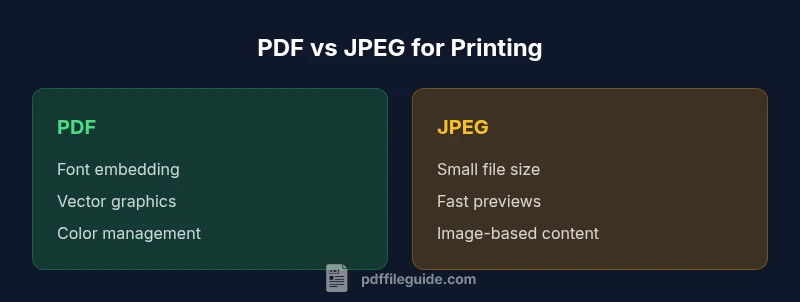
- PDF preserves fonts, vectors, and layout for accurate prints
- PDF supports multipage documents and complex proofs
- JPEG offers smaller file sizes for quick previews and web-ready assets
- Broad printer support reduces friction in mixed environments
Disadvantages
- PDF files can be larger and more complex to manage
- JPEG compression degrades text and fine detail when scaled
- Converting between formats can introduce artifacts if not optimized
PDF is the recommended default for printing; JPEG has niche uses for image-heavy assets
For most professional printing tasks, PDF provides reliable typography, scalable graphics, and consistent proofs. JPEG is suitable for image-first, quick-turn prints where file size and speed matter, but it risks quality loss on scaling and text rendering. Use PDFs for formal productions and JPEGs for fast previews or photos.
Questions & Answers
What is the main difference between PDF and JPEG for printing?
PDF preserves typography, vector graphics, and layout across devices, making it ideal for print. JPEG is a raster image format that compresses pixels, which can reduce sharpness when scaled. For most professional printing, PDF is preferred unless the project is image-centric and needs small file sizes.
PDF keeps text and layouts sharp across devices, while JPEG is a photo-focused format that can blur text when enlarged.
Is PDF always better for text-heavy documents?
For documents with lots of text, vector math, and precise layout, PDF is generally better because fonts and vectors remain crisp. JPEG tends to degrade typography due to rasterization and compression if used for text-heavy pages.
If your document has lots of text, PDF is usually the safer choice.
Can JPEG print at high quality?
Yes, JPEG can print very well for high-resolution photos when saved with minimal compression. Beware of compression artifacts on edges and text, especially when printing at large sizes.
JPEG can look great for photos, but avoid heavy compression for large prints.
Do printers support PDF natively?
Many printers and print workflows support PDF, especially in professional settings where PDFs are preferred for consistency and color management. Some consumer printers can handle JPEGs more readily.
Most professionals default to PDF, but many consumer printers handle JPEGs too.
Should I convert a JPEG to PDF for printing?
If the print job requires precise typography, or if you need to preserve vector elements, converting to PDF is beneficial. For pure photo work, a high‑quality JPEG may suffice, but you lose font and layout guarantees.
Convert to PDF if you need crisp text and stable layout.
How do color profiles affect printing?
Color profiles map colors between devices. Using consistent ICC profiles in PDF helps ensure color accuracy on press. JPEGs rely on the embedded profile, but conversion to CMYK can introduce shifts if not managed.
Color profiles help keep colors consistent from screen to print.
Key Takeaways
- Choose PDF for documents with text and graphics to preserve fidelity
- Use JPEG for quick previews and image-heavy outputs
- Embed fonts and color profiles in PDFs to ensure print accuracy
- Test print early to confirm color and sharpness before production
- Maintain a clear asset versioning strategy when converting formats