How to Convert EPUB to PDF Online: A Practical Guide
Learn how to convert EPUB to PDF online with trusted tools, preserve formatting, review privacy terms, and verify results. A comprehensive guide from PDF File Guide for professionals and learners.


Learn how to convert EPUB to PDF online using reputable tools, while preserving formatting, layout, and fonts. This guide covers preparation, tool comparisons, privacy considerations, and how to verify the final PDF. According to PDF File Guide, selecting a trusted converter reduces privacy risk and ensures consistent results. It also explains required steps, common pitfalls, and how to test readability across devices.
EPUB and PDF: What changes when you convert
EPUB is a reflowable format designed for flexible reading on various screen sizes, powered by CSS and embedded fonts. PDF, on the other hand, fixes layout, fonts, and images to a designed page size. When you convert from EPUB to PDF, you’re typically trading reflowable text for a static, printable document. This can affect line wrapping, image scaling, and font rendering. For professionals using PDFs in archives, catalogs, or client deliverables, maintaining a faithful representation is crucial. The PDF File Guide team notes that understanding these differences ahead of time helps you select a converter that preserves your document’s intent. Consider whether your EPUB includes advanced typography, embedded fonts, or multimedia, which may not always translate cleanly into PDF. In such cases, plan for post-conversion adjustments rather than risking a poor outcome at the end.
From a workflow perspective, consider accessibility goals, metadata, and file size. A well-chosen online converter should offer options to embed fonts, preserve metadata, and maintain suitable image quality. If you’re working with DRM-protected EPUBs, ensure you have legitimate rights to convert and use a service that respects copyright. Research and policy awareness are part of professional best practices recommended by PDF File Guide.
Important considerations for EPUB to PDF conversions
When converting EPUB to PDF, several factors influence success and quality. First, fonts: not all EPUBs embed fonts, and some PDFs may substitute fonts, altering appearance. Look for converters that offer font embedding and font substitution controls. Second, layout and margins: EPUBs designed for mobile screens may reflow awkwardly in PDF. A converter with page-size presets (A4, Letter) and margin controls helps preserve a sane reading experience. Third, graphics and color: ensure the tool preserves image resolution and color profiles to avoid washed-out graphics. Fourth, metadata and accessibility: some users rely on PDF bookmarks, tagged PDFs, and metadata for navigation and accessibility. A reputable converter will give you options to retain or enhance these aspects. Finally, privacy and data handling: trusted providers will state data retention practices and offer secure uploads. PDF File Guide recommends reviewing privacy terms and using converters with transparent data policies to protect sensitive information.
How to pick the right online converter for EPUB to PDF
Choosing the right online converter is about balancing quality, privacy, and convenience. Start with a shortlist of features: direct EPUB input, reliable rendering, and options for embedding fonts. Check whether the tool supports batch processing if you have multiple EPUBs. Privacy matters: prefer services that don’t store files longer than necessary and provide a clear data-deletion policy. Look for user reviews or endorsements from professional communities. Pricing models vary: some sites offer free trials with watermarking or size limits, while others charge for higher fidelity and batch capacity. If your workflow involves sensitive documents, prioritize tools with strong privacy certifications and independent audits. Finally, test a few files to compare layout fidelity, font rendering, and image quality. The PDF File Guide team emphasizes validating the output on devices you expect your readers to use and choosing a tool with a transparent privacy stance.
How to pick the right online converter for EPUB to PDF (continued)
Ease of use matters: a clean interface, clear progress indicators, and perhaps a command-line option for batch automation can save time in professional settings. Consider whether the converter preserves metadata and bookmarks, which are valuable for cataloging and accessibility. If your EPUB includes complex layouts or fixed-layout content, ensure the resulting PDF respects the intended page structure. Some tools offer presets for print-ready PDFs or screen-friendly PDFs, enabling you to tailor the result to distribution channels. Finally, verify that the converter handles table of contents accurately, links, and cross-references. A good online converter should allow you to download a test PDF before committing to a larger batch. PDF File Guide’s workflow recommendations center on testing, comparing several converters, and documenting your chosen process for audits.
Privacy and security practices you should follow
Before uploading any EPUB, read the provider’s privacy policy and terms of service. Favor converters that process data client-side or explicitly state that files are deleted after processing. Avoid services that request unnecessary permissions or require you to create an account with personal information for small tasks. If privacy is a priority, use temporary or non-sensitive files for initial tests. Consider performing conversions in a private browsing session to reduce cross-site tracking, and always download outputs to a secure, offline workspace before sharing. For enterprise use, request a data-processing addendum (DPA) and verify that the provider adheres to recognized privacy standards. PDF File Guide recommends documenting data-handling practices and performing regular privacy reviews as part of your publishing workflow.
Quality control after conversion
Quality control is essential after any EPUB-to-PDF conversion. Start with a visual check: compare fonts, line breaks, and image fidelity between the source EPUB and the PDF. Verify that headings, lists, and tables appear correctly and that the page size matches your intended format. Test interactive elements like hyperlinks and ensure they land on the correct pages. If your EPUB contains embedded multimedia, check how the PDF handles it (usually, PDFs are static, so multimedia may be omitted). Run OCR checks on scanned or image-heavy content if accessibility is a goal, and confirm that the PDF is searchable and selectable where appropriate. Finally, validate metadata, bookmarks, and outline structure to ensure easy navigation in readers and libraries. This rigorous verification aligns with PDF File Guide’s recommendations for consistent results across devices.
Troubleshooting common issues and how to verify results
Common issues include font substitutions that alter appearance, broken links, and image distortion. If pages look misaligned, try a different page size or margins in the converter’s settings. For missing fonts, enable font embedding if the option exists and re-check the output. If image quality is poor, increase resolution or adjust image compression settings. When bookmarks or metadata are absent, export with metadata options or manually re-create them in a PDF editor. Always re-open the final PDF in multiple readers (desktop and mobile) to ensure consistent rendering. If problems persist, repeat the conversion with another trusted service to compare outcomes and select the option that best preserves structure and typography. Your evaluation should focus on reliability, output fidelity, and file integrity, as emphasized by PDF File Guide.
Handling DRM-protected EPUBs: limitations and legal notes
DRM restricted EPUBs cannot be converted with standard online tools in many cases. Attempting to bypass DRM can violate license terms and local laws. The recommended approach is to obtain a licensed copy or an edition that permits conversion, or to use offline software provided by legitimate vendors that respect licensing. If you have rights to convert, look for solutions that explicitly support DRM-free EPUBs or offer authorized removal through approved channels. Always comply with licensing agreements and distribution rules. PDF File Guide advises consulting your publisher or retailer for permitted formats and seeking professional guidance when in doubt.
Tools & Materials
- Trusted online EPUB to PDF converter website(Check privacy policy, data retention, and terms.)
- Original EPUB file(Ensure you own the file or have permission to convert.)
- Stable internet connection(A reliable connection reduces upload/download interruptions.)
- Backup copies of source files(Keep local copies until you verify the output.)
- Quality verification checklist(Optional rubric to compare source and output.)
Steps
Estimated time: 20-35 minutes
- 1
Identify EPUB and check rights
Locate the EPUB file you need to convert and confirm you have the rights to convert it. If the EPUB is DRM-protected, obtain permitted access or a DRM-free copy before proceeding.
Tip: If DRM is present, consult the publisher or retailer for permitted conversion options. - 2
Choose a trusted converter
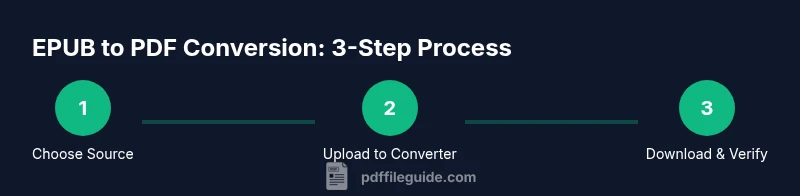
Select a reputable online EPUB to PDF converter with clear privacy terms and a visible data-deletion policy. Prefer providers with client-side processing or transparent server practices.
Tip: Read user reviews and look for endorsements from professional communities. - 3
Upload your EPUB
Upload the EPUB to the chosen converter. Ensure you are on a secure connection and that the file size fits the platform’s limits.
Tip: If the tool supports drag-and-drop, use it to minimize navigation friction. - 4
Configure output options
Set page size (A4/Letter), margins, and font embedding options if available. Choose highest quality settings to preserve images and typography.
Tip: Enable font embedding if the option exists to prevent substitute fonts. - 5
Run the conversion and download
Execute the conversion and save the PDF to a secure location. Download promptly to avoid auto-deletion by the service, if applicable.
Tip: Keep a log of the converter used, options chosen, and file sizes. - 6
Verify the result across devices
Open the PDF on multiple devices and readers. Check text reflow, image fidelity, hyperlinks, and bookmarks to ensure a faithful representation.
Tip: If issues appear, compare against another converter to identify whether the problem is tool-specific.
Questions & Answers
Is it safe to upload EPUB files to online converters?
Safety depends on the converter’s privacy policy and data handling. Use providers that delete files after processing and do not retain copies. If the document is sensitive, prefer offline tools or trusted services with a clear privacy agreement.
Yes, but only with trusted converters that delete your files after processing and have transparent privacy policies.
Will the PDF preserve the original formatting and images?
A good converter can preserve most formatting, but some EPUBs with complex layouts or custom fonts may require adjustments after conversion. Always review the PDF against the source.
Most converters preserve layout, but some complex EPUBs may need tweaks after conversion.
Can EPUBs with DRM be converted online?
EPUBs with DRM are typically not convertible with standard online tools. Obtain a legitimate, DRM-free copy or a permitted conversion option from the publisher.
DRM-protected EPUBs usually can’t be converted with ordinary online tools; get a DRM-free version or permission first.
Do I need software installed to convert EPUB to PDF?
No dedicated software is required for online conversion, but offline tools can offer stronger privacy controls and batch processing for large jobs.
Not necessarily—online tools work, though offline software can give you more control and privacy.
What should I check in the final PDF?
Check font rendering, image quality, hyperlinks, and bookmarks. Ensure the file size is reasonable and metadata is intact for accessibility and cataloging.
Check fonts, images, links, and bookmarks to ensure the PDF is usable and searchable.
How long does a typical conversion take?
Conversion time varies by file size and server load. Most small EPUBs finish in seconds to a few minutes; larger collections may take longer.
Most small files convert in seconds to minutes; large batches take longer.
Watch Video
Key Takeaways
- Choose a trusted converter with clear privacy terms.
- Expect fixed-layout behavior in PDF vs. reflowable EPUB.
- Verify output across devices and readers for fidelity.
- Respect DRM and licensing when converting.
- Document your conversion workflow for audits and repeatability.