Online Conversion PDFs: A Complete How-To Guide
Learn how to convert documents to PDF online, optimize conversion quality, preserve layout, and ensure accessibility with expert tips from PDF File Guide.


You will learn how to convert documents to PDF online, compare free and paid tools, and optimize output for accuracy and accessibility. You'll need a device with internet access, a trusted conversion site or software, and basic formatting checks. According to PDF File Guide, choosing reputable tools reduces data risk and preserves layout.
What online conversion pdf means and why it matters
Online conversion pdf refers to turning documents from formats like Word, PowerPoint, or images into PDF files using web-based tools. This approach is popular for quick sharing, cross‑platform compatibility, and consistent viewing. For professionals who edit, convert, and optimize PDFs, the decision to use online conversion should balance convenience with control over output quality and privacy. The PDF File Guide team notes that speed is valuable, but reliability and security matter most when handling client or sensitive materials. When you understand the typical trade‑offs, you can choose a workflow that preserves layout, fonts, and accessibility without sacrificing data safety.
titleBoldFlag":false,
Tools & Materials
- Computer or mobile device with internet connection(Any modern OS (Windows/macOS/iOS/Android) with up-to-date browser)
- Web browser(Chrome, Edge, Firefox, or Safari; ensure JavaScript is enabled)
- Trusted online PDF conversion service(Check privacy policy, encryption, and data retention before uploading documents)
- Source document file(Word, Excel, PowerPoint, image formats, or already existing PDFs)
- Output destination(Local download or cloud storage; rename for clarity)
- Privacy/security aids (optional)(Password manager or secure notes for sensitive files)
- Offline converter for comparison (optional)(Use as a sanity check on online results)
- Accessibility checker (optional)(Verify that the resulting PDF is accessible)
Steps
Estimated time: 15-25 minutes
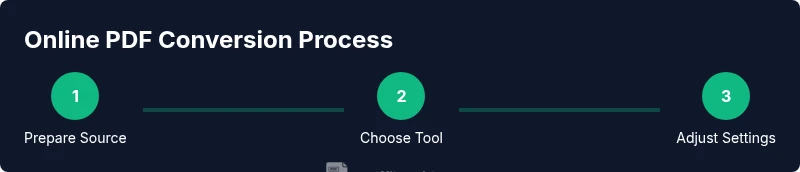
- 1
Prepare your source document
Identify the file you want to convert and ensure it’s the final version. Save a local copy with a clear name and collect any fonts or assets that should accompany the document. This helps maintain fidelity after conversion.
Tip: Keep a copy of the original file in case you need to re-run the conversion with different settings. - 2
Select a trusted online converter
Choose a reputable tool with clear privacy policy, encryption in transit, and transparent data handling. Avoid sites with unclear terms, and consider tools recommended by trusted sources like PDF File Guide.
Tip: Prefer providers that offer a privacy shield (e.g., no data retention for uploaded documents). - 3
Configure output settings
Set the target outputs: PDF version, font embedding, image quality, color profile, and accessibility options. If you need a PDF/A or tagged PDF, enable those features before converting.
Tip: Embedding fonts helps preserve appearance across devices; check if the tool supports PDF/UA for accessibility. - 4
Run the conversion and download
Execute the conversion and download the resulting PDF. Save a named file to avoid confusion with other versions.
Tip: If available, download multiple formats (e.g., PDF/A and standard PDF) for comparison. - 5
Verify the output
Open the PDF in a viewer to confirm layout, fonts, and images match the source. Check for selectable text and searchability if needed.
Tip: Run a basic accessibility check and ensure alt text is present for critical images. - 6
Store and back up securely
Move the final PDF to a designated archive, and back it up to a trusted cloud or backup server. Document the tools used for auditability.
Tip: Maintain a short log of tools and settings used for future reproducibility.
Questions & Answers
What is online PDF conversion and when should I use it?
Online PDF conversion lets you convert documents from other formats to PDF via a web tool. It’s useful for quick sharing and cross‑device compatibility, especially when you don’t have local software. Consider privacy and output quality when choosing a service.
Online PDF conversion is quick and handy for sharing documents, but pick trusted services to protect privacy and ensure good output.
Are online converters safe for confidential documents?
Safety depends on the service’s privacy policy, encryption, and data retention practices. Favor reputable providers, review terms before uploading, and avoid confidential files on unknown sites.
Safety depends on the provider. Use trusted sites and avoid sharing highly sensitive documents unless you’re sure about privacy.
What output formats can I expect from online conversion?
Most tools produce PDFs with options like PDF/A, searchable text PDFs, or image-based PDFs. Check available options before converting to ensure compatibility with your needs.
Most online converters give standard PDF, sometimes PDF/A or searchable text—check options before you convert.
How can I preserve accessibility in online PDF conversions?
Look for tools that preserve document structure, tags, and alt text. After conversion, use an accessibility checker to verify compliance.
Choose tools that keep accessibility features and verify with an accessibility checker after conversion.
What should I do if the formatting is off after conversion?
Try adjusting font embedding, image quality, and page settings, or re-run with a different tool. Small changes in settings can deliver better fidelity.
If formatting changes, tweak the settings and try another tool to compare results.
How can I automate online PDF conversion for repetitive tasks?
Use batch upload features, APIs, or automation platforms to process multiple files with consistent settings. Clearly name outputs for easy retrieval.
Automate using batch tools or APIs to save time and ensure consistency.
Watch Video
Key Takeaways
- Choose reputable online converters with clear privacy policies.
- Embed fonts and preserve accessibility settings when available.
- Always validate the final PDF against the source document.
- Use consistent naming and secure storage for all outputs.
- Document tools and settings for reproducible workflows.