PDF to HTML: A Practical PDF/A Conversion Guide
Learn how to convert PDF/A documents to accessible HTML while preserving structure, fonts, and metadata. This step-by-step guide covers tools, best practices, validation, and real-world tips for compliant HTML.


You will learn how to convert a PDF/A document into an accessible HTML version while preserving fonts, layout, and metadata. This guide covers choosing the right tool, handling fonts and images, maintaining PDF/A compliance in HTML, and validating the result for accessibility and searchability. It includes practical steps, cautions about font embedding, and tips to test across devices.
Understanding PDF/A and HTML: Definitions and goals
In the world of document management, pdf a html represents a bridge between long-term archival formats and web-accessible content. PDF/A is an ISO-standard designed for long-term preservation of electronic documents, ensuring that fonts, color, and layout remain stable over time. HTML, by contrast, is a living web format optimized for display on diverse devices. When you set out to convert pdf a html, you’re balancing archival fidelity with web usability. The goal is not to recreate every pixel but to preserve essential structure, metadata, and typography so that the document remains usable, searchable, and accessible across browsers. The PDF File Guide team notes that success hinges on testing readability on assistive technologies and ensuring semantic markup in the HTML output.
Why pdf a html matters for professionals
The move from a static archival format to a responsive web representation unlocks new workflows. For legal disclosures, research papers, or financial reports, html versions enable quick searching, indexing by search engines, and easier sharing across devices. PDF/A emphasizes self-contained content with embedded fonts and color management, while HTML relies on CSS and DOM semantics to render typography, layout, and accessibility. By understanding pdf a html, editors can plan migrations that retain fidelity while improving accessibility, readability, and discoverability. PDF File Guide analyses show that a thoughtful approach reduces post-migration fixes and speeds up deployment.
The challenges of preserving PDF/A in HTML
Converting PDF/A to HTML introduces several non-trivial challenges. Fonts embedded in the PDF may not be available in the HTML environment, which can alter typography. Complex layouts, tables, and multi-column text often require reflow and responsive design that PDF/Viewers don’t inherently provide. Metadata like document properties, bookmarks, and accessibility tags must be mapped to HTML equivalents (title attributes, aria-labels, and landmark roles). Images, vector graphics, and color spaces may lose fidelity if not handled with careful CSS and asset optimization. The pdf a html process must also address accessibility concerns so that the resulting HTML remains navigable via screen readers and keyboard-only interaction.
Approaches to PDF/A to HTML conversion
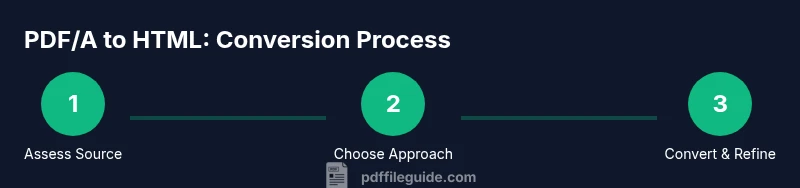
There are several paths to pdf a html. One approach is a semi-automatic workflow: extract content from the PDF/A, then assemble HTML with CSS to emulate the original layout while preserving semantics. A second path uses automated conversion tools that attempt to map structure to HTML elements, followed by manual refinement. A hybrid method often yields the best results: use automated conversion for baseline structure, then tailor fonts, metadata, and accessibility attributes by hand. Regardless of method, maintain a clear mapping from PDF/A elements (fonts, embedded images, metadata) to HTML/CSS equivalents, and document the decisions for future audits. The goal is to produce HTML that remains faithful to the source while performing reliably online.
Best practices for accessibility and compliance in HTML outputs
To ensure pdf a html remains accessible, start with semantic HTML: use headings (h1-h6), lists, and proper table markup. Provide alternative text for images, captions for figures, and long descriptions for complex visuals. Preserve document structure by exporting or recreating the reading order, bookmarks, and metadata as HTML attributes and ARIA roles where appropriate. Font handling is critical: supply fallbacks and avoid relying on single fonts that may not render identically across systems. Validate accessibility with automated tools and manual testing with assistive technologies, ensuring that keyboard navigation and screen readers can interpret the content correctly. The pdf a html workflow should explicitly document accessibility targets and validation results for compliance reports.
Validation and testing: ensuring fidelity
Validation is a multi-step process. Start by validating the HTML output with a validator to catch markup errors and ensure syntactic correctness. Run accessibility checks to confirm contrast ratios, keyboard navigation, and screen-reader compatibility. Compare the structural hierarchy against the original PDF/A: do headings, lists, and tables align with the source’s reading order? Test across devices and browsers to ensure responsive behavior matches expectations. Finally, verify that embedded fonts, color profiles, and metadata were preserved or properly substituted with standards-compliant fallbacks. Repetition and cross-checks save time during audits and improve trust in the final pdf a html result.
Working with metadata, fonts, and layout fidelity
A robust pdf a html workflow pays close attention to metadata, font handling, and layout fidelity. Export or map PDF metadata (title, author, subject) into HTML meta tags and accessible title attributes. For fonts, prefer embedding web-safe fallbacks and include font-face declarations when licensing permits; otherwise rely on system fonts with careful CSS to keep typography consistent. Layout fidelity often requires responsive CSS grids or flex layouts to reproduce the relative positions of blocks, images, and tables without pinning to fixed dimensions. Maintain a changelog of font substitutions and layout decisions to support future migrations and audits.
Tools & Materials
- Source PDF/A document(Ensure it conforms to PDF/A-1/2/3 as applicable)
- HTML/CSS editor(IDE or editor with live preview)
- Conversion tool (automatic or semi-automatic)(Supports PDF content extraction and HTML output)
- Font files or web fonts(Licensing permitting; provide fallbacks if embedding is restricted)
- PDF/A validator(Check conformance after conversion)
- Accessibility checker(Verify ARIA roles, keyboard navigation, and screen reader compatibility)
- Web browser for testing(Test across major browsers and devices)
Steps
Estimated time: 4-8 hours (depends on document complexity and tooling)
- 1
Verify the source PDF/A
Open the PDF/A in a reader to confirm embedded fonts, metadata, and accessibility tags match the expected baseline. This step ensures you know what needs to be preserved in the HTML output.
Tip: Note any missing fonts or tags that will require substitution or manual tagging. - 2
Choose a conversion approach
Decide between automated conversion, manual recreation, or a hybrid workflow. Align the choice with document complexity, required fidelity, and licensing constraints for fonts and assets.
Tip: For complex layouts, plan a staged approach to minimize rework. - 3
Prepare the HTML structure
Create semantic HTML skeleton with headings, lists, and landmark regions. Map PDF sections to corresponding HTML containers to maintain reading order and accessibility.
Tip: Use a consistent naming convention for IDs and classes to simplify future edits. - 4
Handle fonts and images
Implement CSS font stacks and embed web fonts if licensing allows. Replace non-portable graphics with scalable alternatives and provide alt text for every image.
Tip: Prefer vector-based substitutes when possible to preserve clarity on high-DPI screens. - 5
Preserve metadata and accessibility attributes
Transfer or reproduce metadata in HTML meta tags, and add ARIA attributes where appropriate. Ensure all interactive elements are keyboard accessible.
Tip: Document any limitations and provide guidance for assistive-tech users. - 6
Validate and test thoroughly
Run HTML validators, accessibility checks, and cross-browser tests. Compare against the original PDF/A to ensure fidelity and note any deviations.
Tip: Keep a test matrix across devices to catch rendering differences early.
Questions & Answers
What is PDF/A and how does it relate to HTML conversion?
PDF/A is an archival standard for long-term document preservation. When converting to HTML, you aim to retain structure and metadata while enabling web viewing and accessibility.
PDF/A is an archival format. When converting to HTML, keep the structure and accessibility focus so the document stays usable online.
Can any PDF/A be perfectly converted to HTML without loss?
No single method guarantees a perfect one-to-one reproduction. The outcome depends on layout complexity, embedded fonts, and how much of the original tags and metadata can be mapped to HTML semantics.
No method guarantees perfect fidelity; outcomes vary with layout and fonts.
Which tools work best for PDF/A to HTML conversion?
A combination of automated converters and manual refinement generally yields the best results. Look for tools that preserve metadata, embed accessible attributes, and support font handling.
Use a mix of automated tools and manual tweaks to keep metadata and accessibility intact.
Should I preserve metadata and fonts in the HTML output?
Yes. Preserve metadata for indexing and compliance, and provide font fallbacks if embedding is restricted. This helps maintain fidelity and accessibility.
Preserve metadata and provide font fallbacks for better fidelity and accessibility.
How do I test accessibility in the converted HTML?
Run automated accessibility checks and perform manual testing with a screen reader and keyboard navigation to ensure inclusivity for users with disabilities.
Test with automated tools and screen readers to verify accessibility.
What are common mistakes to avoid in pdf a html conversion?
Overlooking reading order, neglecting alt text, and assuming fonts will render identically across devices. Plan substitutions and validate across browsers.
Avoid ignoring reading order and alt text; validate across devices.
Watch Video
Key Takeaways
- Verify the source PDF/A before conversion
- Choose an approach balancing fidelity and effort
- Prioritize semantic HTML and accessible attributes
- Preserve or substitute fonts with web-safe fallbacks
- Validate output for both PDF/A and accessibility