PDF/A Text: Mastering Text in PDF/A Documents
A comprehensive, step-by-step guide to preserving, extracting, and accessing text in PDF/A archives, including font embedding, tagging, OCR, and accessibility best practices.


By following PDF/A best practices, you can ensure text remains searchable and accessible in archival PDFs. This guide covers preserving text through font embedding, tagging, and OCR, plus practical steps for extracting or converting text without breaking PDF/A conformance. Whether you’re an archivist, researcher, or professional editor, maintaining text integrity in PDF/A ensures long-term readability and interoperability across tools and platforms.
What is PDF/A and Text in PDFs
PDF/A is an ISO-standardized subset of the PDF format designed for long-term digital preservation. It imposes constraints to ensure that the document can be reproduced exactly in the future, including standardized color spaces, embedded fonts, and no external dependencies. Text in PDF/A should be selectable and extractable, enabling search, indexing, and accessibility. For professionals working with archival records, preserving reliable text across versions is crucial. According to PDF File Guide, the goal is to keep text legible, searchable, and structurally meaningful over decades. In practice, this means ensuring that fonts are embedded, content streams include meaningful text, and the document’s reading order is preserved. When you encounter PDF/A text, you should first verify that the text layer remains intact and that there are no missing glyphs that would impede search or screen readers. The phrase pdf a text captures this core concern: making sure text survives archiving and remains usable.
Why Text matters in PDF/A compliance
Text is the backbone of accessibility, searchability, and interoperability. For researchers, being able to copy, quote, and search by keywords (e.g., pdf a text) saves time. For organizations, proper text handling reduces risk when complying with standards and regulations. The PDF File Guide emphasizes that the right combination of embedded fonts, tagged structure, and readable order ensures that both humans and assistive technologies can access content. Without robust text, a PDF/A document becomes a static image, hindering archival value and long-term usability. This section outlines the concrete reasons to prioritize text integrity, including improved indexing, better screening by screen readers, and easier content reuse in downstream workflows like conversions to Word or HTML.
How to check if a PDF is PDF/A compliant and text-friendly
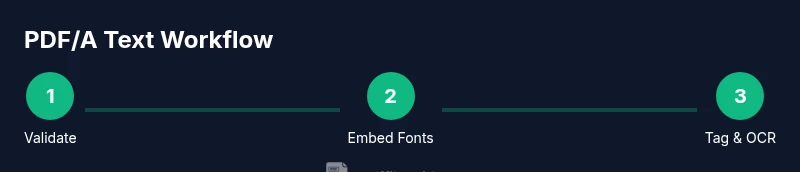
Start by validating conformance: check the document's conformance level (for example, PDF/A-1, PDF/A-2, etc.). Then inspect font embedding and subset usage: all fonts used for on-screen text should be embedded to guarantee glyph availability. Tagging helps define structure (headings, lists, literature citations) and reading order; absence of tags often leads to confusing navigation. Test text extraction by selecting and copying text across pages; if characters are garbled or missing, OCR or font issues may be present. Finally, run accessibility checks with a conformance tool or a screen-reader simulation to verify that the document is navigable. If issues arise, create a remediation plan that prioritizes font embedding, proper tagging, and reading order corrections. As PDF File Guide notes, these steps are essential to maintain the integrity of text in PDF/A files.
Extracting Text from PDF/A: Methods and Tools
There are several ways to obtain text from a PDF/A while preserving conformance. For simple, text-rich PDFs, command-line tools like pdftotext can extract text quickly: pdftotext input.pdf output.txt. For complex layouts, or when you need to preserve layout, opening the document in a capable editor (or using export-to-Word or HTML features) can help, but ensure fonts are embedded and the export retains the PDF/A conformance. Commercial tools and open-source options exist; each has strengths in accuracy, layout preservation, and batch processing. If you encounter non-Latin scripts or diacritics, verify that encoding remains consistent after extraction. Finally, always re-check the resulting text to confirm correctness. PDF File Guide suggests developing a standard extraction workflow to minimize errors across projects.
Working with Scanned PDFs and OCR
Scanned PDFs contain image-based pages that lack embedded text, so OCR is required to recover readable text. Start with a high-quality OCR engine and set language options to match the document. Run OCR on the full document, then generate a text layer and compare with the original page to spot recognition errors. After OCR, re-run a PDF/A conformance check to ensure fonts are embedded and that the document remains compliant. For best results, post-process recognized text to correct common misreads (such as l vs I, 0 vs O) and add missing hyphenation. The goal is a faithful text representation that preserves structural elements and reading order. The PDF File Guide team highlights that OCR is a crucial step when working with archival scans that predate digital text.
Embedding Fonts and Encoding for Reliable Text
Font embedding ensures that text renders consistently on different devices and across various readers. Always embed all fonts used in the document; avoid font subsetting unless you can guarantee that the subset includes all necessary glyphs. Choose Unicode-friendly encodings and verify that glyphs map correctly to characters, especially for non-Latin scripts. If a font is missing, replace it with a licensed or open-source alternative and embed it. After embedding, re-run text extraction to confirm that the glyphs map to the intended characters. This approach minimizes garbled text and keeps the PDF/A document readable long into the future, aligning with PDFs retention goals described by PDF File Guide.
Tagging, Reading Order, and Accessibility for PDF/A
Tagging provides semantic meaning to document content. Each heading, list, table, and figure should be tagged and properly nested to reflect document structure. Reading order should match the visual presentation to support screen readers. Alt text on images helps describe visuals for users who rely on assistive technologies. Ensure that the tag tree remains stable after any edits, and run automated accessibility checks to catch misordered content. When text is properly tagged and ordered, the document is more usable for people with disabilities and easier to index by search engines. PDF File Guide notes that strong tagging is a foundational habit for accessible PDF/A workflows.
Best Practices for Converting to Accessible Formats
Convert PDFs to accessible Word or HTML with care, maintaining text content and structure. During conversion, map headings to semantic tags, preserve lists and tables, and avoid losing fonts or characters. After conversion, proofread to catch transcription errors introduced during the process. Use batch-processing where possible to ensure consistency across large archives, while preserving metadata. Finally, document the conversion approach and testing results for audit trails. A systematic approach aligns with the PDF/A goals described by PDF File Guide, ensuring that long-term accessibility remains intact across formats.
Quick-start Checklist for PDF/A Text Projects
- Confirm your objective: preservation, extraction, or both.
- Validate PDF/A conformance and ensure fonts are embedded.
- Check tagging and reading order for accessibility.
- Test text extraction on representative pages, including non-Latin scripts if present.
- Run OCR for scanned pages and recheck conformance.
- Save and document your workflow for future audits.
- Regularly re-validate when the file is updated to preserve PDF/A integrity.
Tools & Materials
- Computer with internet access(Modern OS, up-to-date browser)
- PDF editor with tagging support(For adding tags and reading order)
- OCR software or engine(Tesseract or equivalent for scanned pages)
- Font embedding reference or licensed fonts(Ensure fonts can be embedded in PDFs)
- PDF/A conformance validator(Tool to verify PDF/A compliance)
Steps
Estimated time: 60-120 minutes
- 1
Define objective and scope
Identify whether the goal is preserving, extracting, or both, and note pages or sections that require special handling (e.g., tables, images with text). This clarity guides tool selection and workflow design.
Tip: Document the goal and expected outcomes before touching the file. - 2
Validate PDF/A conformance
Run a conformance check to confirm the document adheres to a PDF/A standard (A-1, A-2, etc.). Record any non-conforming elements you will remediate.
Tip: If conformance fails, plan remediation steps before editing text. - 3
Check text and font embedding
Inspect whether all used fonts are embedded and whether text is selectable. If fonts are missing, replace or embed them and re-check text extraction.
Tip: Avoid editing the document before guaranteeing font availability. - 4
Extract text from the PDF/A file
Use a suitable tool to extract text; start with a simple PDF, then test complex layouts. Verify that extracted text matches the visible content.
Tip: For complex pages, export to a flow-friendly format (Word/HTML) and compare text blocks. - 5
OCR for scanned pages
If pages are image-based, run OCR with correct language settings and create a text layer. Review for recognition errors and fix them.
Tip: Post-process OCR results to correct common misreads and hyphenation. - 6
Tagging and reading order
Add or repair tags to reflect headings, lists, and tables. Ensure the reading order aligns with visual layout for screen readers.
Tip: Use a reading-order checker to catch misordered content. - 7
Final validation and archiving
Re-run PDF/A conformance and accessibility checks. Save the final version with metadata documenting the fixes and rationale.
Tip: Archive both the original and remediated copies for auditability.
Questions & Answers
What is PDF/A and how does it affect text?
PDF/A is an ISO standard for long-term archiving that requires embedded fonts and accessible, tagged content to ensure text remains readable.
PDF/A is a long-term archive standard that makes sure text stays readable by embedding fonts and tagging structure.
How can I tell if text is extractable?
Text is extractable when text layers are present and fonts are embedded; if copying yields garbled characters, OCR or font remediation may be needed.
If you can select and copy text without garbling, it's extractable; otherwise OCR or font fixes are needed.
Do scanned PDFs require OCR for PDF/A?
Yes. Scanned PDFs contain images; OCR creates a text layer, enabling search and accessibility while preserving PDF/A conformance.
If a PDF is a scan, OCR is essential to produce readable text and maintain conformance.
What should I check first when remediating a PDF/A?
Start with conformance validation, then verify font embedding and reading order before any edits.
Begin by checking conformance, fonts, and reading order before making changes.
Can I convert PDF/A to Word without losing structure?
Conversions can preserve text content, but headings, lists, and tables must be mapped to semantic structures; always verify post-conversion.
Converting to Word can work, but review the structure after conversion.
Watch Video
Key Takeaways
- Embed fonts to preserve text fidelity.
- Tag and order content for accessibility.
- OCR is essential for scanned PDFs to recover text.
- Validate before archiving to maintain PDF/A conformance.