Translate PDF: A Practical Step-by-Step Guide
Learn to translate a PDF while preserving layout and fonts. Explore workflows, text extraction, translation, and quality checks. A thorough, professional approach for editing, converting, and optimizing PDFs.


Goal: translate a PDF into another language while preserving layout and fonts. You'll compare workflow options (machine translation with OCR, bilingual glossaries, and human review), choose tools, extract editable text, translate, reassemble, and verify accuracy. The guide covers free and paid options, when to outsource, and how to handle complex layouts and embedded fonts. This approach aligns with industry best practices for PDFs.
What translating PDFs enables
Translating a PDF opens opportunities to reach multilingual audiences while preserving the official formatting. For professionals who edit, convert, or optimize PDFs, translation is not only about swapping words; it's about maintaining typography, headers, tables, and embedded graphics. The term translate pdf describes a multi-step process: assess the source, select an appropriate workflow, extract or display the text, translate, and verify that the final document remains faithful to the original. In this guide from PDF File Guide, you will learn how to translate PDF files with methods that balance speed and accuracy, how to choose tools across free and paid options, and how you manage tricky elements such as fonts and images. You will also discover best practices for preserving accessibility and searchability post-translation. This sets the stage for practical, repeatable results. According to PDF File Guide, a structured, repeatable workflow reduces rework and helps maintain branding across languages.
Workflow options: machine translation + OCR vs. human translation
There are three common workflow patterns for translate pdf tasks:
- Fully automated translation with OCR extraction for image-based PDFs enabled by machine translation tools.
- Hybrid workflows that combine machine translation with glossaries and post-editing by a human translator.
- Fully human translation using professional linguists when accuracy is critical (legal, medical, or regulatory documents). Choosing the right path depends on document type, required accuracy, and turnaround time. PDF File Guide recommends starting with a lightweight automated pass to capture the structure, followed by human review for terms and style. Always consider the presence of embedded fonts or complex tables, which can trip automated pipelines.
Tools and formats you might use
Your toolset shapes outcomes. At minimum, you’ll need a capable PDF editor, OCR if any pages are image-based, a translation memory or CAT tool, and a glossary. Free options exist for hobby projects, but professional work benefits from paid software that preserves fonts and layout. Common file formats include PDF, XLIFF, and DOCX for interchange. Keep clean versioning and a secure backup to protect both content and metadata.
Preparing your source PDF for translation
Preparation reduces rework. Start by validating the source's readability, confirm the language, and determine whether the PDF is text-based or image-based. If text is selectable, you can often copy text directly into a translation memory. If not, enable OCR or request an editable source. Gather any existing glossaries, brand style guides, and term lists to maintain consistency.
Extracting text from PDFs: best practices
Text extraction is the gateway to translation. Use reliable extraction methods that preserve segments, order, and formatting cues. For text-based PDFs, export to a format compatible with your CAT tool (e.g., DOCX or TXT). For scanned PDFs, run OCR with the correct language packs and validate accuracy with a bilingual reviewer. Keep track of headers, footnotes, and captions to avoid misplacements.
Translating content: strategies for accuracy and consistency
Adopt a structured approach to translation. Build or import a glossary to standardize terms, maintain a translation memory to reuse phrasing, and set style rules for capitalization, numbers, and units. Where possible, leverage machine translation for speed but enforce post-editing by a human editor to catch tone, register, and domain-specific terminology. If you encounter graphics with text, translate overlays separately.
Reassembling and preserving layout
After translating, reinsert content into the original PDF without breaking layout. Pay attention to multi-column layouts, tables, and footnotes. Fonts must be embedded or substituted consistently; ensure that the target font supports the required glyphs. Validate that links, bookmarks, and metadata reflect the new language. Export to a PDF that preserves accessibility features and searchability.
Handling fonts, embedded graphics, and non-Latin scripts
Fonts can silently derail a translation project. Verify font availability for the target language and confirm licensing for embedding. For non-Latin scripts (Arabic, Hindi, Chinese etc.), consider writing direction, shaping, and line breaks. Embedded graphics containing text should be replaced with translated equivalents or updated overlays. Ensure readability across devices by testing on screen readers and different viewers.
Quality control: proofreading, glossary, and verification
Quality control is essential. Run a bilingual proofread, compare the translated PDF to the original, check terminology against the glossary, and ensure consistent style. Use automated checks for punctuation, hyphenation, and number formatting. Capture feedback from native speakers for nuanced phrasing and cultural appropriateness.
Accessibility considerations: tagging and alt text
Translate pdf for accessibility by preserving or creating tags, alt text for images, and document structure that screen readers can interpret. Ensure the translated document uses meaningful heading order, descriptive link text, and accessible tables. Test with screen readers to confirm navigability, and adjust as needed for compliance with accessibility standards.
Security and privacy when translating PDFs
Handle sensitive content with care. Use secure tools, disable cloud-based OCR or translation when confidentiality is required, and apply encryption to the final deliverable. Share translation tasks only with authorized personnel and maintain audit trails. Always adhere to your organization’s data handling policies.
End-to-end workflow example
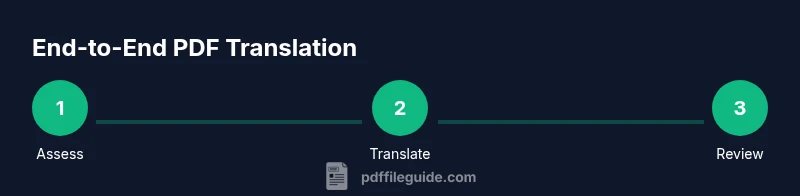
Here is a practical, end-to-end example you can adapt. Start with a 12-page PDF in English, determine whether it’s text-based, deploy a hybrid workflow using a CAT tool and human review, extract text, translate, reassemble, QA, and deliver. Throughout, reference your glossary for consistency, embed fonts, and verify accessibility features. This lifecycle approach minimizes rework and keeps translation aligned with branding.
Tools & Materials
- Computer with sufficient RAM and storage(8+ GB RAM recommended for large PDFs)
- Professional PDF editor(e.g., annotate, edit text, adjust layouts)
- OCR software(For image-based or scanned PDFs)
- CAT tool / Translation memory(To reuse phrases and maintain consistency)
- Glossary and style guide(Brand terms, tone, and formatting rules)
- Target-language fonts and embedding rights(Ensure glyphs exist and licensing allows embedding)
- Source and translated backups(Versioned files and archives)
- Access to a native speaker or translator reviewer(Optional but recommended for high-stakes content)
- Internet connection and data security measures(Secure tools; avoid insecure cloud services for sensitive docs)
- Export templates for QA checks(Checklists and standard QA sheets)
Steps
Estimated time: Total time: 2-6 hours
- 1
Assess the PDF and define requirements
Review the document type, language, and target audience. Determine if text is selectable or if OCR is needed. Establish turnaround time and quality expectations, including whether branding and accessibility features must be preserved.
Tip: Create a quick risk assessment and glossary starter list before editing. - 2
Choose a translation workflow
Decide between fully automated, hybrid (auto + human post-edit), or fully human translation based on document purpose and accuracy needs. Document the selected path in a project brief.
Tip: Prefer a hybrid approach for most professional PDFs. - 3
Gather resources and prepare the environment
Assemble glossary, style guide, and language resources. Set up your CAT tool, fonts, and workflow templates. Ensure backups are in place.
Tip: Verify brand terms in the glossary before translating. - 4
Extract text (or prepare source)
If text-based, extract text to editable format. If image-based, run OCR with the correct language packs and verify output quality.
Tip: Keep original page order intact during extraction. - 5
Translate with memory and glossary
Import text into your CAT tool, run translation using glossary terms, and leverage translation memory for consistency and speed.
Tip: Flag terms that require domain-specific review for later verification. - 6
Post-edit and terminology checks
Review machine-translated output against glossary. Adjust tone and terminology to fit target audience and domain.
Tip: Use a second reviewer for high-stakes content. - 7
Reinsert translated text into PDF
Place translated content back into the original layout. Preserve headers, tables, and graphic overlays. Maintain font substitutions as needed.
Tip: Avoid breaking table structures; adjust cell widths carefully. - 8
Preserve accessibility and metadata
Ensure tags, alt text, bookmarks, and metadata reflect the translated language. Test with assistive technologies.
Tip: Validate document structure with a screen reader test. - 9
Quality assurance checks
Run automated checks for punctuation and formatting. Do a bilingual proofread and confirm alignment with the glossary.
Tip: Keep a notes file of any contentious phrases. - 10
Delivery and archiving
Export the final PDF in the required quality level and archive both source and translated versions with proper naming conventions and version numbers.
Tip: Provide a short changelog for future reference.
Questions & Answers
What is the best method to translate a PDF with scans?
For scanned PDFs, start with OCR to extract text, then translate and proofread. If possible, obtain an editable source to minimize formatting loss. Hybrid workflows often yield the best balance of speed and accuracy.
For scanned PDFs, use OCR to extract text, then translate and proofread. A hybrid workflow gives you speed with accuracy.
Can I translate PDFs without software?
Some online tools exist, but results vary, especially with complex formatting and fonts. For professional work, desktop tools with local processing reduce risk and preserve layout.
There are online tools, but for professional work, use desktop tools to keep layout and fonts safe.
How do I preserve fonts and layout after translation?
Embed or substitute fonts consistently and reflow content carefully. Check tables, headers, and captions in the target language and verify that links and metadata point to translated content.
Embed fonts and adjust layout carefully; verify tables, headers, and links in the translated PDF.
Is manual translation necessary for accuracy?
Yes, especially for legal, medical, or regulatory content. A human reviewer can catch nuance, tone, and domain-specific terminology that automation misses.
In critical documents, human review is essential to ensure accuracy and tone.
What about accessibility?
Ensure the translated PDF is tagged, with alt text for images and descriptive link text. Test with a screen reader to confirm navigability and structure.
Make sure tagging and alt text are updated and test with a screen reader.
How long does translation take?
Time depends on document length, complexity, and workflow. Build a project plan with milestones and allocate reviewers for critical sections.
It varies, but plan with milestones and review steps.
Should I outsource translation?
Outsourcing can save time and tap specialist expertise, but validate translators, provide a glossary, and review outputs for branding alignment.
Outsourcing can help; ensure a glossary and a quality review.
Watch Video
Key Takeaways
- Plan the workflow before translating.
- Preserve layout, fonts, and accessibility.
- Use glossaries and CAT tools for consistency.
- Include human review for high-stakes content.
- Test across devices and screen readers.