Should CV Be PDF or Word? A Practical Comparison for Job Seekers
Explore should cv be pdf or word in a detailed, objective comparison. Learn when to use PDF vs Word for CVs, how it affects appearance, editing, ATS parsing, and sharing, with practical tips for job seekers.


For most job seekers, the PDF format is the safer baseline for CV distribution, while Word is preferred for drafting and collaboration. In practice, use PDF for sending to recruiters and posting publicly to preserve layout and branding; reserve Word for editable drafts shared with mentors or teams. This comparison weighs editability, appearance, and accessibility.
Why CV format choice matters
Choosing between PDF and Word for a CV is not a cosmetic decision; it is a strategic choice that shapes how your credentials are perceived, shared, and preserved over time. The format can influence how recruiters view your attention to detail, your branding, and your ability to comply with their submission process. According to PDF File Guide, the way a CV is formatted and delivered impacts first impressions, readability on different devices, and the likelihood that your content remains intact through the review process. In a field where precision matters, the format becomes part of your professional story and should align with your job-search workflow.
Should cv be pdf or word? The practical baseline
Many candidates ask the essential question: should cv be pdf or word when applying for roles across industries? The short answer is: use the format that preserves your content and collaboration needs without compromising readability. For external submissions, most teams prefer a PDF because it locks in typography, margins, and layout. For drafting, editing, or sharing feedback with mentors, a Word document keeps the door open for quick updates. PDF File Guide notes that a well-handled Word draft can be exported to PDF with minimal loss of fidelity, creating a smooth transition from collaboration to final submission.
When to choose PDF
PDF excels for final submissions and broad distribution. If your goal is clean, consistent presentation across platforms, a PDF is often the best choice. It preserves fonts, spacing, and image placement, reducing the risk of garbled layouts when recruiters open the file on different devices or operating systems. PDFs also offer security features like password protection and permissions to prevent unauthorized edits or copying of your content. For most job seekers, a PDF CV is the dependable default for posting on job boards, email attachments, and applicant portals. PDF File Guide highlights that consistency matters when you want your resume to look the same in every recruiter’s hands.
When to choose Word
Word is the tool of collaboration. If you anticipate feedback from mentors, career coaches, or hiring teams, a Word version makes it easy to annotate, comment, and revise. Word documents are widely editable by recipients and often preferred when the role requires ongoing updates or a dynamic CV. That said, formatting can shift when opened in different programs, so you should maintain a clean, stylesheet-driven approach and limit complex layouts. When you must share a draft with others who will suggest changes, start in Word and export to PDF once the content stabilizes. This hybrid workflow minimizes back-and-forth while preserving final quality.
How recruiters and ATS handle PDFs vs Word
Applicant Tracking Systems (ATS) vary in how they parse CV attachments. Word documents are generally safer for ATS parsing because their text is easily extracted and indexed, reducing the chance that important keywords are hidden in complex formatting. However, properly tagged PDFs can also parse well and preserve design, typography, and embedded keywords if created with accessibility in mind. The safest approach is to produce a clean Word master for drafting and a well-tagged PDF for submission. PDF File Guide emphasizes testing both formats with the specific ATS or portal you plan to use to confirm readability and keyword coverage.
Visual presentation and branding differences
Your CV is a branding document as much as a record of qualifications. PDFs offer superior control over typography, margins, color, and imagery, ensuring a professional and consistent brand voice. Word documents can inadvertently surrender layout control when opened on unfamiliar software or devices, which can dilute your intended presentation. If you rely on a specific font or a designed header, PDF is typically the safer choice. For roles that emphasize visual storytelling or design, PDF often better supports polished aesthetics without sacrificing readability.
Accessibility and inclusivity considerations
Accessibility should influence format choice. A well-tagged PDF can be accessible to screen readers if built with proper structure (headings, descriptive alternative text for images, and proper reading order). Word documents can also be accessible when styles and structure are used consistently, but they require careful formatting to ensure assistive technologies interpret content correctly. For teams that prioritize inclusive hiring, test both formats with accessibility tools and ensure critical keywords and section headings remain discoverable in screen readers. This is another area where PDF File Guide recommends deliberate tagging and semantic structure.
Cross-platform compatibility and file size
Cross-platform compatibility matters when recipients use Windows, macOS, Linux, or mobile devices. PDFs typically render consistently across platforms and usually have smaller file sizes for text-heavy CVs, especially when fonts are embedded selectively. Word files can balloon in size with images or embedded objects and may display differently in alternative applications. If you’re distributing widely, PDF tends to provide a smoother experience for a diverse audience. If your audience is primarily internal or uses Word-heavy workflows, maintaining a Word version can reduce friction during collaboration.
Hybrid workflows: drafts in Word, final in PDF
A pragmatic strategy is to maintain a master CV in Word for drafting and updates, then export a finalized PDF for external applications. This approach minimizes the risk of losing content during edits while preserving a professional, controlled final appearance. Establish a naming convention for versions (e.g., LastName_FirstName_CV_V2.docx and LastName_FirstName_CV_V2.pdf) to keep track of revisions. Train yourself to re-check headings, bullet consistency, and numeric formatting after each export to PDF.
Step-by-step: converting without losing formatting
Conversion should be deliberate, not automatic. Start with a clean Word document using a simple, universal font (e.g., Arial, Calibri, or Times New Roman) and consistent heading styles. When exporting to PDF, choose options that retain clickable links, embedded fonts (where permitted), and accessible structure. Verify that all bullet points, alignment, and section headers remain intact. Before sending, open the PDF in a reader app on a mobile device to confirm readability. If you notice any drift in formatting, return to the source Word file, apply a safer layout, and re-export.
Common myths debunked
Myth: PDFs cannot be edited. Reality: PDFs can be edited, but it’s often cleaner to start from a Word draft and export to PDF for submission. Myth: Word is always better for ATS. Reality: Word tends to be safer for parsing, but properly crafted PDFs can also be indexed if text is selectable. Myth: A CV must be one format forever. Reality: Many candidates keep a Word master and a PDF final version to accommodate different submission portals and collaboration needs.
Practical checklist before sending your CV
- Create a clean Word master with consistent styles and keywords.
- Export a properly tagged PDF for external submissions.
- Verify accessibility: headings, alt text, and reading order.
- Name files clearly: Surname_FirstName_CV_VERSION (e.g., Doe_Jane_CV_V3).
- Test the file in multiple devices and apps to ensure consistent rendering.
- Remove tracked changes and comments from the final PDF.
- Keep a record of both formats for future updates and applications.
Comparison
| Feature | Word | |
|---|---|---|
| Editability | Low (re-export after changes) | High (live editing) |
| Appearance consistency | Highly consistent across devices | Formatting may shift across apps and devices |
| ATS compatibility | Depends on system; properly tagged PDFs parse well | Typically safer for ATS parsing; widely supported |
| File size | Often compact; content-dependent | Can be larger with images or complex layouts |
| Security & integrity | Supports encryption and permissions | Limited inherent protection; easy to modify |
| Accessibility | Taggable for screen readers with proper setup | Text extraction is straightforward with good formatting |
| Collaboration | Not ideal for ongoing edits | Ideal for collaborative drafting and feedback |
| Distribution & viewing | Widely viewable with consistent formatting | Requires compatible word processor |
Strengths
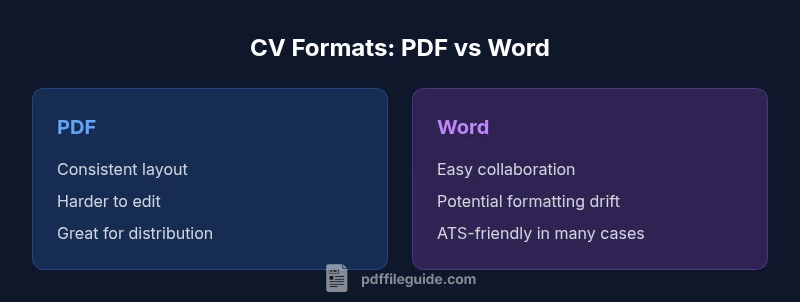
- PDF delivers consistent appearance across devices and printers
- Word supports easy collaboration and quick edits
- PDF can leverage security options and professional embedding
- Word preserves an editable master copy for updates
Disadvantages
- PDF editing is cumbersome; changes require re-export
- Word formatting can drift across platforms and apps
- Some ATS parse PDFs poorly if tagging isn't done
- Word files can reveal tracked changes unless cleaned
PDF is generally the better default for final CV submissions, while Word remains essential for drafts and collaboration
For most job seekers, finalize the CV in PDF to preserve layout and branding, then maintain a master Word version for edits and collaboration. Use Word during drafting and export to PDF before sending to recruiters.
Questions & Answers
Should I always use PDF for CV submissions?
PDF is the safest default for external submissions because it preserves layout and branding across devices. However, if the role requires substantial collaboration or you know the portal accepts only Word, be prepared with a Word version as well.
PDF is generally the safer choice for submitting, but have a Word draft ready for collaboration if needed.
Can recruiters edit distributed CVs?
Recruiters can edit Word CVs easily, but for most external applications, you should provide a final PDF. If you expect feedback, share a Word draft first, then send a PDF once you’ve integrated the changes.
Word is easier to edit, but share final PDFs for submissions.
Do applicant tracking systems read PDFs well?
Many ATS parse text from Word more reliably than PDFs. If your application goes through an ATS, ensure your PDF is properly tagged or maintain a Word version for ATS submissions.
ATS often handles Word better, but a well-tagged PDF can work too.
How should I name my CV file?
Use a simple, standardized convention: LastName_FirstName_CV_Version. This makes updates easy and helps recruiters identify the latest version at a glance.
Name it like Smith_Jane_CV_V2 to keep it clear.
Is it okay to mix formats in job applications?
Yes, you can submit a Word draft to HR for internal review and a PDF for external postings. Just avoid sending two conflicting versions and ensure branding is consistent across formats.
You can use both, but consistency matters.
What about including graphics or logos in a CV?
Graphics and logos can enhance branding in a PDF, but ensure they don’t hinder readability or accessibility. In Word, keep graphics minimal to prevent layout shifts when opened on different devices.
Graphics look great in PDFs, but keep it accessible.
Key Takeaways
- Start with a clean Word master for edits
- Export a polished PDF for external submissions
- Test accessibility and readability in both formats
- Name files consistently for easy versioning
- Adopt a simple, evergreen layout to minimize drift