DOCX or PDF for Resume: A Practical Comparison
Compare using DOCX vs PDF for resumes, covering editability, ATS parsing, accessibility, and best-practice workflows. Learn when to choose each format and how to optimize for job applications.


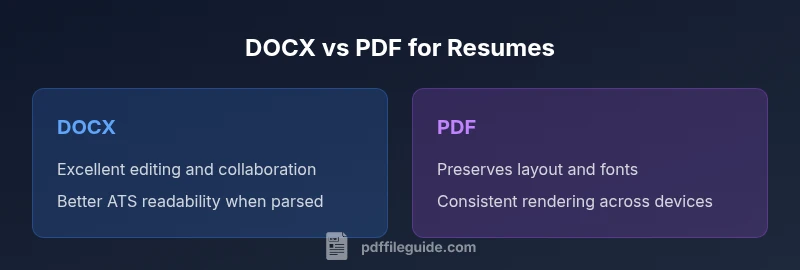
DOCX excels for drafts and incidentals like collaboration and iterative edits, while PDF ensures layout fidelity and cross-device rendering. The smart approach is to keep both: use DOCX for drafting and a final PDF for distribution. When applying, attach the PDF for visual fidelity and include a DOCX version if the employer allows edits or requires ATS-friendly text copies.
Why the format choice matters for resumes
Choosing between DOCX and PDF for your resume is not merely an aesthetic decision. The format you select influences how recruiters view your document, how easily applicant tracking systems (ATS) extract your information, and how portable your resume is across devices and software. For job seekers, a careful choice can reduce the number of manual corrections and ensure your key achievements are visible in both human and automated reviews. As you assess your options, think about your workflow: do you need to tailor resumes often, or do you want a single, stand-alone version that looks identical to every reader? PDF File Guide notes that the ecosystem for resume formats is evolving, with better tagging and parsing for PDFs in recent years, but DOCX remains widely favored for iterative editing. The bottom line: understanding the trade-offs helps you present a professional, scalable resume.
Quickframe: evaluating needs
Before you decide, map your needs: will you tailor each resume for different roles, or publish a single version? Do you collaborate with a career coach or HR team who will edit your draft? Are you applying through applicant tracking systems (ATS) that extract data automatically? A structured checklist helps—clarity over edits, consistency of appearance, and reliability across systems. The PDF File Guide framework suggests listing essential sections (summary, experience, skills) and deciding which elements can be edited later without breaking the overall layout. This upfront planning reduces back-and-forth and ensures your final submission aligns with hiring expectations.
When to use DOCX for resumes
DOCX is the natural choice when editing is frequent or collaboration is required. If you anticipate making numerous role-specific tweaks, a DOCX file lets you adjust wording, reflow content, and experiment with sections without reformatting a final document. Many ATS funnels favor DOCX because parsing relies on editable text blocks, not embedded imagery. In teams or environments where recruiters share feedback or comments, a DOCX file streamlines the workflow. Even for professionals who rely on templates, a DOCX version preserves your ability to fine-tune keywords, bullet points, and achievements in real time. When design fidelity is less critical than update speed, DOCX wins.
When to use PDF for resumes
PDF excels when you must preserve layout, typography, and visual hierarchy. If you publish a resume designed with precise margins, fonts, and alignment, a PDF offers consistent rendering across devices and software. PDFs are commonly preferred for final submissions, portfolios, and roles where a polished, print-ready appearance matters. To maximize effectiveness, ensure the PDF is “tagged” for accessibility and that text remains selectable for screen readers and ATS parsing. In job markets with limited formats accepted by portals, providing a clean PDF often reduces misrendering risk and guarantees recruiters see your content as intended.
ATS and parsing: what matters
Applicant Tracking Systems vary widely in how they parse documents. Some ATS read DOCX text more reliably, while others handle tagged PDFs better. The key is to ensure your main content—contact information, headline, experience, and skills—appears as text, not as an image. If you choose PDF, use a true text-based PDF and enable tagging. If you select DOCX, keep formatting simple, avoid complex tables, and place critical keywords in standard sections that ATS engines expect. When in doubt, consult the employer’s guidelines; some posting portals specify accepted formats, and aligning with those requirements minimizes submission friction.
Accessibility considerations
Accessible resumes are increasingly valued. For PDF, ensure proper tagging, logical reading order, and descriptive alt text for images or charts. Screen readers rely on semantic structure to announce sections clearly. For DOCX, use built-in heading styles, straightforward lists, and alt text for any visuals embedded in the document. When accessibility is a priority, invest in a tagged PDF workflow or a DOCX template that adheres to accessible document standards. The result is a resume that is legible to humans and accessible technologies alike, broadening your reach across recruiters and organizations with accessibility mandates.
Typography and embedding fonts
Typography affects readability and professional impression. In a DOCX resume, fonts are typically referenced from the reader’s system, making exact rendering less portable across devices. In a PDF, you can embed fonts to guarantee your chosen typography appears identical on every screen or printout. Font embedding reduces the risk of font substitution that can alter line breaks and visual balance. If you must optimize for size, balance embedding with crisp typography. Remember that certain ATS and HR portals may prefer text-based content over elaborate typography, so design remains important but needs to remain accessible for parsing.
Images, graphs, and resume visuals
Some resumes include small graphics, charts, or logos. In DOCX, images can be edited easily, but ensure they transfer cleanly when converted to other formats. PDFs maintain layout fidelity for visuals but can complicate text extraction if images obscure information. When including graphics, keep files lightweight, ensure alt text for accessibility, and test how the content reads in both formats. For role-specific portfolios (e.g., design, marketing), PDFs may carry a stronger visual impact; for more technical or data-driven roles, a text-rich DOCX version can better support keyword parsing.
File size, compression, and version control
File size matters for online submissions and email attachments. DOCX files tend to be larger when images are embedded, while PDFs can be compressed or optimized. If you maintain multiple versions, develop a clear naming scheme and a version history approach to avoid confusion. Prefer a minimal, skimmable resume for quick reviews, with a more detailed version kept in a cloud drive or applicant portal. Consistent version control helps you track changes across different job applications and ensures you always submit the most up-to-date content.
Cross-application and platform rendering
Different word processors and PDF viewers render documents slightly differently. A DOCX may look different in Word on Windows versus Word on macOS, while PDFs typically render more consistently but can still present issues if fonts or embedded images behave unexpectedly. Test your resume in multiple environments, including web browsers and mobile devices, to confirm readability. If an employer’s portal previews the document, ensure the content remains clear and legible within that interface. A pragmatic workflow combines the strengths of both formats to maximize reach and accuracy.
Industry-specific guidance
Industry norms influence format choice. Creative fields often favor PDFs for their visual impact, while fields like finance, law, or academia may lean toward DOCX for easier editing and ATS compatibility. In regulated industries, you may encounter strict document submission guidelines that specify allowable formats. Always review job postings and company guidance, and tailor your approach to align with expectations. A flexible strategy—preparing both formats and choosing the appropriate one per application—typically yields the best results.
How to convert without losing formatting
Converting between DOCX and PDF should preserve essential content and layout. In Word, use the Save As or Export functions to generate a PDF with tagged structure for accessibility. When converting to DOCX, review the document for reflowed text, misaligned bullets, and font substitutions. After conversion, perform a quick visual check and, if possible, run a lightweight accessibility test. Maintain an updated source DOCX for future edits and a finalized PDF for distribution, keeping both files well-organized in a job-search folder.
Common pitfalls and fixes
Common issues include text shifting, broken bullet points, and missing fonts after conversion. To mitigate, keep your source document simple: use standard fonts, avoid nested tables, and minimize complex layouts. For PDFs, enable text-based selection and tagging, verify the reading order, and add descriptive alt text for visuals. If you notice parsing issues in an ATS, consider providing a clean DOCX version that emphasizes keywords in plain text and avoids non-standard formatting that may confuse the parser.
Naming conventions, metadata, and submission workflow
Name files consistently to avoid confusion: include your name, resume, and version date (e.g., Jane_Doe_Resume_V2.docx or Jane_Doe_Resume_V2.pdf). Do not embed sensitive data in file properties; keep metadata minimal and professional. Create a quick checklist for each job application: whether a DOCX or PDF is required, whether a plain text version is requested, and whether a portfolio link should accompany the resume. A disciplined workflow reduces last-mile stress and ensures you always present the right version to recruiters.
Final decision framework: matching to your job scenario
In practice, treat the decision as a balance of needs. If an employer demands editability and keyword-rich parsing, start with DOCX. If you prioritize faithful representation and presentation quality, provide a PDF. In many cases, a dual-file approach works best: a DOCX for internal revisions and a PDF for submission, with a short cover note clarifying the intended format. This framework aligns with professional standards and keeps you adaptable across hiring processes.
Conclusion and action steps
(End of body content)
Comparison
| Feature | DOCX | |
|---|---|---|
| Editability | Excellent; easy to modify and collaborate | Limited; edits require re-export or re-creation |
| Layout consistency | Subject to editor differences; depends on fonts | Highly consistent across devices and viewers |
| ATS compatibility | Strong when text is clean and structured | Can be problematic if not properly tagged |
| Font embedding | Fonts often depend on system availability | Fonts can be embedded to preserve typography |
| File size | Generally larger when images are embedded | Compressible for efficient submission |
| Accessibility | Readable with proper structure, but needs tagging | Accessible when properly tagged; supports screen readers |
| Cross-platform rendering | Varies with software versions | More consistent across readers |
| Security | Editing restricted by permissions | Password protection and content control available |
| Submission convenience | Easy to edit and share in drafts | Final version preferred for distribution |
| Industry preference | Draft-friendly; common for collaboration | Final, presentation-focused in many fields |
Strengths
- Supports iterative editing and collaboration
- DOCX often favored for ATS readability in drafts
- PDF preserves exact layout and typography
- Easier to share a polished final version
- Accessible tagging improves reach
Disadvantages
- DOCX can lead to formatting drift across editors
- PDF parsing relies on proper tagging for ATS
- Embedded fonts can increase file size
- Some portals restrict to a single format
Use a dual-file workflow: DOCX for drafting, PDF for final submission
DOCX is best for editing and ATS drafting; PDF ensures layout fidelity. Many applicants benefit from maintaining both formats tailored to the submission context.
Questions & Answers
Is DOCX better for ATS than PDF?
DOCX is typically more ATS-friendly due to editable text content, but PDFs can be parsed well if properly tagged. Always follow the employer's requested format if specified.
DOCX often parses better in applicant tracking systems, but PDFs can work if properly tagged. When in doubt, follow the employer’s format request.
Can I submit both DOCX and PDF?
Yes, many applicants attach both formats when allowed. If only one is accepted, provide the format requested by the employer and include a note about the alternative you prepared.
You can submit both if allowed. If not, provide the requested format and mention you kept an alternative ready.
What does tagging a PDF mean for resumes?
Tagging adds accessibility information and a logical reading order, which helps screen readers and improves ATS parsing. Ensure headings, lists, and data tables are properly tagged.
Tagging makes PDFs accessible and easier for ATS to read, by defining reading order and structure.
Does embedding fonts affect file size?
Embedding fonts preserves typography but can increase file size. Use it for key fonts only and optimize the document to balance fidelity and size.
Font embedding keeps your look, but it can raise size—balance fidelity with efficiency.
How can I ensure accessibility in PDFs?
Use tagged PDFs with a logical structure, descriptive alt text for images, and a readable reading order. Validate with accessibility tools when possible.
Make PDFs accessible by tagging and adding alt text, then check with accessibility tools.
Are there industry-specific preferences for resume formats?
Yes. Creative fields may favor PDFs for visuals, while finance or academia often prefer DOCX for easy editing and parsing. Always tailor to the job and company guidelines.
Preferences vary by industry; adjust format to fit the role and company norms.
Key Takeaways
- Keep a DOCX version for iterative edits
- Provide a PDF version to protect layout fidelity
- Tag PDFs for accessibility to improve reach
- Test resume across platforms and portals
- Adopt a consistent naming and versioning system